

How to Print a Long Screenshot on A4 (One Page Shrinks Text to 2pt—Where Should You Split It?)
I printed a 1280×6221px web page capture on A4 four ways—whole, equal grid, custom cuts, and trimmed with custom cuts—comparing printed text size and cuts at page breaks.
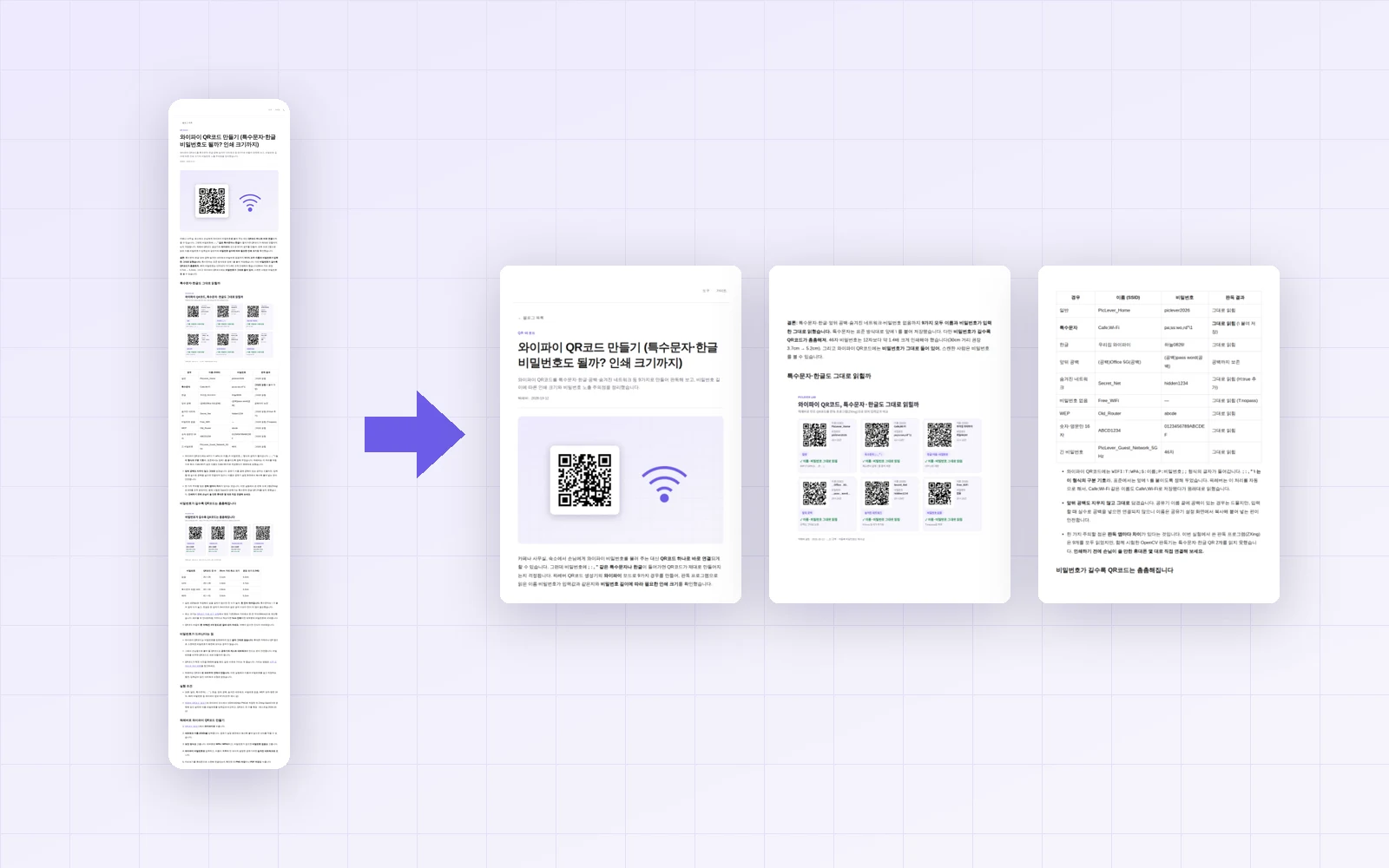
Print a long web page or chat capture and you usually get one of two problems: everything fits on one sheet but the text is microscopic, or you split it across pages and lines get cut in half at the page breaks. I took a 1280×6221px web page capture, split it with PicLever's Image splitter, fitted it to A4 with Images → PDF, and compared four approaches by the printed size of the body text and whether anything gets cut at page breaks.
Bottom line: fitting the whole capture on one A4 page shrank the body text to 2.2pt—unreadable. An equal grid of 4 rows brought it up to 7.3pt, but 2 of the 3 split lines cut through a figure and a line of text. Custom cuts placed in blank space produced the same 4 pages with nothing cut, and also trimming the side margins raised the text to 11.3pt, like a normal document, at the cost of 6 pages.
4 ways to print a long screenshot on A4
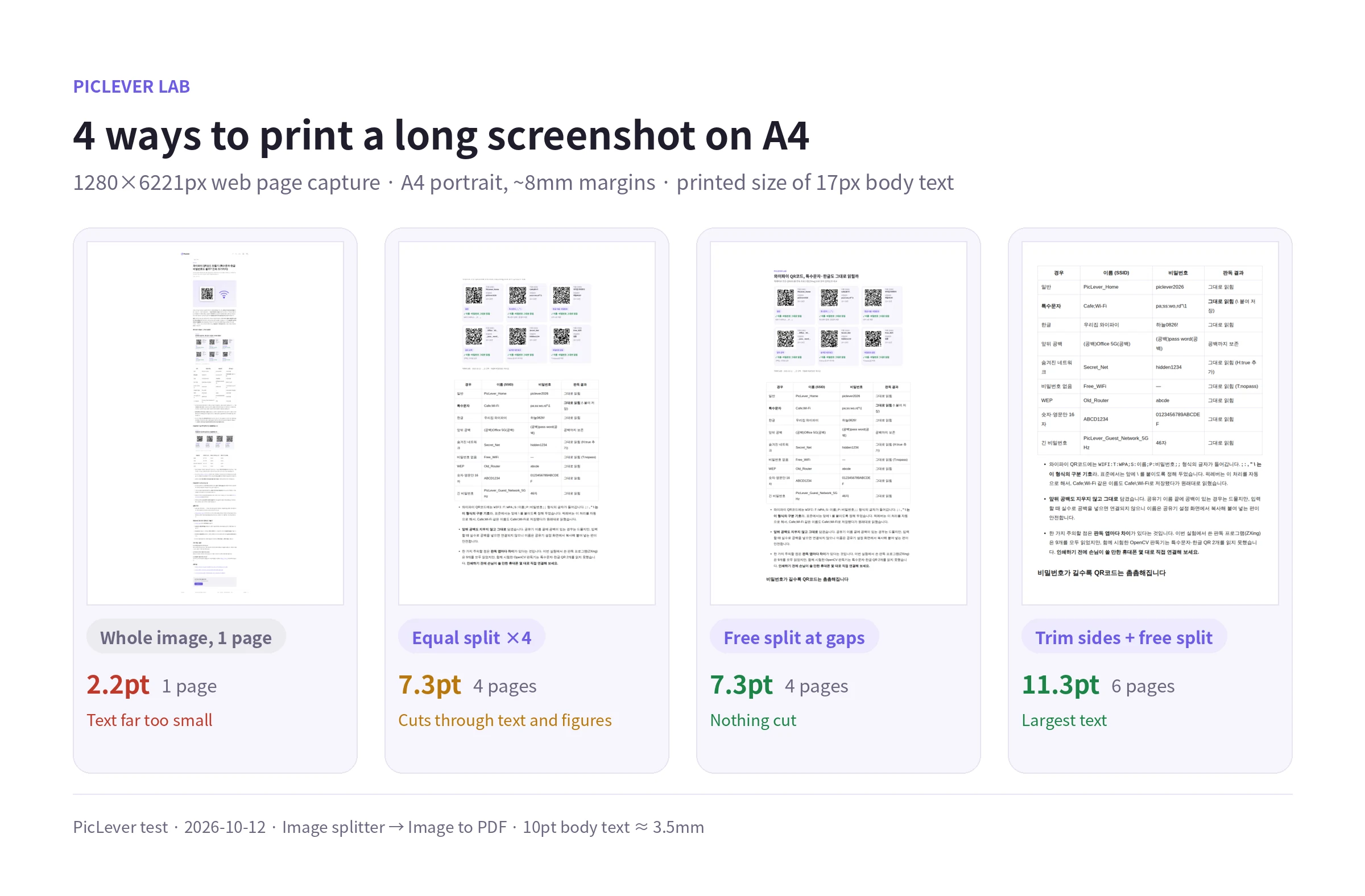
| Approach | Pages | Body text (17px on screen) | Cut at page breaks |
|---|---|---|---|
| Whole image, 1 page | 1 | 2.2pt (0.8mm) | — |
| Equal grid (4 rows) | 4 | 7.3pt (2.6mm) | 2 of 3 |
| Custom cuts (3 in blank space) | 4 | 7.3pt (2.6mm) | None |
| Trim sides + custom cuts | 6 | 11.3pt (4.0mm) | None |
-
A4 is far too short for a tall capture. Fitting the 6221px capture on one page scaled it to the page height, leaving an image only 5.8cm wide.
-
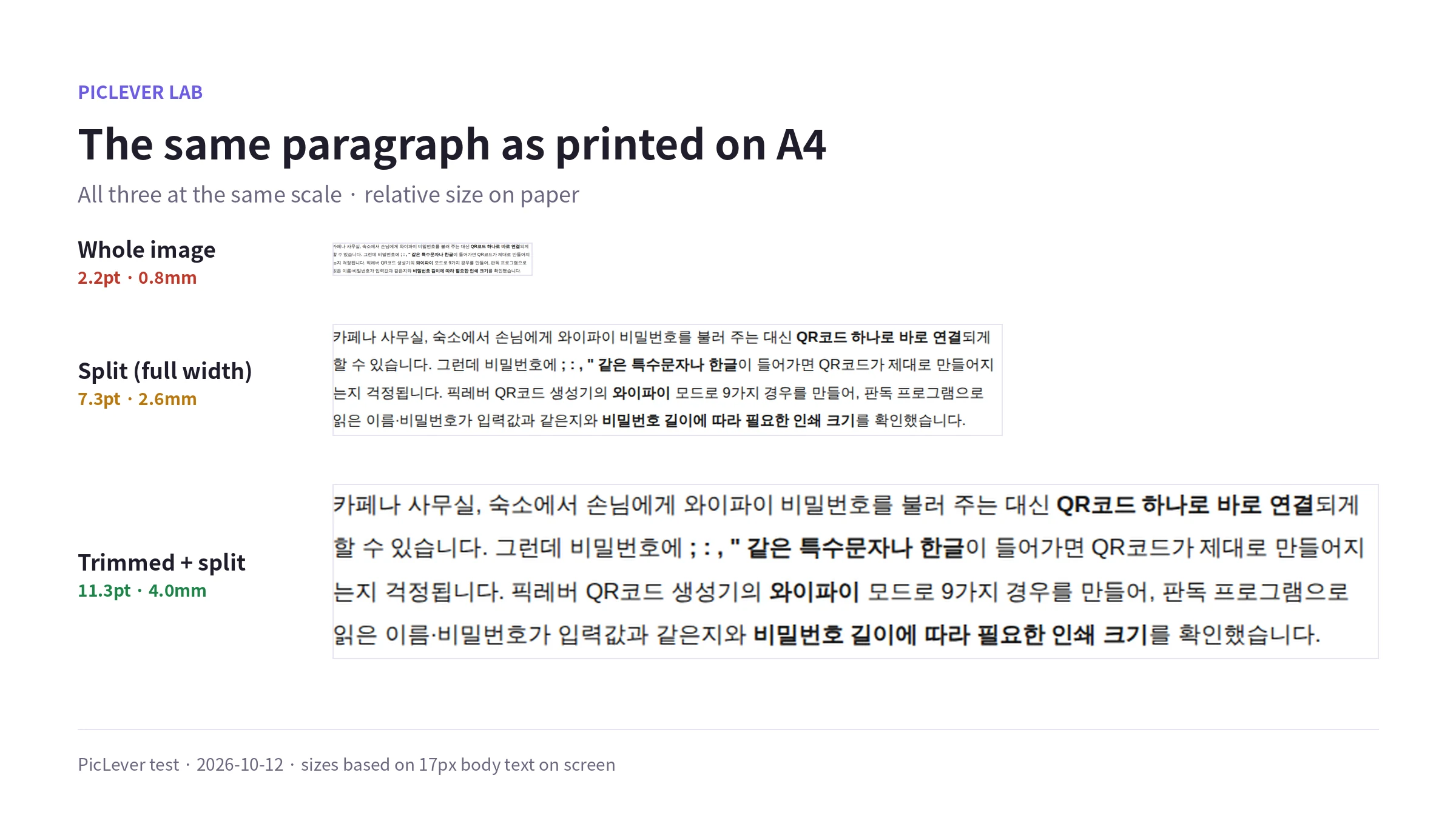
Split into pieces, each one fills the width of the A4 page, making the text 3.4 times larger.
-
Web page captures have wide empty margins beside the content. Here the content was 780px of the 1280px width, so keeping just the content column (820px) enlarged the text another 1.6 times—slightly larger than typical document body text (10pt, about 3.5mm).
An equal grid can cut lines in half
-
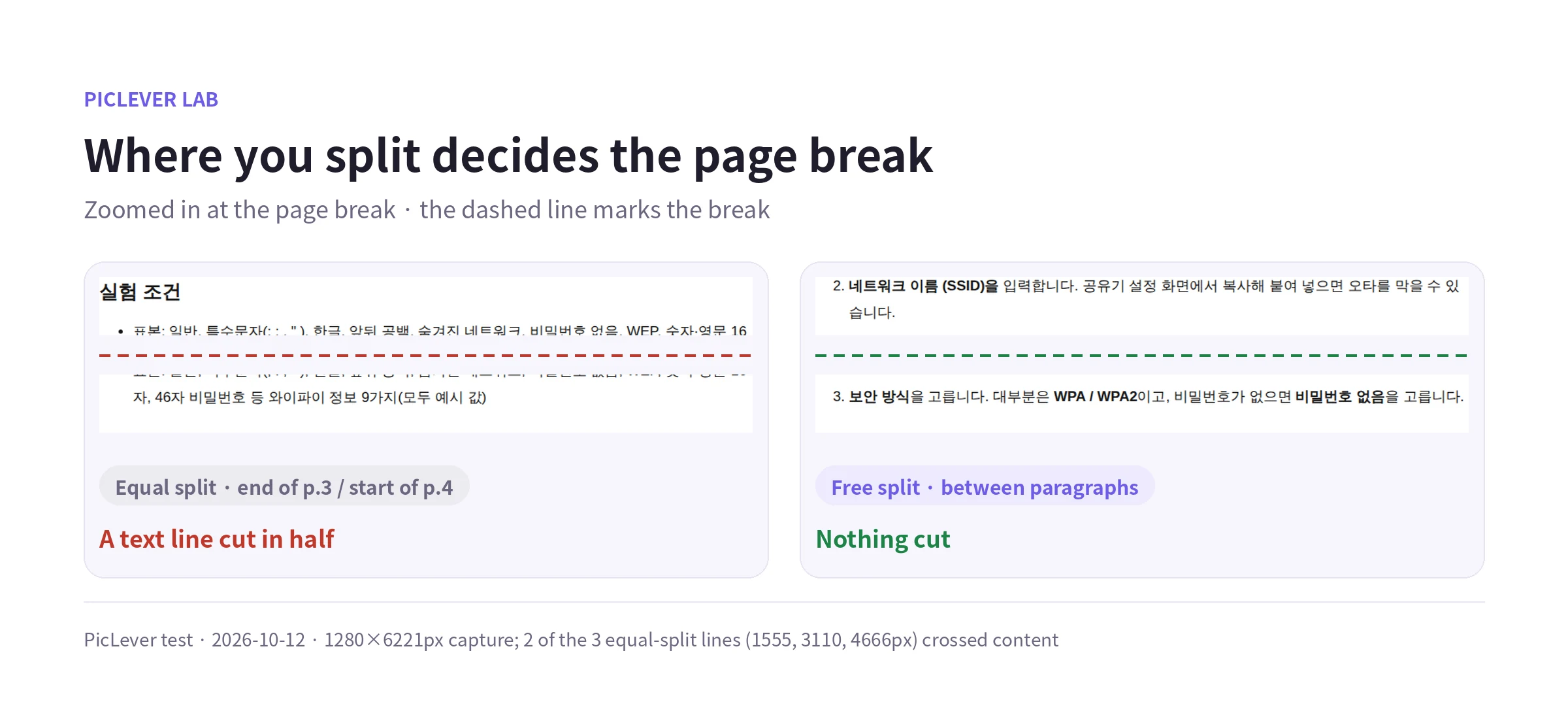
An equal grid divides the height evenly, so the split lines ignore the content. In this capture, the line at 1555px ran through a figure and the one at 4666px ran through a line of text, printing half of that line on each page.
-
With custom cuts, placing horizontal lines in the blank space between paragraphs means nothing gets cut. Drag the lines or type their position in px, and nudge them 1px at a time with the arrow keys.
-
Keep each piece's height to about 1.45 times its width or less—the tallest piece that fits when it fills an A4 page with 8mm margins. That's 1854px for a 1280px-wide image and 1186px for 820px.
Before you print
-
In Images → PDF, choose A4, portrait and normal margins, and each piece goes on its own page with its proportions kept. Short pieces are centered on the page.
-
When printing, set the printer to actual size or 100%. "Fit to page" can shrink it a little more to allow for margins.
-
The Image splitter accepts very long captures: up to 30,000px tall and 32 million pixels in total.
Test setup
-
Sample: a full-page capture of a PicLever blog post on a desktop screen (1280px wide), 1280×6221px PNG, 17px body text
-
Trimmed the side margins to 820px with PicLever Image crop, split with the equal grid (4 rows) and custom cuts in the Image splitter, made A4 portrait PDFs with normal margins in Images → PDF, and calculated printed text size from the image placement · Tested 2026-10-12
Splitting a long capture onto A4 pages with PicLever
-
If there's wide empty space beside the content, crop to the content column in Image crop.
-
Add the capture to the Image splitter and choose Custom cuts. Remove the vertical line and place horizontal lines in blank space between paragraphs, keeping each piece's height to 1.45 times its width or less.
-
Keep PNG as the output format, click Generate pieces, then download them all as a ZIP.
-
Add the pieces in order to Images → PDF, choose A4 and Portrait, then click Create PDF.
-
Open the PDF and print at actual size (100%).
FAQ
Q. What about a wide capture?
Switch the orientation to Landscape in Images → PDF, and keep each piece's height to about 0.7 times its width.
Q. I want to combine several PDFs into one.
Combine existing PDFs with How to Merge PDFs.
Q. I want to mark up the capture before printing.
Add arrows and text before splitting. For text size, see How to Add Arrows and Text to a Screenshot.
Related posts
-
How to Combine Multiple Photos into One PDF (7.8MB of Phone Photos → 1.3MB, Text Sharpness Compared)
-
How to Add Arrows and Text to a Screenshot (What Text Size Stays Readable on a Phone?)
-
Naver Smart Store Detail Page Image Specs: 860px Width, Text Size and Splitting
-
How to Merge PDFs (Combine Files, Set the Order, and What Happens to File Size)
-
How to Join Screenshots into One Image (How Many Fit, and Which Format Is Smallest?)