

How to Split a Long Image (Does a 10,000px Product Page Load Faster in Pieces? Seams, Size and Load Time)
I split an 860×10,000px product page into 3 to 16 pieces and compared file size, seams and phone load time, plus where to cut.
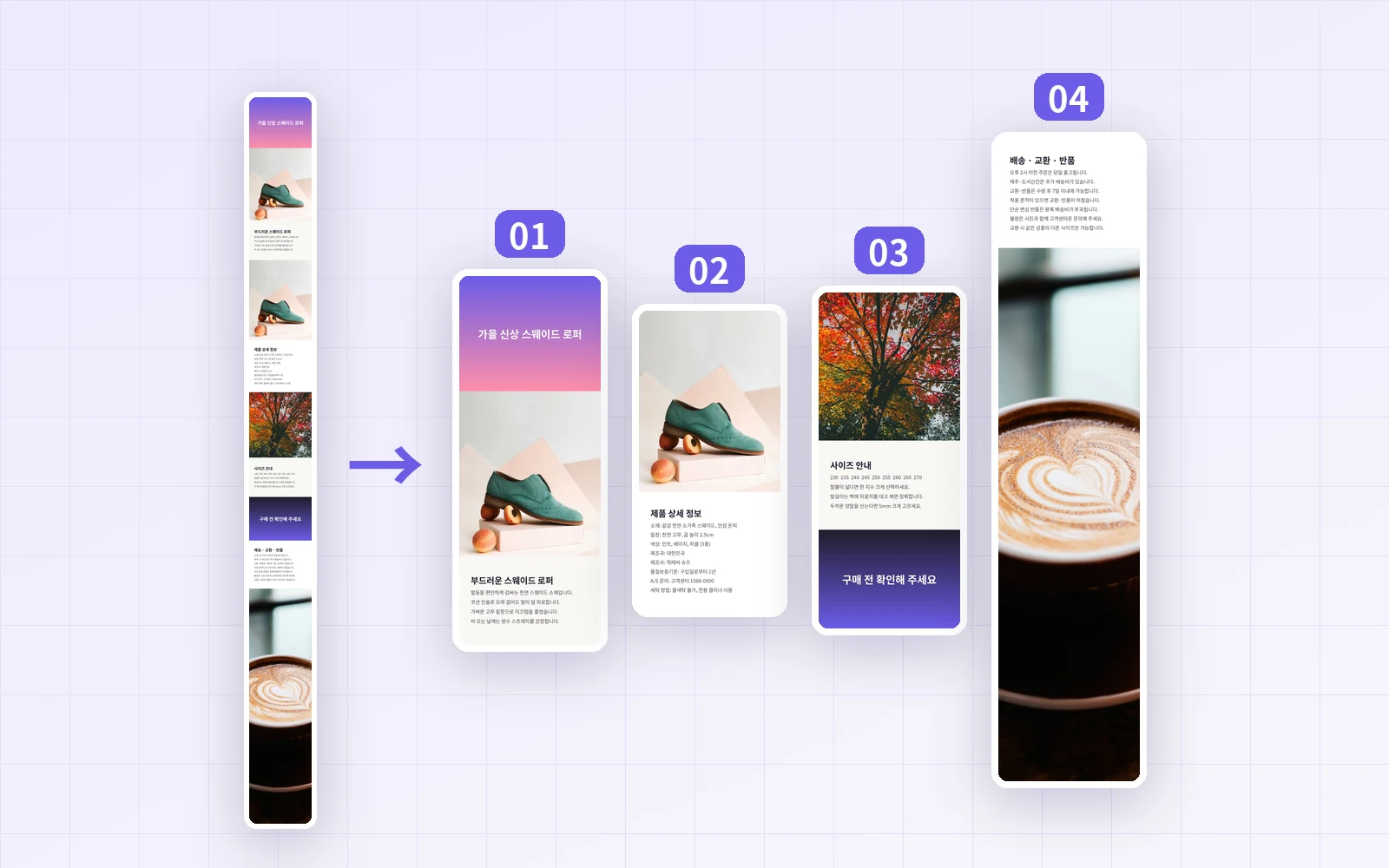
When uploading a product page or a long screenshot, you'll often hear "if it's too long, split it." But does splitting make it load faster? Will the seams show, or the files grow? Using PicLever's Image splitter, I cut an 860×10,000px product page into 3 to 16 pieces and compared file size, seams and phone load time.
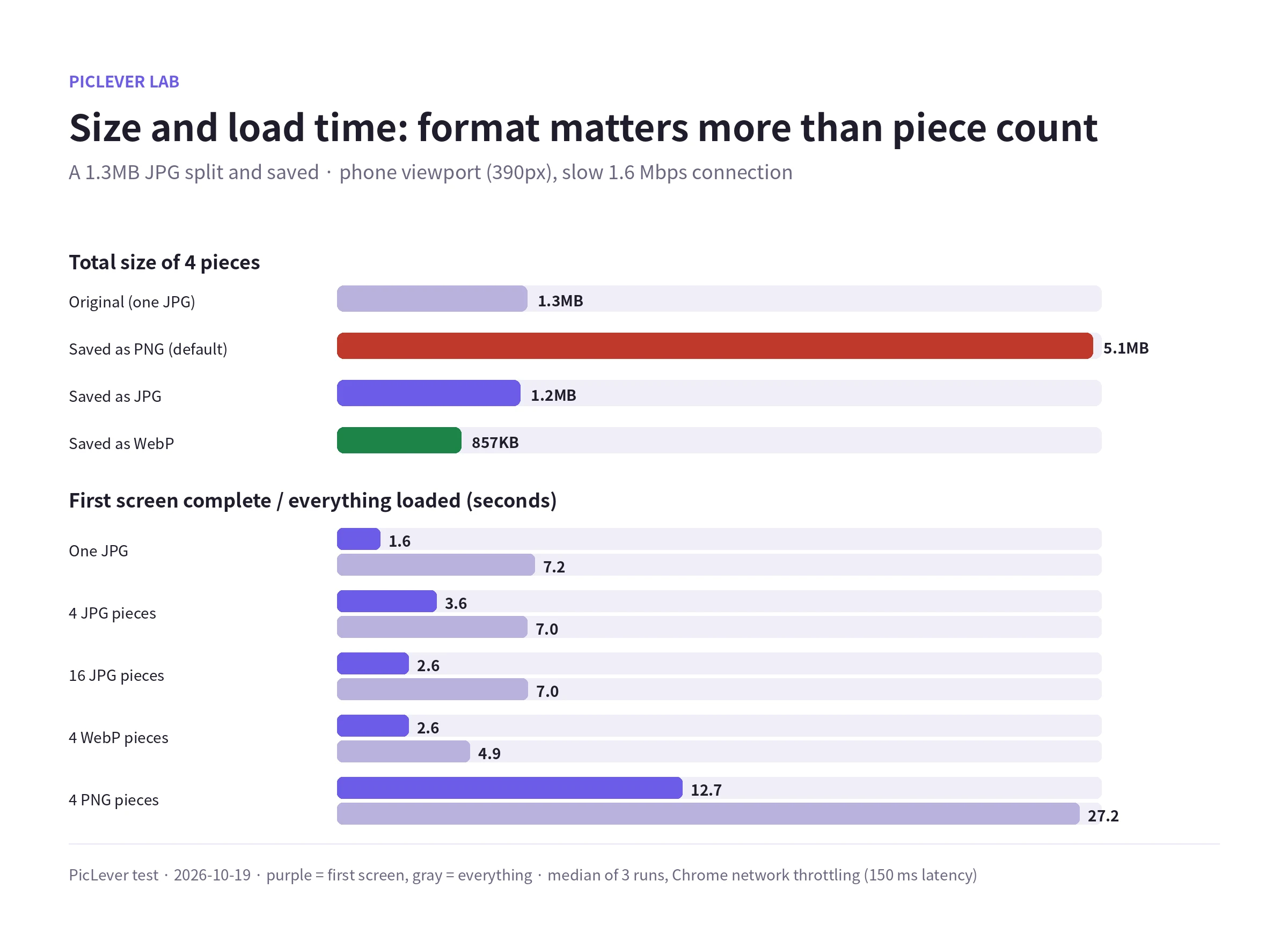
Bottom line: the number of pieces barely changed the total size, and when the pieces were put back together no seams were visible. But splitting didn't make the page load faster. On a slow connection, the first screen of a single JPG appeared in 1.6 seconds; with 4 pieces it took 3.6 seconds. What changed the speed was the output format, not the piece count. Saving as the default PNG turned a 1.3MB JPG into 5.1MB and stretched the full load to 27 seconds, while WebP (857KB) was the fastest.
File size by piece count and format
| Output format | 3 pieces | 4 pieces | 8 pieces | 16 pieces |
|---|---|---|---|---|
| Original (one JPG) | 1.3MB | 1.3MB | 1.3MB | 1.3MB |
| PNG (default) | 5.1MB | 5.1MB | 5.1MB | 5.1MB |
| JPG | 1.2MB | 1.2MB | 1.2MB | 1.2MB |
| WebP | 839KB | 857KB | 861KB | 856KB |
-
Piece count hardly affected size. From 3 to 16 pieces, totals varied by under 0.4% for JPG and 3% for WebP.
-
The default output format is PNG. Splitting a JPG original as-is made it 4× heavier, so for photo-heavy pages switch the output format to JPG or WebP.
-
Saving as JPG compresses once more, but the result stayed above 42 dB PSNR against the original, indistinguishable to the eye.
Do pieces load faster?
| Upload | First screen complete | Everything loaded |
|---|---|---|
| One JPG | 1.6 s | 7.2 s |
| 4 JPG pieces | 3.6 s | 7.0 s |
| 16 JPG pieces | 2.6 s | 7.0 s |
| 4 WebP pieces | 2.6 s | 4.9 s |
| 4 PNG pieces | 12.7 s | 27.2 s |
-
A single JPG is drawn top-down as it arrives, so its first screen was the fastest. With pieces, the browser downloads several at once and splits the bandwidth, so the first piece finished later.
-
Even with lazy loading for the lower pieces, the first screen of 4 JPG pieces took 2.4 seconds, still slower than one image.
-
The full load time was similar regardless of piece count, and only switching to WebP cut it from 7.0 to 4.9 seconds.
Where to cut: equal grid vs custom cuts
| Method | Piece size | Where it cut |
|---|---|---|
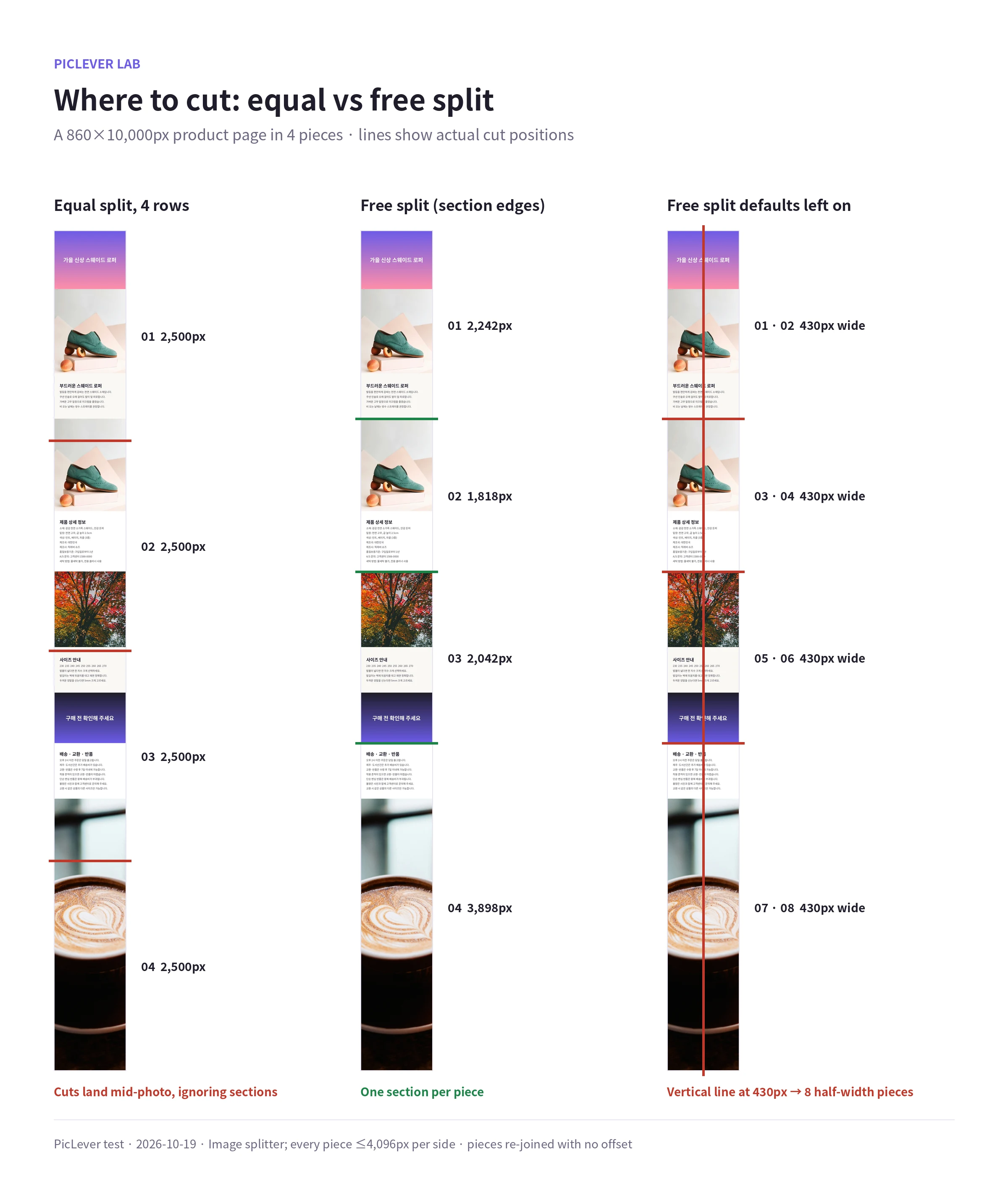
| Equal grid, 4 rows | 2,500px × 4 | Mid-photo |
| Custom cuts (section edges) | 2,242 · 1,818 · 2,042 · 3,898px | Gaps between sections |
| Custom cuts with defaults left on | 430px wide × 8 | Also cut down the middle |
-
Put back together, every method matched the original. PNG pieces were pixel-identical, and with JPG and WebP the areas near seams were no more degraded than anywhere else.
-
An equal grid ignores sections. Of the 29 lines of text in this sample, 8 pieces cut through 1 line and 16 pieces through 2. If you'll later update just one section, custom cuts in the gaps between sections are easier to manage.
-
When you first switch to Custom cuts, there's a vertical cut (at the image center) as well as a horizontal one. Leave it in and you get 8 pieces only 430px wide, so click the vertical cut's × to remove it.
When splitting makes sense
-
4,096px per-side limit: PicLever saves each piece at up to 4,096px per side. A 10,000px image couldn't be saved in 1 or 2 pieces; the default was 4 rows.
-
Upload size limits: split when a store or board limits the size of each image. For Naver Smart Store, see Smart Store Detail Page Image Specs.
-
Sections you update often: keep changing parts like prices or shipping info in their own piece, and replace only that piece.
-
If load speed is the goal: saving as WebP or reducing file size helped far more than splitting.
Test setup
-
Sample: an 860×10,000px product page made from 4 product photos and 29 lines of text (JPG quality 92, 1.3MB)
-
In PicLever Image splitter, split with an equal grid of 3, 4, 5, 8 and 16 rows and custom cuts (2,242 · 4,060 · 6,102px), saved as PNG, JPG and WebP, then measured file size, PSNR of the re-joined image against the original (8px above and below each seam measured separately) and how many text lines a cut crossed · Tested 2026-10-19
-
Loading: a web page stacking the pieces was opened 3 times in Chrome at phone width (390px), throttled to 1.6 Mbps with 150 ms latency; medians reported. "First screen" is when the visible area matched its final look. Real stores vary with their image servers and apps.
Splitting a long image with PicLever
-
In the Image splitter, click Choose image and add your image (up to 20MB and 30,000px tall).
-
For equal pieces, choose Equal grid, set Rows and leave Columns at 1.
-
To cut by section, choose Custom cuts, remove the vertical cut with ×, then use + Add for horizontal cuts and enter their positions (px).
-
Change the Output format to JPG or WebP, click Generate pieces, then Download all as ZIP.
FAQ
Q. Is my image uploaded to a server?
No. Splitting runs on your device.
Q. How are files named?
Each piece gets row and column numbers, like originalname_r01_c01. Sorting by name gives the upload order.
Q. Can I split several images the same way?
In Batch edit, you can apply the same rows and columns to up to 20 images, with cut positions set as percentages.