

Naver Smart Store Detail Page Image Specs: 860px Width, Text Size and Splitting
Smart Store detail pages are designed 860px wide but shrink to about 45% on a phone. Here are the official specs, the text size that stays readable on mobile, and what happens to file size when you split a long detail page.
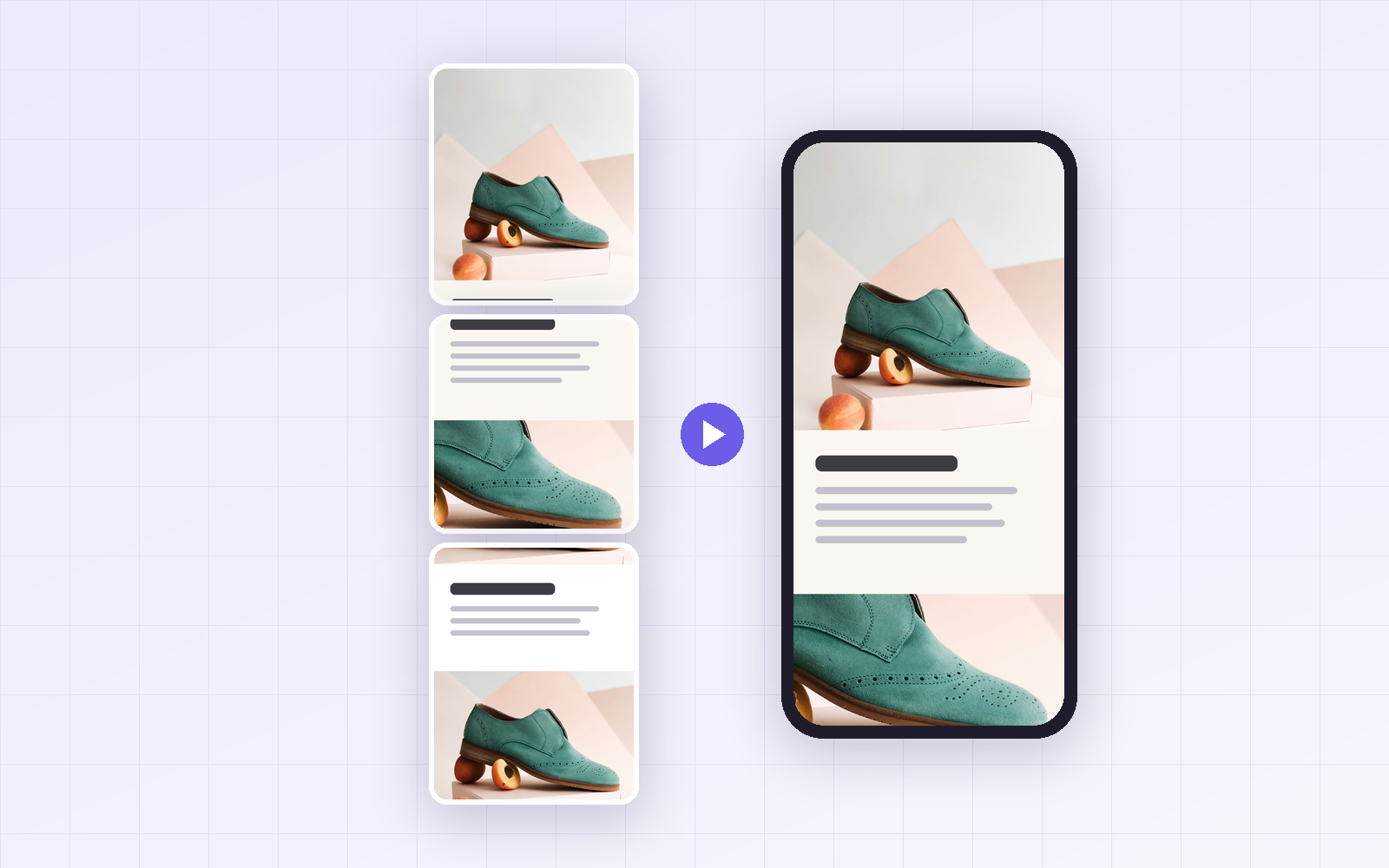
If you sell on Naver Smart Store, the product detail page raises the same questions every time: how wide should it be, how big should the text be, and can a long image go up as one file? I summarized the official guidelines and tested how much an 860px-wide detail page shrinks on a phone, and what happens to file size when you split a long image.
For this example: design the detail page 860px wide and set body text at 30px or larger. At an assumed content width of 390px it shrinks to about 45%, so 30px reads at roughly 14px. Splitting a long detail page into 1,000–2,000px pieces barely changed the total file size (about +1%), and it helps with per-file limits and later edits.
Smart Store detail page image specs
| Item | Spec | Notes |
|---|---|---|
| Detail page width | 860px recommended | Per the Smart Store Center help pages |
| File size per image | Up to 20MB | Larger files won't upload |
| File formats | Check supported formats in the upload interface | The still-image examples here use JPG and PNG |
| Height | Expand-to-view behavior above 4,000px | Official help describes an initial 3,000px display, with the rest available by expanding |
The recommended width, per-image size limit and expand-to-view behavior come from official help. Font sizes and split intervals are production suggestions based on the example below. Check the Smart Store Center help before you upload.
How small does an 860px page get on a phone?
This example assumes an 860px-wide image displayed in a 390px-wide mobile content area. The scale is 390÷860, or about 45%. Actual content width depends on the device, app, margins and zoom settings.
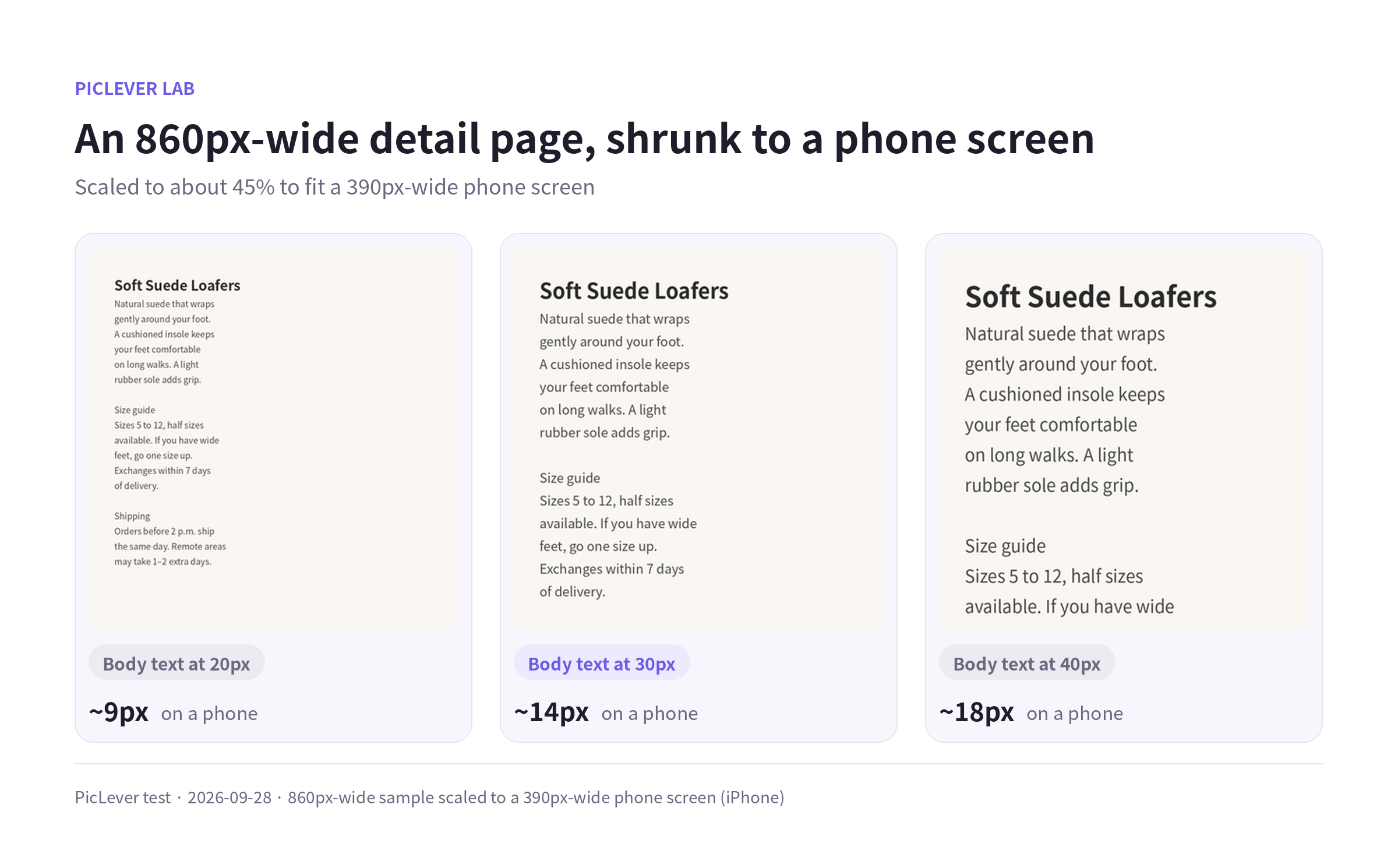
| Size in your design | Size on a phone (390px wide) | Readability |
|---|---|---|
| 20px | About 9px | Need to zoom in |
| 30px | About 14px | Comfortable |
| 40px | About 18px | Large and easy |
Regular body text on a phone is usually 14–16px. So on an 860px detail page, I recommend 30–36px for body text, 40px+ for subheadings and 56px+ for titles. These are starting points, not official font-size rules. Check font, contrast and readability on the actual mobile display and adjust.
Can you split a long detail page?
I saved a tall detail page (860×3305px) as one image and as several pieces, all at JPG quality 90.
| Method | Pieces | Size per piece | Total | vs single |
|---|---|---|---|---|
| No split | 1 | 338KB | 338KB | — |
| Every 2,000px | 2 | 204, 135KB | 339KB | +0.2% |
| Every 1,500px | 3 | 124, 161, 56KB | 342KB | +1.2% |
| Every 1,000px | 4 | 81, 123, 79, 56KB | 341KB | +0.7% |
In this sample, splitting added about 1% to the total. Results can differ with other images and encoders. In return:
-
Splitting can reduce each file size. It does not guarantee files below 20MB; check every exported piece. A long, photo-heavy page can easily exceed it as a single file.
-
Edits are easier. If only the price or size chart changes, you replace just that piece.
-
Seams don't show. When I stitched the pieces back together, the error at the joins was the same as in the single-file version.
When splitting, cut in the gaps between sections, not through text or a product photo. Depending on the screen or editor, a small gap can appear between images, and text cut in half looks awkward.
Test setup
-
Phone comparison: an 860px-wide sample layout scaled down to a 390px-wide phone screen (an example content width, not a specification shared by all iPhone models)
-
Split comparison: an 860×3305px sample detail page built from product photos and text, saved as JPG quality 90 — Photo: Irene Kredenets / Unsplash
-
Tested 2026-09-28
Preparing detail page images, step by step
-
Design at 860px wide. Set body text at 30px or more and subheadings at 40px or more.
-
Split long images at section boundaries. The custom cuts mode in the Image Splitter lets you cut exactly where you want, and it handles images up to 30,000px tall.
-
Pick a format. Use JPG quality 90 for photo-heavy pieces and PNG for pieces with small text or tables. See the JPG vs PNG vs WebP test and the JPG quality test.
-
Check file sizes. If a piece is too large, adjust quality in the Image Compressor. To hit a specific size, see the target file size table.
FAQ
Q. Won't a design wider than 860px look sharper?
The detail page is scaled to fit the screen, so a wider image often just adds file size without a noticeable difference. Sticking to 860px is the safest choice.
Q. Should the main product image (thumbnail) also be 860px?
No. The main image appears in product lists and search results as a square, so it has its own spec. Sellers commonly prepare it at 1:1 with plenty of resolution (for example, 1000×1000px). Use the Image Cropper to crop to a square.
Q. Can I drop in photos straight from my phone?
Phone originals are around 4000px wide, so they're large. Resizing them to 860px wide before adding them to the detail page cuts the file size dramatically with almost no visible difference on screen. The Image Resizer can resize several at once.
Related posts
-
Image Too Large to Upload? Photo Size Settings to Hit 100KB, 300KB or 1MB
-
3 Ways to Reduce Image File Size: Dimensions, Quality or Format First?
-
How to Make a Square Product Thumbnail: Crop vs. Pad, Compared in a Product List
-
How to Add Arrows and Text to a Screenshot (What Text Size Stays Readable on a Phone?)