

How to Add Arrows and Text to a Screenshot (What Text Size Stays Readable on a Phone?)
I annotated a 1920px screenshot with text, a rectangle and an arrow, then measured how big they look in a phone blog column—with a simple rule for readable text size.
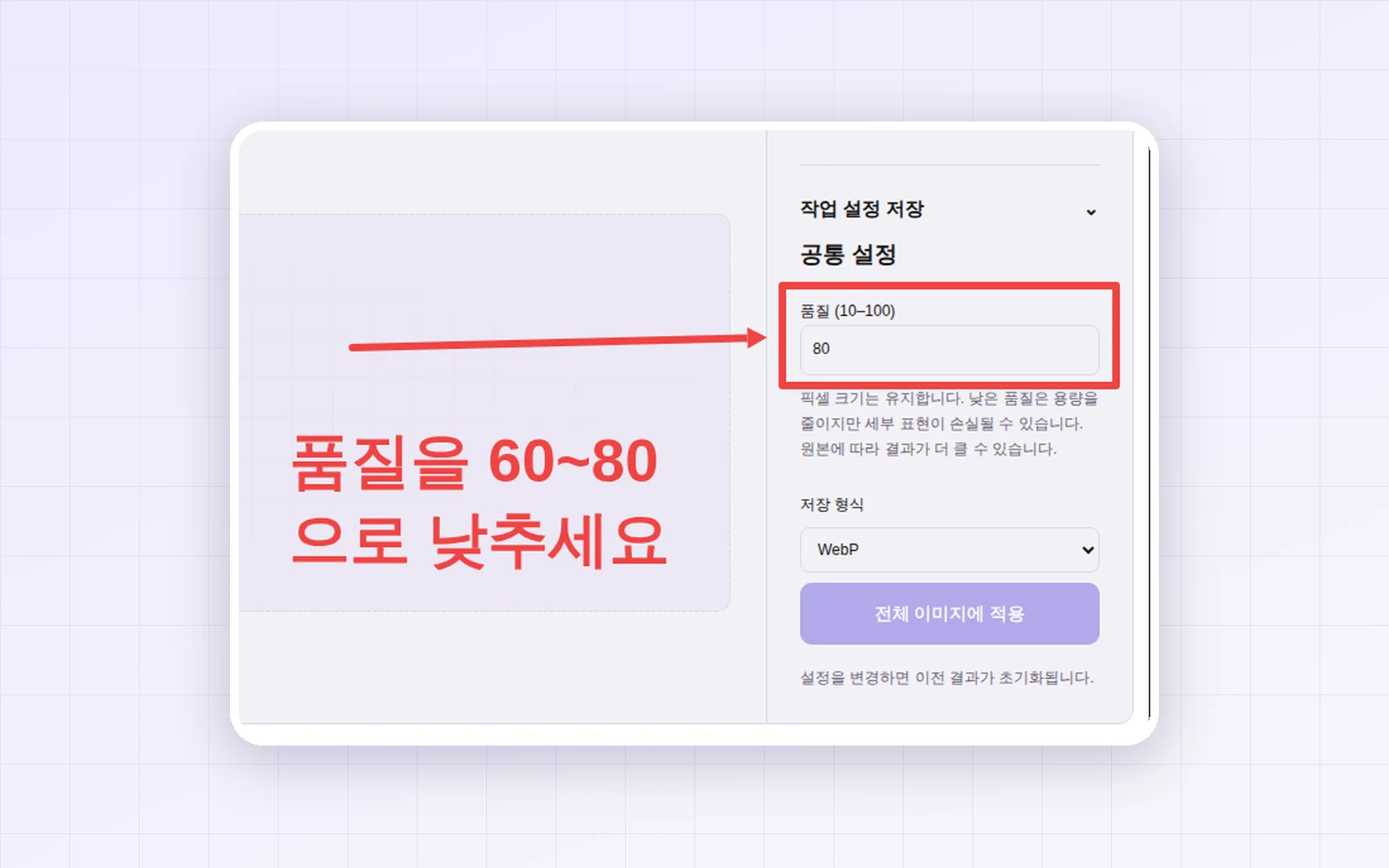
You capture your PC screen and add arrows and text to explain something, but on a phone the text shrinks to a speck and nobody can read it. With PicLever's Decorate images, I added text, a rectangle and an arrow to a 1920×1080px screenshot and checked how big they actually look at a phone blog's content width (320px).
Bottom line: with the defaults (48px text, 6px line) on a full 1920px screenshot, the text looked 8px and the lines 1px on a phone. Enlarging the text to 96px and lines to 16px, or cropping to the relevant part first (721×480px) and keeping the defaults, made the text 16–21px—readable on a phone. The rule that held: text size of at least one-twentieth of the image width (96px for a 1920px image).
How big annotations look in a blog on a phone
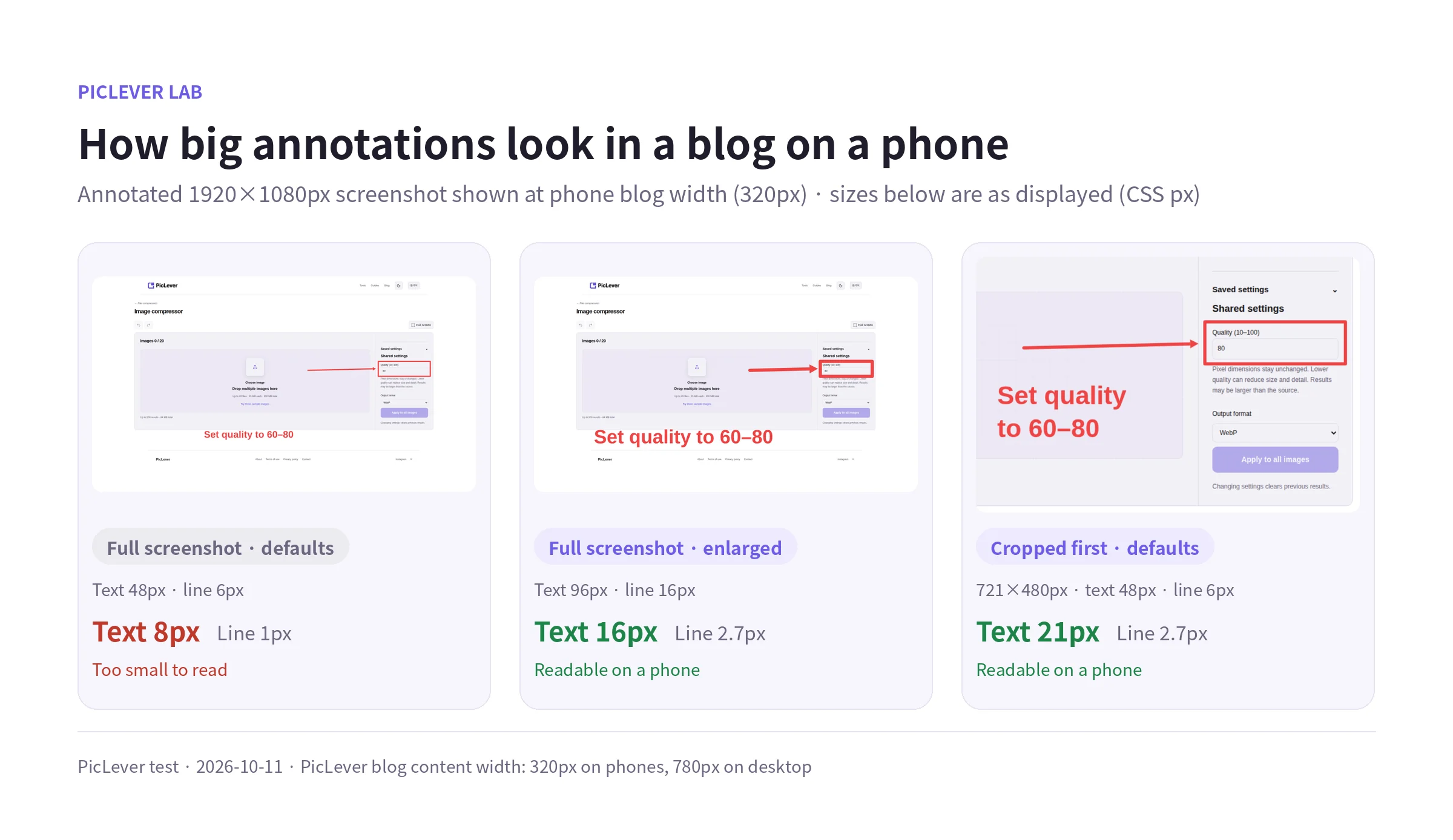
| Approach | Image size | Text · line | Displayed on a phone |
|---|---|---|---|
| Full screenshot · defaults | 1920×1080px | 48px · 6px | Text 8px · line 1px (hard to read) |
| Full screenshot · enlarged | 1920×1080px | 96px · 16px | Text 16px · line 2.7px |
| Cropped first · defaults | 721×480px | 48px · 6px | Text 21px · line 2.7px |
-
Images shrink to fit the screen. A 1920px screenshot in a 320px phone column is scaled to one-sixth, so 48px text becomes 8px. The screenshot's own interface text (around 14px) drops to about 2px and can't be read at all.
-
Cropping first had the biggest effect. Cropping to just the part being explained (721×480px) made default text show at 21px, and the buttons and fields in the screenshot grew along with it.
-
If you must show the full screen, use text of 96px or more and lines of 12–16px. But thick lines easily cover nearby text, so draw rectangles a little larger than their target.
Displayed text size on a phone
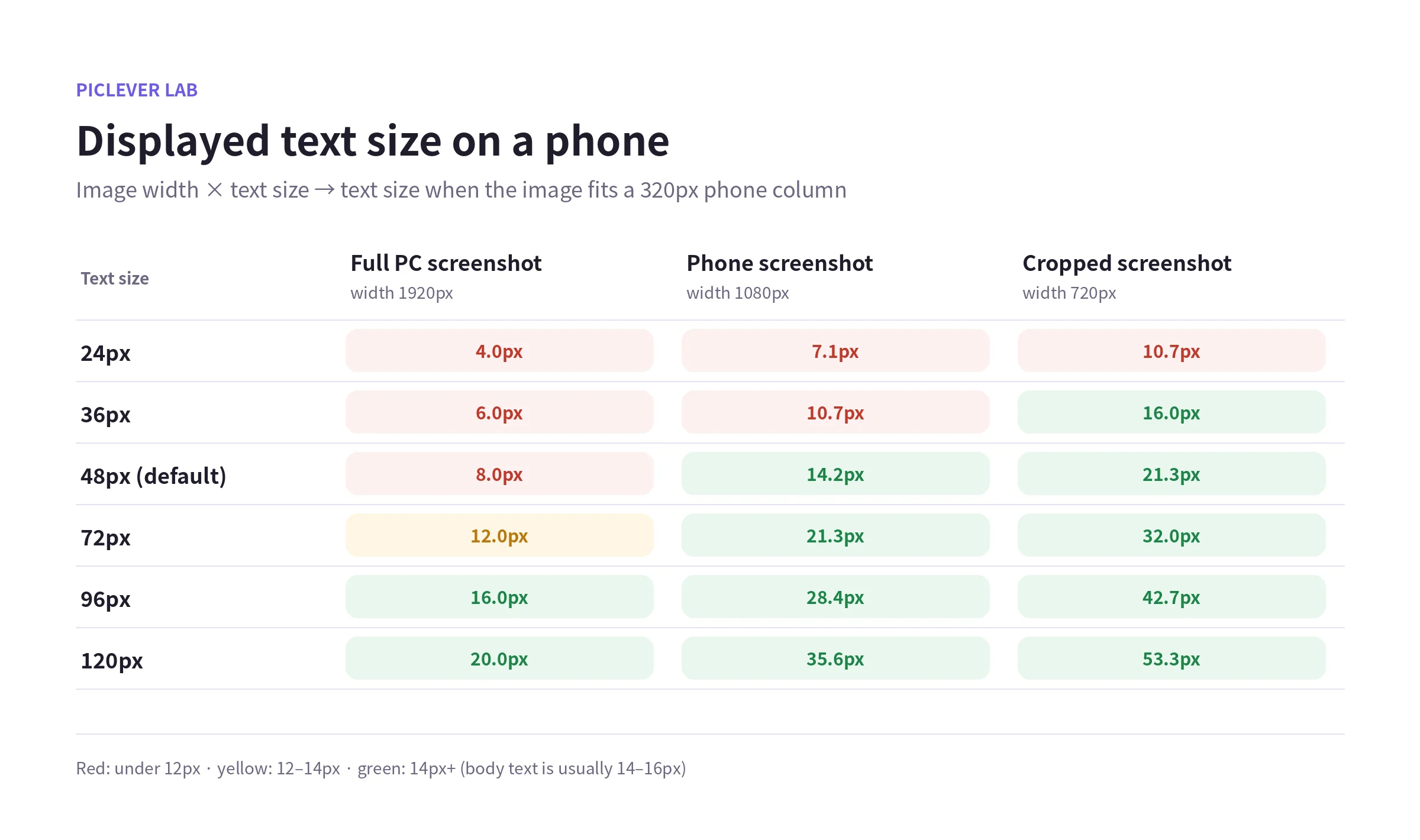
| Text size | Full PC screenshot (1920px) | Phone screenshot (1080px) | Cropped screenshot (720px) |
|---|---|---|---|
| 24px | 4.0px | 7.1px | 10.7px |
| 36px | 6.0px | 10.7px | 16.0px |
| 48px (default) | 8.0px | 14.2px | 21.3px |
| 72px | 12.0px | 21.3px | 32.0px |
| 96px | 16.0px | 28.4px | 42.7px |
| 120px | 20.0px | 35.6px | 53.3px |
-
Displayed size = text size × 320 ÷ image width. Body text is usually 14–16px, so aim for 14px or more.
-
For phone screenshots (1080px wide), the default 48px was enough. PC screenshots need twice the default, or a crop.
-
In a desktop blog column (780px), 48px text on the same 1920px screenshot shows at about 19.5px. That's why a screenshot that looked fine on your PC can be unreadable on a phone.
Tips for annotating
-
Put text in empty space. The Text tool has no background option, so text over the screen's own text makes both hard to read.
-
The default text color is purple (#6254d9). Red (#ef4444) in bold, as in this test, stood out well on a gray interface.
-
For arrows, use the Line tool and change the line type to Filled arrow. Draw rectangles with Shapes.
-
The saved image keeps its size (1920×1080px), with the annotations flattened into it. If there's personal information to hide, use a mosaic too.
Test setup
-
Samples: a 1920×1080px PNG screenshot of PicLever's Image compressor, and a 721×480px crop of the same screenshot
-
Added rectangles, filled arrows and bold red text in PicLever Decorate images, saved them, then displayed them on a 360px-wide phone screen (320px content width, 3× pixel ratio). Text size is in image pixels, confirmed by measuring the rendered text height · Tested 2026-10-11
Adding arrows and text to a screenshot with PicLever
-
If you're explaining only part of the screen, crop that part first with Image crop.
-
In Decorate images, click Choose image and add your screenshot.
-
Draw a rectangle around the target with Shapes, then pick Filled arrow in Line and draw an arrow.
-
Choose Text, set Font size to at least one-twentieth of the image width (96px for 1920px), then click an empty spot and type.
-
Click Save image. For blogs, choose PNG or WebP.
FAQ
Q. Can I move text after adding it?
Use the Select tool to drag text or shapes, or press Delete to remove them. Undo with Ctrl+Z.
Q. I want several screenshots at the same size.
Match their widths with batch edit, as in How to Resize Multiple Photos at Once, so annotations look consistent.
Q. What text size works for product detail images?
See Naver Smart Store Detail Page Image Specs for the standard width and text sizes.
Related posts
-
How to Pixelate Part of a Photo (Hide Phone Numbers and Faces—How Big Should the Mosaic Be?)
-
How to Crop a Photo into a Circle (Round Profile Pictures and Freeform Pen Cuts)
-
Naver Smart Store Detail Page Image Specs: 860px Width, Text Size and Splitting
-
How to Resize Multiple Photos at Once (Batch Resize: 10 Phone Photos from 21.6MB to 3.1MB)
-
How to Print a Long Screenshot on A4 (One Page Shrinks Text to 2pt—Where Should You Split It?)
-
How to Join Screenshots into One Image (How Many Fit, and Which Format Is Smallest?)