

How to Crop a Photo into a Circle (Round Profile Pictures and Freeform Pen Cuts)
I cropped photos into circles and freeform shapes with PicLever's Image crop, comparing transparency and file size by format (PNG, WebP, JPG and more) and pen cuts with 10, 25 and 60 points.
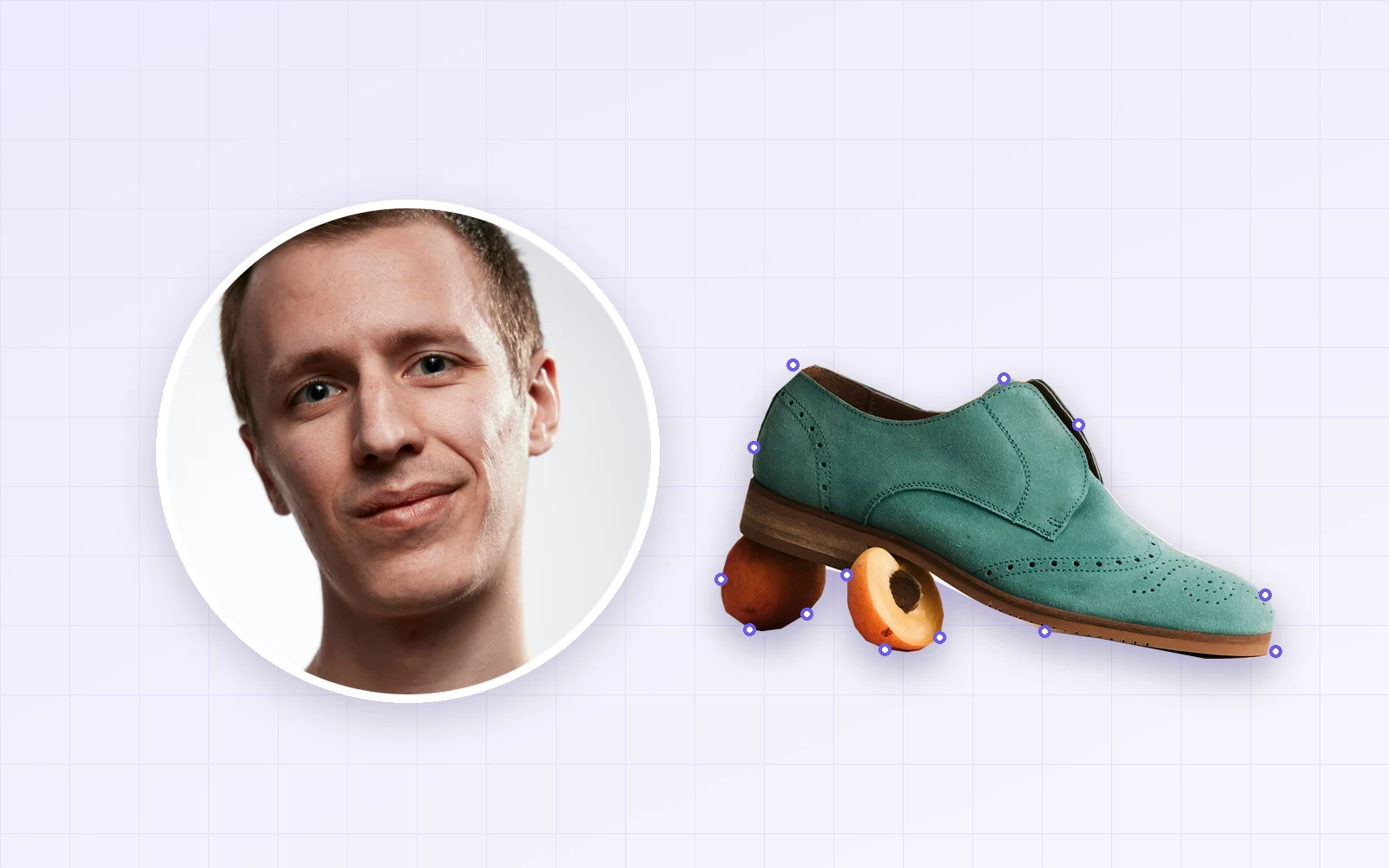
Sometimes you want a round profile picture, or just the product cut out along its shape to drop into a slide. With the Circle / ellipse and Pen cut modes in PicLever's Image crop tool, I cropped a portrait and a shoe photo, then checked what happens to the area outside the shape in each save format and how many pen points you need for a clean cut.
Bottom line: a circle crop saved as PNG, WebP, TIFF or PDF kept the outside transparent, while JPG and BMP filled it with white. For a transparent circle, WebP was 230KB—one-tenth of PNG (2.3MB). The pen tool joins your points with straight lines, so on the shoe photo 10 points cut away 14.5% of the shoe and fruit, 25 points 2.4%, and 60 points just 1.0%.
Circle crops by save format
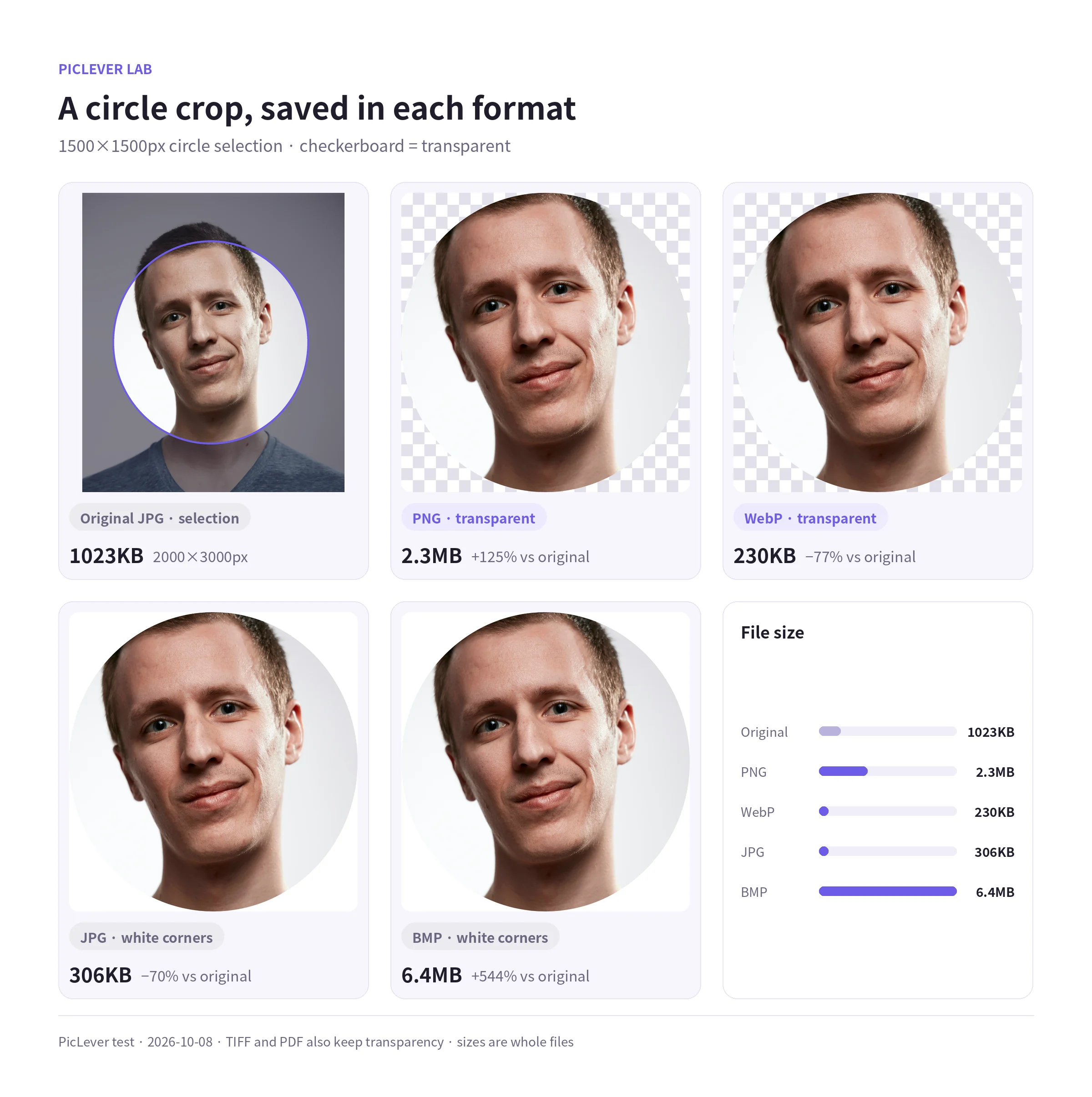
| Save format | Outside the circle | File size (1500×1500px) |
|---|---|---|
| Original JPG (2000×3000px) | — | 1,023KB |
| PNG | Transparent | 2,304KB |
| WebP | Transparent | 230KB |
| JPG | White | 306KB |
| BMP | White | 6,592KB |
| TIFF | Transparent | 8,789KB |
| Transparent (shown on a white page) | 2,450KB |
-
The result is the rectangle that encloses your circle (1500×1500px). Its four corners are filled with transparency or white.
-
The circle's edge is smoothed (anti-aliased) with no visible stair-stepping. Semi-transparent pixels made up 0.2% of the image—about one pixel along the edge.
-
Save round photos for web pages or slides as WebP or PNG. JPG adds white corners, so the photo looks square on anything but a white background.
-
Inside the circle, PNG matched the original (PSNR 63dB after color conversion), and JPG and WebP scored 43.6 and 43.8dB against PNG—hard to tell apart by eye.
Making an exact circle
-
Dragging alone can leave the sides 1–2px apart, like 1502×1501px. Enter the same number (e.g. 1500) in Width and Height on the right and click Apply size for an exact circle.
-
Apply size grows or shrinks the selection from its top-left corner. Changing a 1500×1000px ellipse to 1500×1500px extended it downward only, so check the position afterwards.
-
With Keep ratio on, changing the width changes the height in proportion.
Pen cut: how many points do you need?
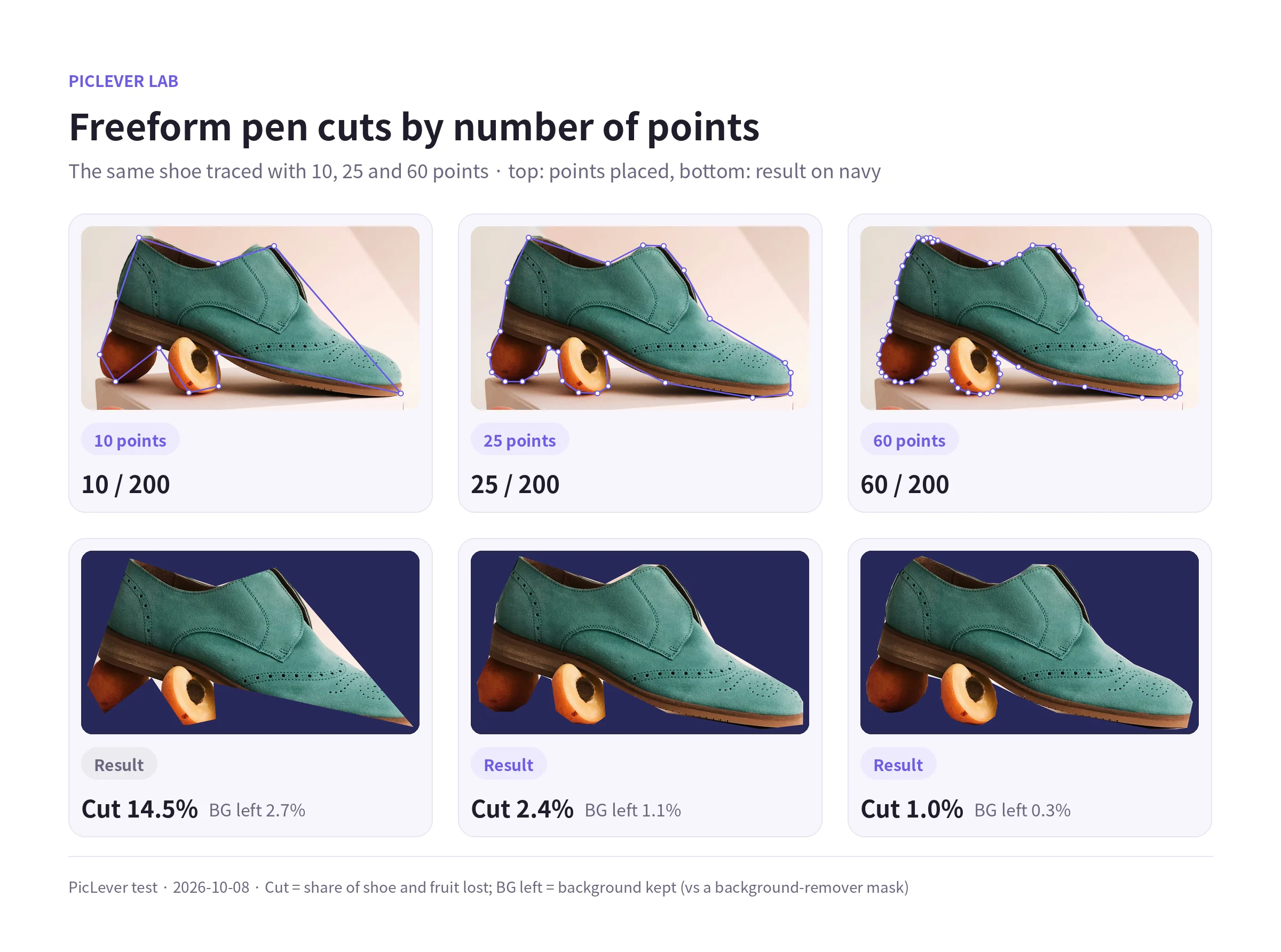
| Points | Shoe and fruit cut off | Background left | Result size |
|---|---|---|---|
| 10 | 14.5% | 2.7% | 2314×1196px |
| 25 | 2.4% | 1.1% | 2316×1230px |
| 60 | 1.0% | 0.3% | 2316×1228px |
-
The pen tool joins your points with straight lines. With too few points, curves get shaved into corners and background slips in between points.
-
For a rounded object like this shoe, about 25 points were barely noticeable at thumbnail size. For a photo you'll show large, adding more points along the curves—about 60—gave a cleaner cut. You can place up to 200 points.
-
The result is the rectangle around your points, and the outside follows the same rule as circles (transparent in PNG and WebP, white in JPG).
-
You can drag points to adjust them and undo one at a time with Ctrl+Z. Zooming in before placing points helps you follow the edge more closely.
Pen cut or background remover?
-
For complex edges like hair or fur, the Background remover is faster.
-
When the background remover keeps objects touching your subject, or you want only a specific part, the pen tool is more precise. To keep the shoe and drop the fruit under it, for example, just trace the shoe.
Good to know
-
Color profiles are converted to sRGB. An original with an Adobe RGB profile was saved in sRGB, and the colors on screen looked nearly the same.
-
Social apps like Instagram show profile pictures as circles on their own, so a square crop is all you need there. Circle crops are most useful for slides, product pages and designs that need a transparent background.
Test setup
-
Samples: a portrait on a light background (2000×3000px, JPG 1.0MB, Adobe RGB) and a shoe product shot on a stand (3200×4000px, JPG 1.0MB)
-
In PicLever Image crop, saved a 1500×1500px circle as PNG, JPG, WebP, BMP, TIFF and PDF and compared corner pixels, file size and PSNR against the original; traced the shoe with 10, 25 and 60 pen points and measured the overlap with a Background remover mask · Tested 2026-10-08
Cropping a circle or freeform shape with PicLever
-
In Image crop, add your photo (PNG, JPG, WebP or BMP, up to 20MB).
-
At the bottom of the canvas, choose Circle / ellipse or Pen cut.
-
For a circle, drag to select; for an exact circle, enter the same Width and Height and click Apply size. For a pen cut, click along the edge and click the first point again to close the shape.
-
Pick an Output format: WebP or PNG for transparency, JPG for white.
-
Click Create crop, then Download image.
FAQ
Q. My circle crop has white corners.
JPG and BMP don't support transparency, so the outside is filled with white. Change the output format to PNG or WebP.
Q. I just want a square crop for a profile picture.
Choose Rectangle and set the same width and height. See How to Make a Square Product Thumbnail for tips on squaring photos.
Q. I want to keep hair looking natural.
The pen tool draws straight lines, so it can't capture flyaway hair. Use the Portrait detail model covered in How to Remove an Image Background for Free.
Related posts
-
How to Make a Square Product Thumbnail: Crop vs. Pad, Compared in a Product List
-
Instagram Image Size 2026 (Feed 1080×1350 · 1080×1440, 3:4 Profile Grid, Stories 1080×1920)
-
JPG vs PNG vs WebP: I Saved the Same Images in All Three Formats
-
How to Pixelate Part of a Photo (Hide Phone Numbers and Faces—How Big Should the Mosaic Be?)
-
How to Add Arrows and Text to a Screenshot (What Text Size Stays Readable on a Phone?)