

How to Remove an Image Background for Free (Products vs. Portraits, General vs. Portrait Model, Edge Setting)
I removed backgrounds from product, coffee cup and portrait photos with PicLever's General and Portrait detail models. General suited products, Portrait detail suited people, and I compared Edge settings and PNG, WebP and JPG file sizes.
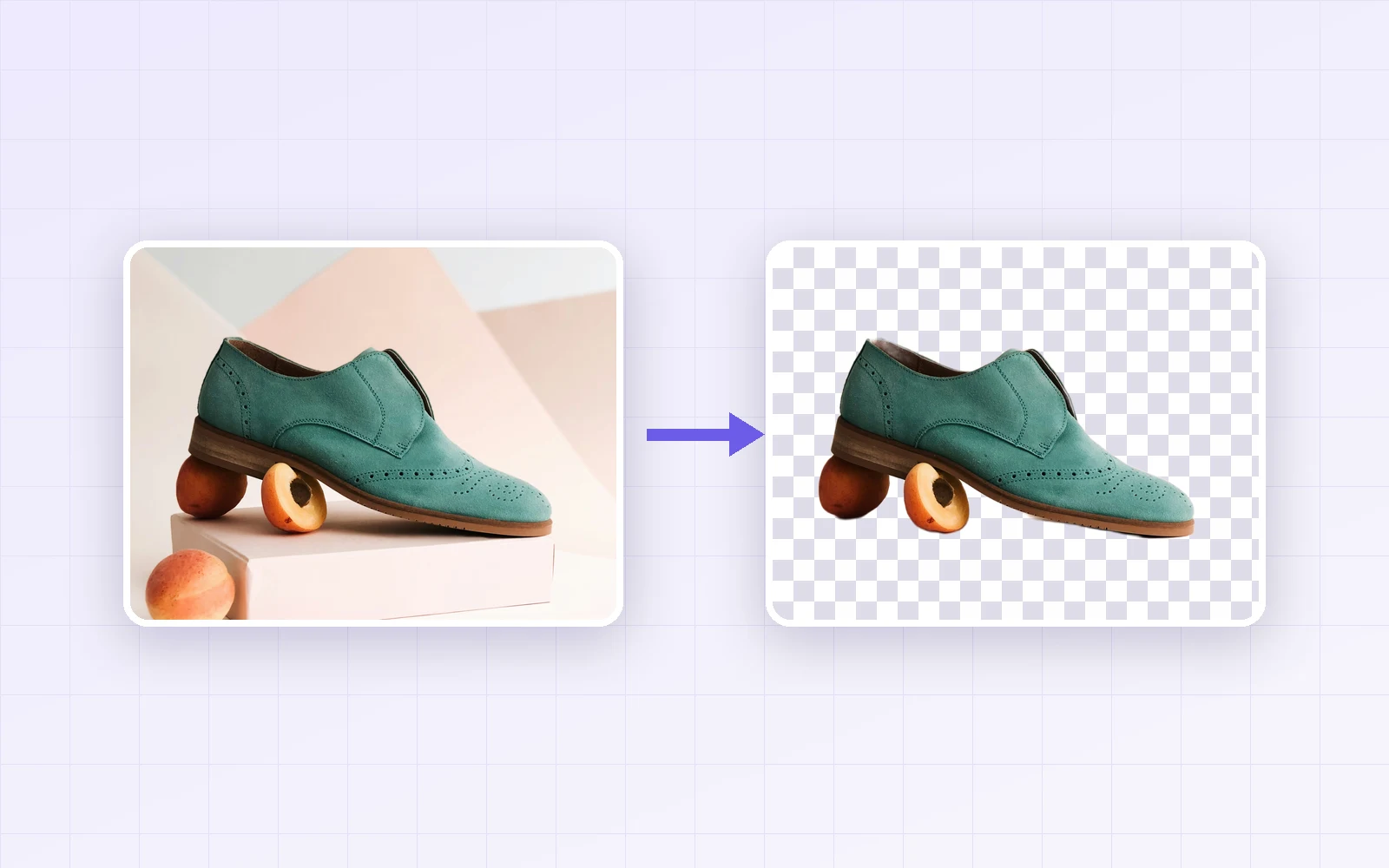
To put a product on a white background or swap the background of a portrait, you first need to cut the subject out of its background. With PicLever's Background remover, I processed 4 photos—a product, a coffee cup and two portraits—with both the "General" and "Portrait detail" models, then zoomed in on hair and edges at Edge settings of 0, 30 and 100. I also measured the file size of each save format.
Bottom line: for products and objects, "General" gave clean results, while "Portrait detail" kept part of the table in the coffee cup photo. For portraits, "Portrait detail" traced the outline more sharply and kept more flyaway hair, but it took about 2.5 times as long and downloads a model of about 44MB on first use. For transparent backgrounds, WebP was one-eighth the size of PNG (3,448KB → 412KB).
Results by photo type
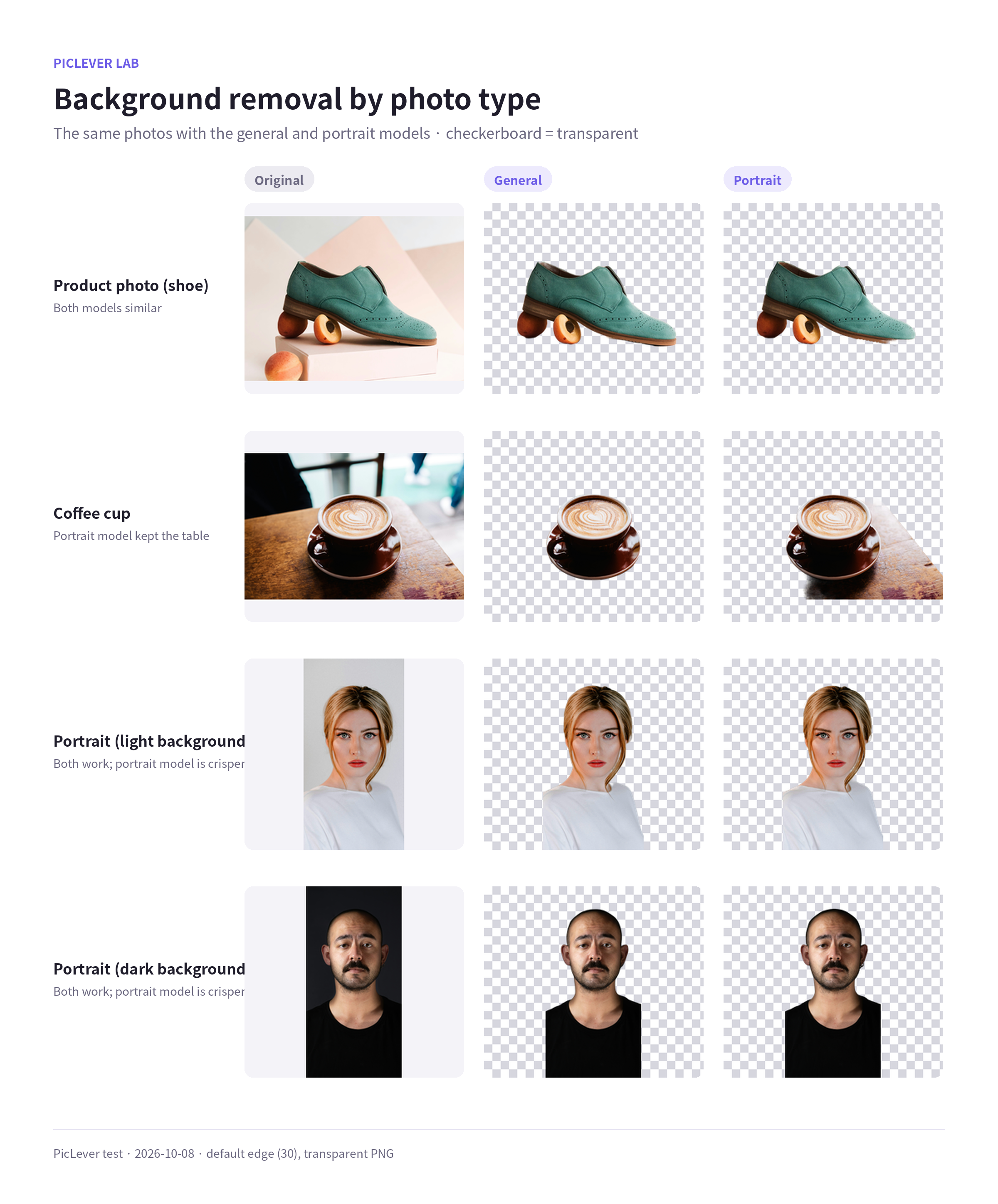
| Photo | General (people, objects, pets) | Portrait detail (hair, shoulders) |
|---|---|---|
| Product (shoe on fruit) | Only the shoe and the fruit under it remain | Almost the same |
| Coffee cup | Only the cup and saucer remain | Part of the table remains (foreground 20% → 38%) |
| Portrait (light background, white top) | Separated; edges slightly blurry | Separated; more flyaway hair kept |
| Portrait (dark background, black top) | Separated; edges slightly blurry | Separated; crisper edges |
-
Start with "General" for products, food and objects. "Portrait detail" is tuned for people, so in photos without a person it may treat nearby background as part of the subject.
-
Both models found the edge even when colors were close, such as a white top on light gray or a black top on a dark background. When several objects touch, though—like the shoe resting on fruit—the touching objects stayed too.
-
The result is saved at the original resolution (3200×4000px stayed 3200×4000px).
Hair and the Edge setting
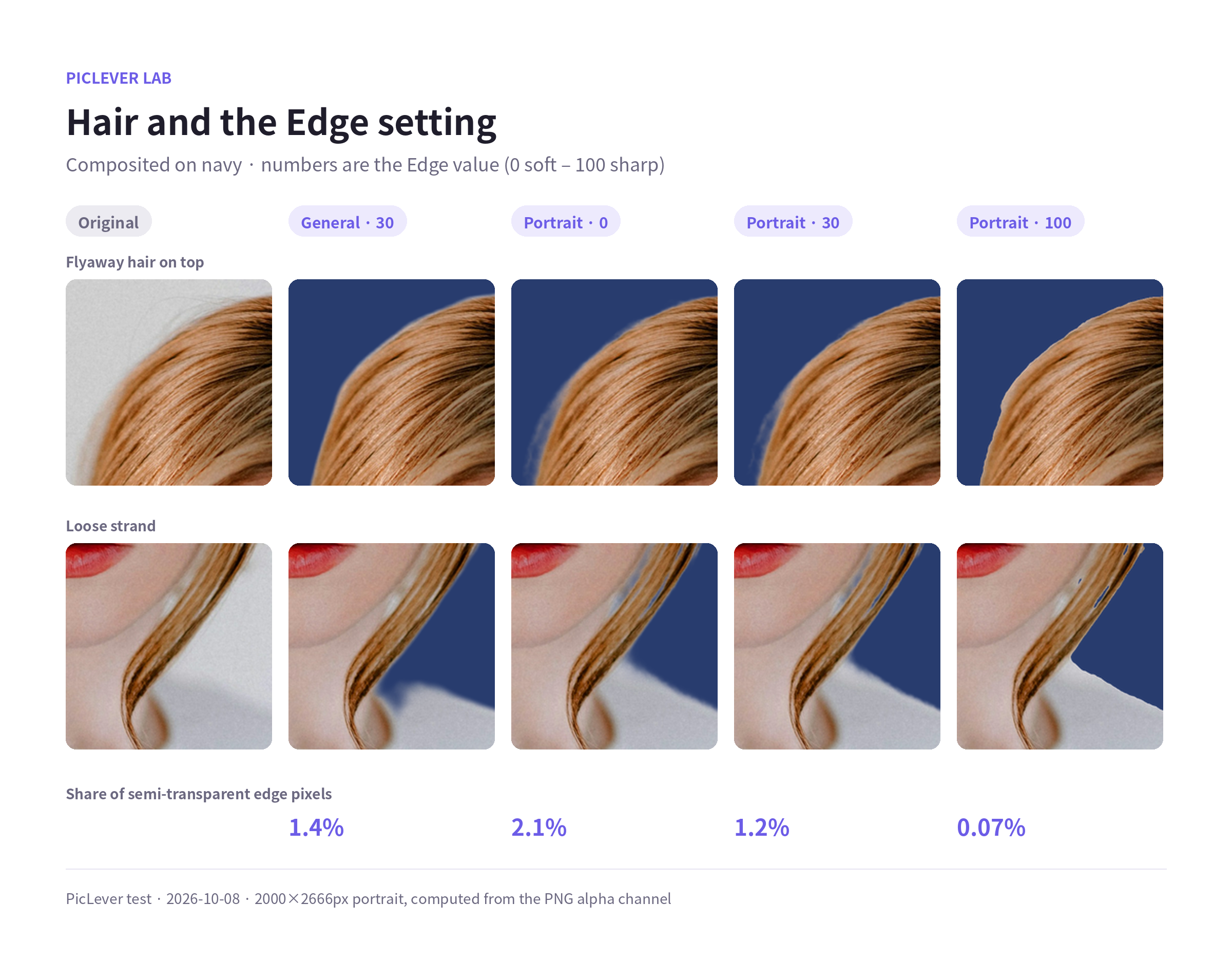
| Setting | Semi-transparent edge pixels | What it looks like |
|---|---|---|
| General · 30 (default) | 1.4% | Soft but blurry edge; flyaway hair is lost |
| Portrait detail · 0 | 2.1% | Keeps the most flyaway hair; soft edge |
| Portrait detail · 30 (default) | 1.2% | Balance between hair detail and a clean outline |
| Portrait detail · 100 | 0.07% | Razor-sharp; flyaways vanish and gaps appear between strands |
-
Lower Edge values (left) add semi-transparent pixels, keeping hair and shadows natural; higher values (right) make the outline crisp. At 100 there were almost no semi-transparent pixels.
-
Use 0–30 for portraits and 70–100 for product cut-outs going on a white background. On the shoe photo, 100 cut semi-transparent pixels from 1.1% to 0.06%.
-
You can change Edges right before saving without removing the background again.
Save formats and file size
| Format · backdrop | File size (3200×4000px shoe photo) |
|---|---|
| Original JPG | 1,029KB |
| PNG · transparent | 3,448KB |
| WebP · transparent | 412KB |
| JPG · white | 560KB |
| PNG · white | 3,354KB |
-
If you need transparency, WebP is far lighter than PNG. Use PNG for apps or sites that don't accept WebP.
-
JPG doesn't support transparency, so choosing JPG with a transparent backdrop saves a PNG instead. For a white background, as many online stores require, set the backdrop to White and save as JPG.
Processing time and models
| Item | General | Portrait detail |
|---|---|---|
| Model downloaded on first use | about 4.6MB | about 44MB |
| Processing time (in this test setup) | 5–8 seconds | 14–16 seconds |
-
Images are processed on your device and never uploaded, so processing time depends on your computer or phone.
-
"Portrait detail" downloads about 44MB the first time, so use Wi-Fi if you're on mobile data.
Test setup
-
Samples: a shoe product shot on a stand (3200×4000px), a coffee cup on a table (2000×1333px), a portrait with a light background and white top (2000×2666px), and a portrait with a dark background and black top (2000×3000px)
-
Saved results from PicLever Background remover with the General and Portrait detail models, Edge 0, 30 and 100, and PNG, WebP and JPG formats, then calculated foreground and semi-transparent pixel shares from the alpha channel · Tested 2026-10-08
Removing a background with PicLever
-
In the Background remover, click Choose image or drop an image in (up to 20MB, 8,192px on the longest side).
-
Pick the Photo type: General for products and objects, Portrait detail for portraits where hair matters.
-
Click Remove background and check the result with the before/after slider.
-
Adjust Edges: left (soft) for portraits, right (crisp) for product cut-outs.
-
Choose the Backdrop (transparent, white or a custom color) and Save format (PNG, WebP or JPG), then click Download image.
FAQ
Q. Some background is left, or part of the subject was removed.
This can happen when the subject and background are similar in color, or with complex edges like glass or hair. Try the other photo type, and clean up leftovers with the pen tool in the Image cropper.
Q. I want to turn my cut-out product into a square thumbnail.
Save it with a white backdrop, then make it square. See How to Make a Square Product Thumbnail.
Q. Can I change the background of an ID photo?
Remove the background with "Portrait detail", then save with a white or custom backdrop. Sizes are covered in How to Resize an ID Photo.
Related posts
-
How to Make a Square Product Thumbnail: Crop vs. Pad, Compared in a Product List
-
How to Resize an ID Photo (Korean Passport 3.5×4.5cm, 413×531px, Head Size) 2026
-
JPG vs PNG vs WebP: I Saved the Same Images in All Three Formats
-
How to Crop a Photo into a Circle (Round Profile Pictures and Freeform Pen Cuts)
-
How to Shrink a Transparent PNG (A 2.7MB Cutout to 243KB—Does Transparency Survive?)