

How to Rotate and Save a Photo (Fix Sideways Phone Photos—What Happens to Quality and Location Data?)
Why phone photos show up sideways (EXIF orientation), and what PicLever's image rotation does to orientation, file size and quality in JPG, WebP and PNG, and to location and capture data.
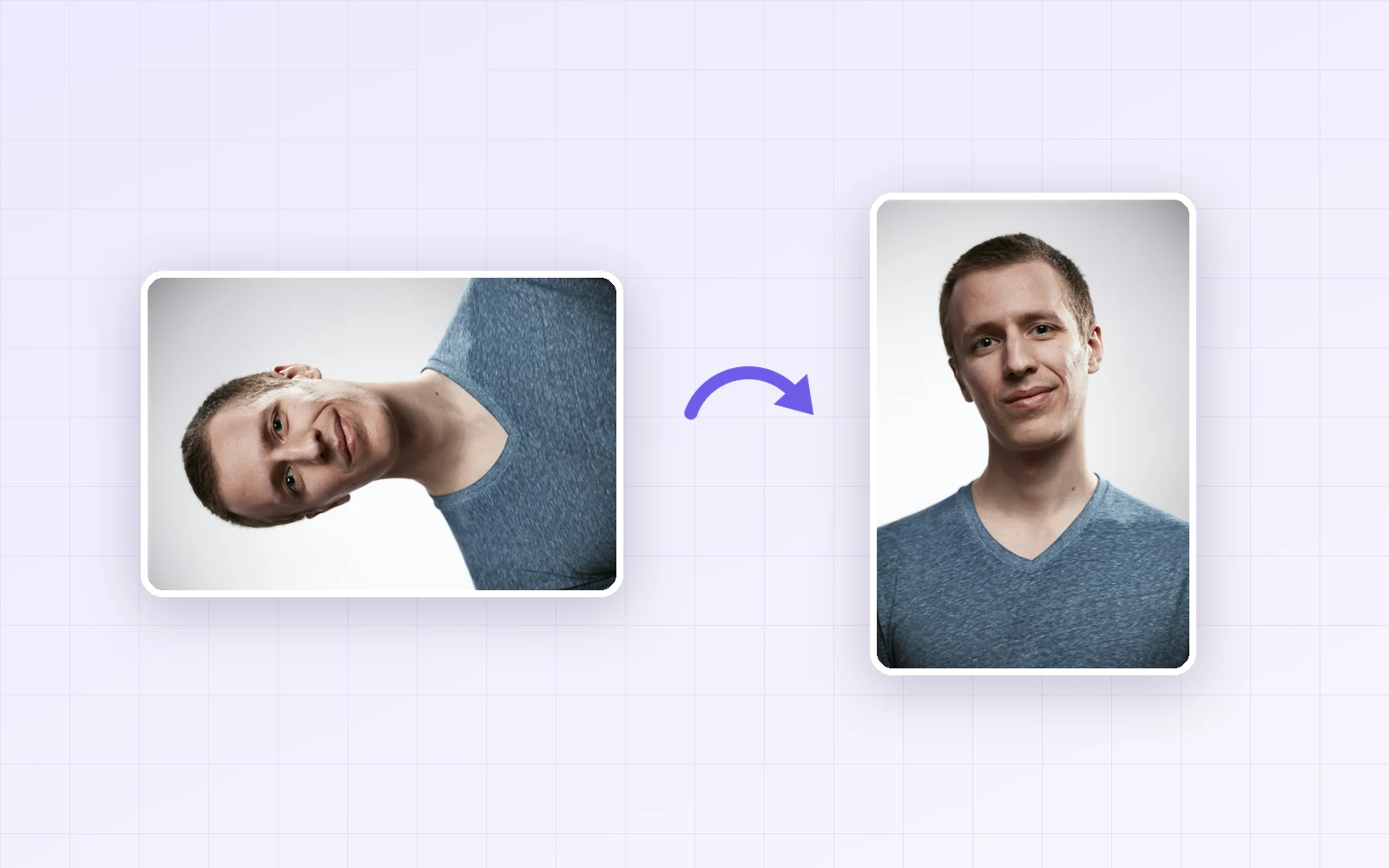
A photo from your phone looks upright on the phone, but shows up sideways when you open it on a PC or upload it somewhere else. That's because some apps read the orientation info (EXIF) stored in the file and others ignore it. With PicLever's Rotate and flip images tool, I rotated and saved a phone-style photo carrying orientation info and a 4000×2667px landscape photo, then checked how the orientation gets fixed and what happens to quality, file size and location data.
Bottom line: PicLever reads the orientation info and stands the photo upright when you load it, so saving once with "No rotation" was enough to make a photo that's upright everywhere. Saving also removed all location (GPS), camera and capture-date info. Re-saving as JPG loses a little quality, and rotating 90° or 180° loses a bit more (PSNR 41.2 → 36.3dB), but the difference was hard to see even at 400% zoom.
Why phone photos show up sideways
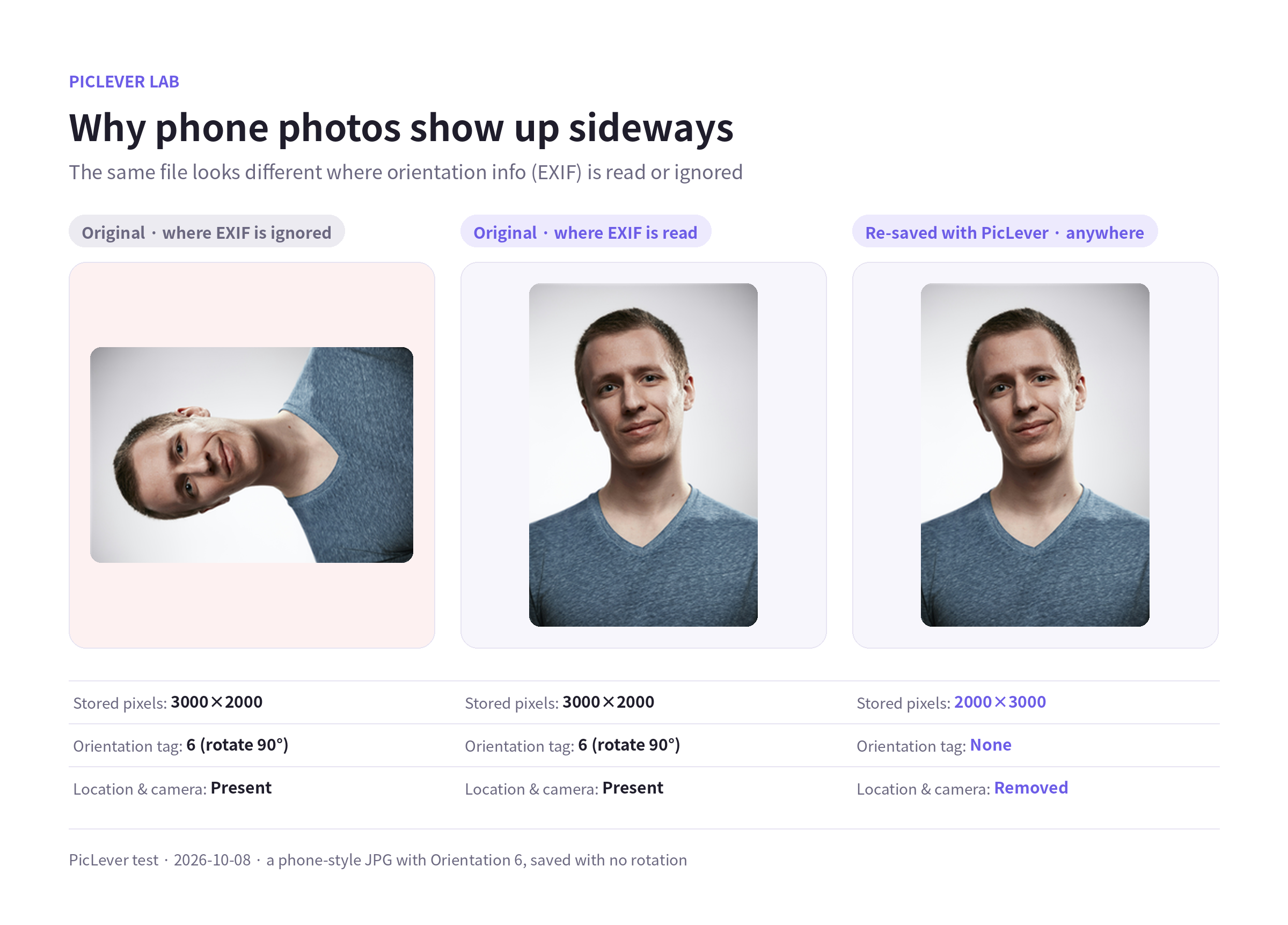
| State | Stored pixels | Orientation info | How it looks |
|---|---|---|---|
| Original (phone photo) | 3000×2000 (landscape) | 6 = rotate 90° to view | Upright where it's read, sideways where it's ignored |
| Saved in PicLever with "No rotation" | 2000×3000 (portrait) | None | Upright everywhere |
| Saved in PicLever with "90° right" | 3000×2000 (landscape) | None | Rotated 90° from the upright photo |
-
Phones often store the photo on its side and just add orientation info saying "rotate 90° to view." Apps and sites that don't read it show the photo sideways.
-
PicLever applies the orientation info from the preview onward (shown as 2000×3000px), so you rotate what you see. The result stores the pixels upright and drops the orientation info, so it won't get rotated a second time elsewhere.
-
So to fix a sideways phone photo, try saving it once with "No rotation." If it's still wrong, then pick a rotation.
File size and quality by save format
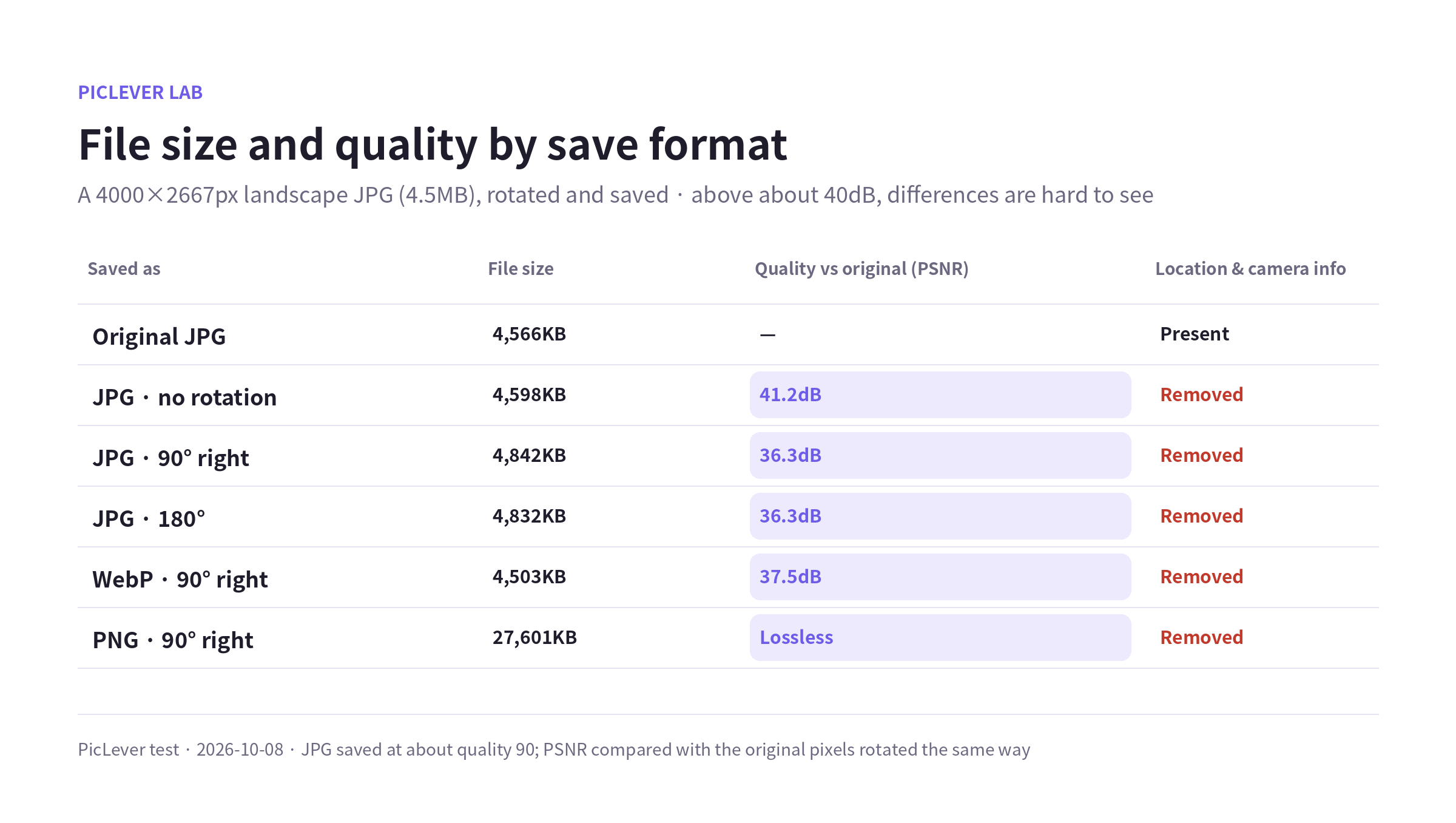
| Saved as | File size | Quality vs original (PSNR) |
|---|---|---|
| Original JPG | 4,566KB | — |
| JPG · no rotation | 4,598KB | 41.2dB |
| JPG · 90° right | 4,842KB | 36.3dB |
| JPG · 180° | 4,832KB | 36.3dB |
| WebP · 90° right | 4,503KB | 37.5dB |
| PNG · 90° right | 27,601KB | Lossless |
-
JPG results are re-saved at about quality 90. That causes a small loss even without rotation, and rotating 90° or 180° shifts JPG's 8×8 blocks, so the loss grows slightly. Even at 400% zoom, the difference was barely visible.
-
If you must keep the original quality, save as PNG—at the cost of a file six times larger (27.6MB). For photos headed to a blog, messenger or online store, JPG or WebP is enough.
-
Horizontal and vertical flips scored the same as an unrotated JPG (41.2dB).
Location and capture info is removed
-
GPS location, camera model (Galaxy S24), capture date and exposure info were all gone from the result JPG. They didn't remain in WebP or PNG results either.
-
When sharing photos taken at home or work, having the location removed is a plus. But if your photo app sorts by capture date, keep the original: the saved file has no capture date, so it may sort differently.
Test setup
-
Samples: a phone-style JPG with Orientation 6 (rotate 90°), GPS and camera info (stored at 3000×2000px, shown at 2000×3000px), and a 4000×2667px landscape JPG (4.5MB) with the same info
-
Applied no rotation, 90° right, 180° and a horizontal flip in PicLever Rotate and flip images, saved as JPG, WebP and PNG, then compared pixel size, EXIF, and PSNR against the original pixels rotated the same way; also checked rotating 3 images at once and saving as ZIP · Tested 2026-10-08
Rotating and saving a photo with PicLever
-
In Rotate and flip images, click Add images and add your photos (up to 20; PNG, JPG, WebP or BMP).
-
Under Rotation, choose No rotation, 90° right, 180° or 90° left, and use Flip horizontal or Flip vertical if needed. For a sideways phone photo, check "No rotation" first. To straighten a tilted photo, enter a value in Custom angle (°) (added 2026-10-18). The canvas expands to fit the whole image, and PNG and WebP keep the empty corners transparent.
-
Pick an Output format: PNG to keep quality, JPG or WebP for photos you'll upload.
-
Click Apply rotation and flips, then save each result or download them all as a ZIP.
FAQ
Q. Can I rotate several photos at once?
Yes. Add up to 20 images, rotate them with the same settings, and download them all as one ZIP. File names include the result size (e.g. _2667x4000).
Q. My PDF pages are sideways.
Rotate PDF pages individually with Rotate PDF. See How to Rotate and Save PDF Pages for steps and quality.
Q. Can I set the JPG quality myself?
This tool doesn't offer a quality setting. To shrink files further or choose the quality, use Image compressor. See JPG Quality 90 vs 80 vs 60 vs 40 for the differences.