

How Accurate Is Image Text Extraction? (Screenshots and Photos Compared by Text Size, Blur and Tilt)
I ran Korean text mixed with numbers and English through image text extraction at different text sizes and photo conditions, and compared the results character by character.
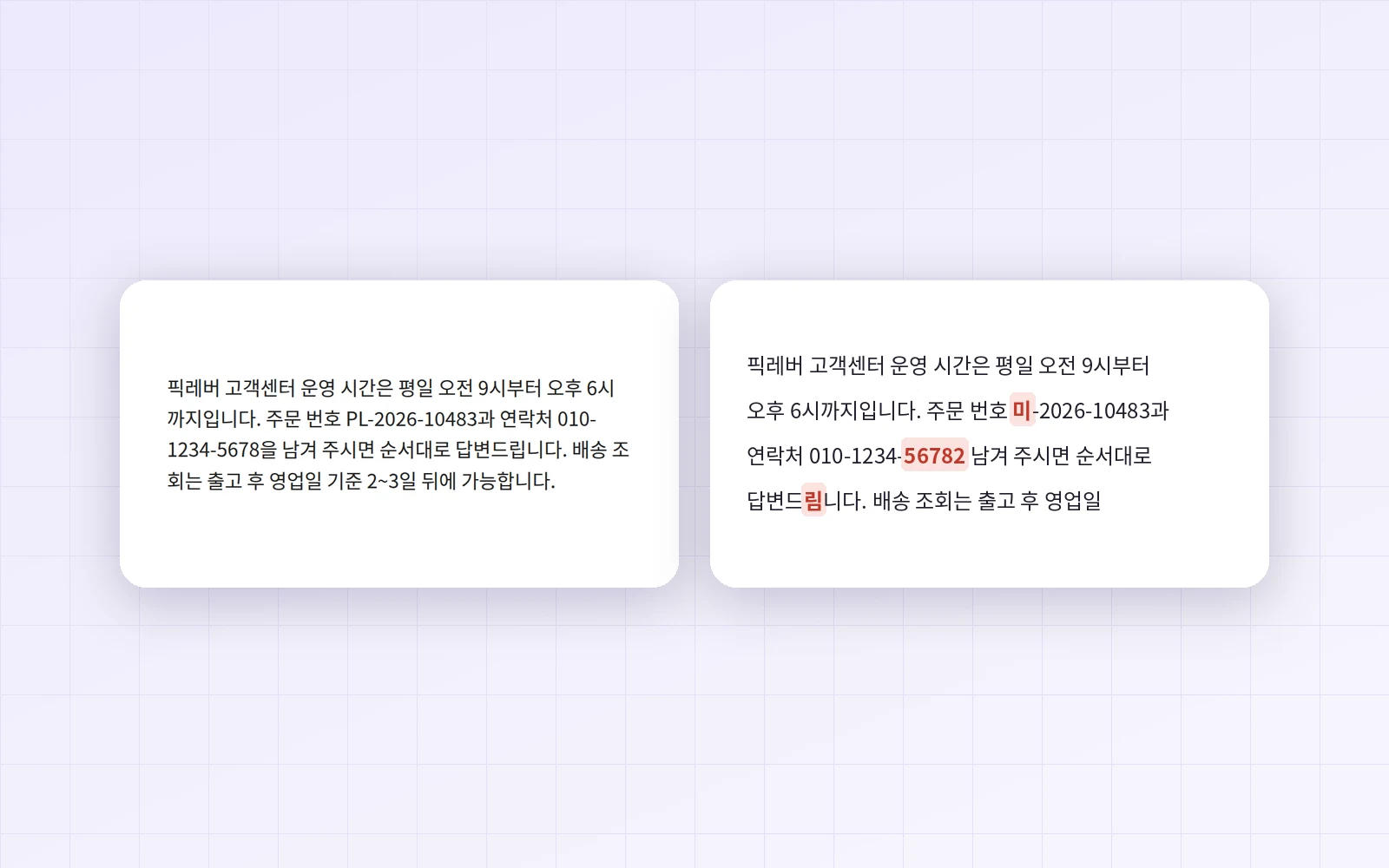
When you need text from a chat screenshot or a photo of a document, retyping it is tedious, so you reach for image text extraction (OCR). But how good does the image need to be? I fed three Korean passages mixed with numbers and English into PicLever's Image text extraction, changing the text size and photo condition, and compared the output with the source character by character.
Updated 2026-10-18: the tool added Small text enhancement and Automatic deskew, so I re-measured with both turned off and on.
Bottom line: with the default enhancements on, small 10–12px text reached 96–97% and a photo tilted 8° reached 96%, versus 55–65% and 63% with them off. However, a blurry (2px) photo dropped to 90% with enhancements on, below the 98% with them off. A shadow on one side still held it to 66%. Even at high accuracy, Korean particles right after numbers were still read as extra digits, so always double-check phone and order numbers.
Accuracy by text size
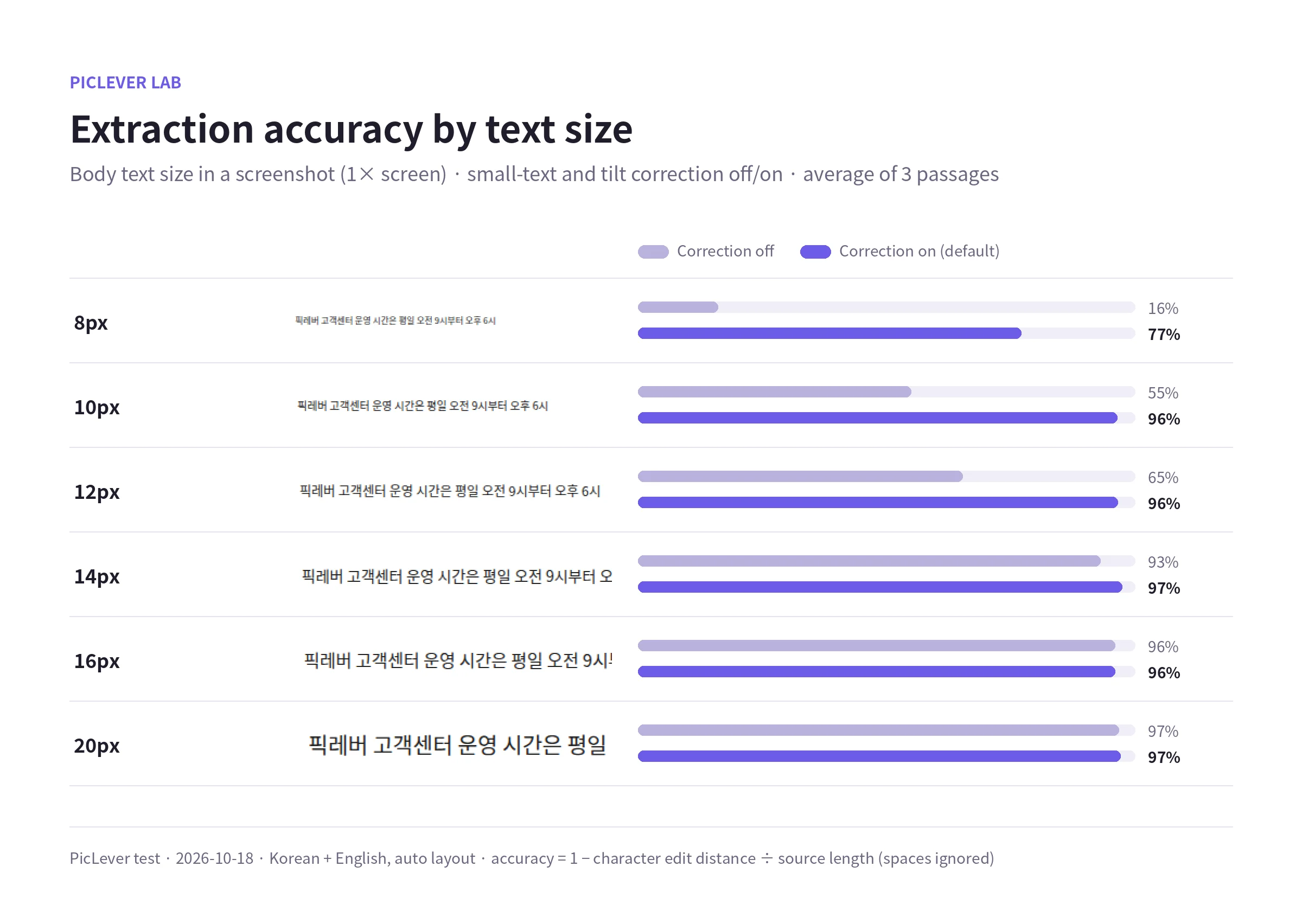
| Text size (screenshot) | Correction off | Correction on (default) |
|---|---|---|
| 8px | 16% | 77% |
| 10px | 55% | 96% |
| 12px | 65% | 97% |
| 14px | 93% | 97% |
| 16px | 96% | 96% |
| 20px | 97% | 97% |
-
Small text captured on a PC screen at 1× (10–12px) was close to half wrong with correction off, but Small text enhancement, which enlarges the image up to 2× for recognition, brought it to 96–97%.
-
At 14px and above, results were 96–97% either way. Phone screenshots, usually at a 2–3× display scale, fall in this range.
-
Very small text like 8px reached only 77% even with enhancement. Zoom in on screen before capturing if you can.
-
With enhancement on, a serif (Myeongjo) font scored 98%, the same as sans-serif.
Accuracy by photo condition
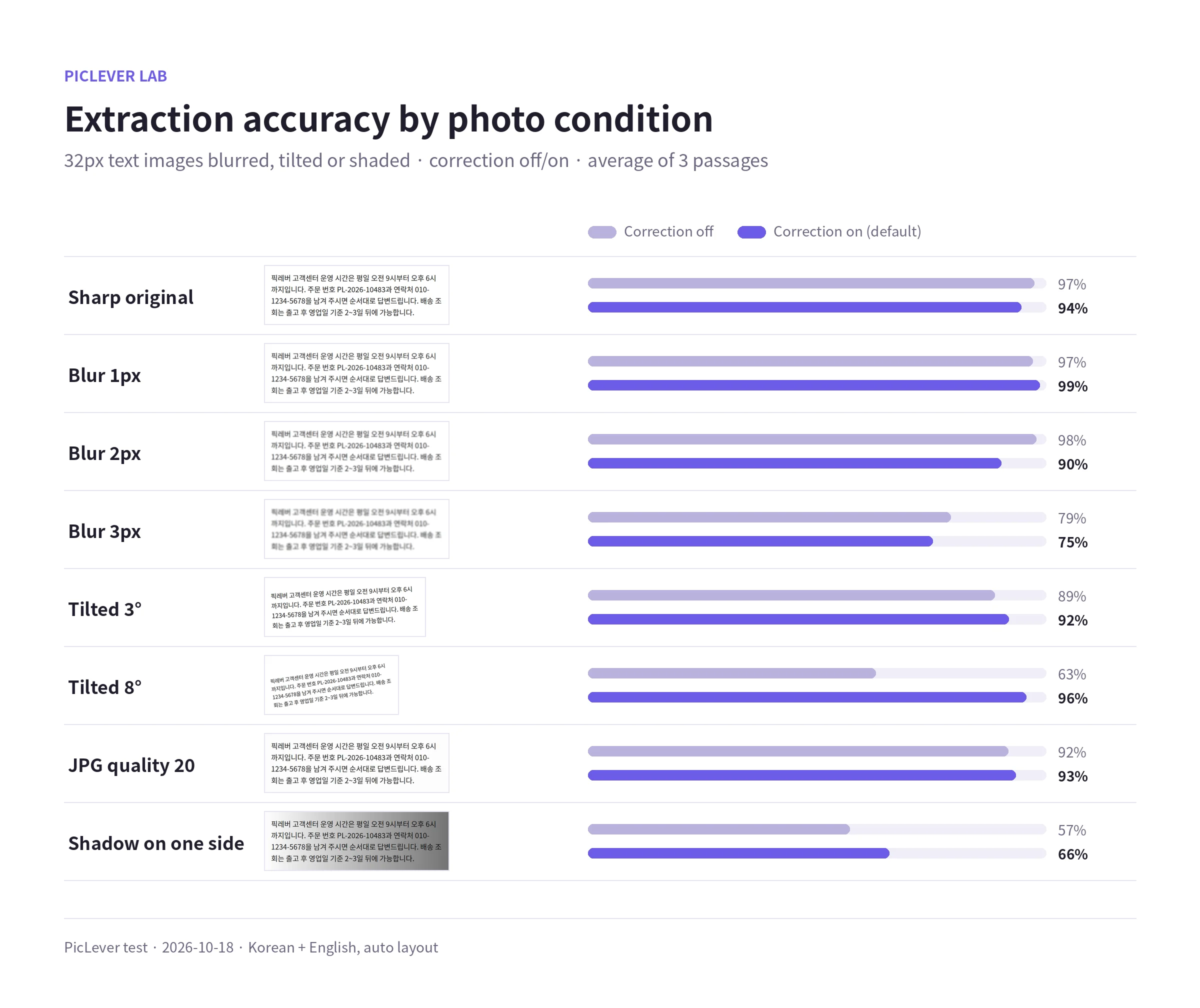
| Photo condition (32px text) | Correction off | Correction on (default) |
|---|---|---|
| Sharp original | 97% | 94% |
| Blur 1px | 97% | 99% |
| Blur 2px | 98% | 90% |
| Blur 3px | 79% | 75% |
| Tilted 3° | 89% | 92% |
| Tilted 8° | 63% | 96% |
| JPG quality 20 | 92% | 93% |
| Shadow on one side | 57% | 66% |
-
Thanks to Automatic deskew, an 8° tilted photo read as well as a straight one.
-
For blurry photos, correction hurt. At 2px blur with correction on, one passage fell to 77%. If a blurry photo gives odd results, turn both enhancements off and extract again.
-
Correction didn't fix shadows. Text on the dark side still dropped out, so avoid casting your phone's shadow on the page.
Common misreads
These errors repeated even with correction on and accuracy above 90%.
| Source | Extracted |
|---|---|
| 010-1234-5678을 | 010-1234-56782 |
| 10483과 | 104832 |
| PL-2026 | 미-2026 |
| KN-7781 | KN-T781 |
| [email protected]으로 | [email protected]& |
-
Korean particles right after a number (을, 과) turned into digits or symbols, adding digits that weren't in the phone or order number.
-
Short English codes between Korean words were sometimes read as Korean.
-
Line breaks follow the image's lines, so a number could split into "010-" and "1234-5678" on two lines. Join them after pasting.
Keep the language on "Korean + English"
| Language setting | Korean sentence with an email | Korean sentence |
|---|---|---|
| Korean + English (default) | 93% | 98% |
| Korean | 73% (email address garbled) | 98% |
| English | 20% | 0–18% |
-
With Korean only, Korean text was fine but English such as an email address turned into the wrong characters.
-
With English on an image that contains Korean, the Korean was barely read. Use it only for English-only images.
Test setup
-
Samples: three Korean passages (90–100 characters each) mixing numbers, English and symbols, captured as 8–20px sans-serif screenshots; 16px in a serif font, dark mode and light gray; and 32px images with Gaussian blur (1–3px), rotation (3°, 8°), JPG quality 20 and a one-sided shadow (brightness 100%→45%)
-
Extracted in PicLever Image text extraction with Korean + English and automatic text layout, comparing both enhancements off with both on (default) · accuracy = 1 − (character edit distance between source and result ÷ source length), spaces ignored · First tested 2026-10-15, re-measured 2026-10-18
-
Real photos vary with lighting, paper and camera.
Extracting text from an image with PicLever
-
In Image text extraction, click Choose image and add your screenshot or photo.
-
Leave Language on Korean + English and Text layout on Automatic.
-
Keep Small text enhancement and Automatic deskew on (default) and click Extract text.
-
Copy text or Download TXT. If a blurry photo gives odd results, turn both enhancements off and extract again.
FAQ
Q. Is my image uploaded to a server?
No. Recognition runs on your device. The first use downloads recognition data and takes longer.
Q. Does enhancement change my original image?
No. Enlarging and deskewing apply only during recognition; your image stays as it was.
Q. Will a table come out as a table?
No. Table formatting isn't kept; you get the text only. For images with scattered text, try setting Text layout to Scattered text.
Q. What about text in a PDF?
If the PDF has selectable text, use PDF text extraction instead of converting it to an image; it's more accurate.