

How to Resize Multiple Photos at Once (Batch Resize: 10 Phone Photos from 21.6MB to 3.1MB)
I batch-resized 10 phone photos with PicLever's Image resizer, comparing the four resize modes and file sizes by width and output format.
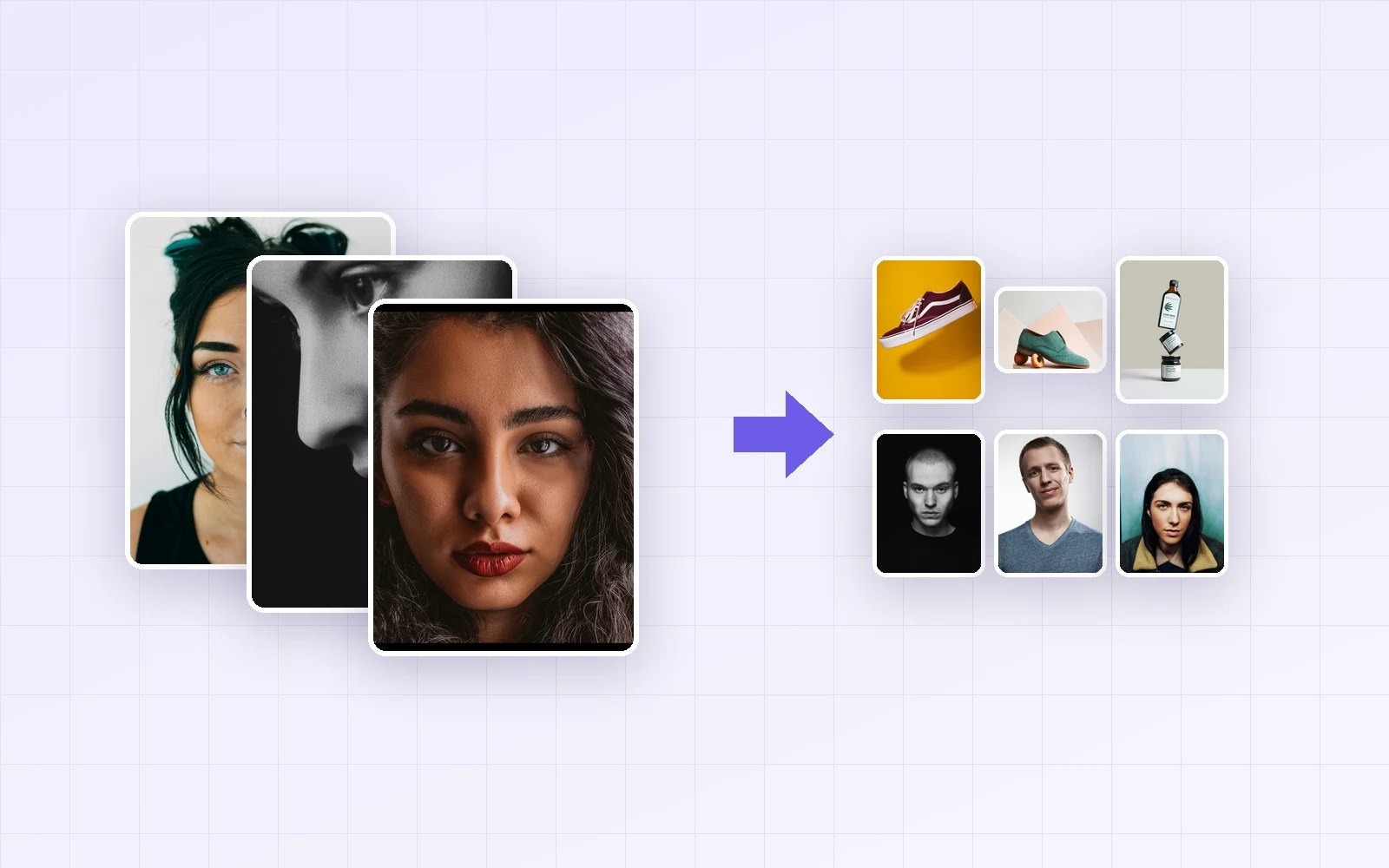
Shrinking phone photos one by one before posting them to a blog, an online store or an email gets tedious. With Batch edit in PicLever's Image resizer, I resized 10 phone photos at once (8 portrait, 2 landscape, 21.6MB total) to see how the four resize modes treat portrait and landscape photos and how much file size drops with each width and format.
Bottom line: saving everything at 1200px wide as JPG cut the 10 photos from 21.6MB to 3.1MB (−86%) in a few seconds. But "Width · keep ratio" made landscape photos smaller (1200×900), and "Exact width and height" stretched photos out of proportion. For a mix of portrait and landscape photos, "Scale from original" shrank every photo by the same ratio. The default output format is PNG, which made the photos 17% larger than the originals—switch to JPG or WebP.
Results by resize mode
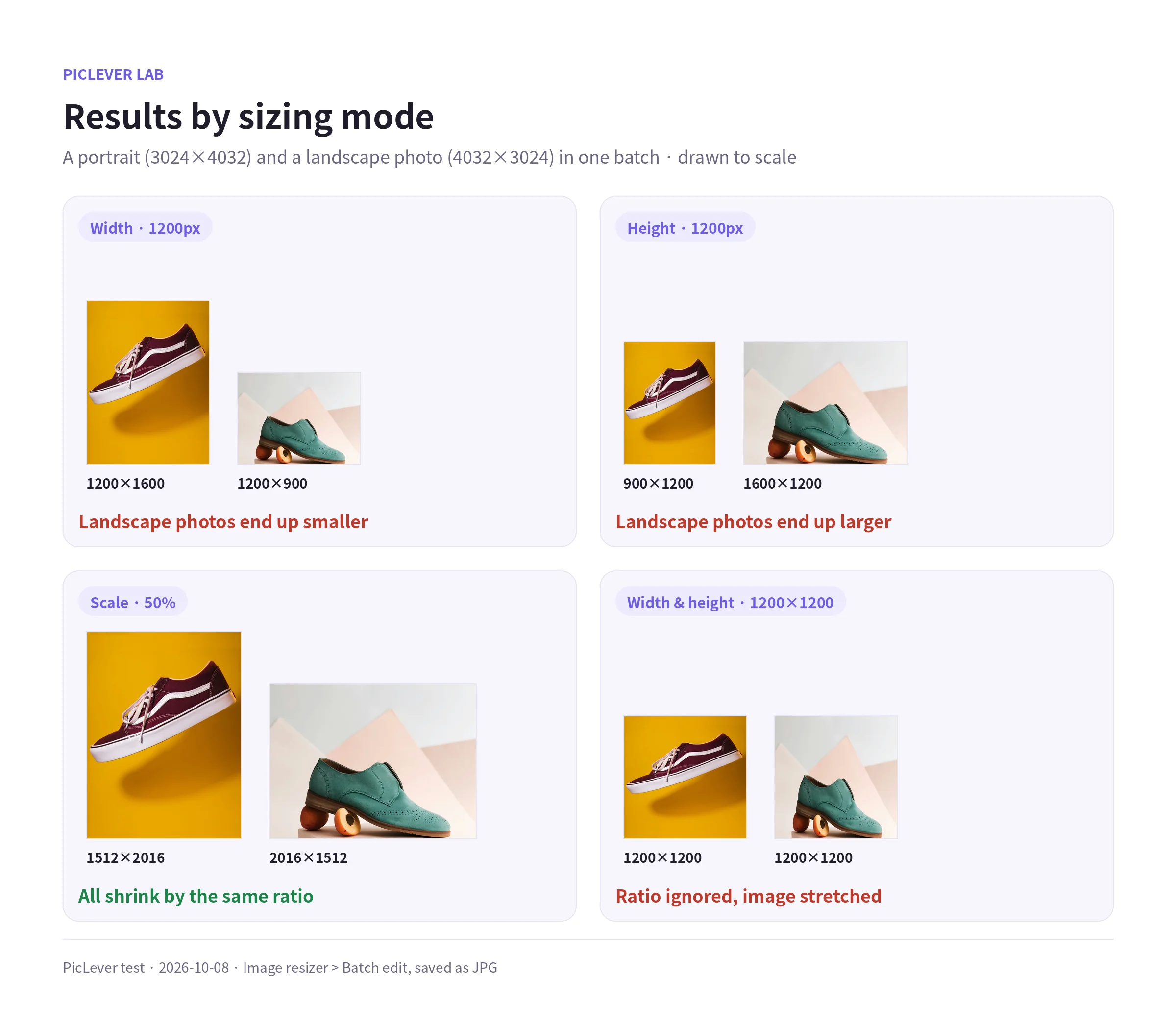
| Resize mode | Portrait (3024×4032) | Landscape (4032×3024) | Ratio |
|---|---|---|---|
| Width · 1200px | 1200×1600 | 1200×900 (smaller) | Kept |
| Height · 1200px | 900×1200 | 1600×1200 (larger) | Kept |
| Scale from original · 50% | 1512×2016 | 2016×1512 | Kept |
| Exact width and height · 1200×1200 | 1200×1200 | 1200×1200 | Ignored (stretched) |
-
Width · keep ratio matches every photo's width. Portrait photos get taller and landscape photos smaller, which suits places where images fill the width of a blog post.
-
Height · keep ratio does the opposite, so landscape photos get larger. Use it when photos sit side by side at the same height, like a row of thumbnails.
-
Scale from original shrinks the long and short sides by the same ratio, even in a mixed batch. It was the safest choice for a batch of phone photos.
-
Exact width and height doesn't crop or pad—it stretches the photo to that size. At 1200×1200, portrait photos got squashed and landscape photos stretched. For squares, crop or pad instead, as in How to Make a Square Product Thumbnail.
Total size of 10 photos by width and format
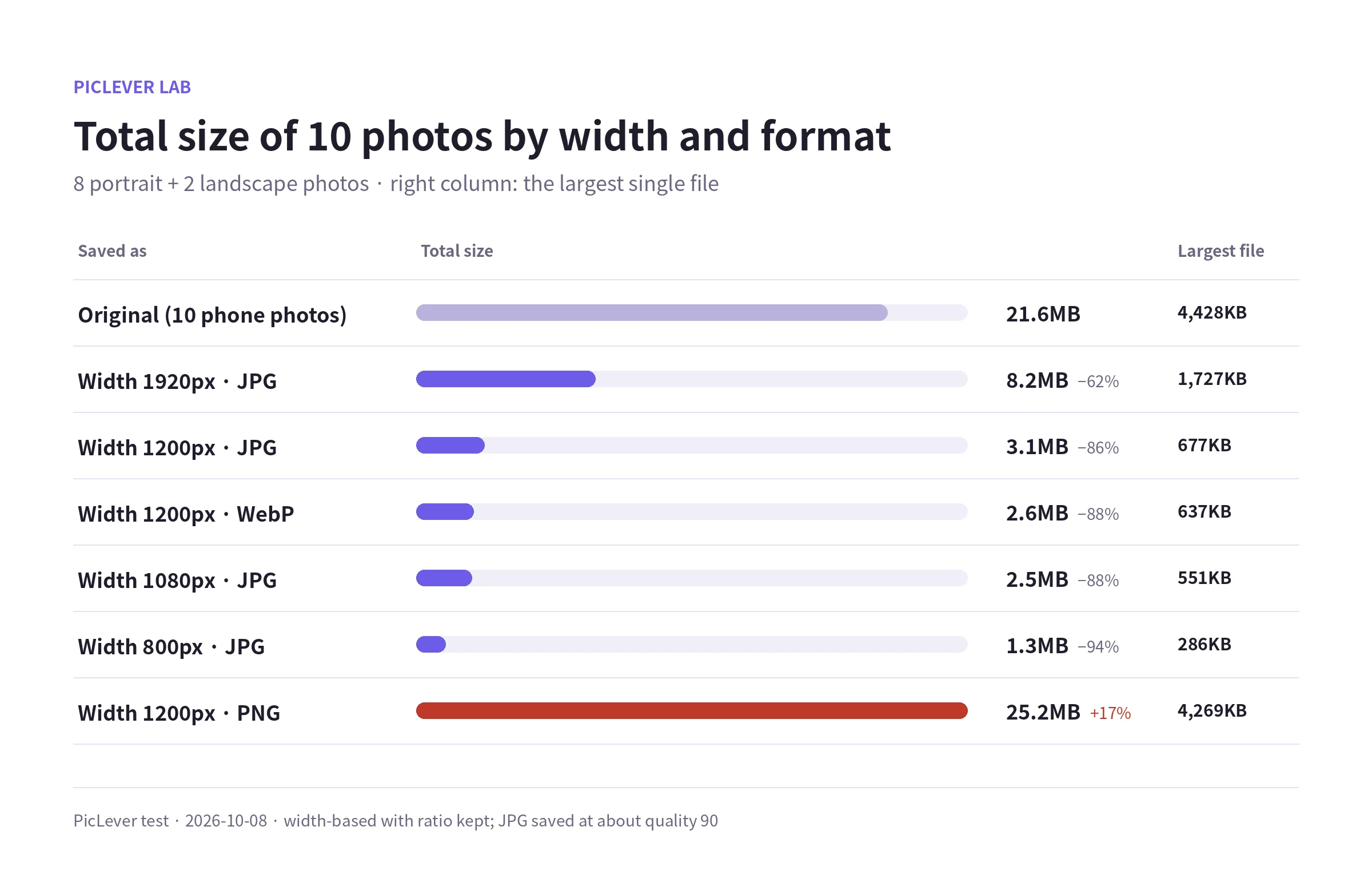
| Saved as | Total (10 photos) | vs original | Largest file |
|---|---|---|---|
| Original (phone photos) | 21.6MB | — | 4,428KB |
| Width 1920px · JPG | 8.2MB | −62% | 1,727KB |
| Width 1200px · JPG | 3.1MB | −86% | 677KB |
| Width 1200px · WebP | 2.6MB | −88% | 637KB |
| Width 1080px · JPG | 2.5MB | −88% | 551KB |
| Width 800px · JPG | 1.3MB | −94% | 286KB |
| Width 1200px · PNG | 25.2MB | +17% | 4,269KB |
-
For blogs and email, 1200px JPG worked well: sharp enough on screen, with 10 photos down to 3.1MB.
-
If a site caps each file at 500KB, two photos were still over at 1200px, while at 800px all 10 were 286KB or less. To hit an exact size, see Photo Size Settings to Hit 100KB, 300KB or 1MB.
-
WebP was 16% smaller than JPG overall, but the gap shrank on detailed photos with skin and hair (largest file 677KB → 637KB).
-
PNG can't compress photos well, so the files grew larger than the originals. PNG is the default output format, so switch to JPG or WebP for photos.
Good to know about batch edit
-
You can add up to 20 images at once (20MB each, 100MB total) and download all results as one ZIP. File names get the result size appended (e.g. photo01_1200x1600.jpg).
-
Photos are processed on your device, not uploaded. In this test setup, 10 photos took 2–4 seconds.
-
Location (GPS), camera model and capture date were removed from every result. JPG is saved at about quality 90.
-
Changing settings clears previous results, so download the ZIP first before trying other settings.
-
You can also enlarge images, but as the tool notes, enlarging doesn't restore missing detail.
Test setup
-
Samples: 10 portrait and product photos prepared in phone-photo format (3024×4032 and 4032×3024px, JPG, with GPS and camera info), 21.6MB total
-
In Batch edit of PicLever Image resizer, processed them with all four resize modes, widths of 1920, 1200, 1080 and 800px, and JPG, WebP and PNG output, then compared result sizes, file sizes and metadata in the ZIP · Tested 2026-10-08
Resizing multiple photos with PicLever
-
In the Image resizer, click Batch edit.
-
Add your photos all at once (up to 20).
-
Choose a Resize mode: Scale from original for mixed portrait and landscape photos, Width · keep ratio for blog posts.
-
Enter the size and change Output format to JPG or WebP.
-
Click Apply to all images, then download the ZIP.
FAQ
Q. I only need to resize one image.
Use Single image and enter a width and height, or click a 25–200% scale button.
Q. Can I reduce file size without changing dimensions?
Lower the quality in the Image compressor. For whether to cut dimensions, quality or format first, see 3 Ways to Reduce Image File Size.
Q. What width should product detail images be?
Naver Smart Store detail pages use an 860px width. See Naver Smart Store Detail Page Image Specs.
Related posts
-
3 Ways to Reduce Image File Size: Dimensions, Quality or Format First?
-
Image Too Large to Upload? Photo Size Settings to Hit 100KB, 300KB or 1MB
-
JPG vs PNG vs WebP: I Saved the Same Images in All Three Formats
-
How to Make a Square Product Thumbnail: Crop vs. Pad, Compared in a Product List
-
How Accurate Is Image Text Extraction? (Screenshots and Photos Compared by Text Size, Blur and Tilt)
-
Does AI Upscaling Help? (2× and 4× Compared with Standard Resizing)