

Does AI Upscaling Help? (2× and 4× Compared with Standard Resizing)
I enlarged a photo, screen text and a logo 2× and 4× with AI and standard resizing, compared them with the originals, and found a grid pattern in AI 4×.
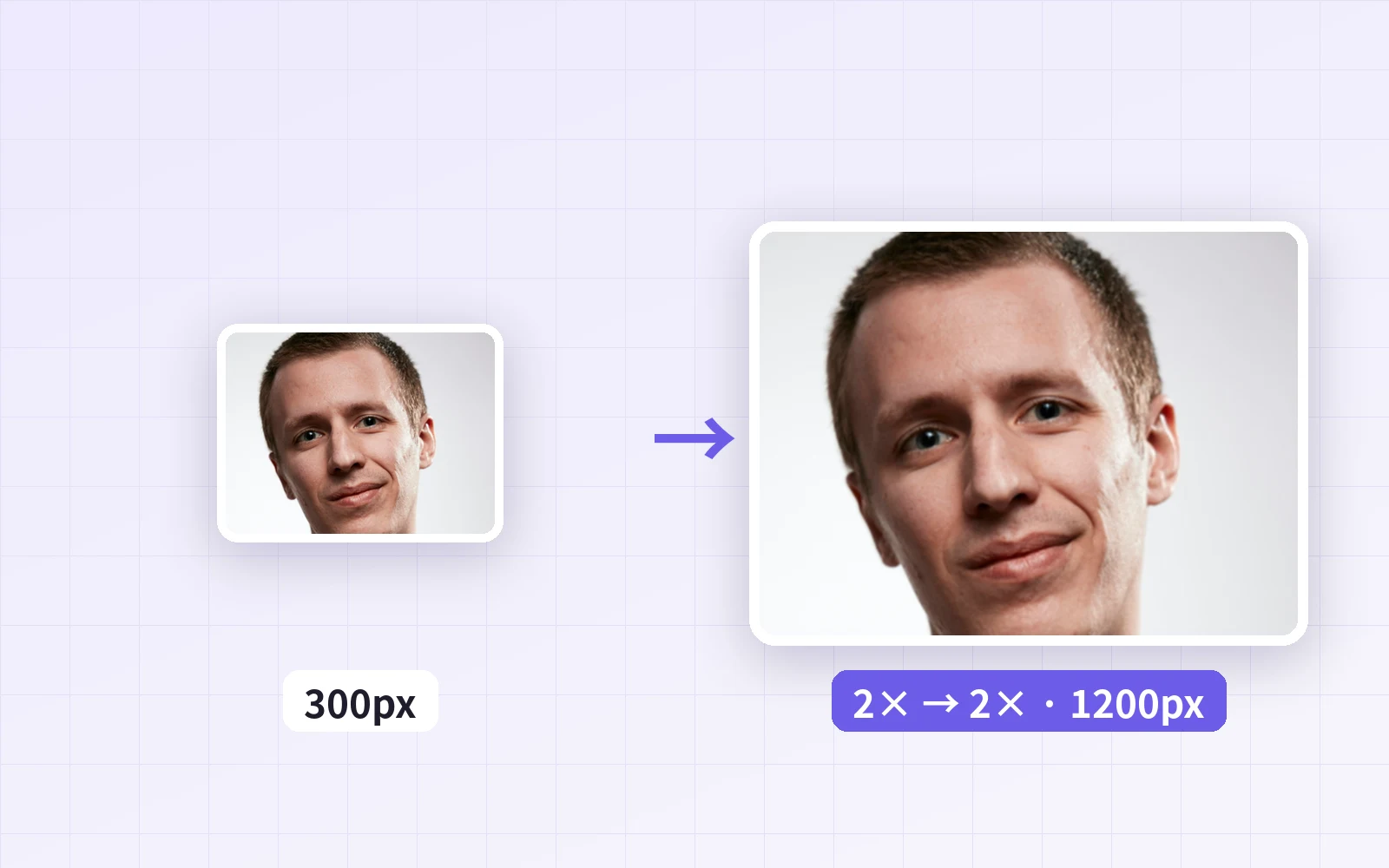
When you need a small photo at a larger size, "AI makes it sharper" sends you looking for an AI upscaler. But is it really better than ordinary resizing? Using PicLever's AI image upscaler, I enlarged a photo, screen text and a logo at 2× and 4× and compared them pixel by pixel with larger originals.
Bottom line: at 2×, AI and standard resizing were within 0.4 dB of each other against the original, practically indistinguishable to the eye. Neither brought back detail such as eyelashes or skin texture from the original. At 4×, the AI result showed a grid pattern every 4 pixels; applying AI 2× twice removed the grid and matched standard resizing. AI also took much longer than standard resizing.
2× upscale: Standard vs AI
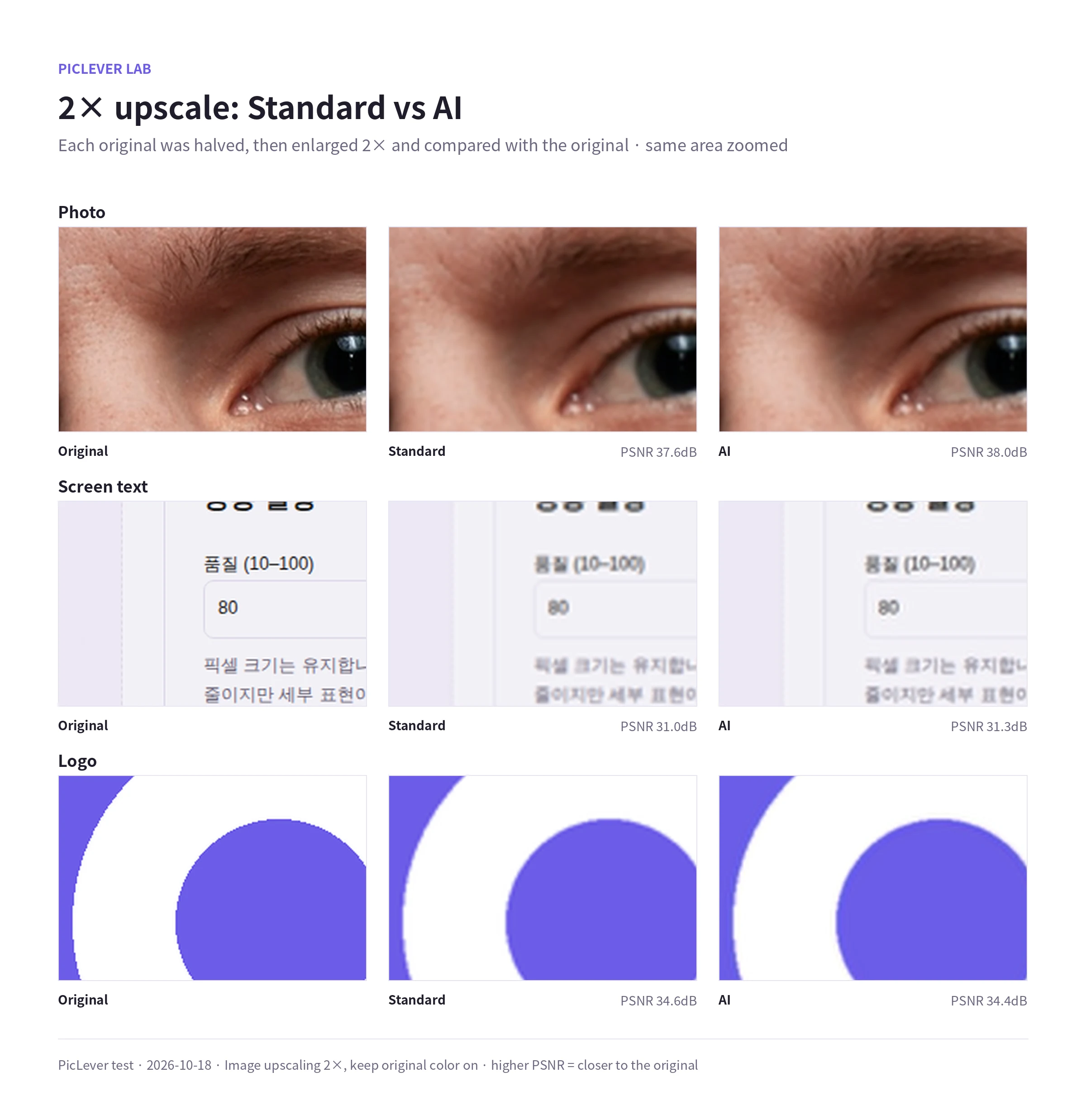
| Sample | Standard | AI |
|---|---|---|
| Photo | 37.6 dB | 38.0 dB |
| Screen text | 31.0 dB | 31.3 dB |
| Logo | 34.6 dB | 34.4 dB |
The numbers show how close each result is to the original (PSNR); higher is closer.
-
AI scored 0.3–0.4 dB higher on the photo and text, and standard resizing 0.2 dB higher on the logo. Even zoomed in, the difference was hard to see.
-
AI didn't create missing detail. The original's eyelashes and fine text strokes were blurred either way. The tool itself notes that it doesn't recreate lost detail.
-
With Match original colors on (default), there was no color cast.
4× upscale: a grid appeared with AI 4×
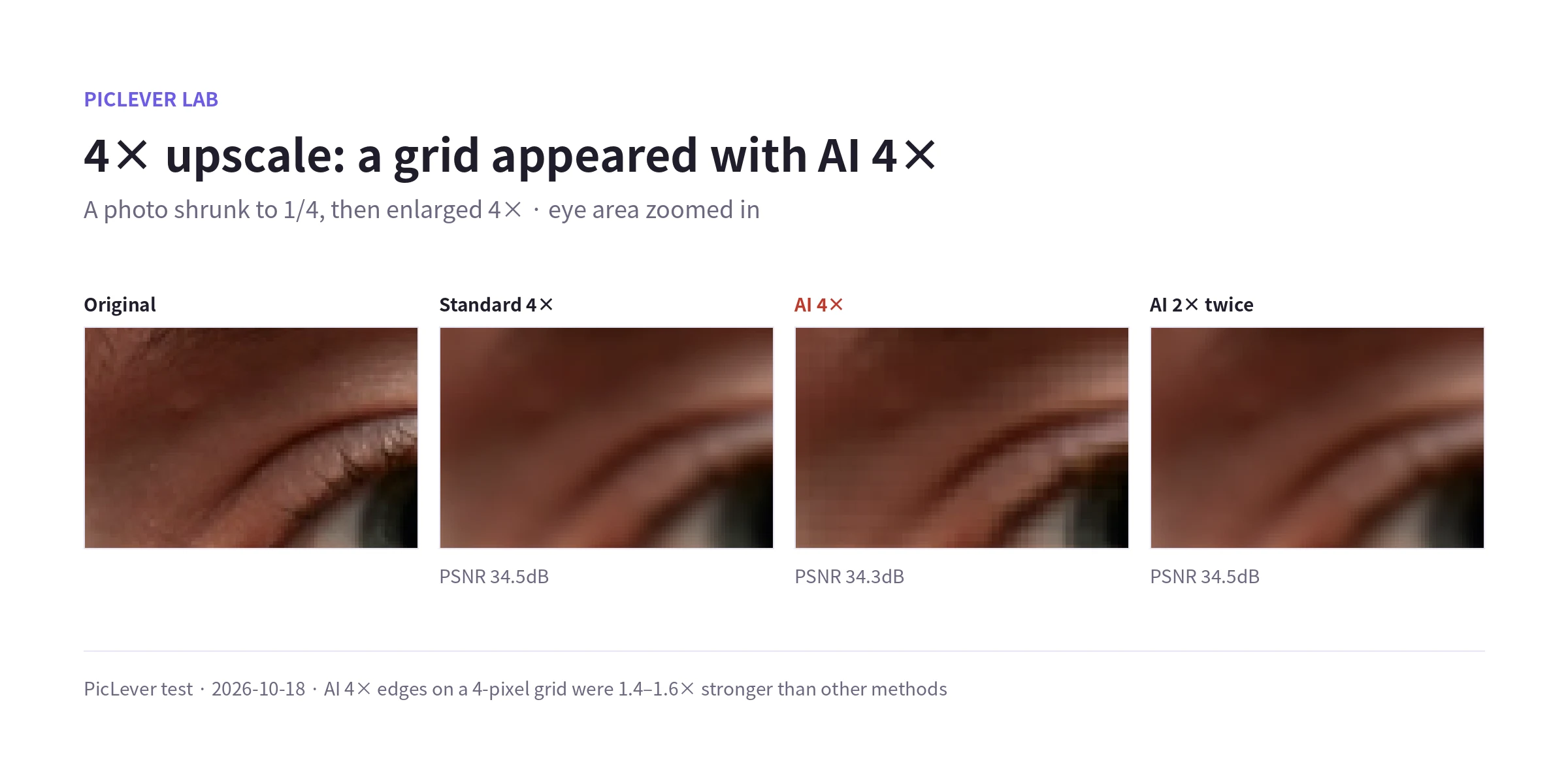
| Method | Photo | Screen text | 4-pixel grid |
|---|---|---|---|
| Standard 4× | 34.5 dB | 28.7 dB | Barely any |
| AI 4× | 34.3 dB | 28.8 dB | Visible |
| AI 2× twice | 34.5 dB | 28.8 dB | Barely any |
-
Zoomed in, the AI 4× result showed edges every 4 pixels, like a checkerboard. Those edges were 1.4–1.6× stronger than with the other methods.
-
Enlarging the same photo 2× with AI and then 2× again removed the grid and matched standard resizing in closeness to the original.
-
If you need 4×, use AI 2× twice, or the faster standard resize is enough.
When to use it
-
Showing a photo a bit larger on screen: standard resizing is enough and takes seconds.
-
Bothered by jagged edges: try AI 2× and check the comparison against the original.
-
Sharpening a blurry or tiny photo: upscaling won't fix it. Get the original photo if you can.
-
Printing large: if the original resolution is too low, enlarging won't add detail. Print smaller instead.
Test setup
-
Samples: a portrait (1200×900px), a screen capture (800×600px) and a logo (800×800px) as originals, each shrunk to 1/2 and 1/4 and then enlarged
-
In PicLever AI image upscaler, used AI and Smooth resize at 2× and 4× with Match original colors on, saved as PNG, compared PSNR with the originals, and measured the strength of edges on a 4-pixel grid (how much horizontal brightness change concentrates every 4 pixels) · Tested 2026-10-18
-
In this test environment (a server without graphics acceleration), AI took several minutes per photo at 2×, versus about 2 seconds for standard resizing. Times vary greatly by device.
Enlarging an image with PicLever
-
In the AI image upscaler, click Choose image and add your photo (up to 20MB and 2,048px per side).
-
Choose a Method: Smooth resize for speed, AI for smoother edges.
-
Set Scale to 2× (2×). If you need 4×, upload the 2× result and enlarge it 2× again.
-
Click Upscale 2×, compare with the original, choose a Save format and click Download image.
FAQ
Q. Is my photo uploaded to a server?
No. Upscaling runs on your device. AI downloads its model on first use.
Q. The saved photo's color values differ from the original.
Photos saved in a color space such as Adobe RGB are converted to sRGB. They look the same on screen, but pixel values can change.
Q. How large can the image be?
The input can be up to about 1 megapixel for 2× and 0.26 megapixels for 4×. For larger images, shrink them first with the Image resizer or use standard resizing.