

Does Converting JPG to PNG Improve Quality? (A 4.5MB Photo Became 22.4MB—Before and After)
I converted a phone photo, a screenshot and a transparent logo to PNG, JPG, WebP, BMP and TIFF to compare size, quality, transparency and location data.
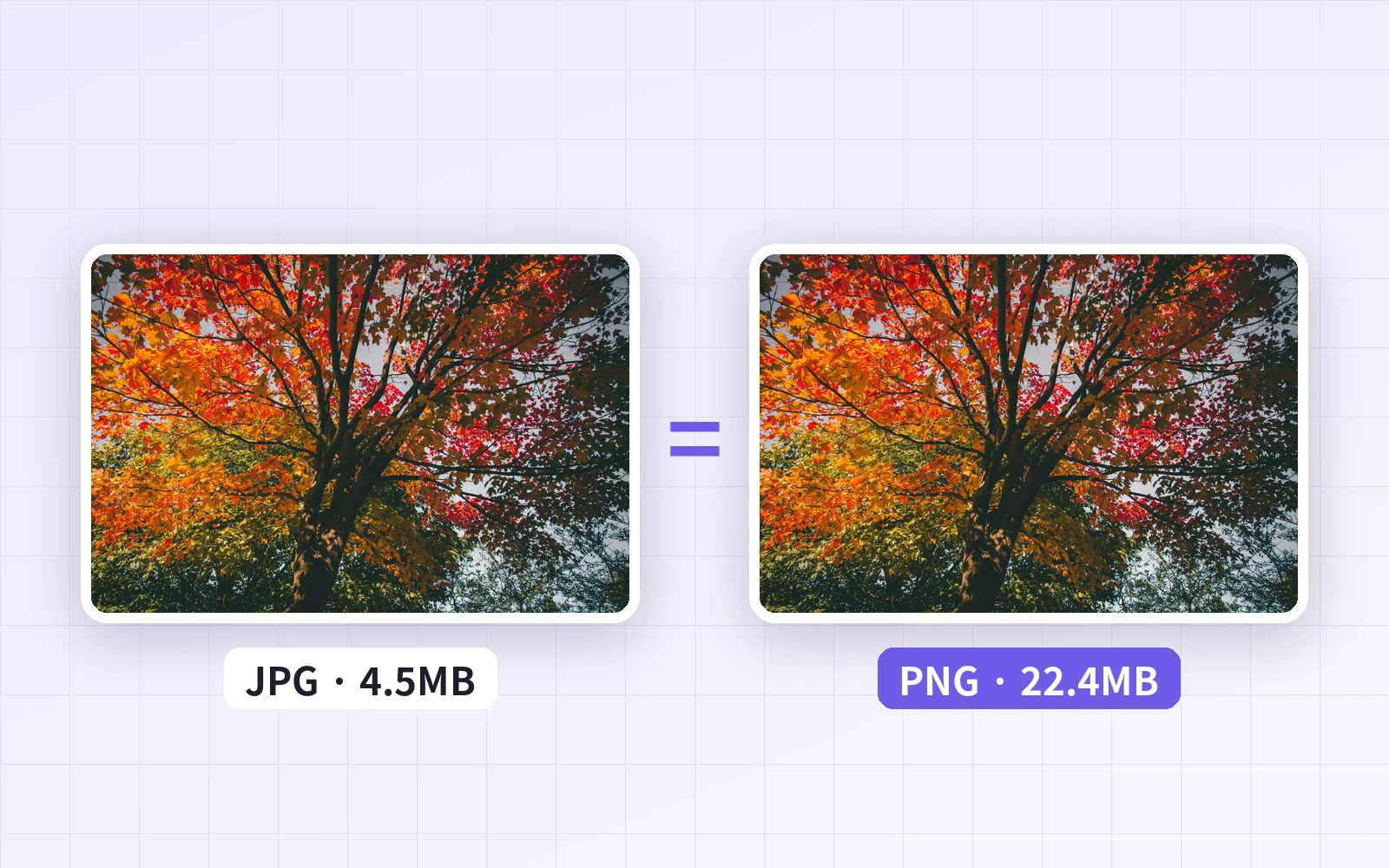
Because "PNG is higher quality than JPG," people sometimes convert photos to PNG. But if a photo is already a JPG, does converting it to PNG actually improve it? Using PicLever's Image converter, I converted a phone photo (JPG), a screenshot (PNG) and a transparent logo (PNG) to PNG, JPG, WebP, BMP and TIFF, then compared file size, quality, transparency and location data.
Bottom line: converting the JPG photo to PNG grew it from 4.5MB to 22.4MB, about 5×, yet its pixels were identical to the original JPG. Quality lost when a photo was saved as JPG doesn't come back. BMP and TIFF grew files by up to 300×, and only WebP came out smaller than the original for all three samples. Converted photos also lost their location and capture date.
File size by format
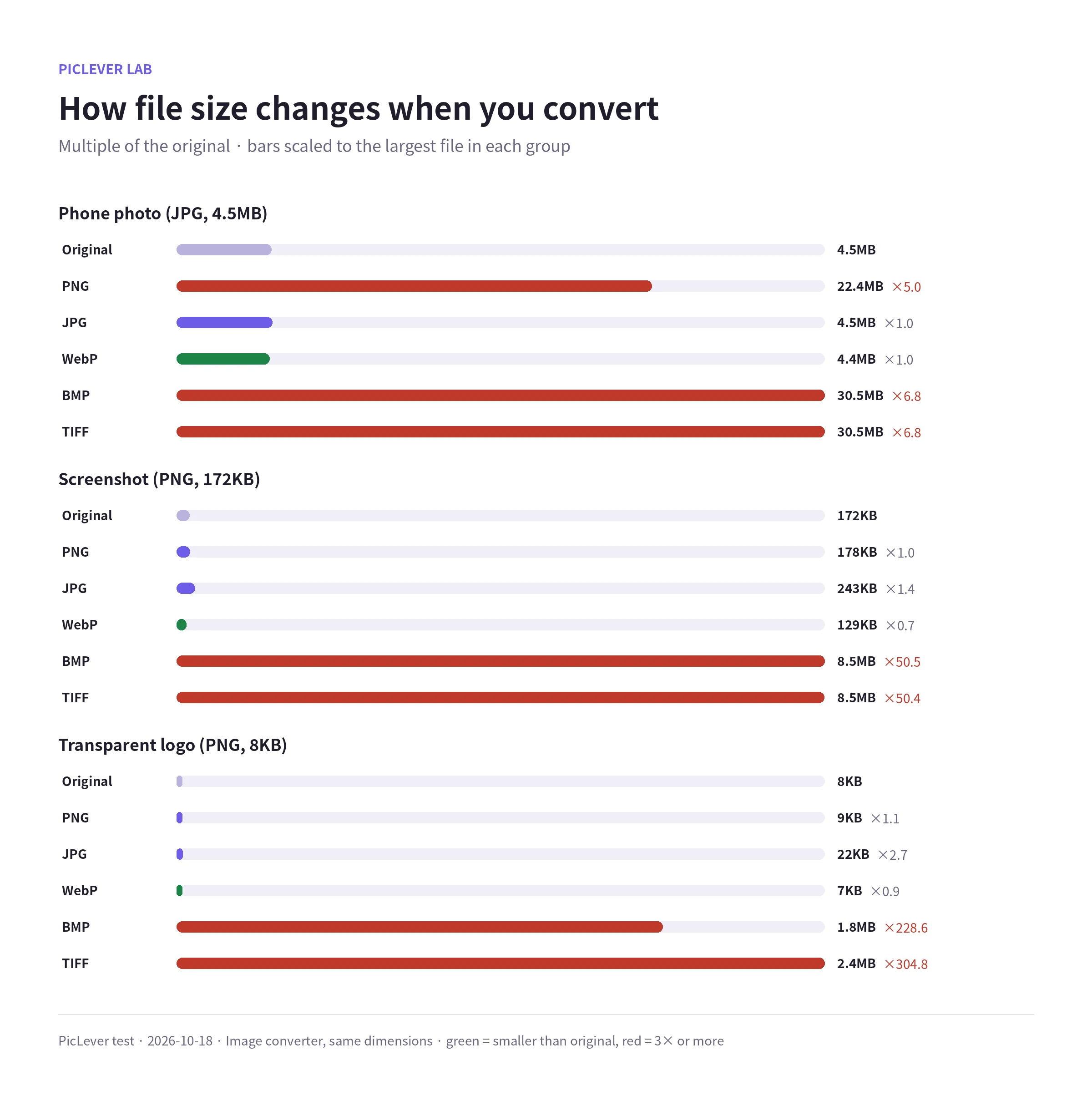
| Original → converted | Phone photo (JPG, 4.5MB) | Screenshot (PNG, 172KB) | Transparent logo (PNG, 8KB) |
|---|---|---|---|
| PNG | 22.4MB (×5.0) | 177KB (×1.0) | 9KB (×1.1) |
| JPG | 4.5MB (×1.0) | 243KB (×1.4) | 22KB (×2.7) |
| WebP | 4.4MB (×1.0) | 129KB (×0.7) | 7KB (×0.8) |
| BMP | 30.5MB (×6.8) | 8.5MB (×50) | 1.8MB (×229) |
| TIFF | 30.5MB (×6.8) | 8.5MB (×50) | 2.4MB (×305) |
-
Converting a JPG photo to PNG didn't change its quality. The PNG's pixels were exactly the same as the decoded original JPG (infinite PSNR). Only the size went up, about 5×.
-
BMP and TIFF barely compress, so even a small logo became about 2MB. Use them only when a print shop or specific program asks for them.
-
Re-saving a PNG original as PNG kept the size about the same (1.0–1.1×). If the original is already PNG, there's no reason to convert.
What changes with the format
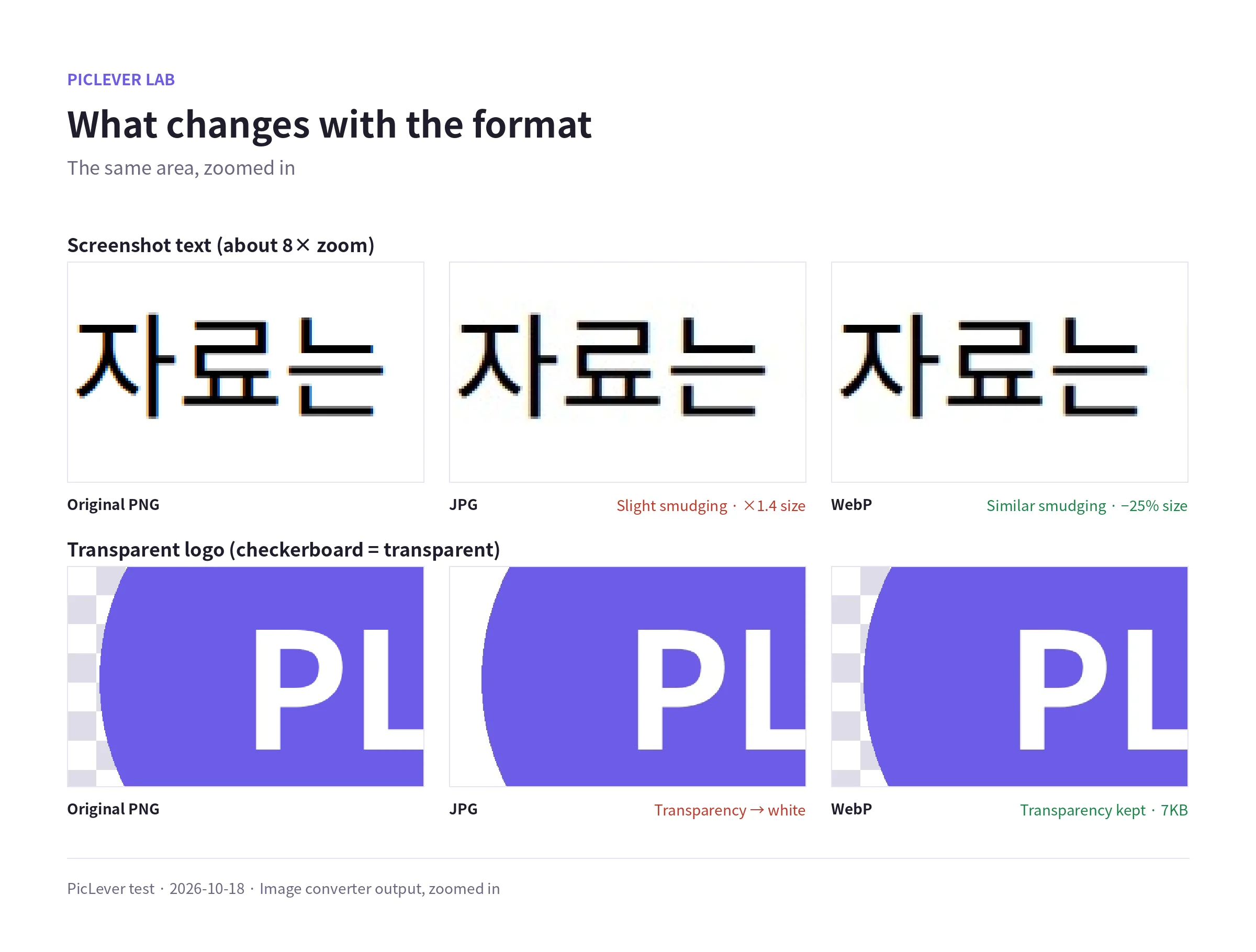
| Checked | PNG | JPG | WebP |
|---|---|---|---|
| Screenshot text edges | Same as original | Slight smudging (33 dB PSNR) | Slight smudging (33 dB PSNR) |
| Transparency | Kept | Filled with white | Kept |
| Location and capture date | Removed | Removed | Removed |
-
Converting the screenshot to JPG made it 1.4× larger, not smaller, and text edges smudged slightly. WebP smudged about as much but was 25% smaller. To keep text crisp, stay with PNG.
-
Re-saving a JPG as JPG also lost a little (41 dB PSNR). Avoid converting the same photo over and over.
-
Losing location data can be a plus: converting a photo taken at home before posting it left no capture location behind.
Which format to convert to
-
To make a JPG photo sharper: conversion can't do that. You'd need the original photo.
-
To shrink the file: WebP, which was smaller than the original for all three samples. For more, see 3 Ways to Reduce Image File Size.
-
To keep transparency: PNG or WebP. JPG turns transparent areas white.
-
For recipients who can't open WebP: JPG for photos, PNG for screenshots and logos. See WebP File Won't Open?
-
BMP and TIFF: only when the recipient requires them.
Test setup
-
Samples: a phone photo (4000×2667px JPG, 4.5MB, with location and capture date), a chat screenshot (1170×2532px PNG, 172KB) and a transparent logo (800×800px PNG, 8KB)
-
Converted to PNG, JPG, WebP, BMP and TIFF in PicLever Image converter, then checked file size, PSNR against the original (transparent areas compared over white), transparency and EXIF location and date · Tested 2026-10-18
Converting image formats with PicLever
-
In the Image converter, click Choose image and add your images (up to 20, 20MB each).
-
Choose the Output format: WebP to save space; for compatibility, JPG for photos and PNG for screenshots and logos.
-
Click Convert images, check the result sizes, then download them all as a ZIP or one by one.
FAQ
Q. Are my images uploaded to a server?
No. Conversion runs on your device.
Q. Can I convert iPhone HEIC photos?
Input currently supports PNG, JPG, WebP and BMP. On an iPhone, setting the camera format to "Most Compatible" captures photos as JPG.
Q. Does converting change the dimensions?
No. Only the format changed; width and height stayed the same. To resize, use the Image resizer.