

How to Extract Text from a PDF (Two-Column Layouts, Tables and Scans Compared)
I extracted PDF text to TXT and compared it with the original. Characters and column order were exact, but every line end became a line break, tables came out space-separated, and scans had no text.
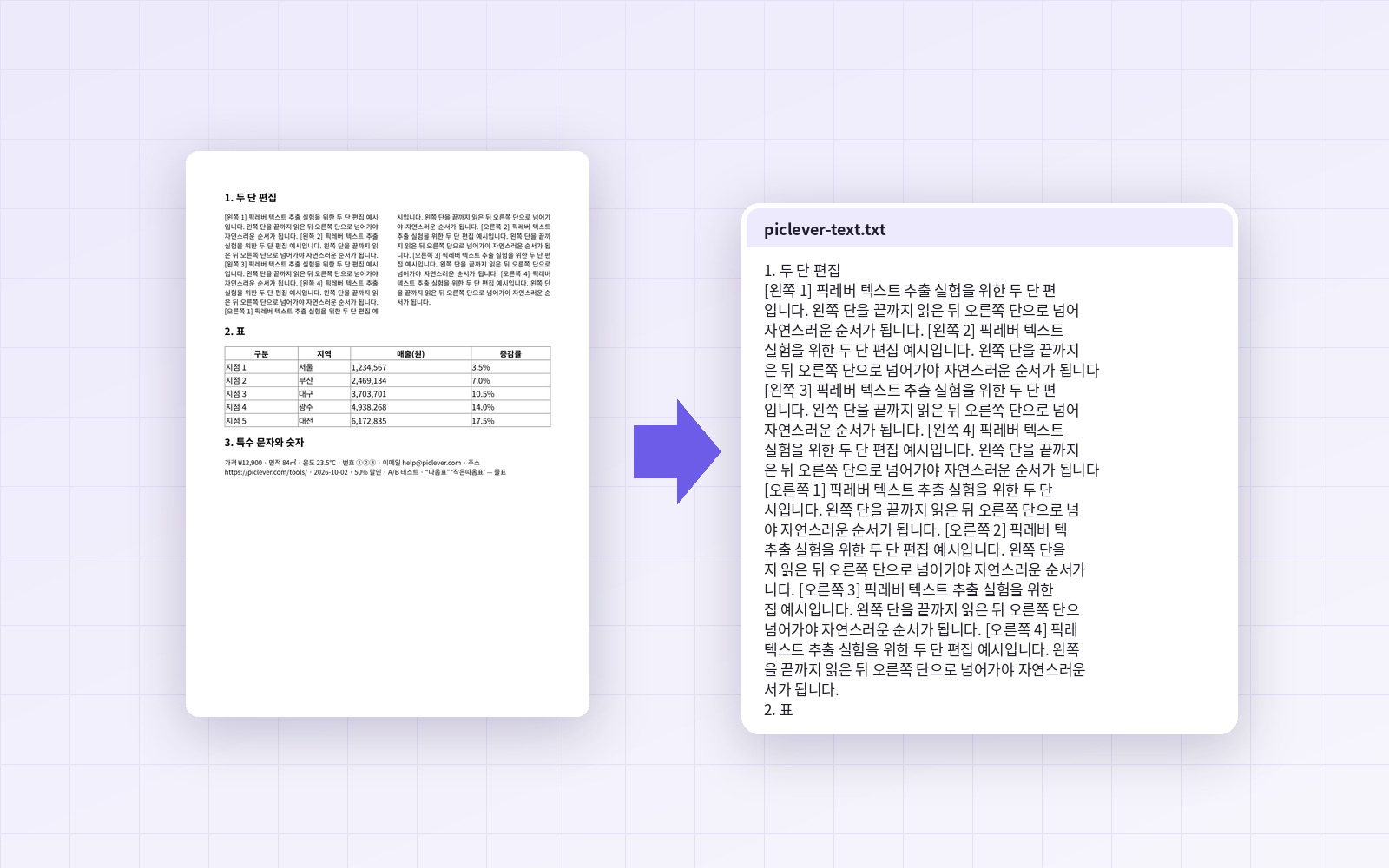
When you copy sentences from a PDF contract or report into a document or email, the lines often break in odd places or come out in the wrong order, and you end up cleaning them up by hand. I used PicLever's PDF to text to extract a two-column layout, a table, special characters and a scanned PDF into TXT, then compared the result with the original text character by character.
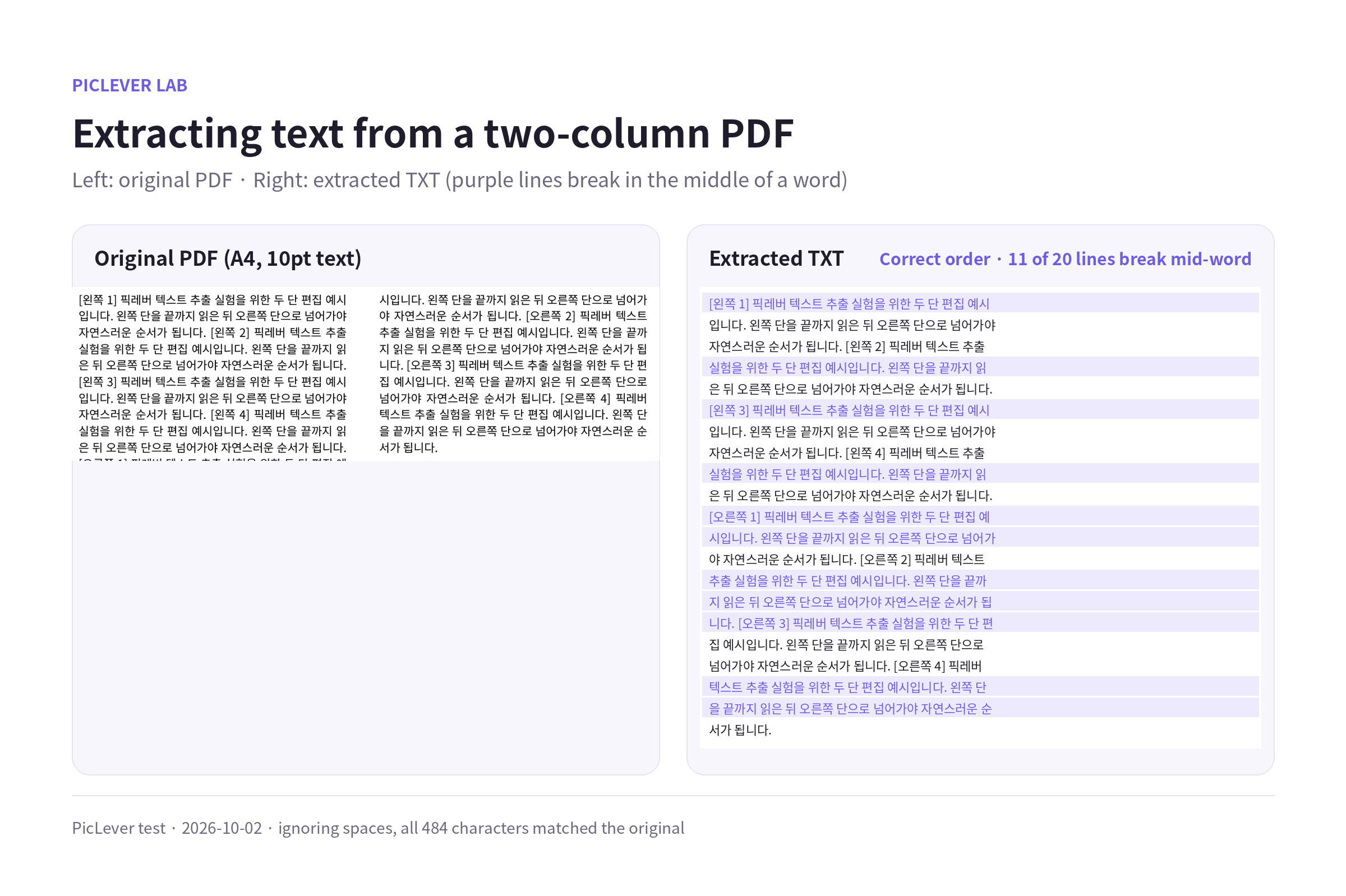
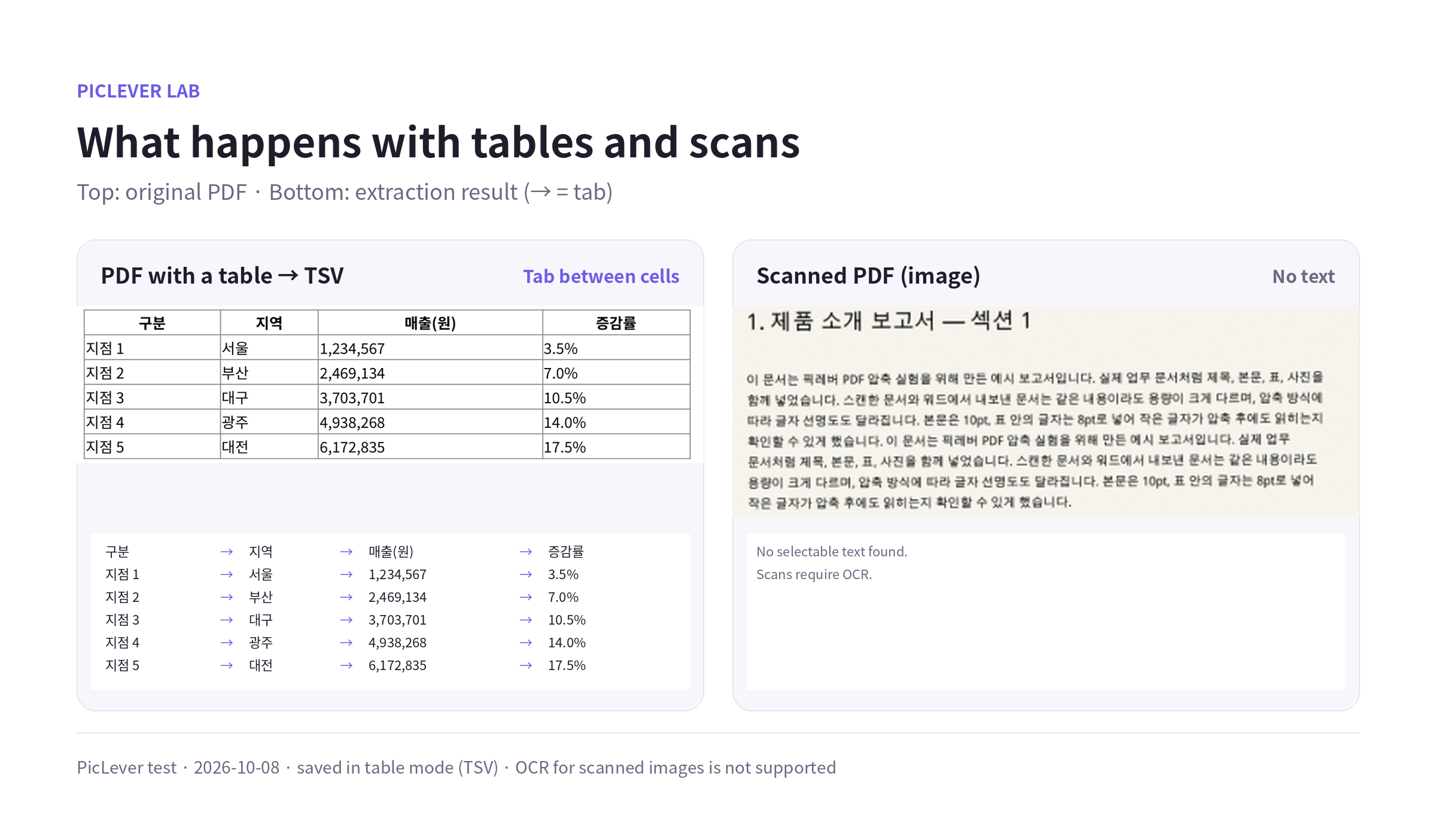
Bottom line: for PDFs made of real text, all 484 characters matched the original when spaces were ignored, and the two-column text came out in the correct left-then-right order. However, every line end in the PDF became a line break, so in Korean paragraphs 11 of 20 lines broke in the middle of a word. Saving tables as Table · tab separated (.tsv) put a tab between cells, so they split into 4 columns as soon as they were pasted into Excel, and the scanned PDF had no extractable text because its pages are images.
Does a two-column layout come out in order?
| Check | Result |
|---|---|
| Reading order | Whole left column, then right column—same as the original |
| Character accuracy | All 484 characters match, ignoring spaces |
| Line breaks | A line break at every line end in the PDF; 11 of 20 lines break mid-word |
| Page markers | A separator such as "--- 1 ---" before each page |
-
Korean text can wrap in the middle of a word, so simply deleting line breaks joins some words that should be separate. Rejoining with spaces has the opposite problem. For paragraphs you'll reuse, check each line end as you join them. English text normally wraps at spaces, so joining lines with a space works much better.
-
For lists and short lines (addresses, item lists), keeping the line breaks is actually convenient.
Tables, special characters and scans
| Document | Result |
|---|---|
| Table (TXT) | One line per row; a single space between cells (numbers, commas and % exact) |
| Table (TSV) | A tab between cells → pastes into Excel as 4 columns × 6 rows |
| Special characters | ₩, ㎡, ℃, ①②③, email, URL and date all exact; one left single quote (‘) became a similar-looking character |
| Scanned PDF | "No selectable text found. Scans require OCR." |
-
To move a table into Excel, choose "Table · tab separated (.tsv)" as the text format. In TXT, cells are separated by spaces, so each row lands in a single cell when pasted.
-
TSV splits every spaced-out item on the same line into cells, so two-column body text came out with left- and right-column lines mixed together by tabs. Save prose as TXT and tables as TSV. Check the result for complex tables with empty or merged cells.
-
A scanned PDF is one picture per page, so there's no text to extract—you'll need a program with OCR (text recognition). To tell which kind you have, try selecting text by dragging in a PDF viewer.
Test setup
-
Samples: an A4 document with two-column body text, a table and special characters (10pt), a 5-page text-heavy report, and a 5-page PDF simulating a 300 dpi scan (9.4MB)
-
Saved TXT files with PicLever PDF to text and compared the characters (ignoring spaces), line-break positions and table separators with the original text · Tested 2026-10-02, rechecked 2026-10-08 after the tool update (TSV output, spacing cleanup)
Extracting text from a PDF with PicLever
-
In PDF to text, click Choose PDF and add your file (up to 50MB and 200 pages; password-protected PDFs aren't supported).
-
If you only need some pages, enter a Page range such as "2-3". Leave it blank for all pages.
-
Choose the Text format: Plain text (.txt) for prose, Table · tab separated (.tsv) for tables headed to Excel.
-
Click Create result, then save the file (piclever-text.txt or .tsv).
-
Open it in a text editor, copy what you need, and check line ends as you rejoin paragraphs.
FAQ
Q. The extracted TXT looks garbled.
The file is saved as UTF-8, which handles Korean and other scripts. If an older program shows broken characters, open it in a different text editor.
Q. Can it extract text inside images?
No. Text that's part of a photo or scan is an image, so it isn't extracted. To keep pages as images, use PDF to JPG.
Q. I want to send just a few pages as a PDF.
If you need the pages rather than the text, save them as a new PDF with Extract pages.
Related posts
-
How to Split a PDF (Split vs. Extract vs. Remove Pages, and What Happens to File Size)
-
How to Reduce PDF File Size: Resolution and Quality Settings Compared (9.4MB Scan → 0.57MB)
-
Does Deleting a PDF Page Really Remove It? (Leftover Text and Photos, and Text Under a Black Box)
-
How Accurate Is Image Text Extraction? (Screenshots and Photos Compared by Text Size, Blur and Tilt)