

Does Deleting a PDF Page Really Remove It? (Leftover Text and Photos, and Text Under a Black Box)
I deleted a page from a sample contract and searched the result file for leftover text and photos, then checked whether an account number under a black box could still be extracted.
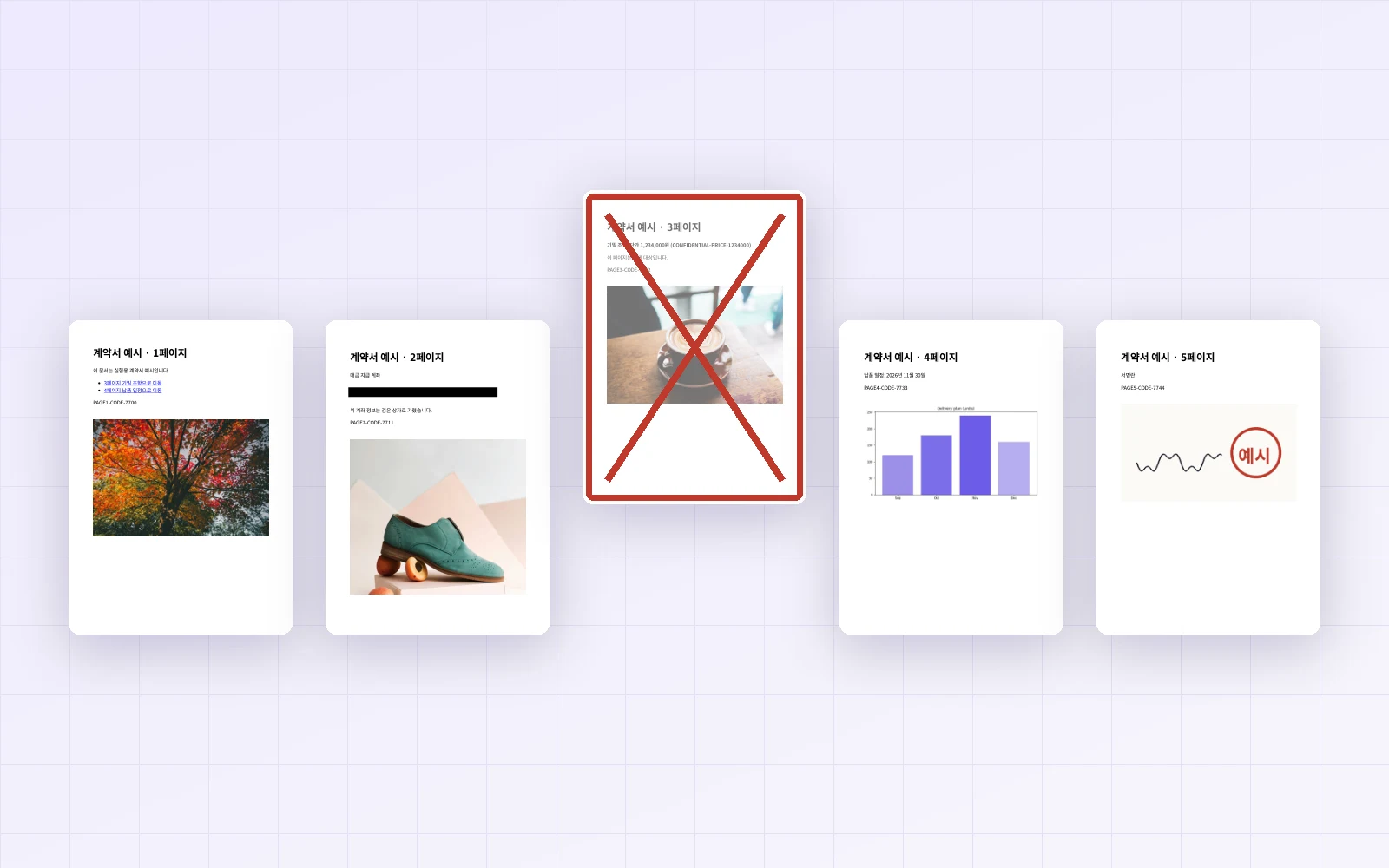
Before sending a contract or a quote, you may want to drop the page with prices or personal details. But when you delete a PDF page, is it only hidden from view, with the content still inside the file? Using PicLever's Remove pages, I deleted page 3 (a confidential clause) from a 5-page sample contract and searched every part of the resulting file. I also checked what happens when you cover information with a black box on a page you keep.
Updated 2026-10-18: a bookmark option and a Redact PDF tool were added, so I ran the tests again.
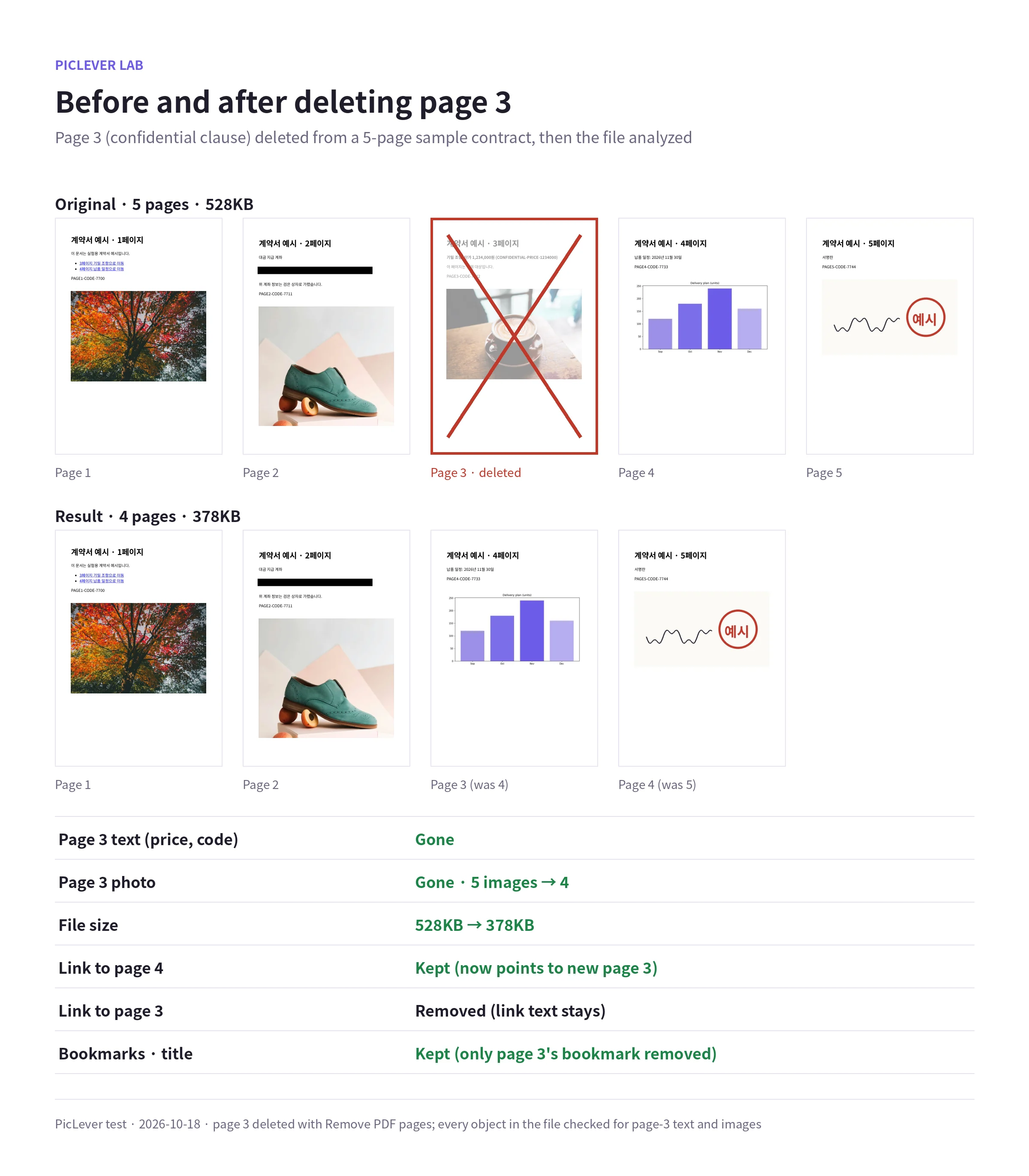
Bottom line: the text and photo from the deleted page 3 were nowhere in the result file. Images dropped from 5 to 4, and the file went from 528KB to 378KB. Bookmarks and the document title were kept too. However, an account number covered with a black box on the kept page 2 was still fully readable with text extraction. Removing covered text took Redact PDF.
Is the deleted page really gone?
| What I checked | Result |
|---|---|
| Page 3 text (confidential price, unique code) | Gone (every page and every object in the file checked) |
| Page 3 photo | Gone (5 images → 4) |
| File size | 528KB → 378KB |
| "Go to page 4" link on page 1 | Kept (now points to the new page 3) |
| "Go to page 3" link on page 1 | Link removed, text stays |
| Bookmarks · document title | Kept (only page 3's bookmark removed) |
-
PicLever's Remove pages copies only the pages you keep into a new PDF. It doesn't edit the original in place, so the deleted page's content didn't come along hidden.
-
Extract pages with "1-2, 4-5" gave the same result. The two tools differ only in how you choose the pages to keep.
-
With Keep document info and bookmarks to retained pages (on by default), only the deleted page's bookmark dropped out of five, and the document title stayed.
-
Text written on kept pages stays as it is, such as a table of contents. If a line like "Go to the confidential clause on page 3" remains, edit it yourself.
Covered text was still there
| Page 2 | On screen | Text extraction |
|---|---|---|
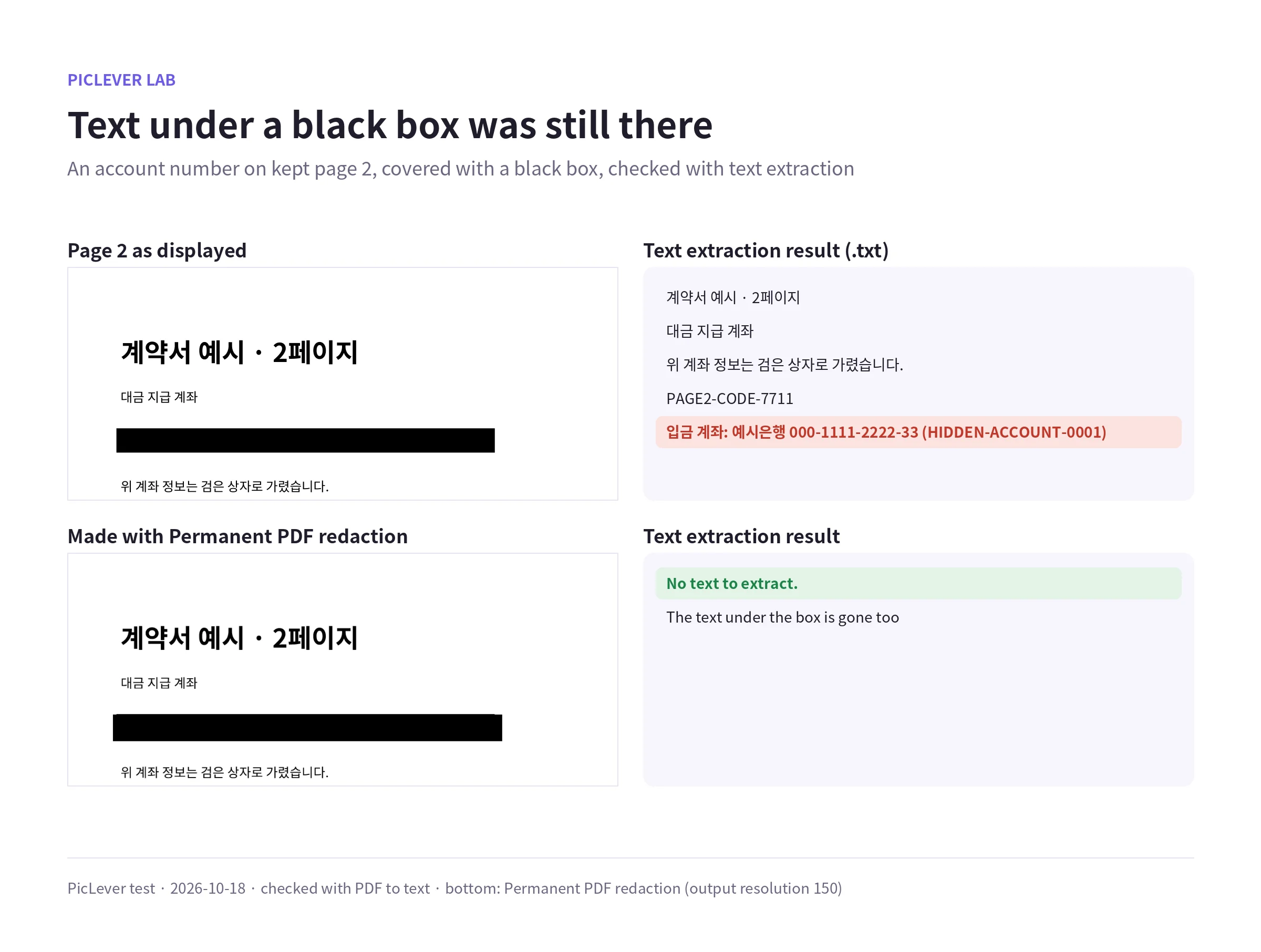
| Black box over the account number | Hidden | Account number comes out intact |
| Made with Redact PDF | Hidden | No text to extract |
-
A black box is just a shape drawn on top of the text; the text is still underneath. It came out immediately with PDF to text or a simple copy and paste.
-
Dragging over the account number in Redact PDF removed the text under the box from the result, because every page is rebuilt as an image.
-
The trade-off: text on every page becomes part of an image, so search and copy no longer work, and bookmarks and links are dropped. At resolution 150 the file grew from 528KB to 3.5MB. Use it only for documents that need redaction.
Check before you send
-
Whole pages that can go: Remove pages is enough. Text and photos from deleted pages did not remain.
-
Only part of a page must be hidden: don't draw a black box; use Redact PDF. Removing unneeded pages first keeps the file smaller.
-
Document properties: Remove pages kept the title, but the producer information changed. Check author names separately with How to Change a PDF's Author and Title.
-
Final check: put the file you'll send into PDF to text and make sure the text that should be gone doesn't appear.
Test setup
-
Sample: a 5-page A4 sample contract (one photo and a unique code per page, a confidential price on page 3, a sample account number covered by a black box on page 2, internal links on page 1 to pages 3 and 4, 5 bookmarks and a document title)
-
Processed with "3" in Remove pages and "1-2, 4-5" in Extract pages, then decompressed every object in the file to check for page-3 text, images and content streams · Covered text checked with PDF to text; redaction at resolution 150 · First tested 2026-10-15, re-tested 2026-10-18
-
A few glyph shapes can remain inside a shared font, but nothing could be read back as sentences or numbers.
Removing PDF pages with PicLever
-
In Remove pages, click Choose PDF and add your file (up to 50MB and 200 pages).
-
In Pages to remove, enter something like "3" or "2, 5-7". Leave Keep document info and bookmarks to retained pages on (default) to keep bookmarks.
-
Click Create result, check the remaining pages in the preview, then save the result.
-
If a kept page still has something to hide, open the result in Redact PDF, drag over the area and click Create redacted PDF.
FAQ
Q. Is my file uploaded to a server?
No. Remove pages processes the PDF in your browser.
Q. Can I recover a deleted page?
Not from the result file. The original file isn't changed, so keep it somewhere safe.
Q. What about black highlighter or comment boxes?
Rectangles and highlights added as comments in PDF viewers also sit on top of the text, so the text underneath often remains. Always check with text extraction before sending.