

How to Change a PDF's Author and Title (Which Document Properties Actually Get Removed?)
I changed and cleared a PDF's title and author with PicLever's Edit document info. The hidden XMP copy was removed too, but the creating app, dates, custom properties and comment author stayed. Page content, bookmarks and links were untouched.
Open the properties of a quote or report before sending it as a PDF, and you'll often find your name in the Author field and a working title like "final_v3" still attached. That's information the recipient doesn't need. I took a quote PDF with properties filled in the way a Word export would have them, changed and cleared them with PicLever's Edit document info tool, and checked what was left in the resulting file.
Bottom line: after upload, the existing title, author, subject and keywords were loaded into the fields, ready to edit or clear, and the hidden XMP copy of the same information was removed too. However, the creating app (Microsoft Word), the created and modified dates, custom properties and the comment author's name all stayed. Page content, bookmarks, links and form fields were untouched, and the file size barely changed.
What changes, and what stays
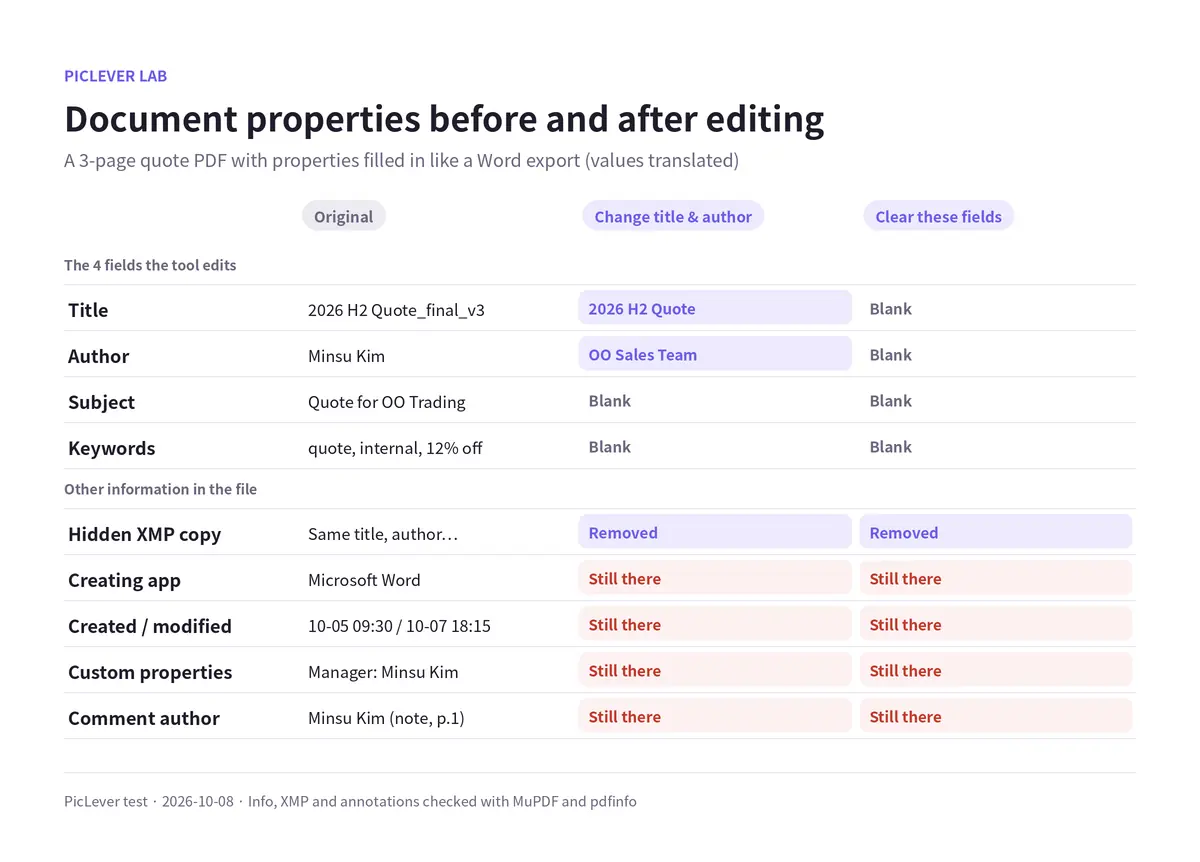
| Item | Original | Change title & author | Clear these fields |
|---|---|---|---|
| Title | 2026 H2 Quote_final_v3 | 2026 H2 Quote | Blank |
| Author | Minsu Kim | OO Sales Team | Blank |
| Subject & keywords | Quote details, 12% discount, etc. | Blank if cleared | Blank |
| Hidden XMP copy | Same title and author | Removed | Removed |
| Creating app | Microsoft Word | Unchanged | Unchanged |
| Created / modified dates | 10-05 / 10-07 | Unchanged | Unchanged |
| Custom properties | Manager: Minsu Kim | Unchanged | Unchanged |
| Comment author | Minsu Kim | Unchanged | Unchanged |
-
PDFs often store the title and author in two places: the document info and XMP. If only one is changed, some apps may still show the old name. The result file had its XMP removed entirely, so that wasn't an issue.
-
The creating app and dates aren't editable, so the original values stay. The modified date wasn't updated to the time of editing either.
-
Custom properties added in apps like Word (manager, company, etc.) and the name of whoever added a comment also remain. The tool itself notes that it "edits document properties, not personal data in page content or annotations."
-
The result is saved as piclever-metadata.pdf, so labels like "final_v3" in the original file name don't carry over. Rename it before you send it.
Only the properties change, not the content
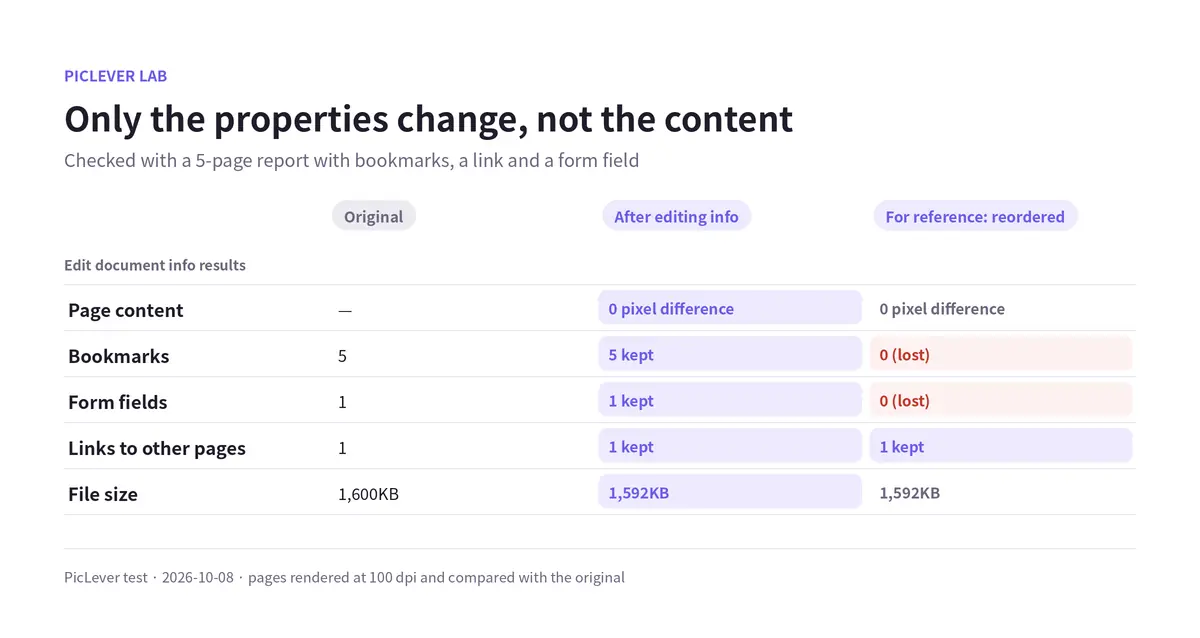
| Check | Original | After editing info |
|---|---|---|
| Page content | — | Pixel-identical to the original |
| Bookmarks (outline) | 5 | 5 kept |
| Form fields | 1 | 1 kept |
| Link to another page | 1 | 1 kept |
| File size | 1,600KB | 1,592KB (a 9.4MB scan shrank by 1KB) |
-
Reordering PDF pages dropped bookmarks and form fields, but Edit document info only changes the properties and leaves the document itself alone, so all of these extras survived.
-
Keywords entered with commas, such as "quote, 2026, OO Trading", were saved joined by spaces without the commas ("quote 2026 OO Trading"). Even without editing, the commas in the original keywords became spaces.
-
A title mixing Korean, English and symbols (—, parentheses) was saved as typed. Clearing a field saves that property as an empty value.
Test setup
-
Samples: a 3-page quote PDF with title, author, subject, keywords, XMP, creating app (Microsoft Word), dates, custom properties and a comment with an author name; a 5-page report (1.6MB) with 5 bookmarks, a link and a form field; and a 5-page PDF simulating a 300 dpi scan (9.4MB)
-
Changed the title and author, cleared the fields, and saved without changes in PicLever Edit document info, then checked the document info, XMP and annotations with MuPDF and pdfinfo, and compared pages rendered at 100 dpi with the original · Tested 2026-10-08
Changing a PDF's author and title with PicLever
-
In Edit document info, click Choose PDF and add your file (up to 50MB and 200 pages; encrypted PDFs aren't supported).
-
The Title, Author, Subject and Keywords fields fill in with the original values. Edit them for the copy you're sending.
-
To remove them all, click Clear these fields. To remove just some, empty those fields.
-
Click Create result, then save the result. Rename piclever-metadata.pdf to the name you want to send.
FAQ
Q. I also want to remove the creating app and dates.
This tool can't change them. In Word, use File → Info → Check for Issues → Inspect Document to clean up properties and personal information before exporting to PDF again.
Q. What about my name on comments?
A comment's author name is stored in the comment itself, not in the document info. Delete comments you don't need in a PDF viewer and save, then clean up the document info.
Q. I want to set a title for several PDFs I've combined.
Combine them with Merge PDF, then enter a new title and author here. See How to Merge PDFs for the steps.
Related posts
-
How to Reorder PDF Pages (Move to Front, Reverse Order, and What Happens to Bookmarks and Links)
-
How to Merge PDFs (Combine Files, Set the Order, and What Happens to File Size)
-
How to Add a Watermark to a PDF (Opacity from 15% to 75% Compared, Without Hiding the Text)
-
How to Pixelate Part of a Photo (Hide Phone Numbers and Faces—How Big Should the Mosaic Be?)
-
Does Deleting a PDF Page Really Remove It? (Leftover Text and Photos, and Text Under a Black Box)