

How to Reorder PDF Pages (Move to Front, Reverse Order, and What Happens to Bookmarks and Links)
I reordered and reversed a 5-page report. Page content, file size, bookmarks, document info and internal links were kept; only form data was dropped.
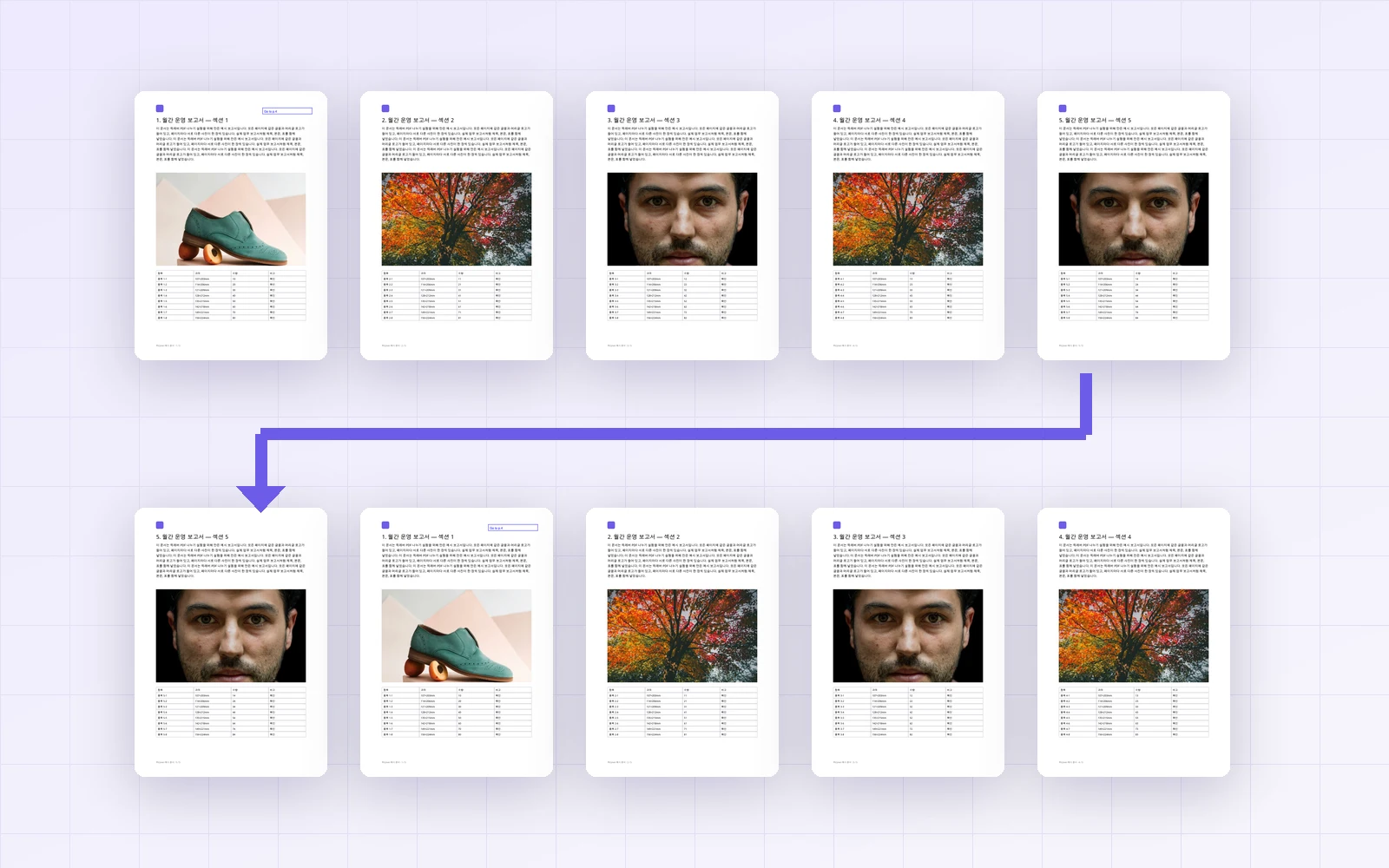
After merging several documents or scanning a stack of pages, you sometimes end up with a PDF whose pages are out of order—and you'd rather fix the order than remake the file. With PicLever's PDF page organizer, I moved the last page of a 5-page report to the front and reversed the whole document, then checked whether quality, text and file size stayed the same, and whether extras like bookmarks and links survived.
Updated 2026-10-18: a bookmark option was added, so I ran the test again.
Bottom line: the ↑ ↓ buttons next to each page and the Reverse order button changed the order, and page content and images stayed identical to the original (1,600KB → 1,592KB). With the bookmark option (on by default), all 5 bookmarks and the title and author info were kept, and bookmarks and links to other pages still went to the right page after reordering. However, the form field kept its appearance but lost its form data.
Reordering results
| What you want | How | Resulting order |
|---|---|---|
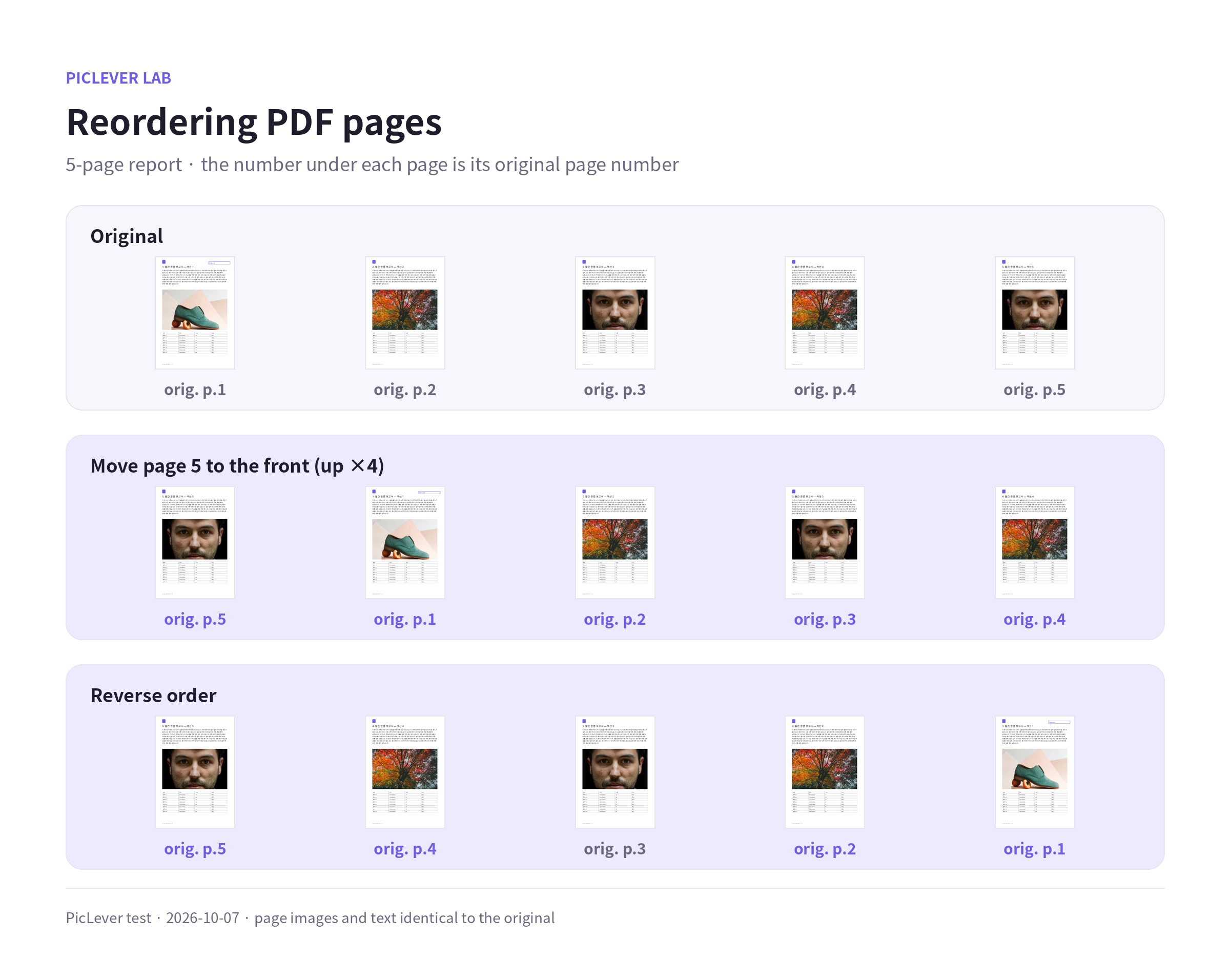
| Move the last page to the front | Click page 5's ↑ button 4 times | 5 · 1 · 2 · 3 · 4 |
| Reverse everything | Reverse order once | 5 · 4 · 3 · 2 · 1 |
| Swap two pages | Click the later page's ↑ once | e.g. 1 · 3 · 2 · 4 · 5 |
-
Each page in the list is labeled with its original page number, so you can still tell where it came from after moving it.
-
If you move the wrong page, Undo (Ctrl+Z) puts it back.
-
If a stack was scanned starting from the last sheet so every page is in reverse, one click on Reverse order fixes it.
What survives reordering, and what doesn't
| Item | Original | After reordering |
|---|---|---|
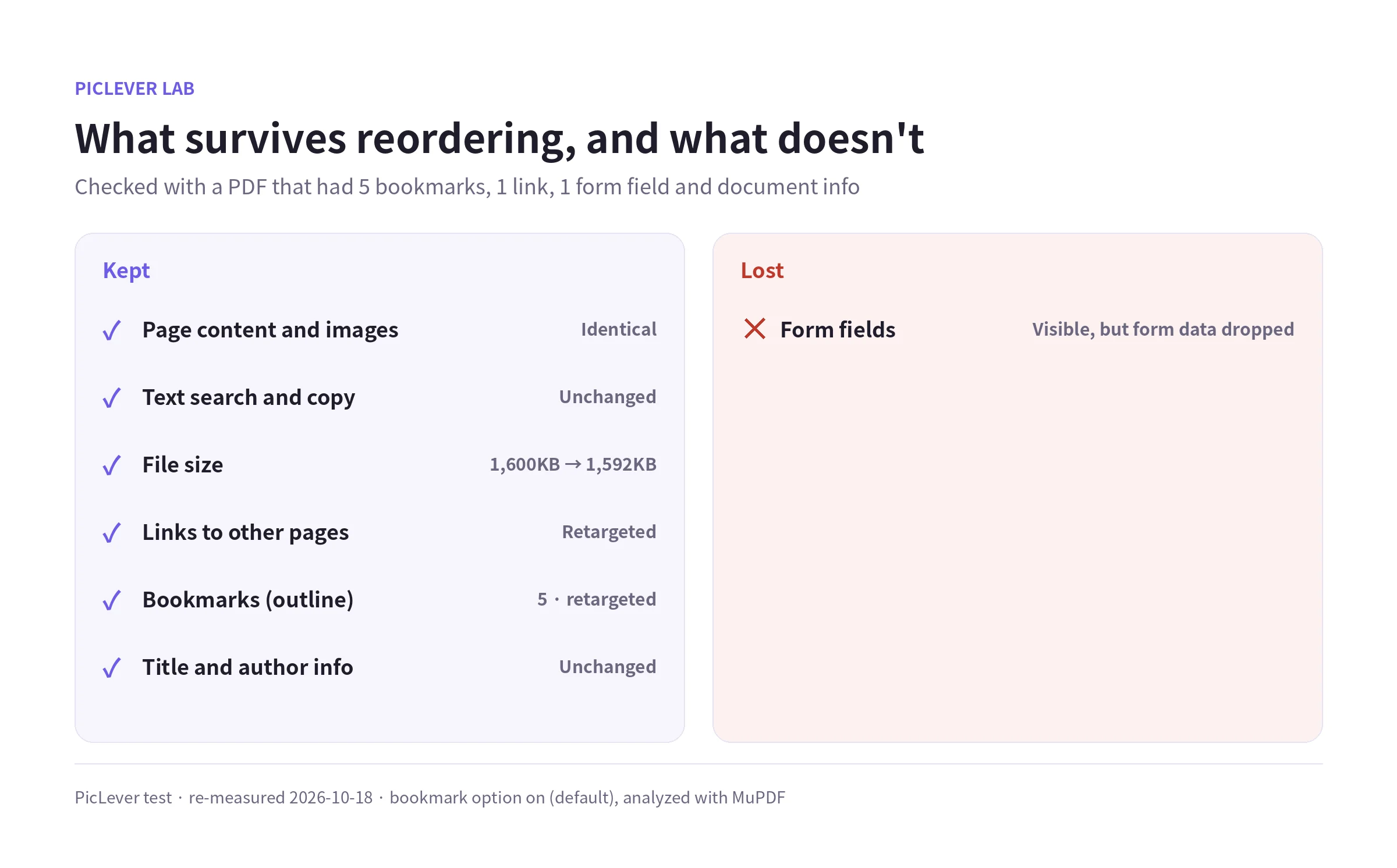
| Page content and images | — | Identical (images not recompressed) |
| Text search and copy | Yes | Yes |
| File size | 1,600KB | 1,592KB |
| Bookmarks (outline) | 5 | 5 (follow the new positions) |
| Form fields | 1 | Visible, but form data dropped |
| Title and author info | Present | Unchanged |
| Link to another page | Jumps to page 4 | Still jumps to the moved page 4 |
-
The tool now has a Keep document info and bookmarks to retained pages option, on by default. It kept bookmarks and document info, but as the tool notes, interactive forms were not preserved.
-
Both after moving page 5 to the front and after reversing, the "Go to p.4" link on the original page 1 pointed to page 4 in its new position.
-
Documents without form fields—typical reports, scans and photo PDFs—have nothing to worry about. A 9.4MB scanned PDF stayed at 9,659KB after reversing.
-
For PDFs with fillable fields, the fields can't be filled in after reordering, so finish filling and save first, or reorder in the original app.
Test setup
-
Samples: a 5-page A4 report (1.6MB) with 5 bookmarks, a link to page 4, one form field, and title and author info; and a 5-page PDF simulating a 300 dpi scan (9.4MB)
-
Moved page 5 to the front and reversed the order with PicLever PDF page organizer, then analyzed the results with MuPDF · Tested 2026-10-07, rechecked 2026-10-08 after the internal-link update, re-measured 2026-10-18 with the bookmark option
Reordering PDF pages with PicLever
-
In the PDF page organizer, click Choose PDF and add your file (up to 50MB and 200 pages).
-
Use the ↑ ↓ buttons next to a page to move it. To flip the whole document, click Reverse order.
-
Check the order in the preview. If something's wrong, use Undo.
-
Click Create result, then save the result.
FAQ
Q. I also want to remove pages I don't need.
The organizer can't delete pages. Remove them first with Remove pages, or pick just the pages you need with Extract pages. See How to Split a PDF for the differences.
Q. I want to set the order while merging several PDFs.
Set the file order in Merge PDF, then fine-tune individual pages here.
Q. Can I fix sideways pages at the same time?
The organizer doesn't change orientation. Use Rotate PDF separately—see How to Rotate and Save PDF Pages.
Related posts
-
How to Merge PDFs (Combine Files, Set the Order, and What Happens to File Size)
-
How to Split a PDF (Split vs. Extract vs. Remove Pages, and What Happens to File Size)
-
How to Rotate and Save PDF Pages (Fix Only Sideways Pages, Without Losing Quality)
-
How to Change a PDF's Author and Title (Which Document Properties Actually Get Removed?)