

How to Rotate and Save PDF Pages (Fix Only Sideways Pages, Without Losing Quality)
I rotated only the sideways and upside-down pages of a scanned PDF and saved it. Here's how to pick the page range and angle, and what happens to quality, file size and other viewers.
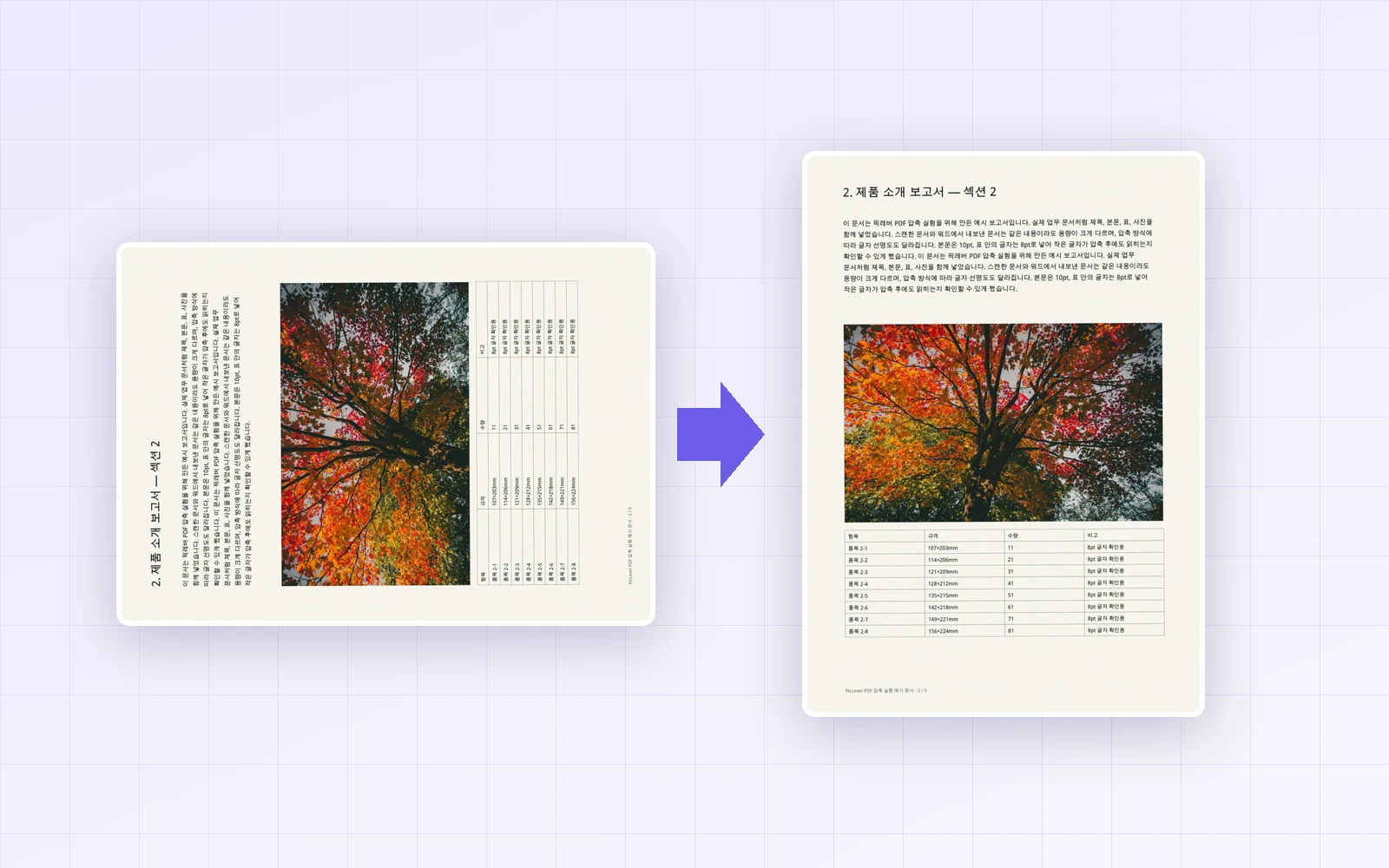
You open a scanned or phone-made PDF and find that a few pages are sideways or upside down. Rotating the view in your PDF reader only lasts until you close it, and whoever you send the file to has the same problem. I took a 5-page scanned PDF with pages 2 and 4 lying sideways and page 5 upside down, fixed it with PicLever's Rotate PDF, and checked whether rotation changes quality or file size and whether other viewers show the new orientation.
Bottom line: entering "2,4" with 90°, then "5" with 180°, set every page upright in two runs. Rotation only records the angle each page should be displayed at, so the scanned image data didn't change by a single byte, and the file size stayed the same (9,669KB → 9,668KB). Each run took less than a second, and other PDF viewers opened the pages in the new orientation.
Rotating only the sideways pages
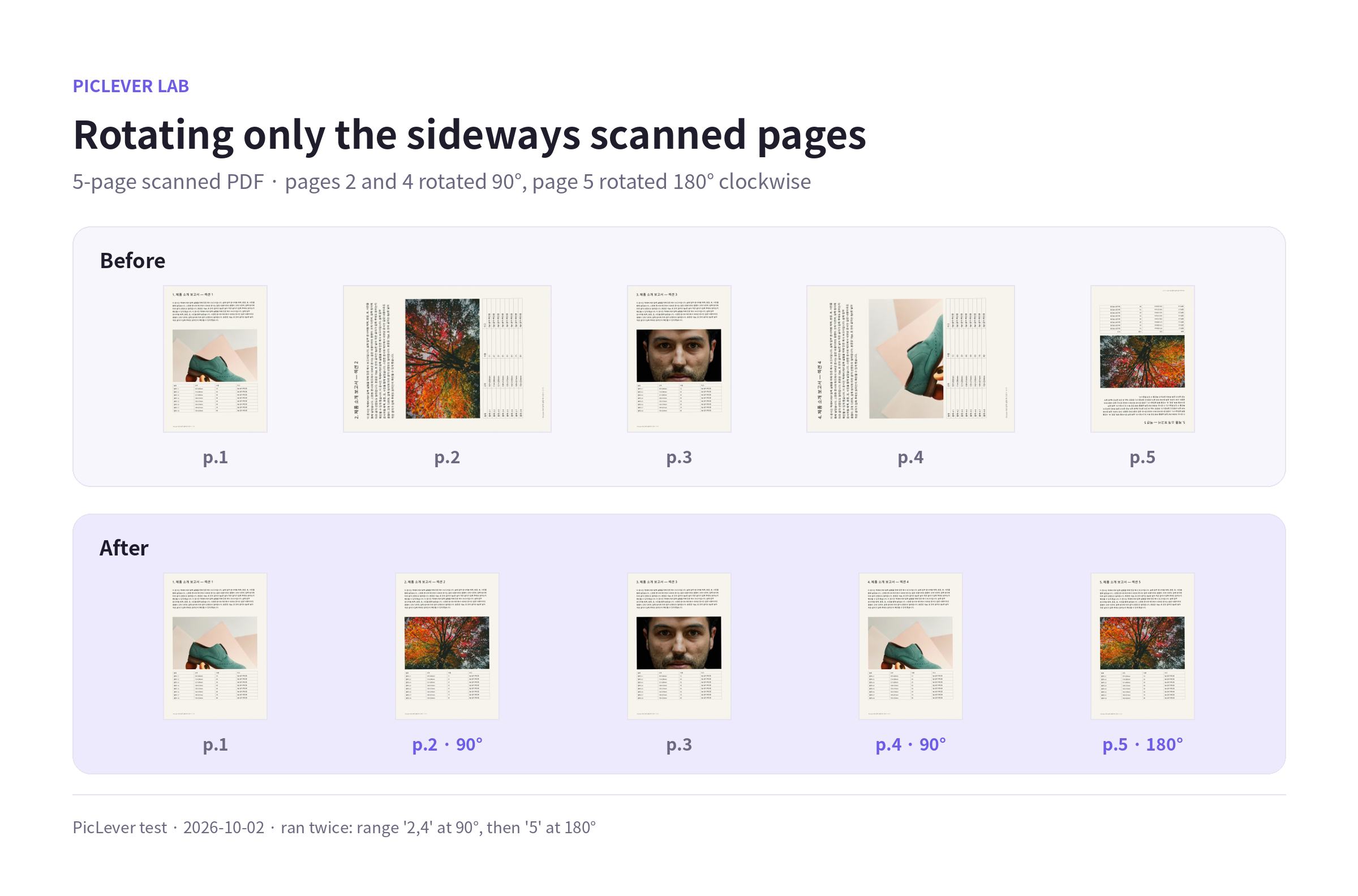
| Pages | Before | Page range | Angle | Result |
|---|---|---|---|---|
| 1, 3 | Upright | (not entered) | — | Unchanged |
| 2, 4 | Lying on the left side | 2,4 | 90° | Upright |
| 5 | Upside down | 5 | 180° | Upright |
-
Rotate pages that need different angles in separate runs. Upload the first result again for the second rotation.
-
Rotating a page that's already at 90° by another 90° gives 180°. Angles add up, so check the preview.
Which angle should you choose?
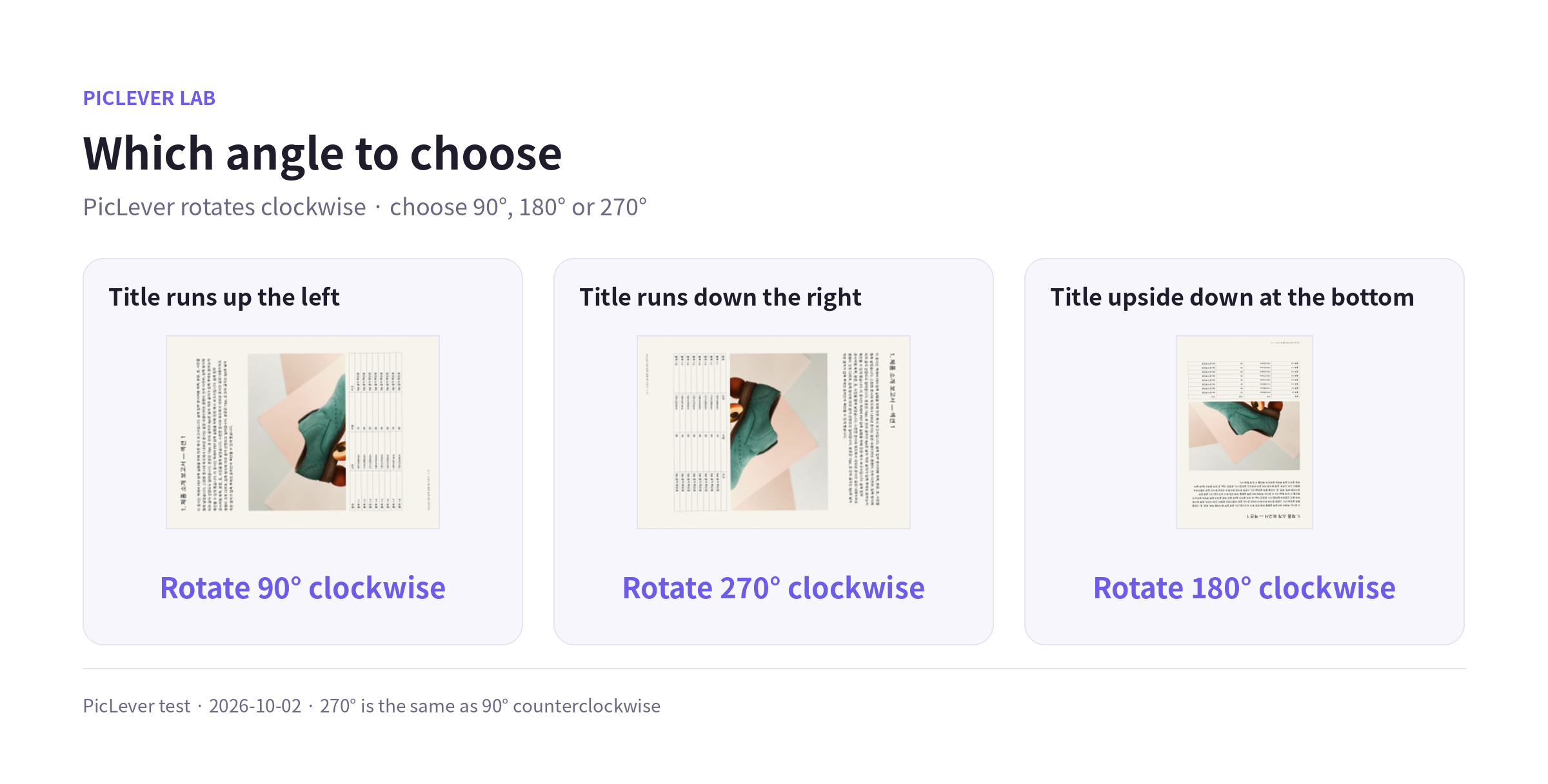
| How the page looks | Angle to choose (clockwise) |
|---|---|
| Title runs up the left side (reads bottom to top) | 90° |
| Title runs down the right side (reads top to bottom) | 270° |
| Title upside down at the bottom | 180° |
- PicLever rotates clockwise. For a page that needs 90° counterclockwise, choose 270°.
Does rotating change quality or file size?
| Check | Result |
|---|---|
| Scanned image data | Identical before and after on all 5 pages (not recompressed) |
| File size | Scanned PDF 9,669KB → 9,668KB; text PDF 1,598KB → 1,591KB |
| Text search | Text PDFs stay searchable and copyable after rotation |
| Processing time | Under 1 second |
| Other viewers | MuPDF- and Poppler-based viewers both showed the new orientation |
- Quality doesn't drop. Instead of redrawing the image, the tool changes the page's standard PDF rotation value, so you can rotate as many times as you like without losing quality.
Test setup
-
Samples: a 5-page scanned PDF (300 dpi, 9.4MB) with pages 2 and 4 rotated 90° counterclockwise and page 5 upside down, and a 5-page A4 text report (1.6MB)
-
Ran PicLever Rotate PDF with different page ranges and angles, then compared page rotation values, image data, file size and text extraction · Tested 2026-10-02
Rotating PDF pages with PicLever
-
In Rotate PDF, click Choose PDF, add your file, and note which pages are sideways in the preview.
-
Enter those pages in Page range, such as "2,4" or "3-5". Leave it blank to rotate every page.
-
Choose the Clockwise rotation: 90°, 180° or 270°.
-
Click Create result, check the orientation in the preview, then save the result. If pages needing a different angle remain, upload the saved file and repeat.
FAQ
Q. My pages are in the wrong order.
If it's the order rather than the rotation, use Reorder pages to move pages up or down.
Q. I also want to trim the margins after rotating.
Use the PDF cropper. For rotated documents, enter the top, right, bottom and left values based on the page's original (unrotated) orientation.
Q. My scanned PDF is too large.
Rotation doesn't change file size. To shrink it, use the PDF Compressor—see the PDF size reduction test for results by setting.
Related posts
-
How to Reduce PDF File Size: Resolution and Quality Settings Compared (9.4MB Scan → 0.57MB)
-
How to Add Page Numbers to a PDF (Skip the Cover, Start from Any Number)
-
How to Combine Multiple Photos into One PDF (7.8MB of Phone Photos → 1.3MB, Text Sharpness Compared)
-
How to Crop PDF Margins (Trim Scan Backgrounds, and Is the Cropped Part Really Gone?)
-
How to Reorder PDF Pages (Move to Front, Reverse Order, and What Happens to Bookmarks and Links)