

How to Crop PDF Margins (Trim Scan Backgrounds, and Is the Cropped Part Really Gone?)
I trimmed the background from a phone-scanned PDF in millimeters. Cropping only changes the visible area, so file size stayed the same and a cropped-out note was still extractable by other programs.
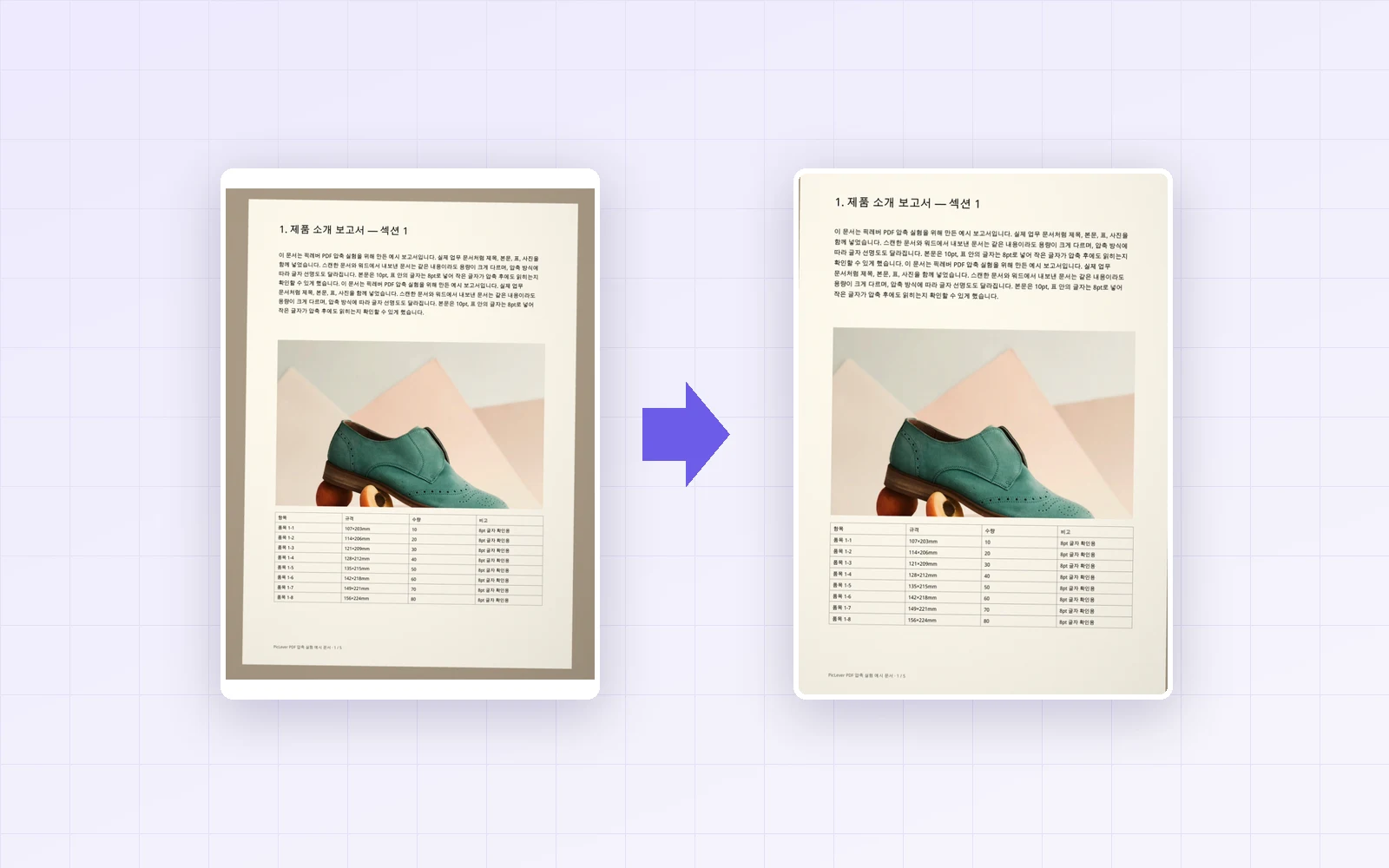
If a document you photographed with your phone still shows the desk around the paper, or a scan has margins so wide that the text looks tiny on screen, cropping the PDF tidies it up. I used PicLever's PDF cropper to trim the background from a phone scan, and also checked whether an internal note hidden by cropping is really gone.
Bottom line: entering millimeter values for the top, right, bottom and left cropped only the pages I chose, and the phone scan's background came off cleanly with 17mm top and bottom and 12mm on each side. But cropping only changes the visible area: the file size stayed the same, and the note I cropped out disappeared on screen yet came right back when another PDF program extracted the text. Don't use cropping to hide information that must be removed.
Trimming the background from a phone scan
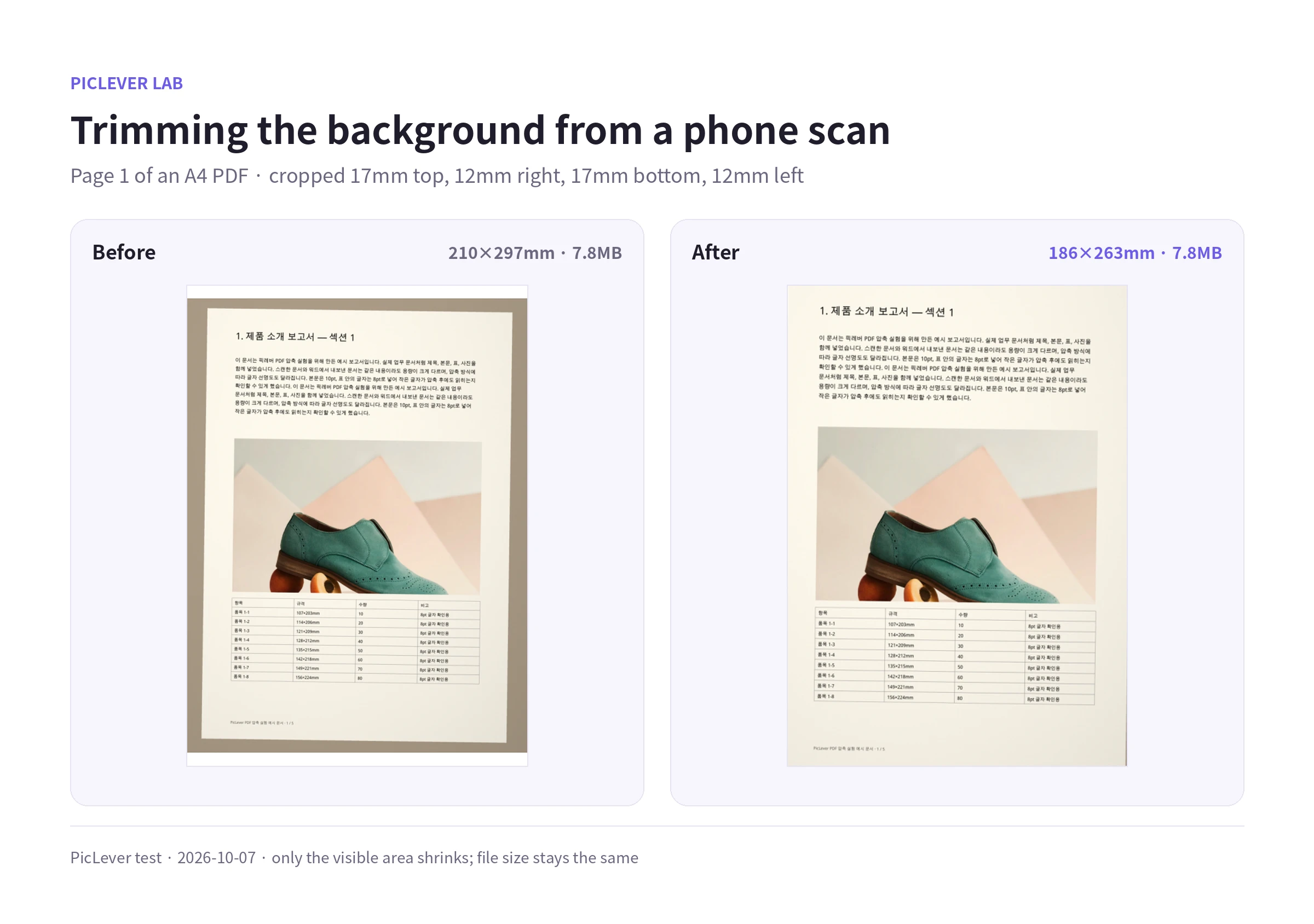
| Item | Before | After |
|---|---|---|
| Visible page size | 210×297mm (A4) | 186×263mm |
| Cropped | — | Top 17 · right 12 · bottom 17 · left 12mm |
| File size | 7.8MB | 7.8MB (unchanged) |
| Pages affected | — | Page range "1" only; other pages unchanged |
-
Choose the values by looking at where the background ends in the preview. It's safer to crop a little less at first and trim again if needed.
-
After cropping, the page is smaller than A4. When printed on A4 paper, the printer may scale it up slightly.
-
The cropped-out image is still in the file, so the size doesn't drop. Use the PDF Compressor as well if you need a smaller file.
Is the cropped-out part really gone?
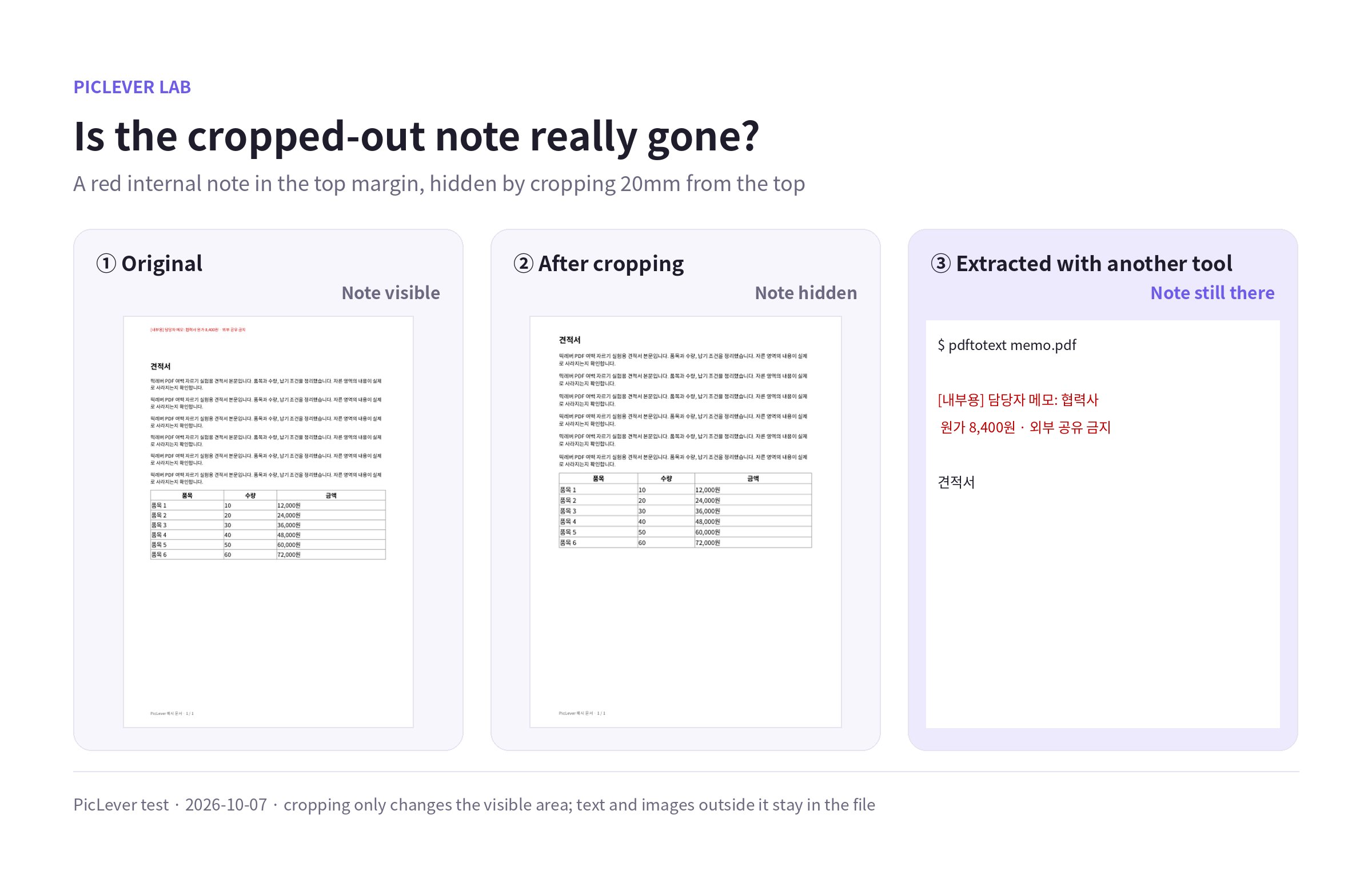
| How it was checked | Result |
|---|---|
| PDF viewer (MuPDF), PicLever PDF to JPG | Note not visible |
| Text extraction with another program (pdftotext) | Note text comes out as is |
| Image conversion with another program (pdftoppm defaults) | Full page including the note |
| Visible-area value reset to the original | Note visible again |
-
The PDF cropper only shrinks the page's visible area (CropBox). Text and images outside it stay in the file, and other programs can easily reset that value.
-
For anything the recipient must not see—contract amounts, personal data, internal notes—don't hide it by cropping. Delete it from the original document and make the PDF again. If the whole page isn't needed, remove it with Remove pages.
Test setup
-
Samples: an A4 PDF made from four phone photos of documents (7.8MB, no margin) and a 1-page A4 quote with a red internal note in its top margin
-
Cropped with PicLever PDF cropper, then checked the page size, visible-area values and file size, and extracted text with pdftotext · Tested 2026-10-07
Cropping a PDF with PicLever
-
In the PDF cropper, click Choose PDF and add your file (up to 50MB and 200 pages).
-
To crop only some pages, enter a Page range such as "1" or "2-4". Leave it blank to apply the same values to every page.
-
Enter how much to trim from the top, right, bottom and left (mm) (default 10mm).
-
Click Create result, check in the preview that no text is cut off, then save the result.
FAQ
Q. Which side gets cropped on a rotated page?
Values follow the page's original, unrotated orientation. On a page rotated 90° clockwise, a value entered for "top" cropped the right side as displayed. If you need both, crop first and rotate afterward—see How to Rotate and Save PDF Pages.
Q. What if each page needs different margins?
Run it several times with different page ranges, uploading the previous result each time.
Q. Can I undo a crop?
The cropped-out content is still in the file, so other PDF editors can restore it, but PicLever has no undo. Keep your original file.