

How to Combine Multiple Photos into One PDF (7.8MB of Phone Photos → 1.3MB, Text Sharpness Compared)
I made four phone photos of documents into one PDF and compared size and text sharpness. Resizing photos to 1200–1500px wide cut 7.8MB to 1.3–1.9MB with 8pt text still sharp.
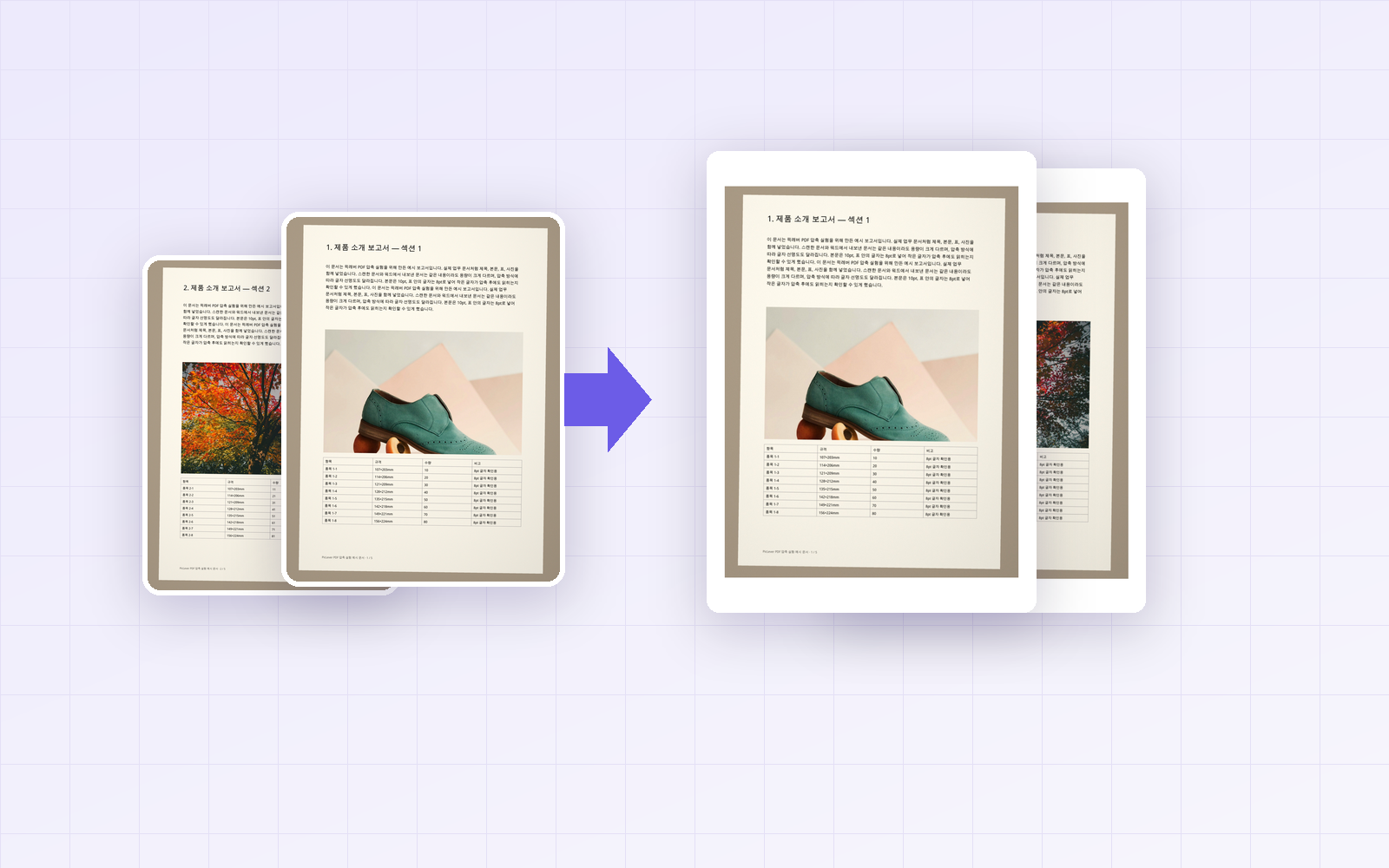
Need to photograph a few documents or receipts with your phone and submit them as one PDF, only to find the PDF is several megabytes and hits the upload limit? I combined four phone photos of documents (7.8MB total) with PicLever's Image to PDF, then compared PDF size and text sharpness across paper and margin settings and different ways of shrinking the photos first.
Bottom line: with the photos added as they were, the PDF was almost exactly the sum of the photo sizes (7.8MB), and changing the paper or margin settings didn't change that. The most effective fix was to resize the photos to 1200–1500px wide before making the PDF. At 1500px the PDF was 1.9MB, and at 1200px it was 1.3MB, with 8pt table text still sharp on an A4 page. From 900px, small text started to blur.
PDF size by how the photos were prepared
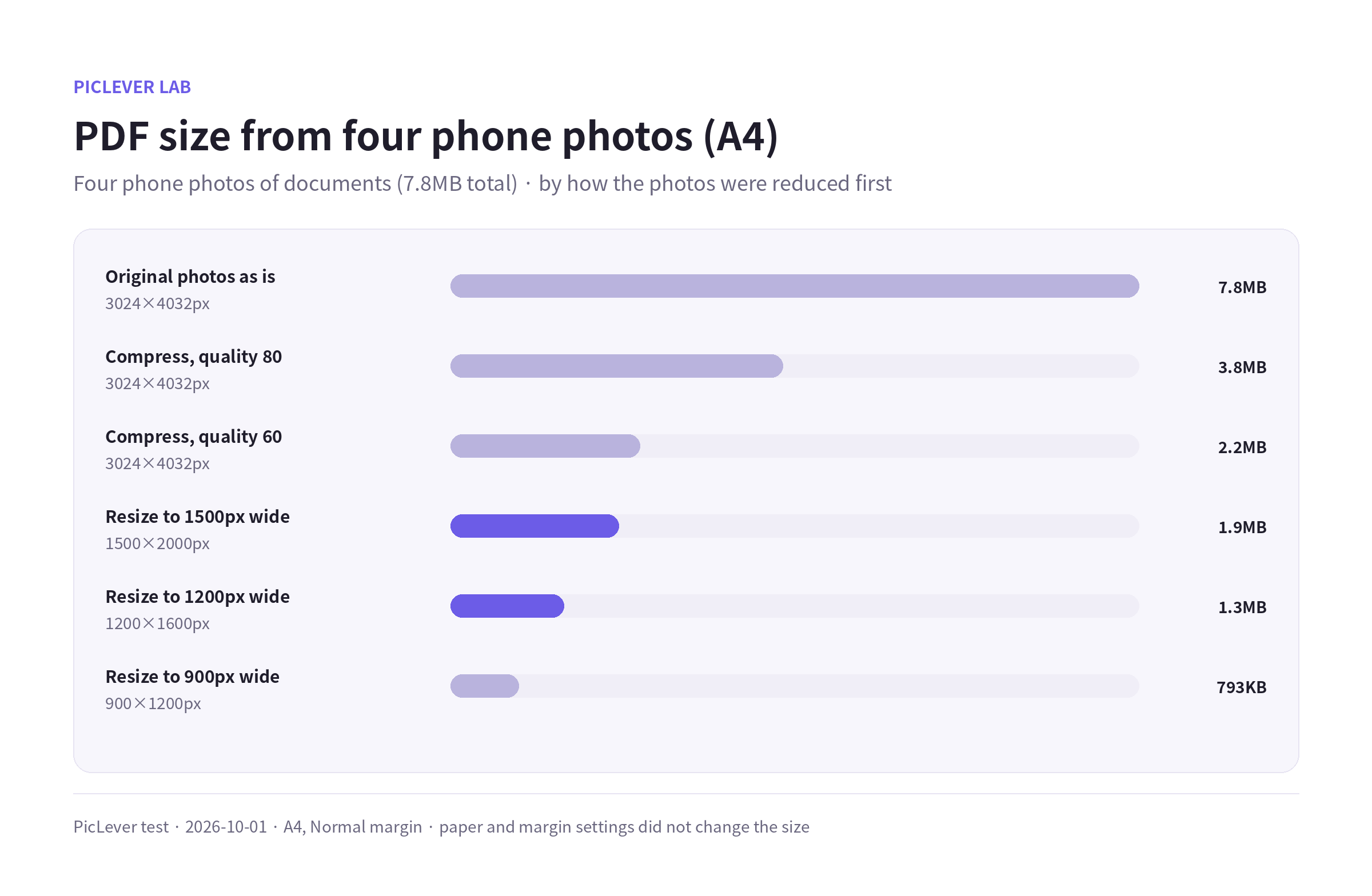
| How the photos were prepared | Photo size | PDF size (4 pages) |
|---|---|---|
| Original photos as is | 3024×4032px | 7.8MB |
| Image Compressor, quality 80 | 3024×4032px | 3.8MB |
| Image Compressor, quality 60 | 3024×4032px | 2.2MB |
| Resized to 1500px wide | 1500×2000px | 1.9MB |
| Resized to 1200px wide | 1200×1600px | 1.3MB |
| Resized to 900px wide | 900×1200px | 793KB |
-
The PDF size follows the photos you put in. PicLever's Image to PDF places JPG photos as they are without recompressing them, so there's no quality loss—but large photos make a large PDF.
-
Resizing saved more than lowering quality alone. Phone photos have more than twice the resolution an A4 page needs, so reducing the pixel width makes little visible difference on screen or in print.
How small can you go and keep text sharp?
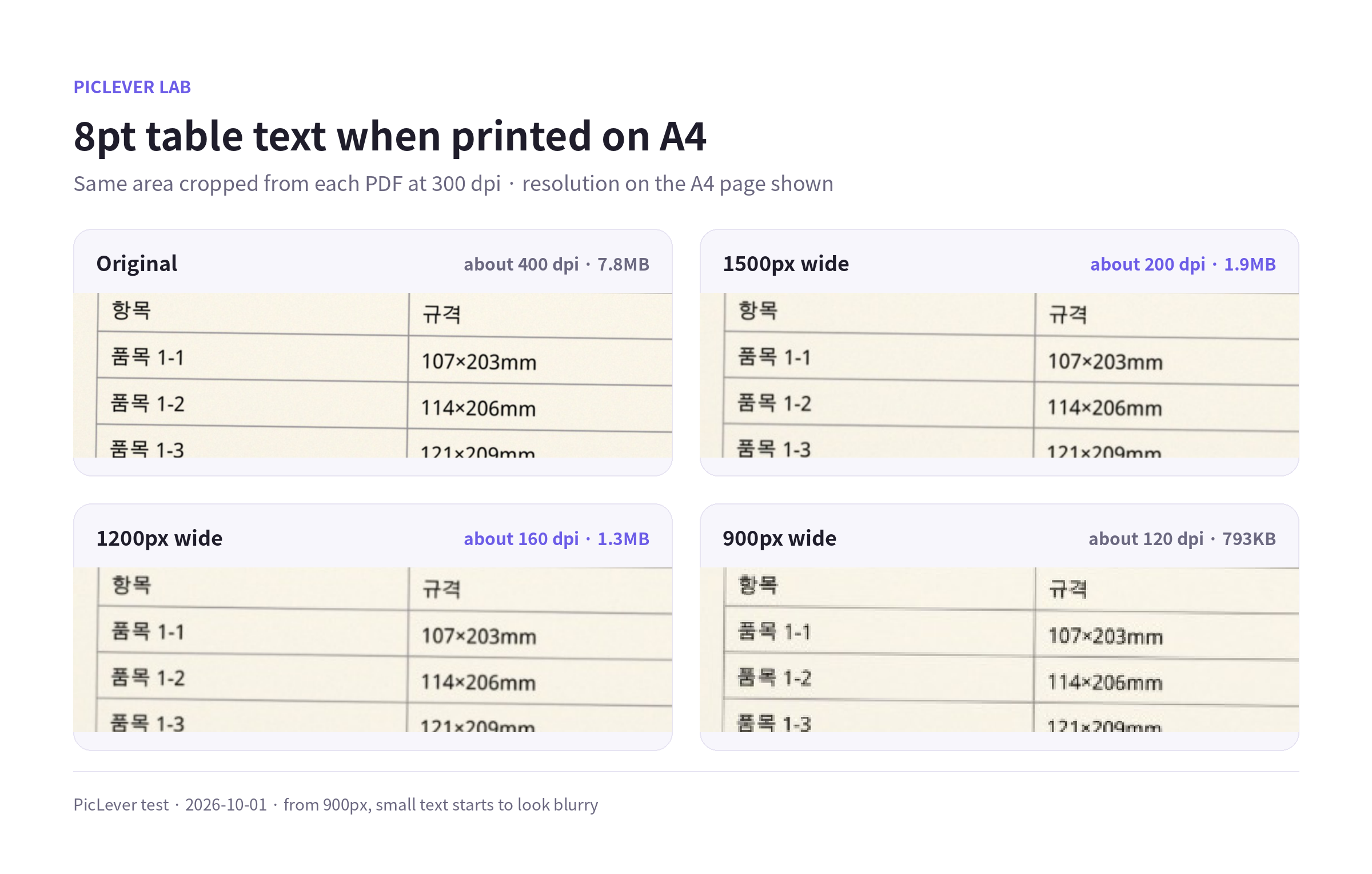
I cropped the same area (8pt table text) from each PDF. The resolution shown is what the photo ends up at on an A4 page with Normal margins.
| Photo width | Resolution on A4 | Small text |
|---|---|---|
| 3024px (original) | about 400 dpi | Sharp |
| 1500px | about 200 dpi | Sharp, nearly identical to the original |
| 1200px | about 160 dpi | Easy to read, very slightly softer |
| 900px | about 120 dpi | Edges of letters blur |
-
For documents you're submitting online, 1200px wide was enough. If there's a lot of small print or you'll print the PDF, 1500px is the safer choice.
-
If the document fills only part of the photo (lots of background), the text is smaller too—crop to the document first or use 1500px or more.
What the paper and margin settings change
| Setting | Resulting page | Width taken by the photo |
|---|---|---|
| A4 · no margin | 210×297mm | 210mm (full page width) |
| A4 · Normal margin | 210×297mm | 193mm |
| A4 · Wide margin | 210×297mm | 176mm |
| Fit to image | about 817×1084mm | Same as the photo |
-
All four PDFs were 7.8MB. These settings change the page layout, not the file size.
-
Fit to image sets the page size from the DPI stored in the photo, or 96 dpi when it's missing (updated 2026-10-18). The photos in this test had no DPI, so pages came out about 82×108cm, while an A4-sized image saved at 300 dpi became an A4-width (210mm) page plus margins. Mixed photos produce mixed page sizes, so choose A4 for documents you'll submit or print.
-
Normal margin is a safe default. With no margin, some printers may cut off the edges.
Test setup
-
Samples: four 3024×4032px JPGs made to look like phone photos of A4 documents (7.8MB total, 10pt body text and 8pt table text) · Photos: Irene Kredenets, Fineas Anton, Jaime Lopes / Unsplash
-
Prepared the photos with the Image Compressor (quality 80 and 60, JPG) and the Image Resizer (1500, 1200 and 900px wide, JPG), then made 4-page PDFs with Image to PDF · Tested 2026-10-01
-
For the text comparison, the same area of each PDF was cropped at 300 dpi. File sizes vary with photo content and the number of pages.
Turning several photos into one PDF with PicLever
-
(Optional) If you need a smaller file, open the Image Resizer, click Batch edit, add all your photos, set the width to 1500px (1200px if there's little small print) and the output format to JPG, click Apply to all images, and download the ZIP.
-
Add your photos to Image to PDF. You can add up to 20 JPG, PNG, WebP or BMP images at a time.
-
Use the ↑ ↓ buttons in the list to set the page order. The top image becomes the first page.
-
Choose Paper: A4, the orientation that fits your document, and Margin: Normal.
-
Click Create PDF, check the order in the preview, and save the PDF.
FAQ
Q. What if the PDF I already made is too large?
Remaking it from resized photos gives the cleanest result, but if you only have the PDF, you can shrink it with PDF Compressor. See the PDF size reduction test for results by resolution.
Q. Can I combine photos with an existing PDF?
Make the photos into a PDF first, then add it with your existing PDF in Merge PDF and set the order. Make the photo PDF in A4 so the page sizes match.
Q. Does it work with iPhone photos (HEIC)?
HEIC files can't be added directly. When you pick photos from your library in an iPhone browser, they're usually converted to JPG on upload; if not, convert them to JPG first.
Related posts
-
How to Merge PDFs (Combine Files, Set the Order, and What Happens to File Size)
-
How to Reduce PDF File Size: Resolution and Quality Settings Compared (9.4MB Scan → 0.57MB)
-
3 Ways to Reduce Image File Size: Dimensions, Quality or Format First?
-
How to Rotate and Save PDF Pages (Fix Only Sideways Pages, Without Losing Quality)
-
How to Crop PDF Margins (Trim Scan Backgrounds, and Is the Cropped Part Really Gone?)
-
How to Print a Long Screenshot on A4 (One Page Shrinks Text to 2pt—Where Should You Split It?)