

How to Add Page Numbers to a PDF (Skip the Cover, Start from Any Number)
I added page numbers to a PDF with a cover and 5 body pages. Here's how to skip the cover with a page range, continue numbering with a starting number, and where the numbers go.
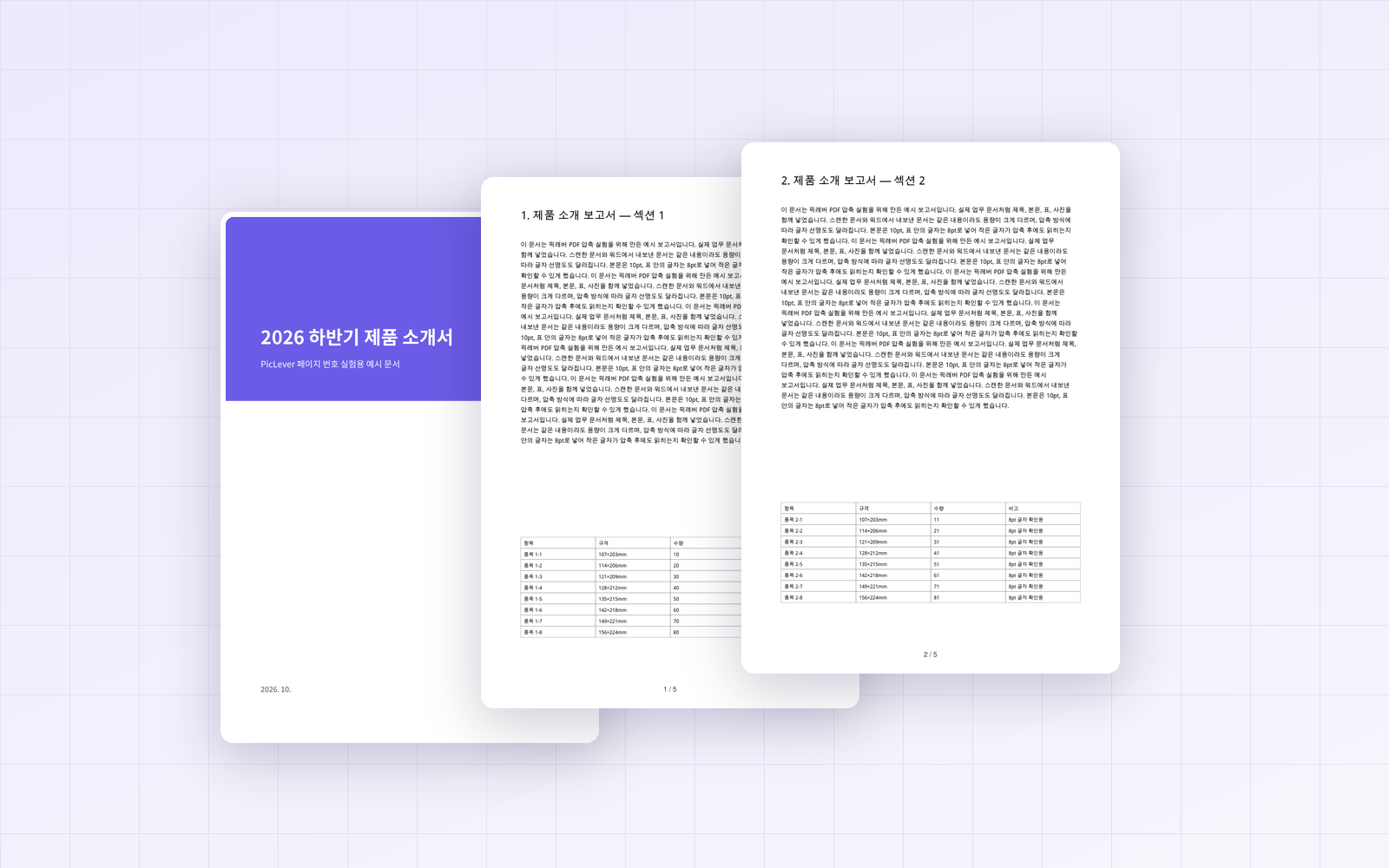
It's common to combine a report or proposal into a PDF and only then notice it has no page numbers. If going back to the original file to add a footer isn't practical, you can add numbers to the PDF directly. I took a PDF with 1 cover page and 5 body pages and used PicLever's Page numbers tool to add numbers on every page, numbers that skip the cover, and numbers continuing from 11, then checked the position, size and file size.
Bottom line: with the default settings, numbers were added at the bottom center of each page in a "1 / 5" format (11pt), and you can choose from 6 positions, 3 formats and any font size. To skip the cover, enter only the body pages in Page range, such as "2-6". The cover then has no number, the body starts at 1 / 5, and the total matches the 5 body pages. If the numbering should continue from a previous document, change the Starting number. The file size didn't grow.
How the numbers come out with each setting
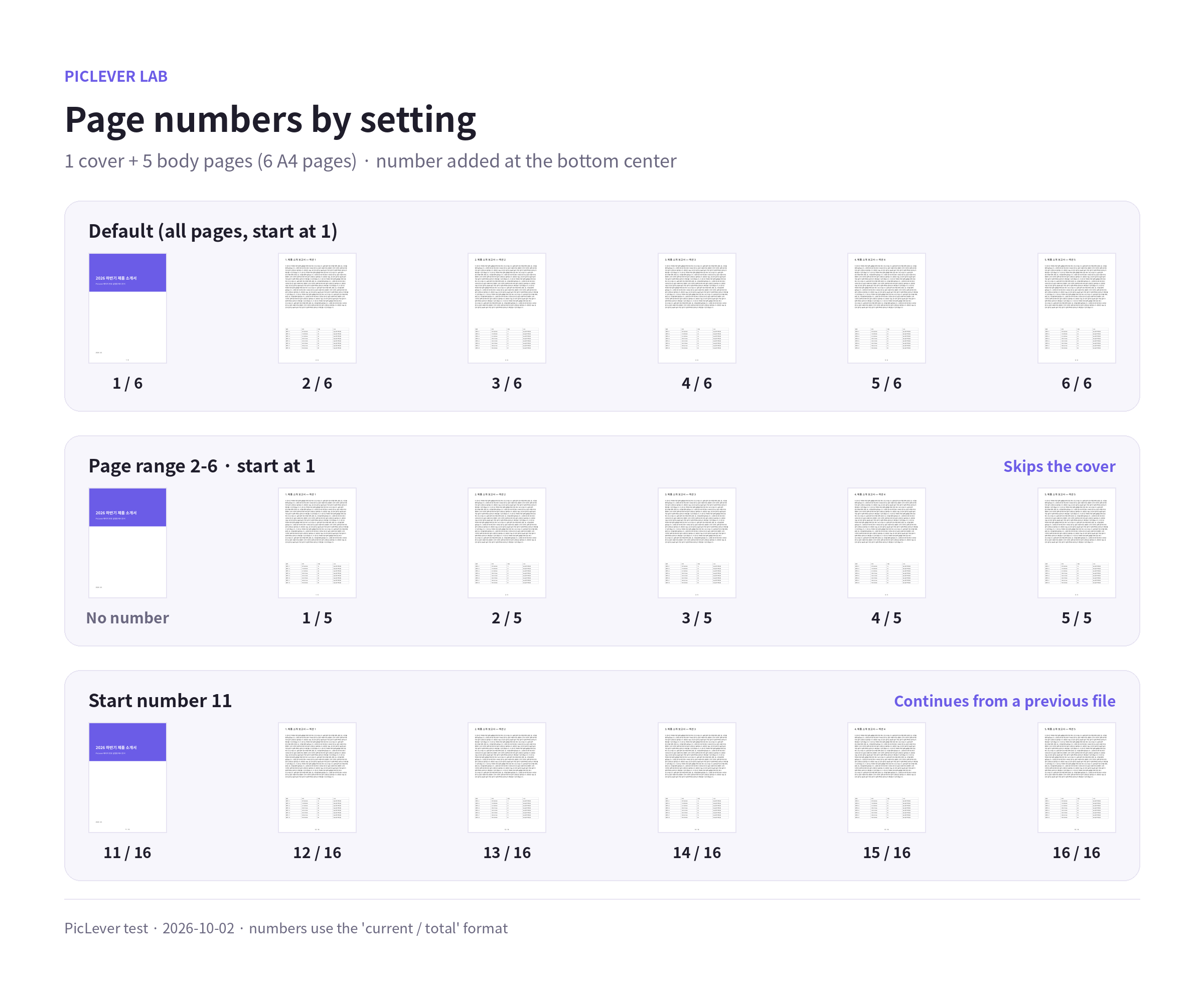
| What you want | Page range | Starting number | Result |
|---|---|---|---|
| Number every page | Blank | 1 | 1 / 6 … 6 / 6 |
| Skip the cover, start the body at 1 | 2-6 | 1 | No number on cover, 1 / 5 … 5 / 5 |
| Continue from a previous 10-page file | Blank | 11 | 11 / 16 … 16 / 16 |
| Skip cover and contents | 3-6 | 1 | 1 / 4 … 4 / 4 |
-
The total after the "/" matches the number of pages you number. Skip the cover and the body page count (5) becomes the total.
-
Changing the starting number raises the total too. Starting at 11 on 6 pages makes the last page 16 / 16—handy for a file that continues from a previous one, like chapter 2 of a book.
Changing the position, format and size
| Option | Choices | What I saw |
|---|---|---|
| Number position | Top or bottom × left, center or right (6 spots) | Bottom right: about 6mm from the right edge and 5mm from the bottom · Top center: about 6mm from the top |
| Number format | 1 · 1 / 10 · - 1 - | Came out as "2", "2 / 6" and "- 2 -" (default is 1 / 10) |
| Font size | 6–36pt (default 11pt) | Setting 14pt gave exactly 14pt |
-
For reports and proposals, the default (bottom center · 1 / 10) works well; for printed and bound documents, bottom right · number only is the familiar look.
-
The total after the "/" is the last number. On small pages, the text shrinks automatically to fit.
Where the number goes and how big it is
| Item | Measured |
|---|---|
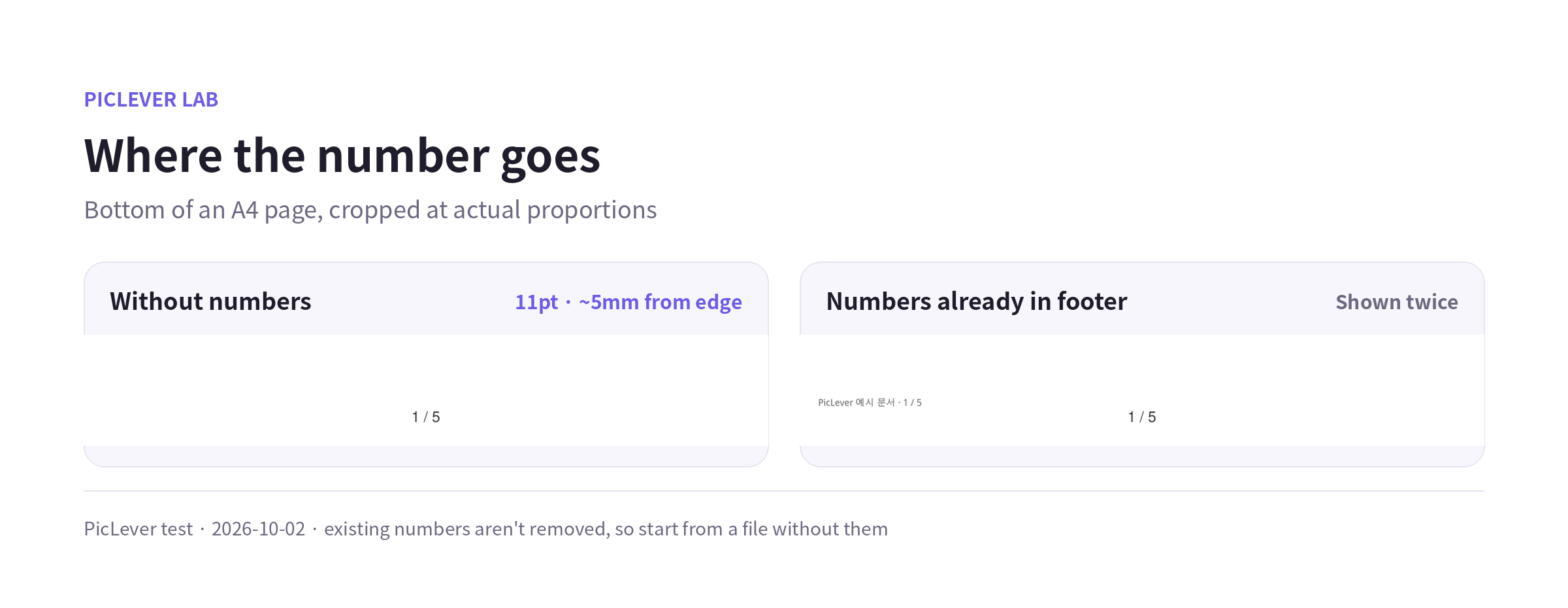
| Position (default) | Bottom center (also centered on landscape pages) |
| Text size (default) | 11pt, dark gray |
| Distance from the bottom edge | About 5mm (to the bottom of the text) |
| File size | 83KB → 52KB; a 9.4MB scan grew by 0.4KB |
-
Numbers are added as text, so they're searchable and copyable. They work the same way on scanned PDFs.
-
If the footer already has page numbers, they aren't removed, so you'll see two sets of numbers. Start from an original without numbers.
-
Because the number sits about 5mm from the bottom edge, it may be cut off with borderless printing or on some printers. If you'll print the document, test one page first.
Test setup
-
Samples: 1 cover page + 5 text-heavy body pages (6 A4 pages, 83KB), a 5-page report with page numbers in its footer, a 1-page landscape schedule, and a 5-page PDF simulating a 300 dpi scan (9.4MB)
-
Changed the page range (blank, 2-6, 3-6) and starting number (1, 11) in PicLever Page numbers and checked the number text, position and font size in each result · Tested 2026-10-02; position, format and size options checked 2026-10-08
Adding page numbers to a PDF with PicLever
-
In Page numbers, click Choose PDF and add your file (up to 50MB and 200 pages).
-
To skip a cover or contents page, enter only the body pages in Page range—for example "2-6" if the cover is page 1 of 6. Leave it blank to number every page.
-
If the numbering continues from a previous document, change the Starting number. Otherwise leave it at 1.
-
Choose the Number position, Number format and Font size (pt). The defaults are bottom center · 1 / 10 · 11pt.
-
Click Create result, check in the PDF preview that the numbers don't overlap an existing footer, then save the result.
FAQ
Q. Can I put the number at the bottom right or the top?
Yes. Under Number position, choose from 6 spots: top or bottom, each left, center or right. The format can be "1", "1 / 10" or "- 1 -".
Q. How do I number several PDFs continuously?
Combine them first with Merge PDF, then add numbers so they run from start to finish. See How to Merge PDFs for setting the order.
Q. Can I remove numbers I added by mistake?
There's no way to remove just the numbers from the numbered PDF. Keep the original PDF and create a new one with different settings.
Related posts
-
How to Merge PDFs (Combine Files, Set the Order, and What Happens to File Size)
-
How to Split a PDF (Split vs. Extract vs. Remove Pages, and What Happens to File Size)
-
How to Add a Watermark to a PDF (Opacity from 15% to 75% Compared, Without Hiding the Text)
-
How to Rotate and Save PDF Pages (Fix Only Sideways Pages, Without Losing Quality)