

How to Split a PDF (Split vs. Extract vs. Remove Pages, and What Happens to File Size)
What's the difference between Split PDF, Extract pages and Remove pages? I ran all three on the same 5-page report, compared the results and file sizes, and laid out the order to follow when splitting to meet a size limit.
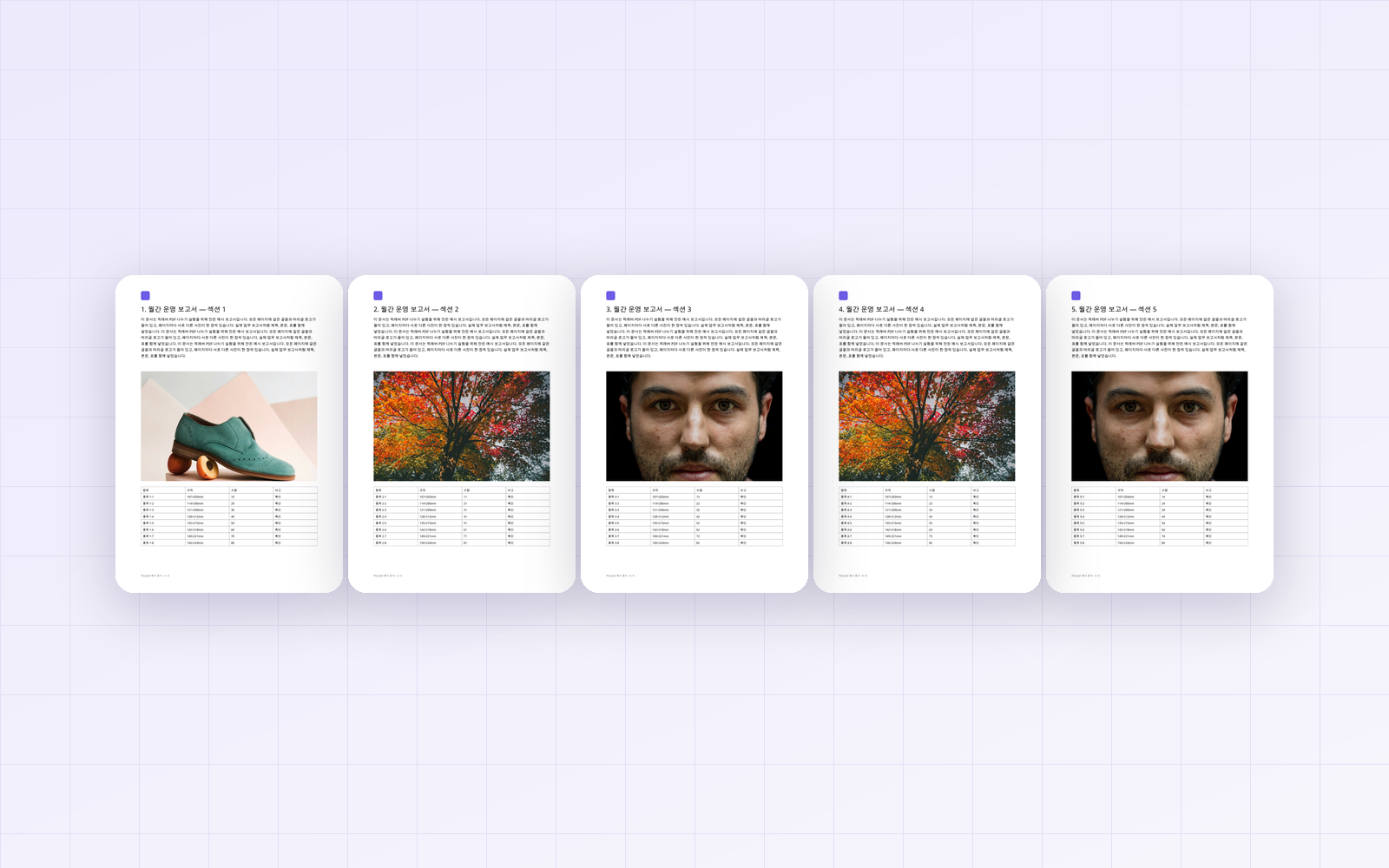
Sometimes you only need to send a few pages from a long PDF, or split a file to get under an upload limit. PicLever has three tools for this—Split PDF, Extract pages and Remove pages—and the names are similar enough to be confusing. I ran all three on the same 5-page report to see how the results differ and what happens to file size.
Bottom line: use Split PDF when you need a separate file for each page, Extract pages to gather the pages you want into one file, and Remove pages to drop just a few. The size of each split file depended not on page count but on the photos on that page, ranging from 143KB to 593KB, and all the split files together were 6% larger than the original. Unlike PDF compression, all three tools kept text selectable and searchable.
The three tools give different results
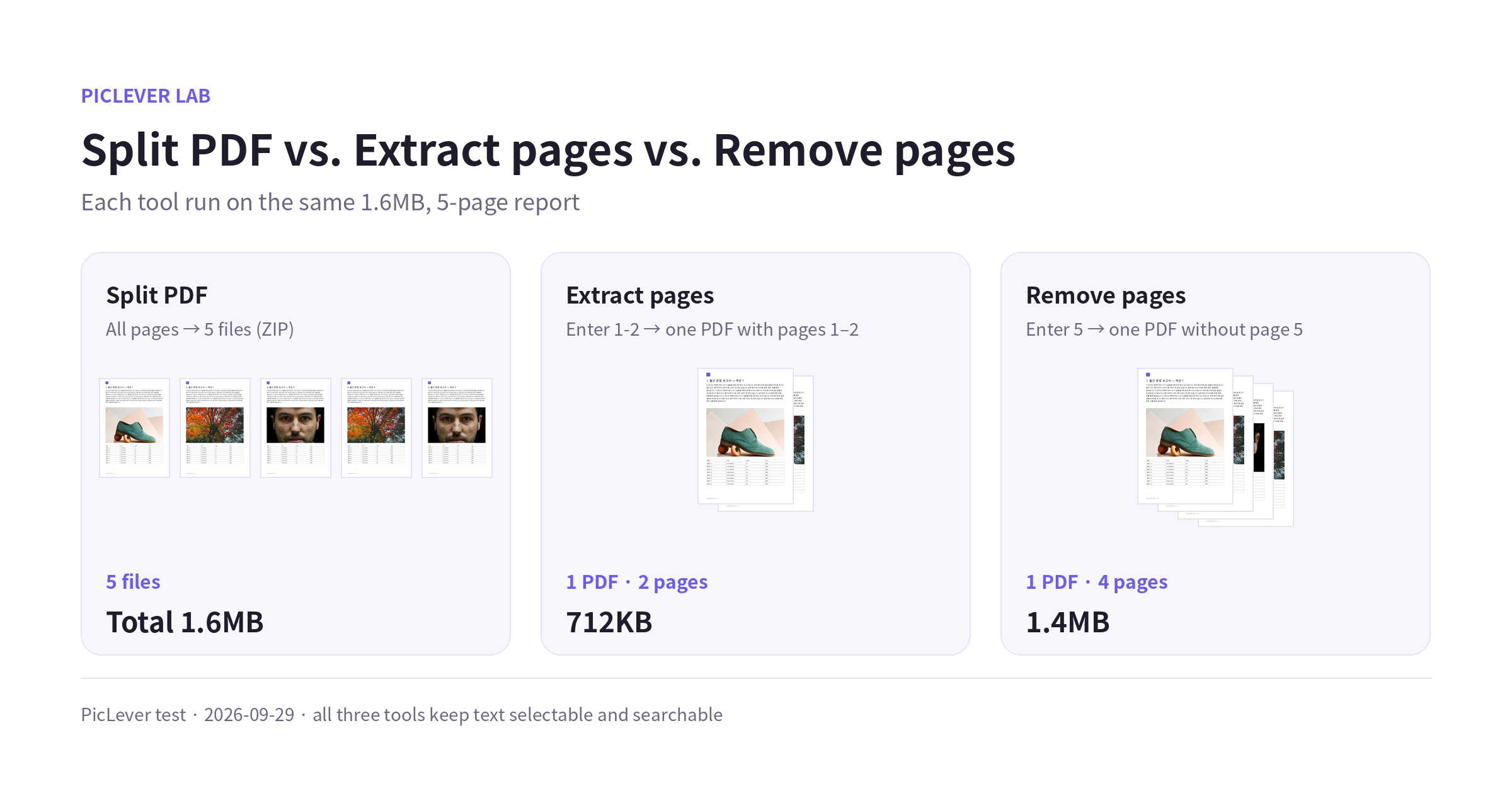
| Tool | Input | Result | File size |
|---|---|---|---|
| Split PDF | Blank (all pages) | 5 single-page PDFs in one ZIP | 1.6MB total |
| Extract pages | 1-2 | One PDF with pages 1–2 | 712KB |
| Remove pages | 5 | One 4-page PDF without page 5 | 1.4MB |
-
Split PDF: turns the selected pages into separate PDFs and saves them as a ZIP. Use it when each page goes to a different person or has to be uploaded on its own.
-
Extract pages: gathers the selected pages into one PDF. You can include non-adjacent pages too, like "3, 7-9".
-
Remove pages: saves everything except the pages you enter as one PDF. It's the quickest way to drop a blank page or a cover.
Photos decide the size of split files
I split the 1.6MB report into single pages with Split PDF.
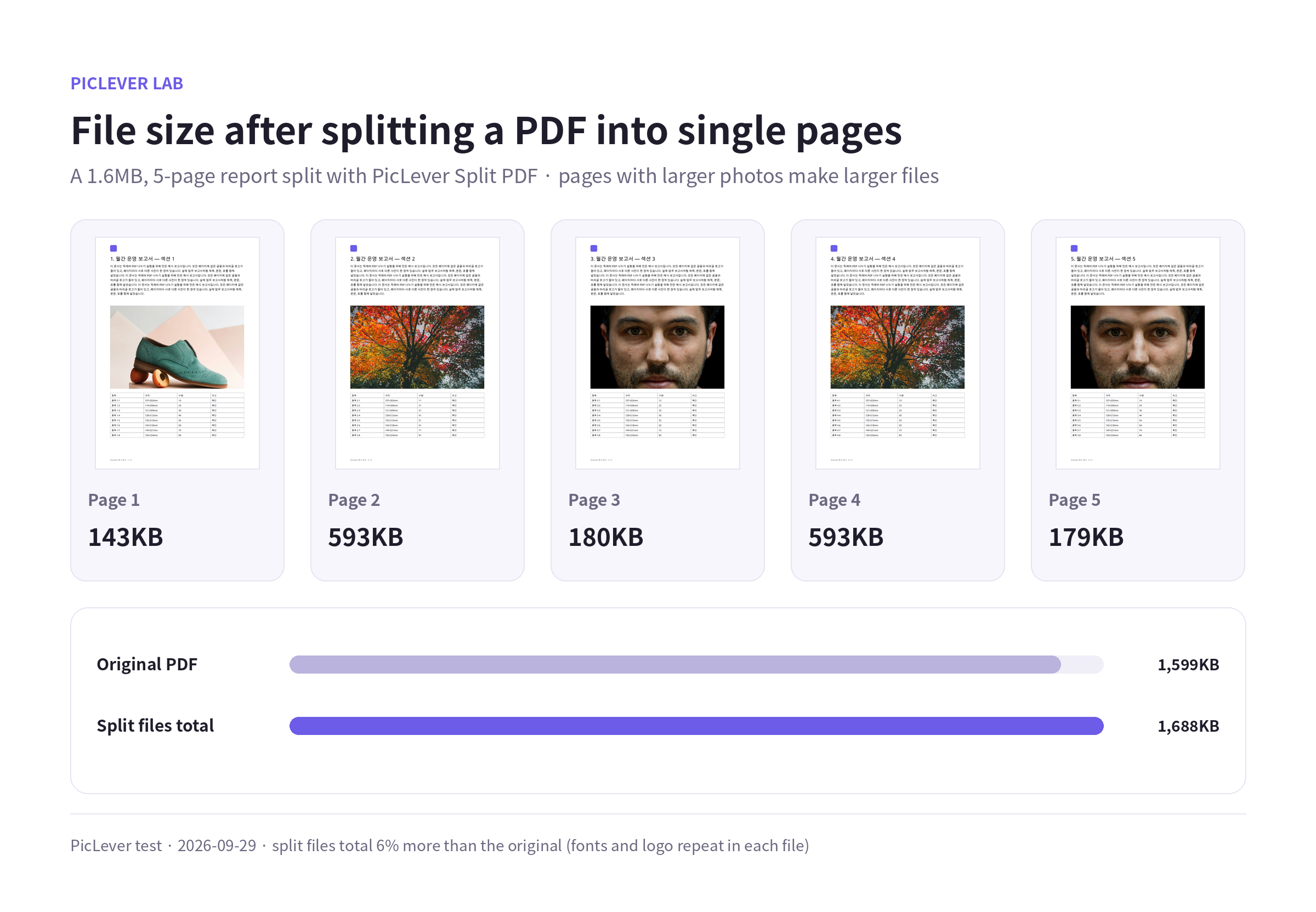
| Page | Photo on the page | Split file size |
|---|---|---|
| Page 1 | Shoe | 143KB |
| Page 2 | Fall foliage | 593KB |
| Page 3 | Portrait | 180KB |
| Page 4 | Fall foliage | 593KB |
| Page 5 | Portrait | 179KB |
| Total | 1,688KB (6% more than the 1,599KB original) |
-
Size isn't just the original divided by the page count. Pages with complex photos, like leaves, were 3–4× larger than others in the same report.
-
The split files add up to more than the original. Fonts and the header logo, stored once in the original, are copied into every split file. The more shared fonts and logos a document has, the bigger the gap.
-
Extracting just page 3 from a 9.4MB, 5-page scan produced a 1.66MB file. Scans carry a large image on every page, so pulling out only the pages you need cuts the size a lot.
If you're splitting to meet a size limit
When a site has a per-file size limit and you need to upload in parts, work in this order.
-
Remove pages you don't need first. Deleting blank pages or duplicate attachments with Remove pages shrinks the file right away.
-
If it's still too large, split it. Use Extract pages with ranges like "1-10" and "11-20" to make several files. Keep photo-heavy sections shorter.
-
If splitting isn't practical, compress. For scans, reducing PDF file size can cut 90% or more. Compression removes selectable text, though, so split documents whose text must stay searchable.
Test setup
-
Samples: a 5-page A4 report (same font and header logo on every page, a different photo on each page, 1.6MB) and a scanned version of the same layout (9.4MB)
-
Processed with Split PDF, Extract pages and Remove pages · Tested 2026-09-29
-
Photos: Irene Kredenets, Fineas Anton, Jaime Lopes / Unsplash. File sizes vary with document content.
Splitting a PDF with PicLever
-
Open the right tool: Split PDF for one file per page, Extract pages to gather some pages, or Remove pages to drop a few.
-
Upload the PDF—up to 50MB and 200 pages per file.
-
Enter the Page range, for example "1-3, 5". For Split PDF and Extract pages, leaving it blank selects every page.
-
Click Create result, check the preview, then save the result. Split PDF saves a ZIP file.
To change the page order, use Reorder pages. To combine split files back into one, use Merge PDF.
FAQ
Q. Does splitting reduce text or image quality?
No. These tools copy pages as they are, so text stayed selectable and searchable and photos kept their quality. With the bookmark option on (default), each split file kept its own page's bookmark and the document title (checked 2026-10-18). Form fields may not be preserved.
Q. Can I pick non-adjacent pages at once?
Yes. Combine commas and hyphens, like "1, 3, 5-7".
Q. Can I split a password-protected PDF?
Password-protected PDFs can't be uploaded. Remove the password in the original app first, then split.
Related posts
-
How to Reduce PDF File Size: Resolution and Quality Settings Compared (9.4MB Scan → 0.57MB)
-
Image Too Large to Upload? Photo Size Settings to Hit 100KB, 300KB or 1MB
-
How to Merge PDFs (Combine Files, Set the Order, and What Happens to File Size)
-
How to Extract Text from a PDF (Two-Column Layouts, Tables and Scans Compared)
-
How to Reorder PDF Pages (Move to Front, Reverse Order, and What Happens to Bookmarks and Links)
-
Does Deleting a PDF Page Really Remove It? (Leftover Text and Photos, and Text Under a Black Box)