

How to Add a Watermark to a PDF (Opacity from 15% to 75% Compared, Without Hiding the Text)
I added Confidential and Copy watermarks at different opacities and measured the contrast of the text underneath. 15–25% worked best, and short text stood out more.
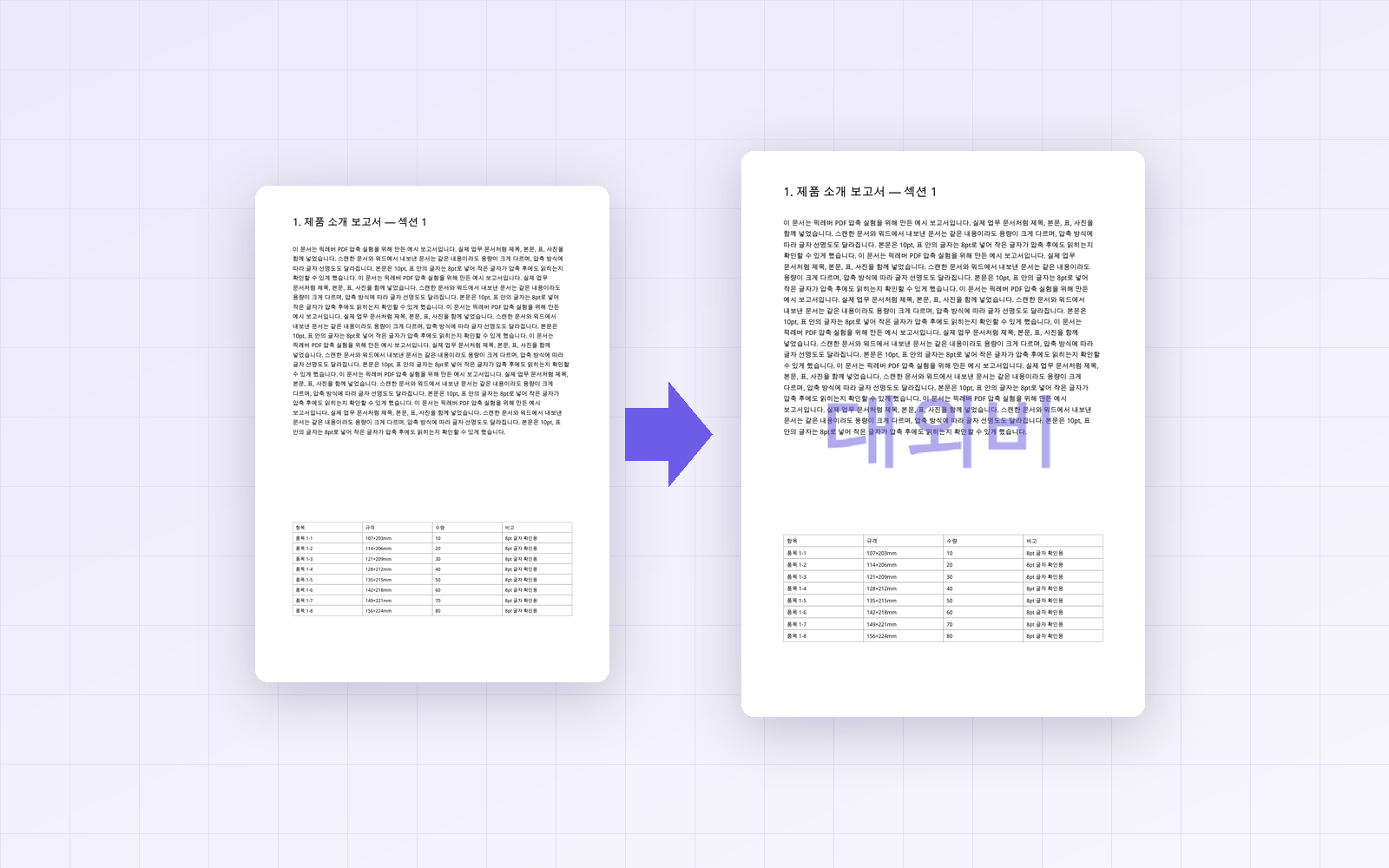
Before sending a quote or an internal report as a PDF, you may want to stamp it with a watermark like "Confidential" or "Copy"—and the first question is what opacity to use. Too dark and the text underneath is hard to read; too light and nobody notices it. With PicLever's PDF watermark, I added watermarks to the same document at 15, 25, 50 and 75% opacity and with different text lengths, then measured how much they hid the body text.
Bottom line: body text stayed easy to read under the watermark at 15–25% opacity. At 25%, the contrast of text under the watermark was a comfortable 12.5:1; at 75% it dropped to 2.5:1, making overlapped words hard to read. Keep the text short. Longer text is scaled down to fit the page width, so an 18-character phrase ended up only about 11mm tall.
How much does each opacity hide the text?
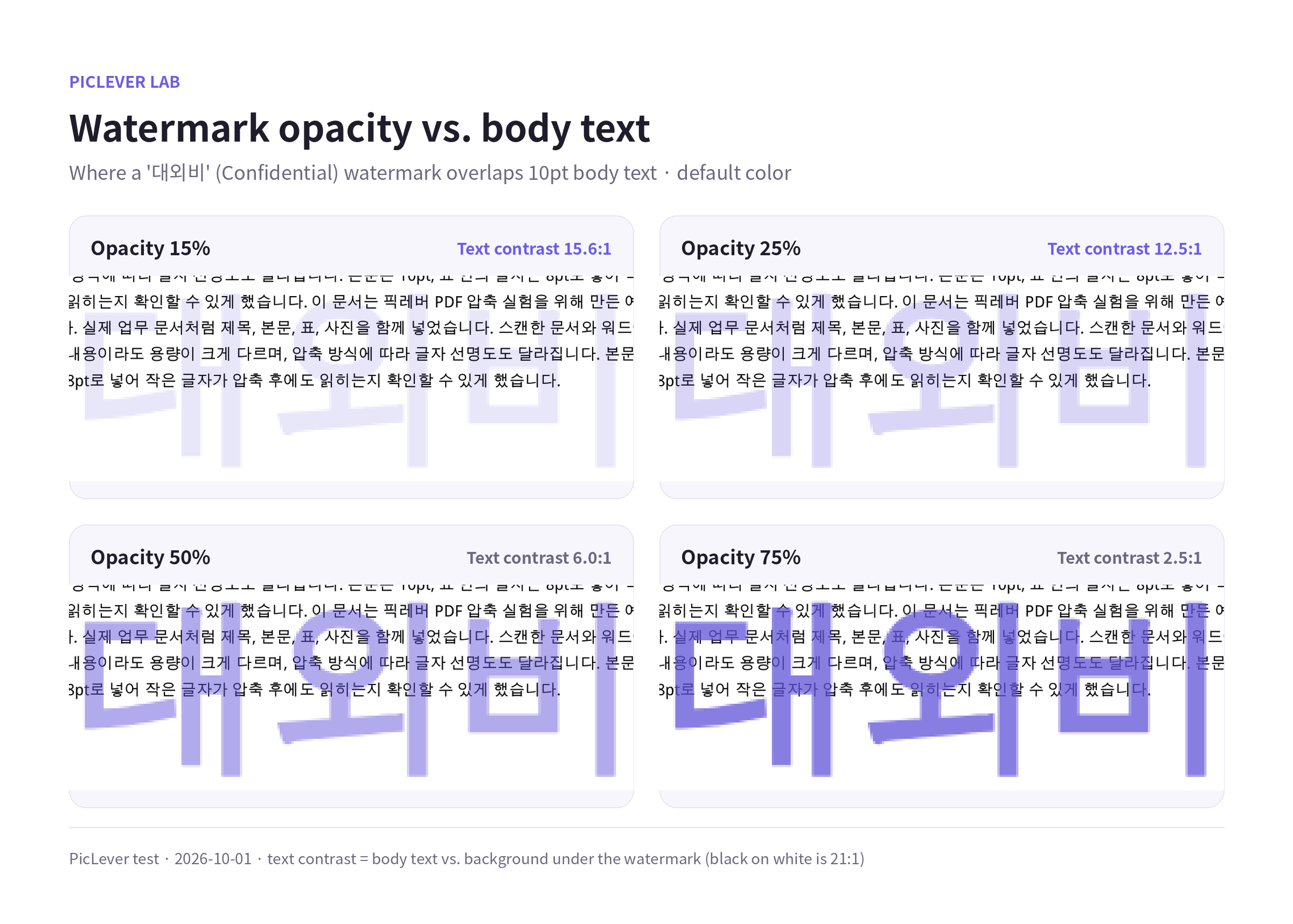
| Opacity | Contrast of text under the watermark | Result |
|---|---|---|
| 15% | 15.6:1 | Subtle; text reads normally |
| 25% (default) | 12.5:1 | Clearly visible; text still easy to read |
| 50% | 6.0:1 | Overlapped text looks faded |
| 75% | 2.5:1 | Overlapped text is hard to read |
-
Black text on white is 21:1, and web accessibility guidelines recommend at least 4.5:1 for body text. Up to 50% stayed above that; 75% fell well short.
-
Use 15–25% for documents read on screen, and 25% for handouts printed in black and white so the mark doesn't disappear. In grayscale, the default purple, gray and red all came out as a similar light gray at 25%.
-
If you need a stronger mark, stay at or below 50% and check in the preview that it doesn't cover tables or figures.
Longer text makes a smaller watermark
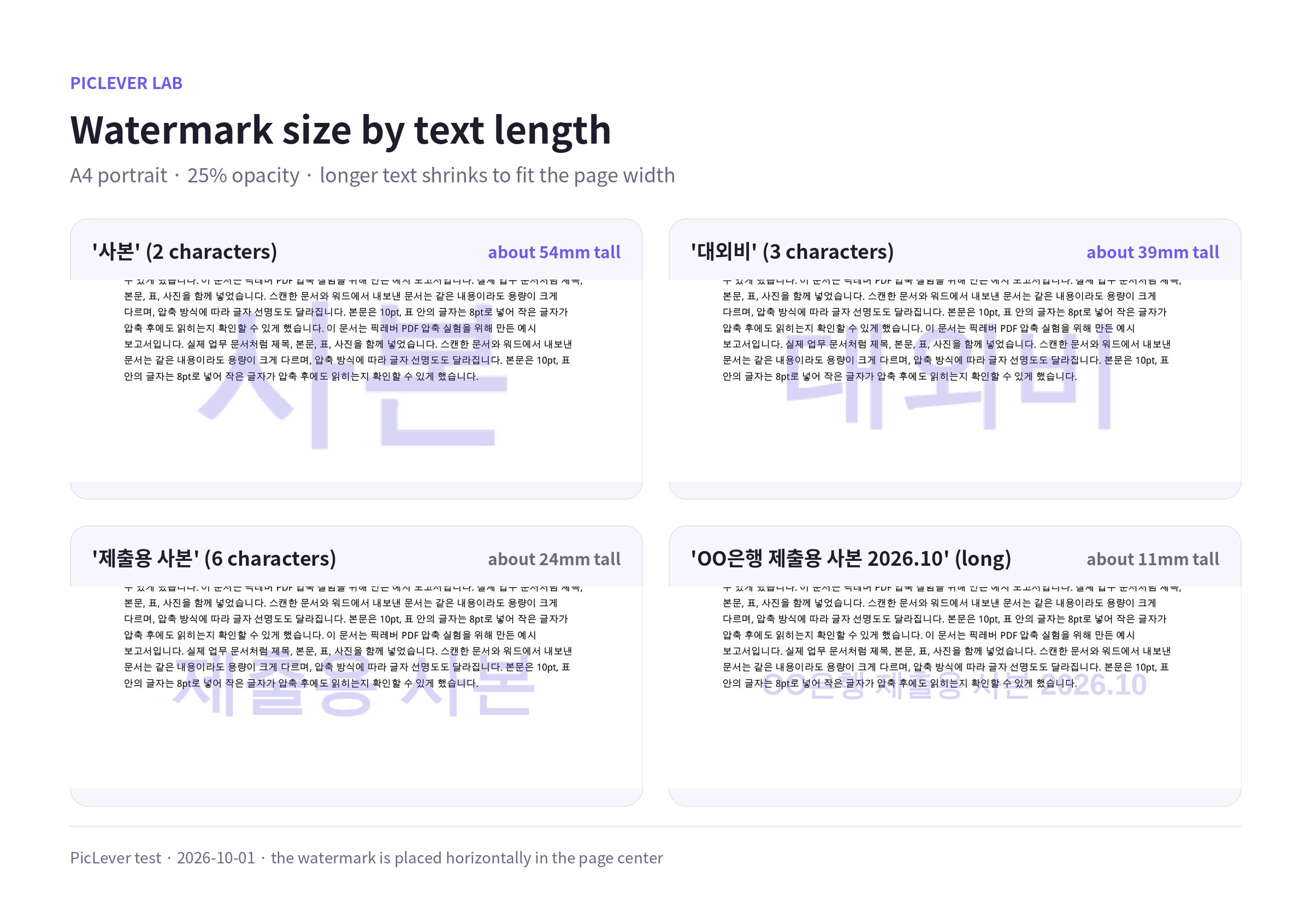
| Watermark text | Length | Text height (A4 portrait) |
|---|---|---|
| 사본 (Copy) | 2 characters | about 54mm |
| 대외비 (Confidential) | 3 characters | about 39mm |
| 제출용 사본 (Copy for submission) | 6 characters | about 24mm |
| CONFIDENTIAL | 12 characters | about 13mm |
| OO은행 제출용 사본 2026.10 | 18 characters | about 11mm |
-
With the default settings (horizontal, once in the center, 70% size), the watermark is placed horizontally in the center of the page, and the text size is set automatically so the whole phrase fits within that width.
-
Long phrases with a recipient and date get small and blend into the body text. Shorter wording—around 6 characters, or one short English word—stands out better.
-
On a landscape page, the same 대외비 watermark came out larger, about 55mm tall.
Orientation, placement and size options
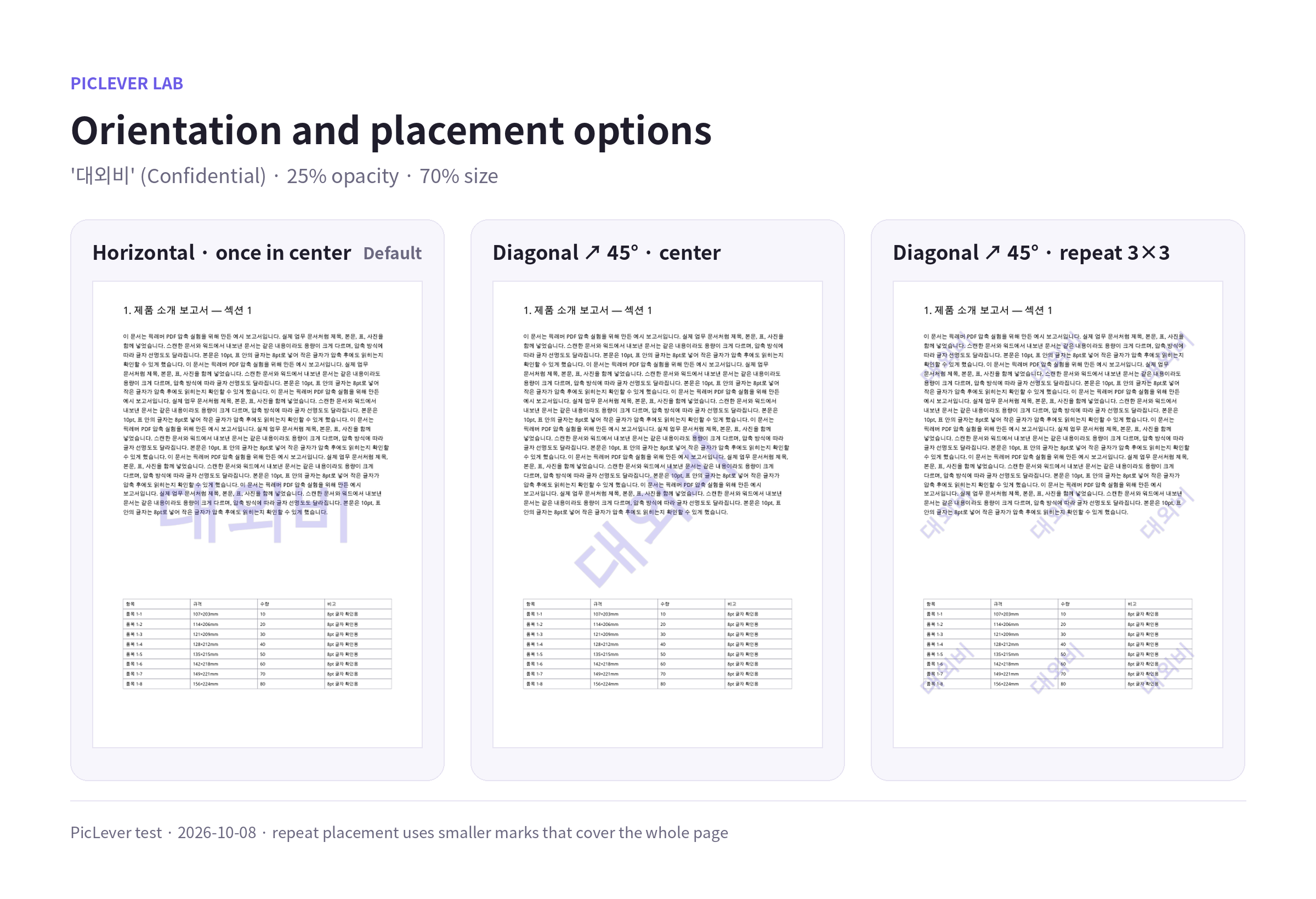
| Option | Choices | Result (for 대외비) |
|---|---|---|
| Orientation | Horizontal · Diagonal ↗ 45° · Diagonal ↘ 45° | 45° places it at an angle in an area about 104×99mm |
| Placement | Once in the center · Repeat 3×3 | Repeat covers the whole page with 9 smaller marks |
| Size | 10–100% (default 70%) | Width about 68mm at 40%, 119mm at 70%, 170mm at 100% |
-
To discourage cropping or screenshotting part of a page, use Repeat 3×3—any piece you cut out still carries the watermark.
-
Repeated marks overlap more of the text, so 15–25% opacity is recommended.
What changes when you add a watermark
-
File size barely changes. A 5-page report went from 1,599KB to 1,601KB, and a 9.4MB scanned PDF from 9,660KB to 9,664KB.
-
Body text stays searchable and copyable. The watermark is laid over the page as an image, so it doesn't affect the text layer, and the watermark text itself isn't searchable.
-
Enter a Page range like "2-3" to add it to those pages only. Leave it blank for all pages.
-
A watermark is a visible label, not protection. It can be removed in a PDF editor, so don't rely on it to prevent copying or leaks.
Test setup
-
Samples: a 5-page text-heavy A4 document (10pt body text), a 5-page report with photos (1.6MB), a 1-page landscape schedule, and a 5-page PDF simulating a 300 dpi scan (9.4MB)
-
Added watermarks with PicLever PDF Watermark at 15, 25, 50 and 75% opacity, in 3 colors (default, gray, red) and with 5 different phrases · Tested 2026-10-01; orientation, placement and size options checked 2026-10-08
-
Text contrast was calculated from the brightness of body text and its surrounding background where the watermark overlaps, rendered in grayscale at 200 dpi.
Adding a watermark to a PDF with PicLever
-
In PDF Watermark, click Choose PDF and add your file (up to 50MB and 200 pages).
-
Pick a Color. The default color prints as light gray in black and white.
-
Type short Watermark text such as "CONFIDENTIAL" or "COPY". Both English and Korean work.
-
Choose the Orientation (horizontal or diagonal), Placement (once in the center or repeat 3×3) and Size. The defaults (horizontal, center, 70%) are a good start.
-
Leave Opacity at 25% (the default), and enter a Page range if you only want it on some pages.
-
Click Create result, check in the PDF preview that the text isn't covered, then save the result.
FAQ
Q. Can I add the watermark diagonally?
Yes. Choose Diagonal ↗ 45° or ↘ 45° under Orientation. To cover the whole page with several marks, set Placement to Repeat 3×3.
Q. What happens if I add a watermark to a PDF that already has one?
The new watermark is layered on top of the old one. To change the wording, start again from the original PDF without a watermark.
Q. How do I add the same watermark to several PDFs?
Combine them first with Merge PDF, add the watermark once, and split them again with Split PDF if needed.
Related posts
-
How to Merge PDFs (Combine Files, Set the Order, and What Happens to File Size)
-
How to Reduce PDF File Size: Resolution and Quality Settings Compared (9.4MB Scan → 0.57MB)
-
How to Combine Multiple Photos into One PDF (7.8MB of Phone Photos → 1.3MB, Text Sharpness Compared)
-
How to Add Page Numbers to a PDF (Skip the Cover, Start from Any Number)
-
How to Add a Watermark to a Photo (Can It Be Cropped Out? Position, Color and Opacity Compared)