

How to Add a Watermark to a Photo (Can It Be Cropped Out? Position, Color and Opacity Compared)
I added watermarks at different positions, colors and opacities, then measured how much of the photo can be cropped without them and how visible they are.

If you worry about photos from your blog or shop spreading without credit, you add a watermark. But a small one in the corner is easy to crop out, and a heavy one hides the photo. Using PicLever's Image watermark, I added watermarks to a foliage photo and a product photo at different positions, colors and opacities, then measured how much can be cropped out without the watermark and how visible it is.
Bottom line: with a bottom-right watermark, 75–81% of the photo could be cropped out at its original aspect ratio. The center left 24%, and Tiled (3×3) left only 6–7%, making a clean crop practically useless. Color had to contrast with the background: black on a dark photo and white on a light background had a color difference of only about 10 from the original and were barely visible. The default purple at 40% was clearly visible on both photos.
How much photo survives a crop

| Position | Area you can crop at the original aspect ratio without the watermark |
|---|---|
| Bottom right | 75–81% |
| Center | 24% |
| Tiled (3×3) | 6–7% |
-
A corner watermark disappeared after trimming a little off the edge. The cropped photo kept 86–90% of the original width, plenty to use as is.
-
Even a centered watermark could be avoided by cropping one of the four corners at a quarter of the size.
-
Tiled spreads nine watermarks across the photo, leaving only a small patch that can be cropped clean. Still, only 1–2% of the pixels changed, so the photo itself stays easy to see.
Visibility by color and opacity
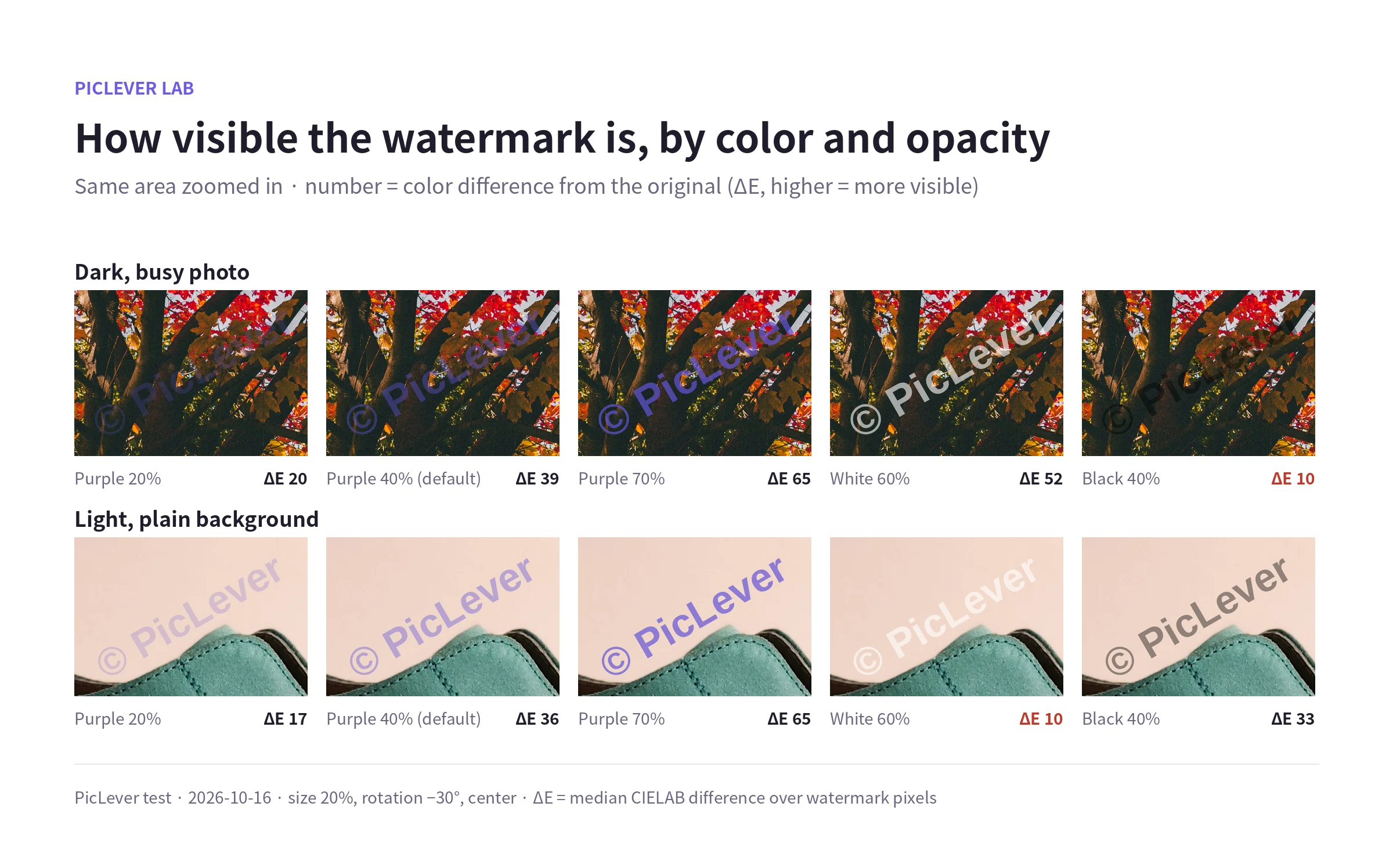
| Watermark | Dark, busy photo | Light, plain background |
|---|---|---|
| Purple 20% | 20 | 17 |
| Purple 40% (default) | 39 | 36 |
| Purple 70% | 65 | 65 |
| White 60% | 52 | 10 |
| Black 40% | 10 | 33 |
The numbers are the color difference (ΔE) between the watermark pixels and the original. Higher means more visible.
-
A color similar to the background stayed hidden even at higher opacity: black on dark tree trunks, white on a light wall.
-
At 20% opacity the watermark was subtle, at 40% clearly visible, and at 70% it stood out more than the photo. For a credit line, 30–40% struck a good balance.
-
If one photo mixes light and dark areas, a mid-tone color like the default purple showed up on both.
Which setup to use
-
To deter reuse (portfolios, stock photos): Tiled, 30–40% opacity. It's the hardest to crop around.
-
To leave a credit on blog or social posts: bottom right, 40–60% opacity. It doesn't get in the way of the photo.
-
Product photos: some marketplaces don't allow watermarks on main product images, so check their rules first. If you'll crop to a square as in How to Make a Square Product Thumbnail, crop first and add the watermark after so it isn't cut off.
-
A watermark makes removal harder but can't prevent it. Keep an unwatermarked original separately.
Test setup
-
Samples: a foliage photo (4000×2667px, dark and busy) and a product photo (3200×4000px, light, plain background)
-
In PicLever Image watermark, used the text "© PicLever" at size 20% and rotation −30°, varying position (bottom right, center, tiled), color (purple #6254d9, white, black) and opacity (20, 40, 60, 70%), saved as PNG
-
Treated pixels that changed from the original as the watermark, then calculated the largest rectangle at the original aspect ratio containing none of them, and the median CIELAB color difference (ΔE) of the watermark pixels · Tested 2026-10-16
Adding a watermark with PicLever
-
In Image watermark, click Choose image and add your photo.
-
Leave Type on Text and enter your name or URL in Watermark text. If you have a logo, choose Logo image.
-
Pick a Color opposite in brightness to the background, and set Opacity to 30–40%.
-
To deter cropping, turn on Repeat (3 × 3); for a simple credit, set Position to bottom-right.
-
Choose a Save format and click Download image.
FAQ
Q. Is my photo uploaded to a server?
No. The watermark is applied on your device.
Q. Can I apply the same watermark to several photos?
Save it with Save current settings, then use Apply on the next photo to reuse it. Logo files aren't saved with presets, so add the logo again.
Q. Can I watermark a PDF?
Yes. See How to Add a Watermark to a PDF for adding one to every page and how different opacities look.