

How to Pixelate Part of a Photo (Hide Phone Numbers and Faces—How Big Should the Mosaic Be?)
I pixelated a sample shipping label at mosaic sizes from 4 to 48px to see when phone numbers and faces stay recognizable, where the same setting hides less, and what metadata remains.
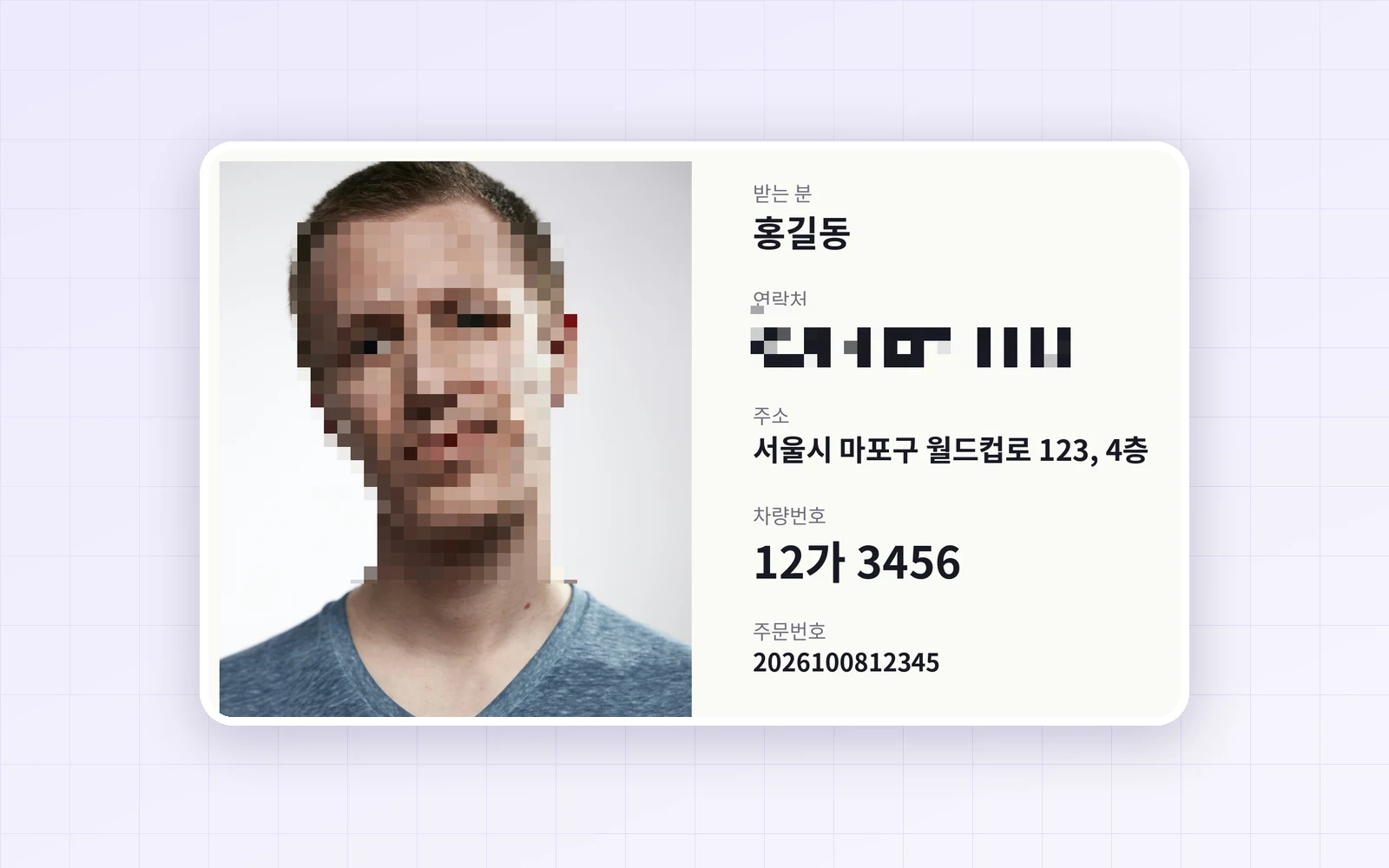
Before posting a shipping label or a screenshot, you probably pixelate the phone number, address or face—but pixelated text is often still readable. With the Mosaic tool in PicLever's Decorate images, I made a sample shipping label with made-up details and changed the mosaic size from 4 to 48px to see how far the phone number and face stay recognizable, and what's left in the saved file.
Bottom line: a phone number 61px tall was still readable at a mosaic size of 8px (OCR read it too), and readable by eye at 12px. From the default 24px, it couldn't be read. The rule that held was a mosaic size of at least one-third of the text height. Mosaic size is measured in image pixels, so on a photo with twice the resolution, the same 24px left the number readable again. Saved files had location (GPS) and camera info removed, and a PDF export didn't keep the covered area as a separate layer.
Can you still read the phone number?
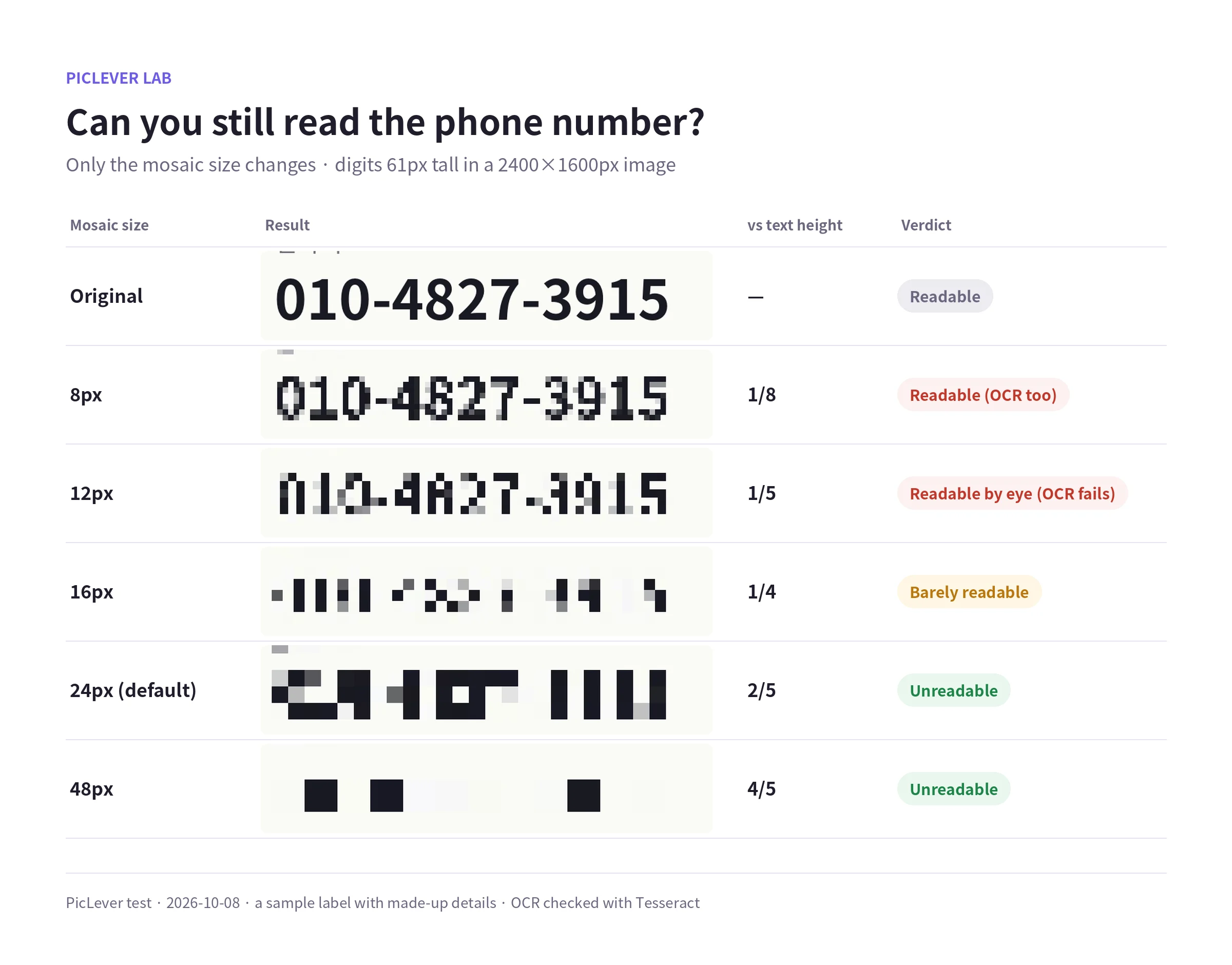
| Mosaic size | vs text height | Result |
|---|---|---|
| 8px | 1/8 | Readable (OCR read 010-4827-3915) |
| 12px | 1/5 | Readable by eye (OCR fails) |
| 16px | 1/4 | Barely readable |
| 24px (default) | 2/5 | Unreadable |
| 48px | 4/5 | Unreadable |
-
Mosaic splits the area into square blocks and fills each block with its average color. If the blocks aren't large enough compared with the text, the shape of each digit survives block by block.
-
At 12px, OCR (text recognition software) failed, but people could still read it. "Software can't read it" doesn't mean it's safe.
-
The smaller order number (35px tall) already defeated OCR at 8px. Smaller text hides with smaller blocks; larger text needs a larger mosaic.
How big for a face?
-
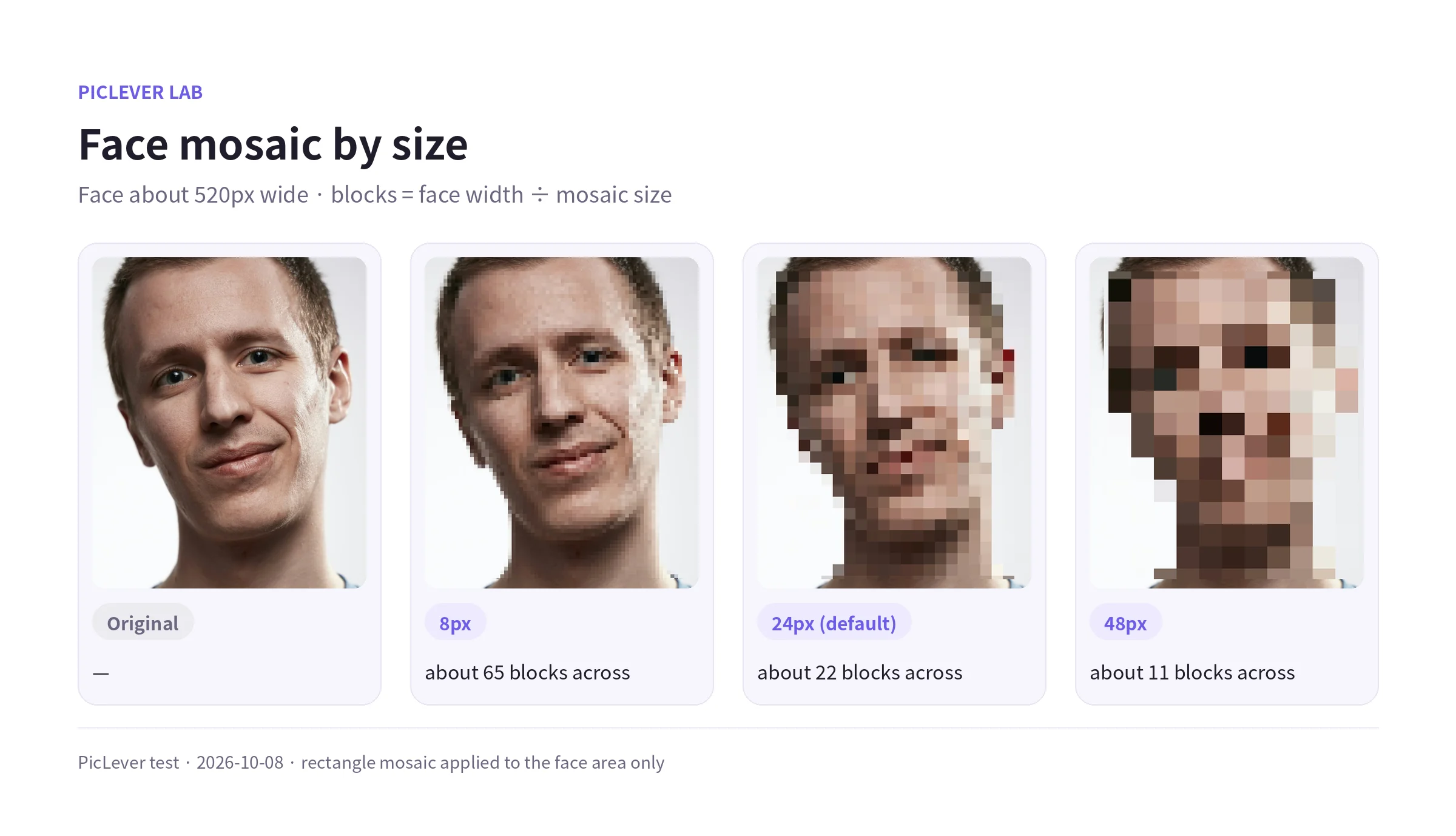
On a face about 520px wide, 8px (about 65 blocks across) left the features almost intact.
-
24px (about 22 blocks) kept the position of eyes, nose and mouth and the outline—enough for someone who knows the person.
-
Only 48px (about 11 blocks) broke up the face. Aim for about 10 blocks across the face, i.e. a mosaic size of at least the face width ÷ 10.
When the same setting hides less
-
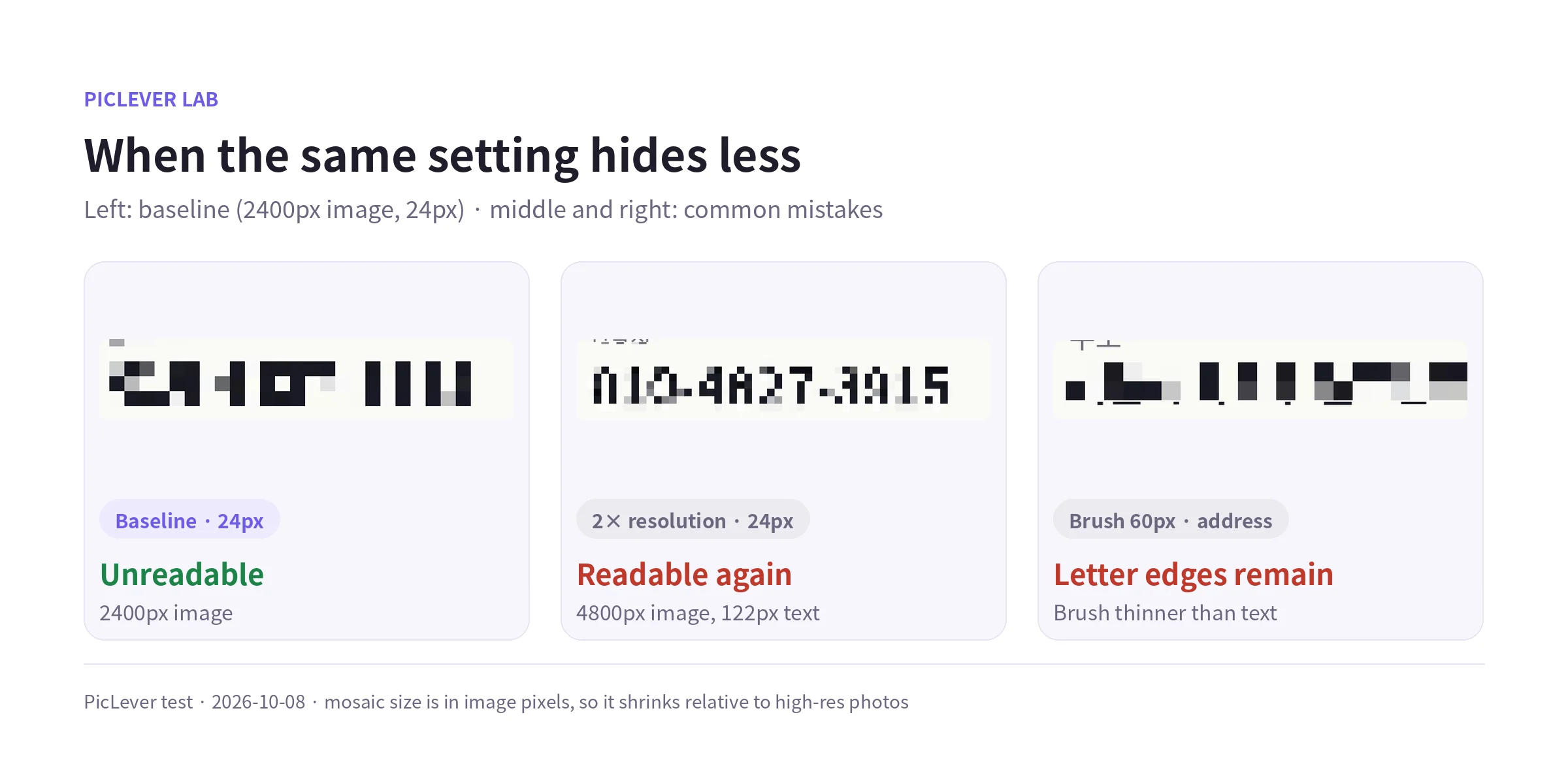
High-resolution photos: mosaic size is in image pixels. After scaling the same label up to 4800×3200px, the text was 122px tall and the number covered with the default 24px became readable again. For full-size phone photos (around 4000px), check how tall the text is and raise the size.
-
Brush mode: one pass over the address line (52px font) with the default 60px brush covered a band only about 50px tall, leaving the bottoms of the letters visible. Make the brush clearly thicker than the text, or use Rectangle mode for whole lines.
Cover ID and account numbers with a solid box
-
Pixelated areas can't be turned back into the original pixels in the saved file. But for numbers, with few possible values, small blocks can leave room for guessing by trying fonts and candidates.
-
For sensitive details like ID, account or card numbers, use Shapes with Fill shape on and cover them with a black rectangle. The filled area was saved as a single solid color (#181818) in both PNG and PDF.
What's left in the saved file
| Save format | File size (2400×1600px) | Location & camera info |
|---|---|---|
| Original JPG | 353KB | Present |
| JPG | 208KB | Removed |
| WebP | 108KB | Removed |
| PNG | 970KB | Removed |
| 1,501KB | None (saved as a single flattened image) |
-
The image kept its original 2400×1600px resolution.
-
GPS location, camera model and capture date were gone from every result, so the photo's location doesn't leak along with what you covered.
-
In the PDF, the mosaic and rectangle were flattened into one image, not a layer on top of the original, so they can't be peeled off in an editor.
Test setup
-
Samples: a sample shipping label with a made-up name, phone number, address, plate number and order number plus a portrait (2400×1600px, JPG 353KB, with GPS and camera info), and the same image scaled to 4800×3200px
-
In PicLever Decorate images, applied Mosaic (Rectangle and Brush) at 4, 8, 12, 16, 24 and 48px, saved as PNG, JPG, WebP and PDF, then checked block size, Tesseract OCR results, metadata and PDF structure · Tested 2026-10-08
Pixelating a photo with PicLever
-
In Decorate images, click Choose image and add your photo (PNG, JPG, WebP or BMP, up to 20MB).
-
Pick Mosaic from the toolbar below the image (shortcut M).
-
Choose a Mosaic mode: Rectangle for text lines and faces, Brush for irregular shapes.
-
Set Mosaic size to at least one-third of the text height—or the face width ÷ 10 for faces.
-
Drag over the area, zoom in to make sure it really can't be read, then click Save image.
FAQ
Q. I pixelated the wrong spot.
Undo one step at a time with Ctrl+Z, or use Clear all to start over. Your original file isn't changed.
Q. I need to send the screenshot as a PDF.
Choose PDF as the output format. To combine several images into one PDF, see How to Combine Multiple Photos into One PDF.
Q. I only want to remove location data.
Saving without any mosaic also removes location and camera info. For doing it while fixing orientation, see How to Rotate and Save a Photo.
Related posts
-
How to Crop a Photo into a Circle (Round Profile Pictures and Freeform Pen Cuts)
-
How to Change a PDF's Author and Title (Which Document Properties Actually Get Removed?)
-
How to Combine Multiple Photos into One PDF (7.8MB of Phone Photos → 1.3MB, Text Sharpness Compared)
-
How to Add Arrows and Text to a Screenshot (What Text Size Stays Readable on a Phone?)
-
How to Add a Watermark to a Photo (Can It Be Cropped Out? Position, Color and Opacity Compared)