

How to Shrink a Transparent PNG (A 2.7MB Cutout to 243KB—Does Transparency Survive?)
I saved a background-removed transparent PNG as PNG, WebP and JPG to compare size, transparency and edge quality—plus the savings from resizing.
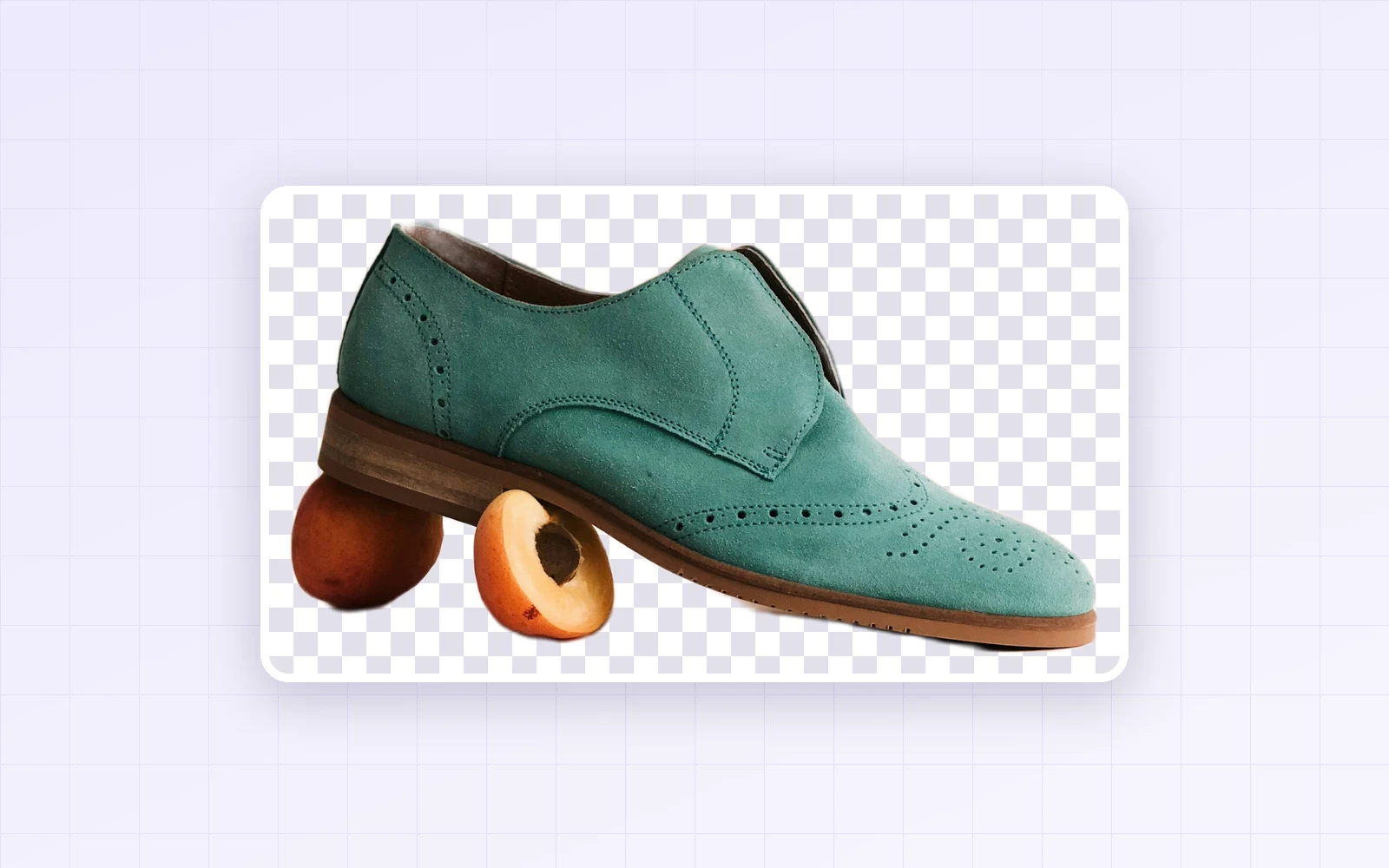
Save a background-removed product photo or a logo as a transparent PNG and the file often runs to several megabytes—too big for upload limits. With PicLever's Image compressor, I saved a background-removed 3200×4000px shoe photo (PNG, 2.7MB) as PNG, WebP and JPG to compare file size, whether transparency survives, and edge quality.
Bottom line: compressing a transparent PNG as PNG didn't reduce the size at all, even at lower quality. Saving the same photo as WebP at quality 80 cut it to 243KB (−91%) with the transparency intact, and the difference was hard to spot even zoomed in. Resizing to 1000px wide as well brought WebP down to 45KB. JPG shrank the file too, but filled the transparent areas with white.
Size and edges by format
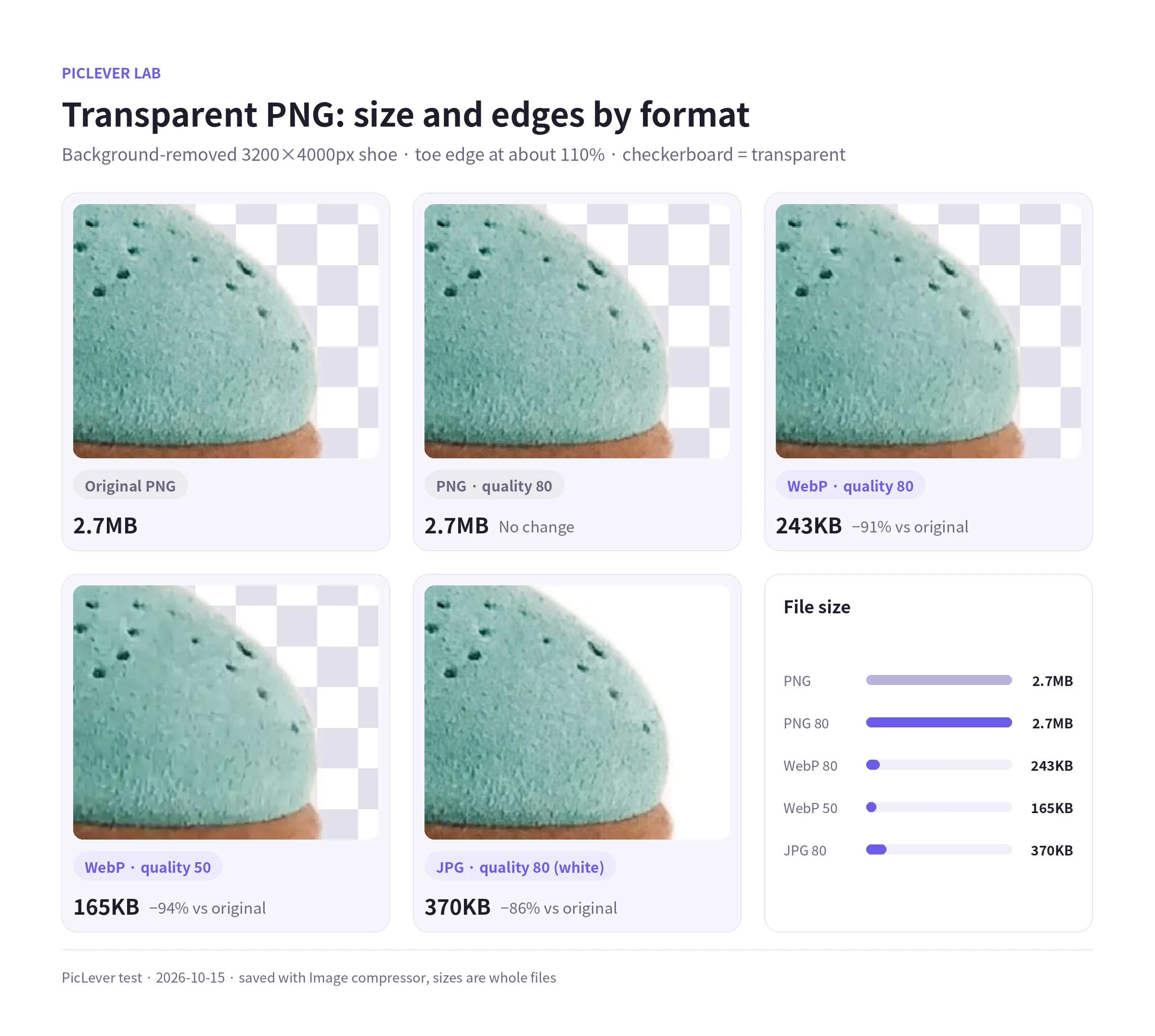
| Saved as | Size (3200×4000px) | Transparency |
|---|---|---|
| Original PNG | 2,718KB | Kept |
| PNG · quality 80 | 2,718KB (no change) | Kept |
| WebP · quality 80 | 243KB (−91%) | Kept |
| WebP · quality 50 | 165KB (−94%) | Kept |
| JPG · quality 80 | 370KB (−86%) | Filled with white |
-
PNG is a lossless format, so the quality setting doesn't apply. PicLever showed a "not smaller than the original" notice and returned the same file.
-
WebP preserved transparency (alpha) exactly. Not a single value changed, even in semi-transparent edge pixels; only the colors were compressed.
-
WebP 80 and the original PNG were hard to tell apart even zoomed in on the stitching and edges. 50 is smaller still, but the surface texture softened a little.
With smaller dimensions
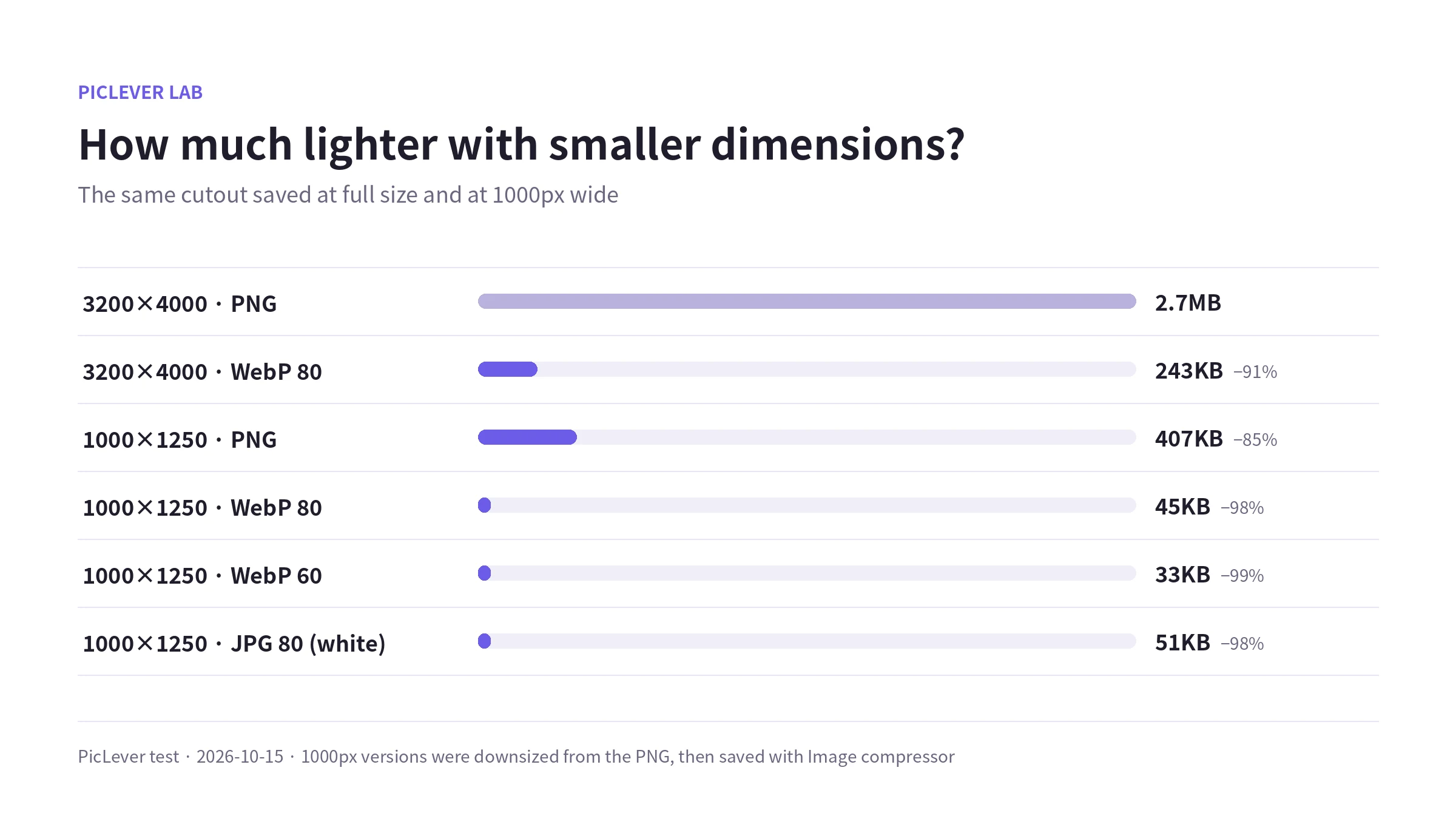
| Size · format | File size |
|---|---|
| 3200×4000 · PNG | 2,718KB |
| 1000×1250 · PNG | 407KB (−85%) |
| 1000×1250 · WebP 80 | 45KB (−98%) |
| 1000×1250 · WebP 60 | 33KB (−99%) |
| 1000×1250 · JPG 80 (white) | 51KB (−98%) |
-
If you must stay with PNG, reducing the dimensions is the only lever. At 1000px wide, the PNG dropped to 407KB.
-
For on-screen use such as websites and product pages, about 1000px plus WebP 80 kept transparency and stayed under 50KB.
Which format should you use?
-
Transparent images on a website or blog: WebP. Transparency is intact and the file is under a tenth of the PNG.
-
Transparency needed somewhere that rejects WebP (some marketplaces and document apps): keep PNG and reduce the dimensions.
-
Marketplaces that want white-background product photos: JPG. Transparent areas turn white automatically. For square thumbnails, see How to Make a Square Product Thumbnail.
-
Masters you'll edit later: keep the original PNG. WebP and JPG are color-compressed results.
Test setup
-
Samples: a shoe photo with the background removed by PicLever Background remover (3200×4000px, transparent PNG, 2.7MB) and the same photo downsized to 1000px wide (PNG, 407KB)
-
Saved as PNG, WebP and JPG at quality 50–80 in PicLever Image compressor, then compared file size, alpha-channel differences and PSNR against the original when placed on a navy background · Tested 2026-10-15
Shrinking a transparent PNG with PicLever
-
If it's large, first reduce it to about 1000px wide in the Image resizer, keeping PNG as the format.
-
Add the PNG to the Image compressor (up to 20 images).
-
Set Output format to WebP and Quality to 80.
-
Click Apply to all images, check the result size and preview, then download.
FAQ
Q. Some places won't open my WebP.
Older apps and some upload forms don't accept WebP. See WebP File Won't Open? for converting it to PNG.
Q. Is quality 100 better?
WebP at 100 can end up larger than the original PNG. A 12KB logo PNG grew to 32KB at WebP 100, versus 7KB at quality 80.
Q. Should logos be WebP too?
Logos that are already small PNGs shrink only a little. Keep the PNG as your editable master and use WebP only for the web.