

How to Change an ID Photo Background to White (Dark Backgrounds Leave an Outline—Edge Settings Compared)
I switched three portraits with different backgrounds to white using PicLever Background remover, comparing the outline and hair at Edges 0, 30, 70 and 100.
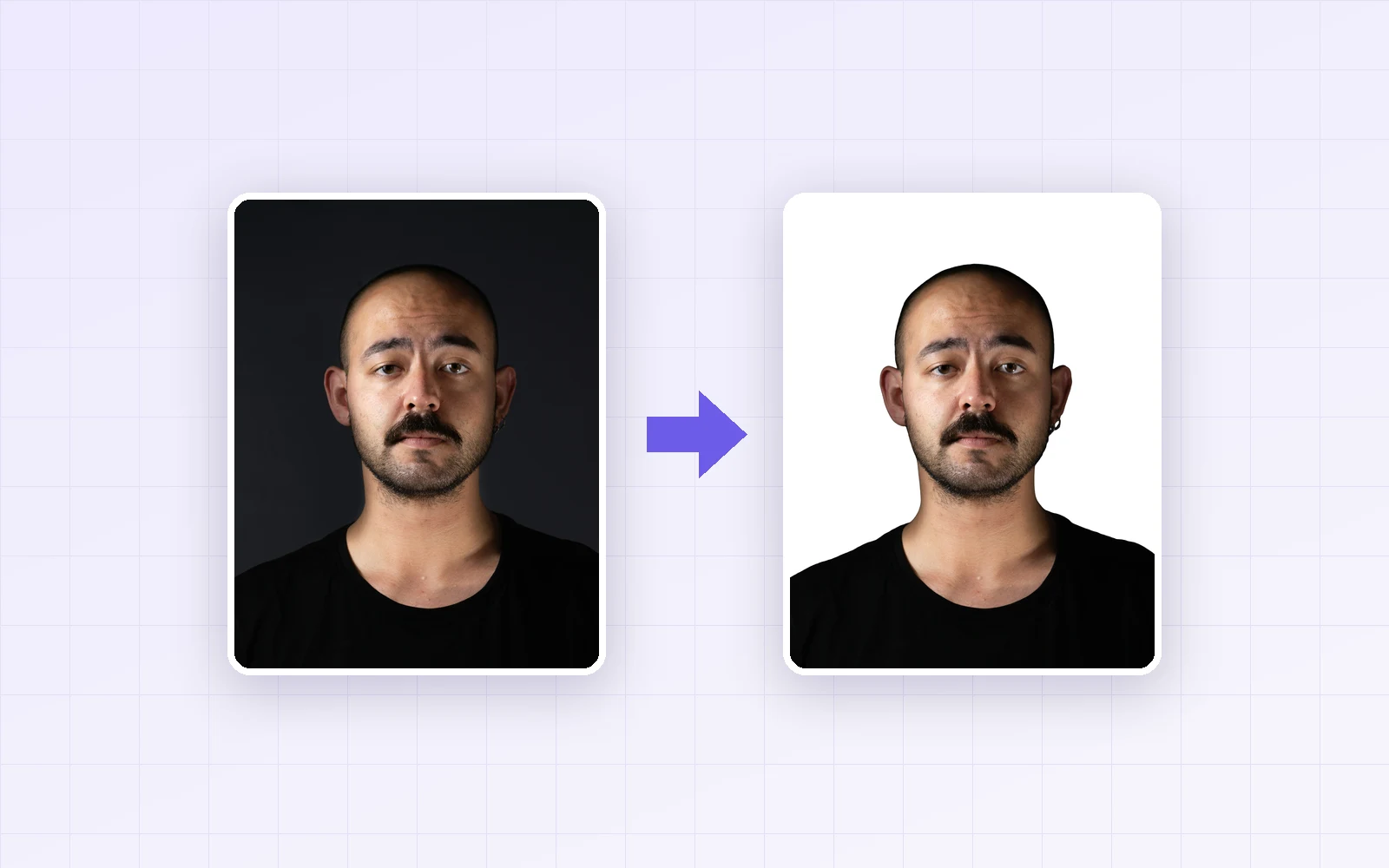
If a photo for a résumé, employee badge or student ID was taken against a gray wall or a dark background, you may want to swap just the background for white. Using the Portrait detail model in PicLever's Background remover, I changed three portraits with different backgrounds to white and zoomed in to compare how the Edges setting affects the head outline and hair.
Bottom line: photos with a light background turned white cleanly at the default (Edges 30). But a dark-background photo kept a dark outline around the head at the default (13.1% of pixels just outside the outline), and raising Edges to 70 cut that to 5.3% for a clean result. On the other hand, a long-hair photo developed gaps between strands at 100, so 0–30 worked better there. The key is to set Edges according to the original background.
Results by background
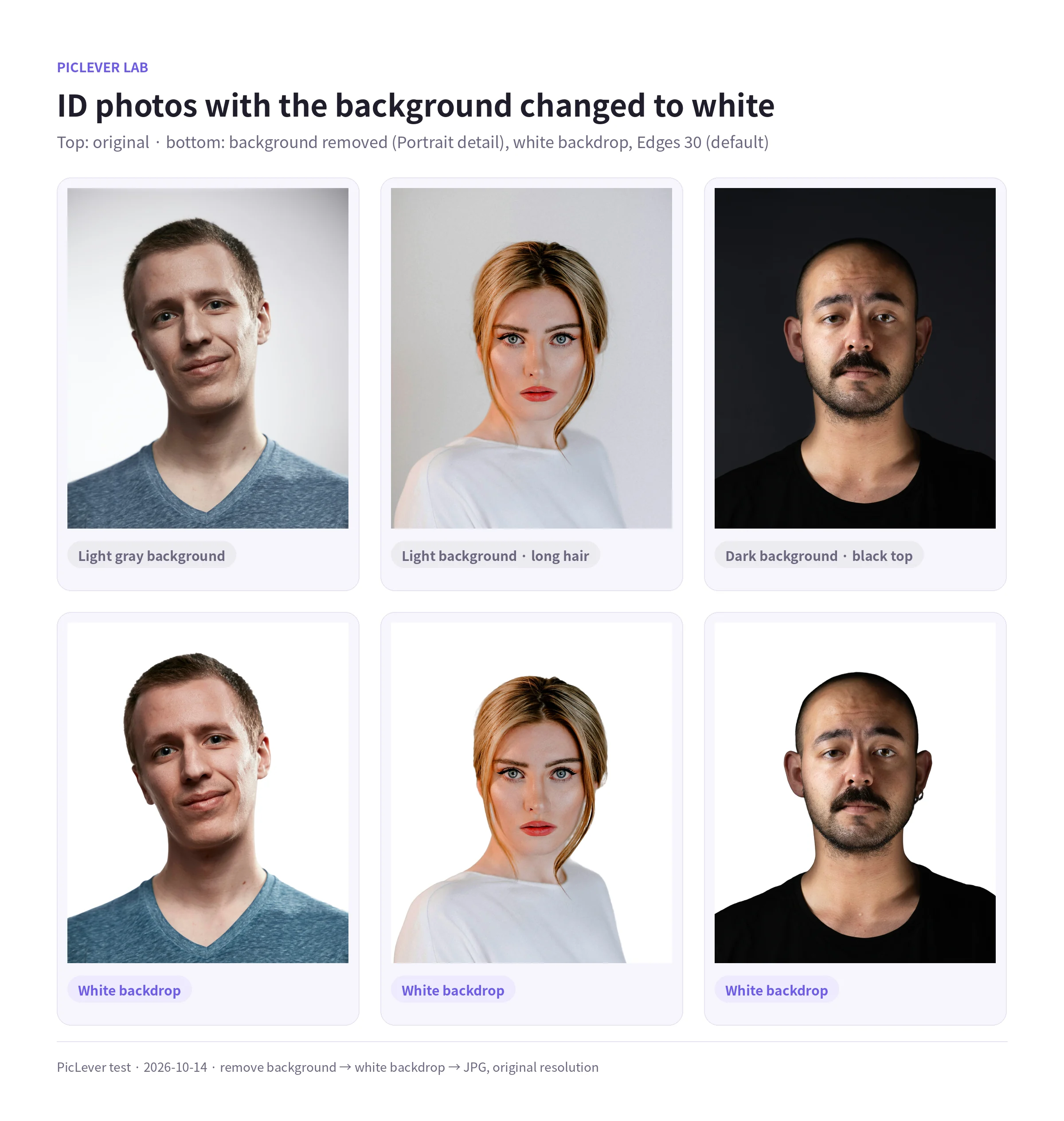
| Original | White backdrop at default (30) | Recommended Edges |
|---|---|---|
| Light gray background · short hair | Natural | 30 (default) |
| Light background · long hair | Natural, hair included | 0–30 |
| Dark background · black top | Dark outline around the head | About 70 |
-
Background removal keeps semi-transparent pixels at the edge—slightly mixed with the original background—to look natural. With a light original background these blend into white, but with a dark original background they show up as a gray or black outline on white.
-
Results kept the original resolution, and each photo took 16–19 seconds in this test setup.
Raise Edges for dark-background photos
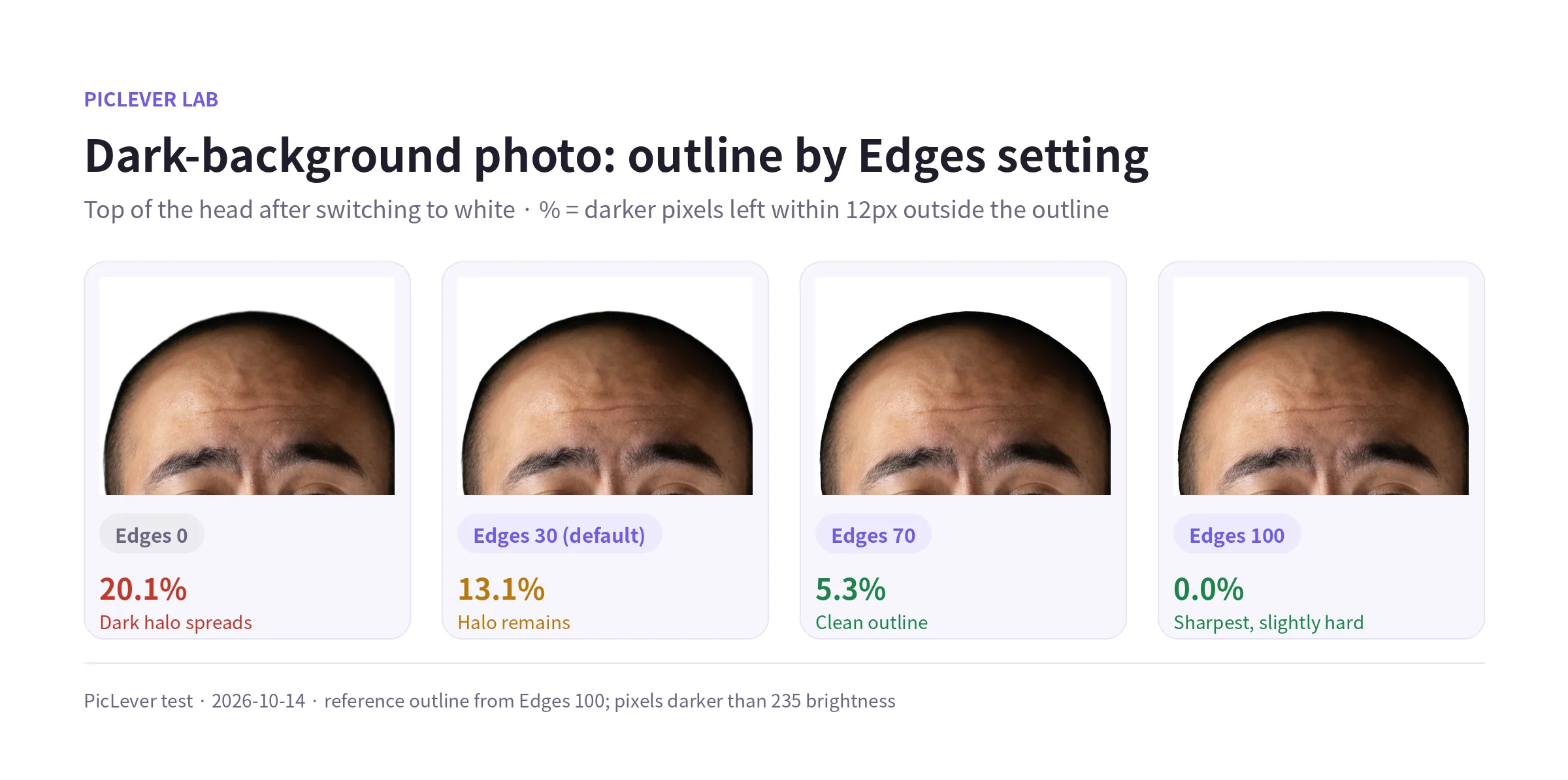
| Edges | Dark pixels left outside the outline | Look |
|---|---|---|
| 0 | 20.1% | Dark halo spreads |
| 30 (default) | 13.1% | Halo remains |
| 70 | 5.3% | Clean outline |
| 100 | 0% | Sharpest, but a bit hard-edged |
-
For photos shot against a dark background, Edges around 70 worked best. At 100 the halo disappeared completely, but the outline looked knife-cut.
-
You can change Edges right before saving without removing the background again, so zoom in and compare values with the white backdrop on.
Keep Edges low for long hair
-
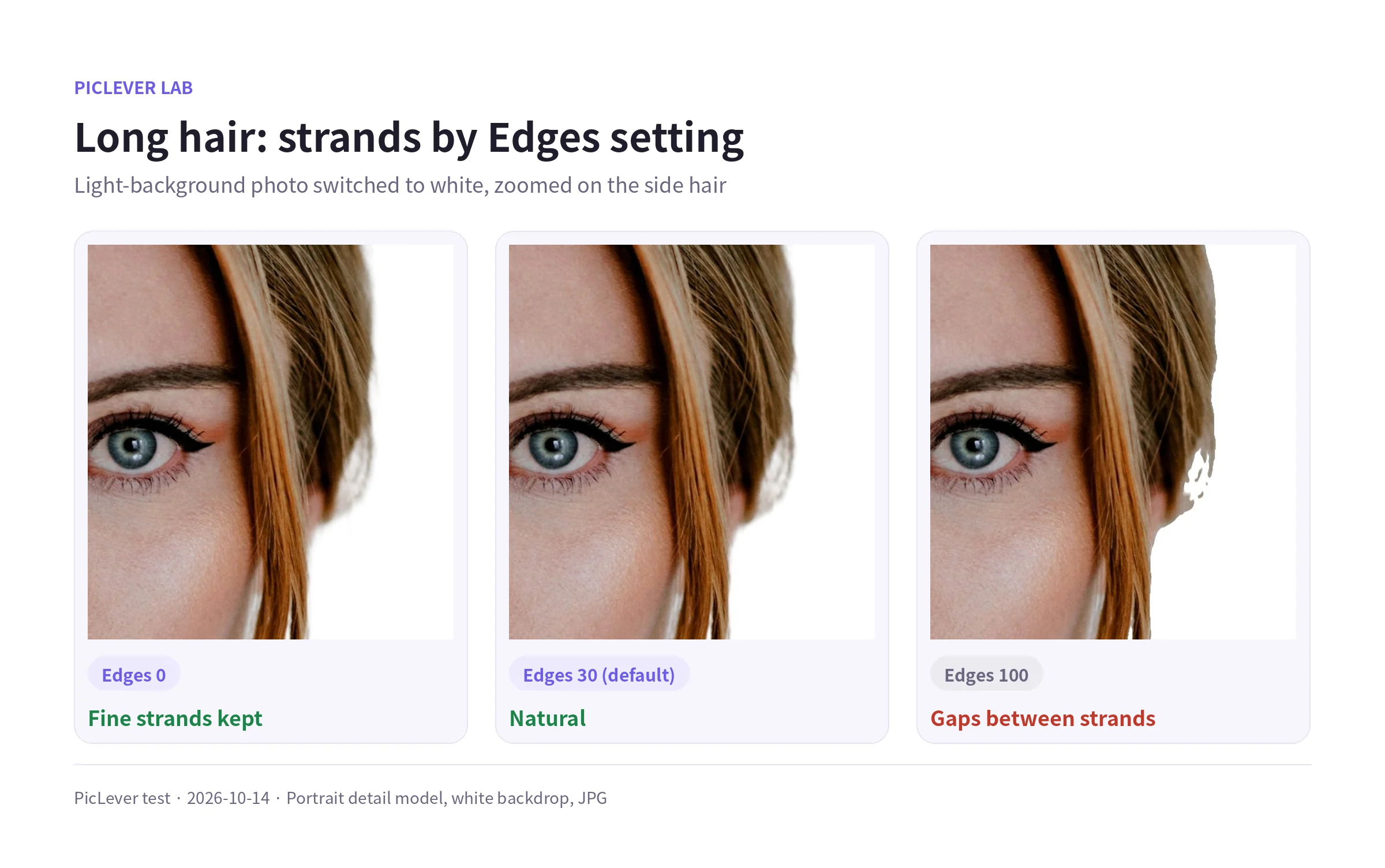
On a light background, long hair kept its fine strands and natural ends at 0–30.
-
At 100, the background between strands was cut out, leaving white holes. With long hair and a light background, the default is the safe choice.
-
If both apply—long hair on a dark background—check the balance between halo and hair somewhere in 50–70.
Before you use it as an ID photo
-
After changing the background, match the aspect ratio and size for its use. Résumé photos are usually 3×4cm (3:4) and Korean passport photos 3.5×4.5cm (7:9). See How to Resize an ID Photo for the steps.
-
Officially reviewed photos such as passport photos come with rules that restrict retouching and compositing. Check the passport authority's guidance before applying, and reshoot against a white wall if you can.
-
For résumés and badges without strict rules, you can also choose a color backdrop such as light blue or gray instead of white.
Test setup
-
Samples: a portrait on a light gray background (2000×3000px), a portrait with long hair and a white top on a light background (2000×2666px), and a portrait with a black top on a dark background (2000×3000px)
-
Processed in PicLever Background remover with the Portrait detail model, Edges 0, 30, 70 and 100, a white backdrop and JPG output, then measured the share of pixels darker than white (brightness below 235) in a 12px band outside the Edges-100 outline · Tested 2026-10-14
Changing an ID photo background to white with PicLever
-
In the Background remover, click Choose image and add your photo (up to 20MB).
-
Set Photo type to Portrait detail and click Remove background.
-
Set Backdrop to White.
-
Adjust Edges: about 70 if the original background was dark, 0–30 for long hair on a light background.
-
Choose JPG as the Save format, click Download image, then fit it to size with Image crop and the Image resizer.
FAQ
Q. Part of the shoulder or clothing was removed too.
This can happen when clothing and background colors are similar. Try General as the photo type. See How to Remove an Image Background for Free for how the models differ.
Q. Is my photo uploaded to a server?
No. Background removal runs on your device. The Portrait detail model (about 44MB) downloads once the first time.
Q. I'm wearing white—is that a problem?
White clothing can blend into a white background. If the rules allow, pick a light color backdrop, or use a photo where you're wearing a darker top.