

How to Join Screenshots into One Image (How Many Fit, and Which Format Is Smallest?)
I joined phone screenshots vertically to find how many fit at each width, compare PNG, JPG and WebP sizes, and check whether text stays readable at smaller widths.
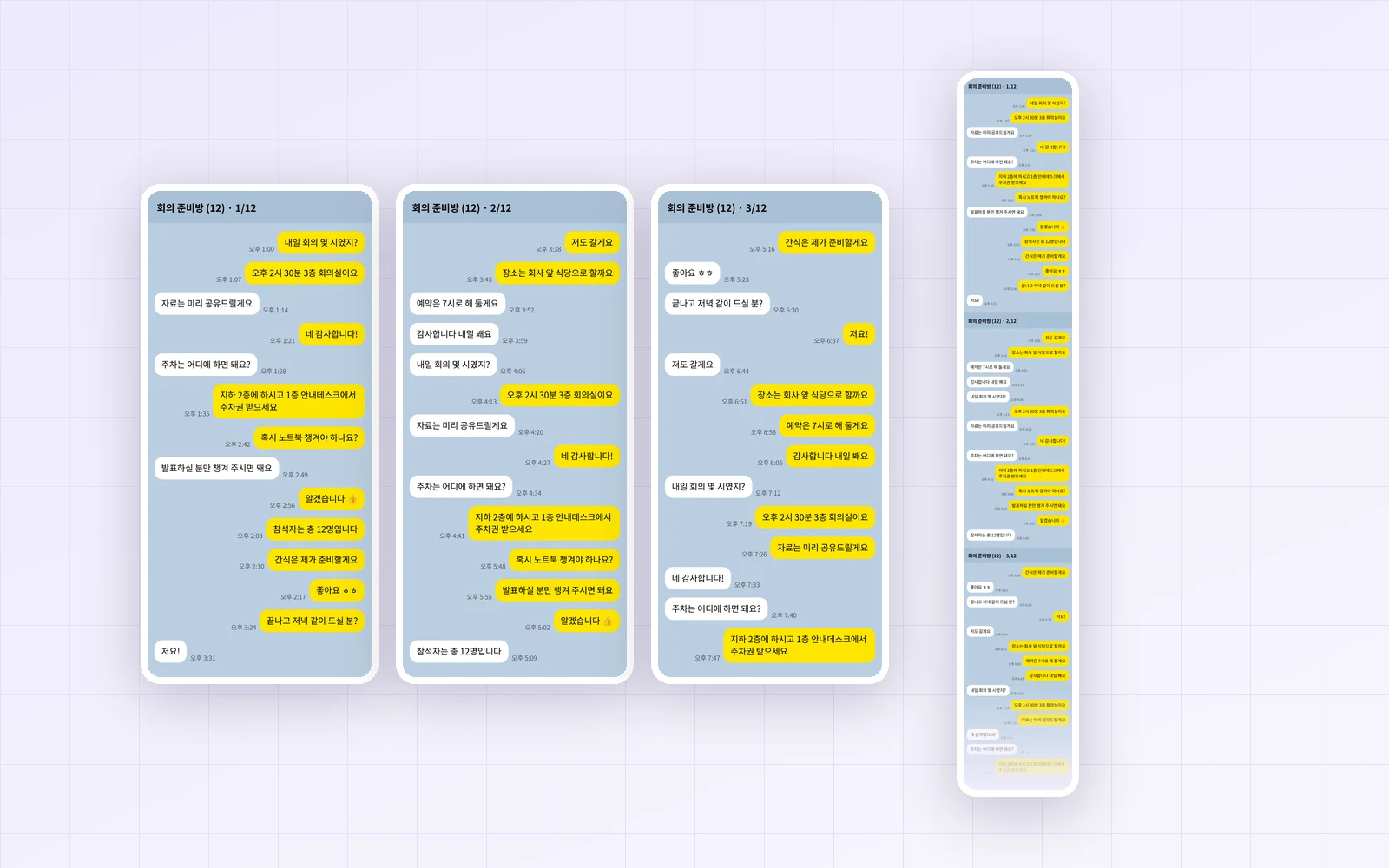
If you've captured a chat or a long page in several screenshots, sending them joined into one image is tidier. Using PicLever's Image joiner, I stacked phone screenshots (1170×2532px) vertically to check how many fit in one image, which format is lightest, and whether text stays readable at smaller widths.
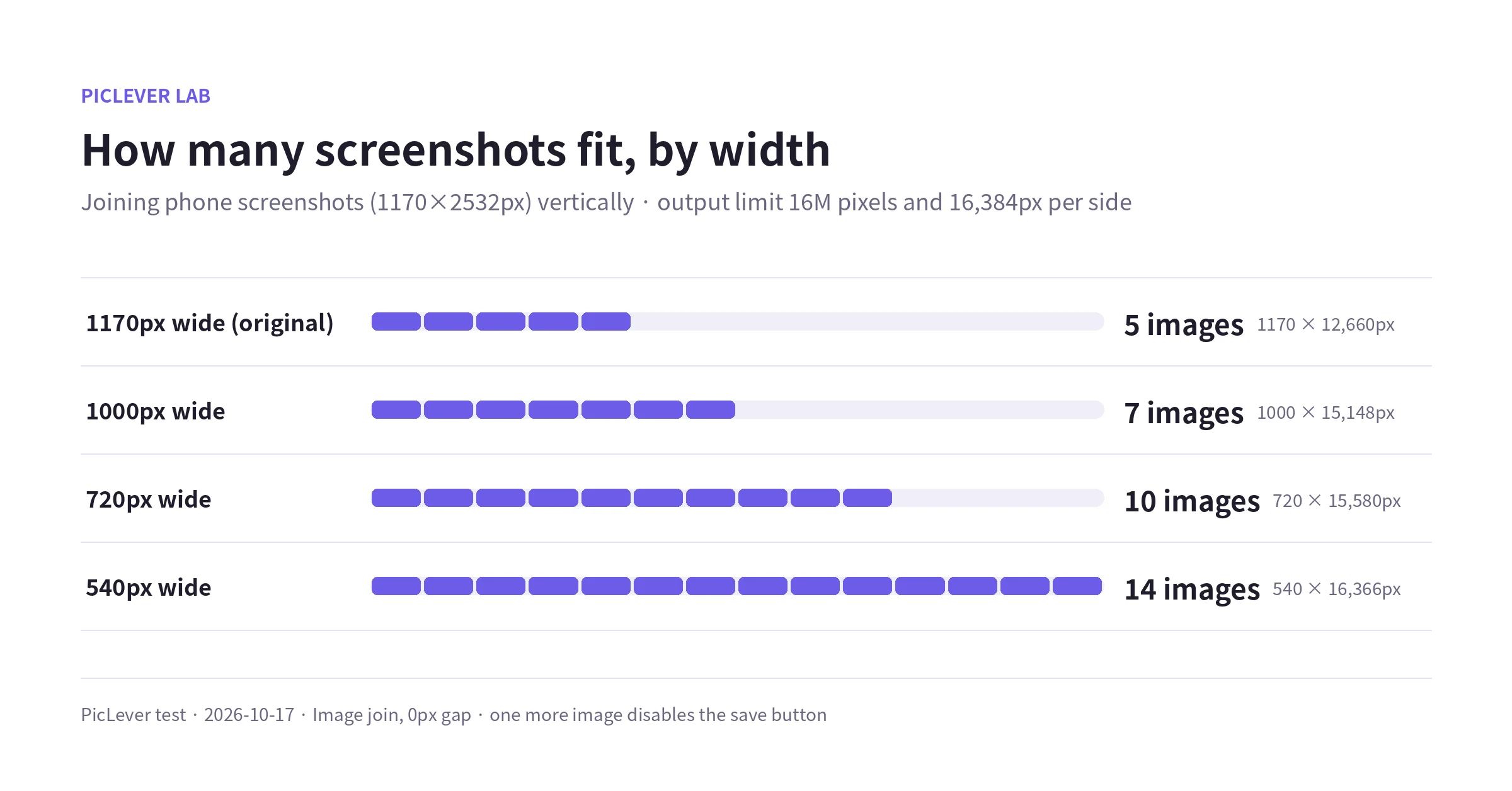
Bottom line: the result is limited to 16 million pixels and 16,384px per side, so 5 screenshots fit at the original width, 7 at the default 1000px, and 10 at 720px. WebP was under half the size of PNG, and PNG at the original width was actually larger than all the original screenshots combined. At 720px, the text was still easy to read on a phone.
How many screenshots can you join?
| Common width | Max images | Result size |
|---|---|---|
| 1170px (original) | 5 | 1170×12,660px |
| 1000px (default) | 7 | 1000×15,148px |
| 720px | 10 | 720×15,580px |
| 540px | 14 | 540×16,366px |
-
Adding one more image showed the notice that results support up to 16 million pixels and 16,384px per side, along with a button suggesting a narrower width (946px for 8 images at 1000px). Clicking it switches to a width that fits the limit.
-
At the original 1170px width, the 16-million-pixel limit hit first even with height to spare; at 720px and below, the 16,384px height limit hit first.
-
If the suggested width feels too small for the text, split the screenshots into groups of 5–10.
Which format to save in
| Width · images | Original total | PNG | JPG | WebP |
|---|---|---|---|---|
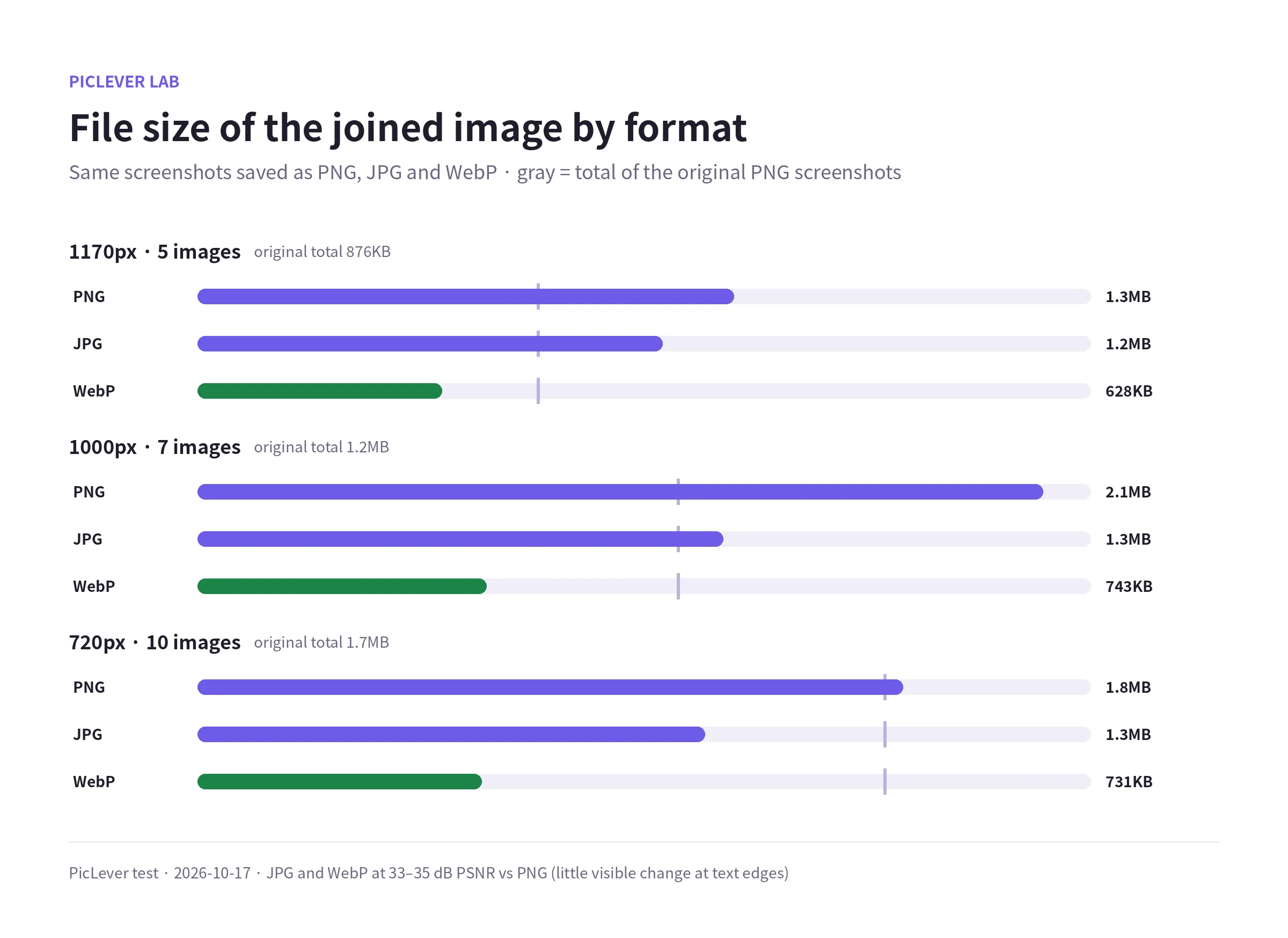
| 1170px · 5 | 876KB | 1.3MB | 1.2MB | 628KB |
| 1000px · 7 | 1.2MB | 2.1MB | 1.3MB | 743KB |
| 720px · 10 | 1.7MB | 1.8MB | 1.3MB | 731KB |
-
PNG came out larger than the original screenshots combined. Even downsized to 1000px, it was 2.1MB, about 1.8× the original total.
-
WebP was under half of PNG in every case. Text edges in both JPG and WebP looked nearly identical to PNG (33–35 dB PSNR).
-
The default save format is WebP. If the recipient can't open WebP, switch to JPG; to keep text edges exactly as in the original, choose PNG. See WebP File Won't Open? for what to do.
Text stayed readable at smaller widths
-
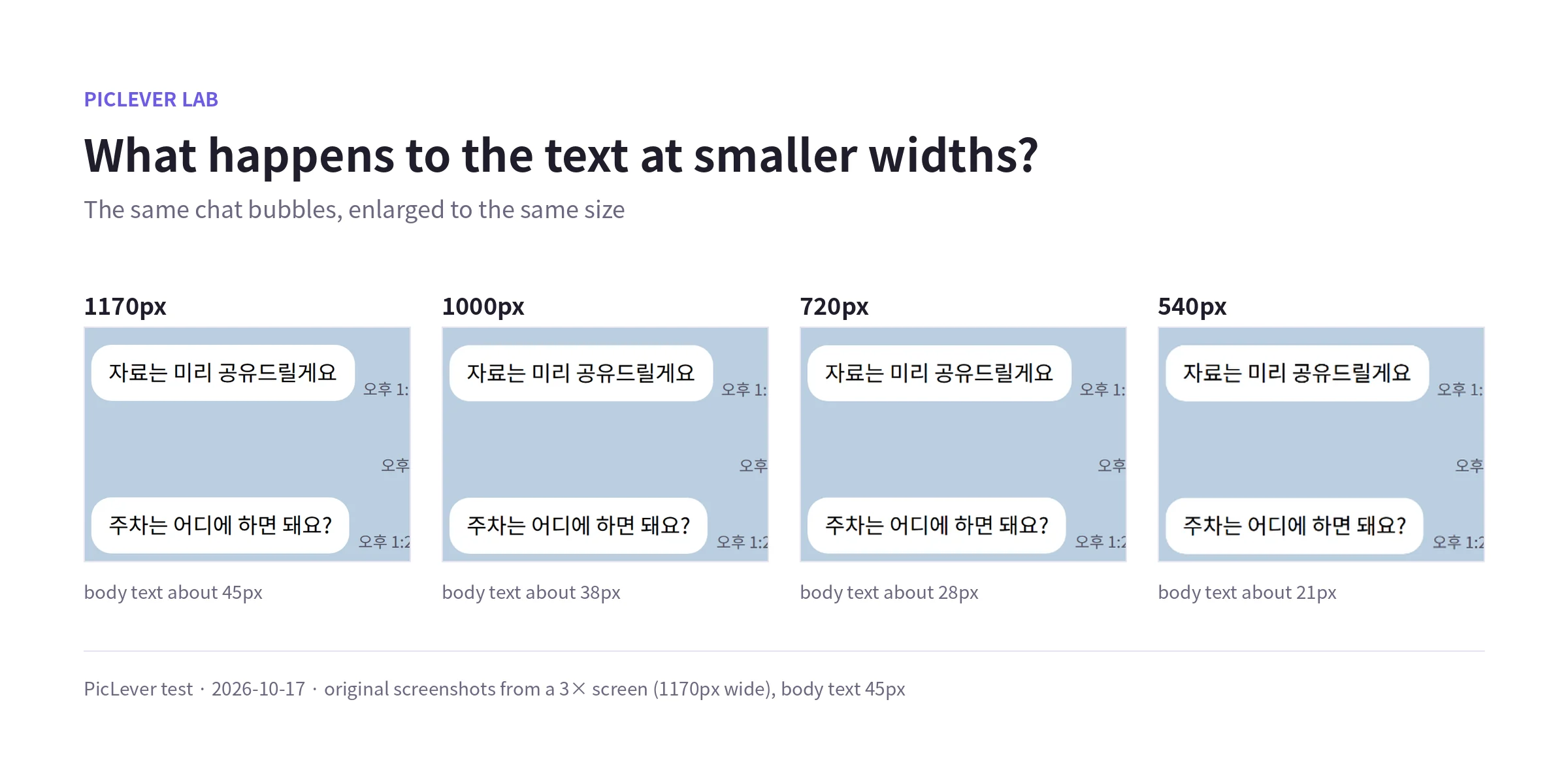
Phones fit a long image to the screen width, so a narrower image doesn't make the text smaller, just slightly less sharp.
-
Body text height was about 45px at 1170px, 28px at 720px and 21px at 540px. Zoomed in, the difference was hard to spot down to 720px, and 540px was still readable.
-
For viewing large on a PC or for printing, keep the original width. For printing on A4, see How to Print a Long Screenshot on A4.
Before you join
-
Trim overlaps: consecutive screenshots overlap at the bottom of one and the top of the next. The joiner doesn't remove overlaps, so trim them first with Image crop.
-
Mark the seams: to separate screenshots, set Gap to 10–20px and pick a white or gray Background color.
-
Hide private details: if phone numbers or names show, cover them first, as in How to Pixelate Part of a Photo.
Test setup
-
Samples: 1170×2532px chat screenshots (PNG, 170–188KB each), matching a 390×844pt phone screen at 3×
-
In PicLever Image joiner, joined vertically with a 0px gap at common widths of 1170, 1000, 720 and 540px, adding images until saving was blocked, then saved as PNG, JPG and WebP to compare size and PSNR against PNG · Tested 2026-10-17; width suggestion checked 2026-10-18
Joining screenshots with PicLever
-
In the Image joiner, click Choose image and add all your screenshots (up to 20).
-
Set the order with the ↑ ↓ buttons.
-
Set Direction to Vertical and Common width to 720px for phone viewing.
-
Set Gap and Background color if needed.
-
If you see the size-limit notice, click the suggested-width button.
-
Check the Save format (WebP by default) and click Download joined image.
FAQ
Q. Are my screenshots uploaded to a server?
No. The joiner runs on your device.
Q. Can I mix screenshots of different widths?
Yes. Each one is scaled to the Common width, keeping its aspect ratio. Enlarging a small image can blur it, so match the width to your smallest screenshot.
Q. Can I join side by side?
Yes. Set Direction to Horizontal; the setting becomes a common height instead.