

How to Make a Wi-Fi QR Code (Do Special Characters Work? Plus Print Size)
I made 9 Wi-Fi QR codes—special characters, Korean, spaces, hidden networks—decoded them, and worked out print sizes by password length.
At a café, office or rental, you can skip reading out the Wi-Fi password and let guests connect with a single QR code. But what if the password contains special characters like ; : , " or non-Latin text? With the Wi-Fi mode in PicLever's QR code generator, I made 9 test cases, checked whether the decoded network name and password matched what was entered, and worked out how big to print the code for different password lengths.
Bottom line: across special characters, Korean text, leading and trailing spaces, a hidden network and an open network, all 9 cases decoded to exactly the name and password entered. Special characters were saved with a \ in front, as the standard requires. But longer passwords make denser codes: a 46-character password needed a print about 1.4 times larger than a 12-character one (3.7cm → 5.2cm recommended at 30cm). And a Wi-Fi QR code contains the password in plain text, so anyone who scans it can see it.
Do special characters and Korean survive?
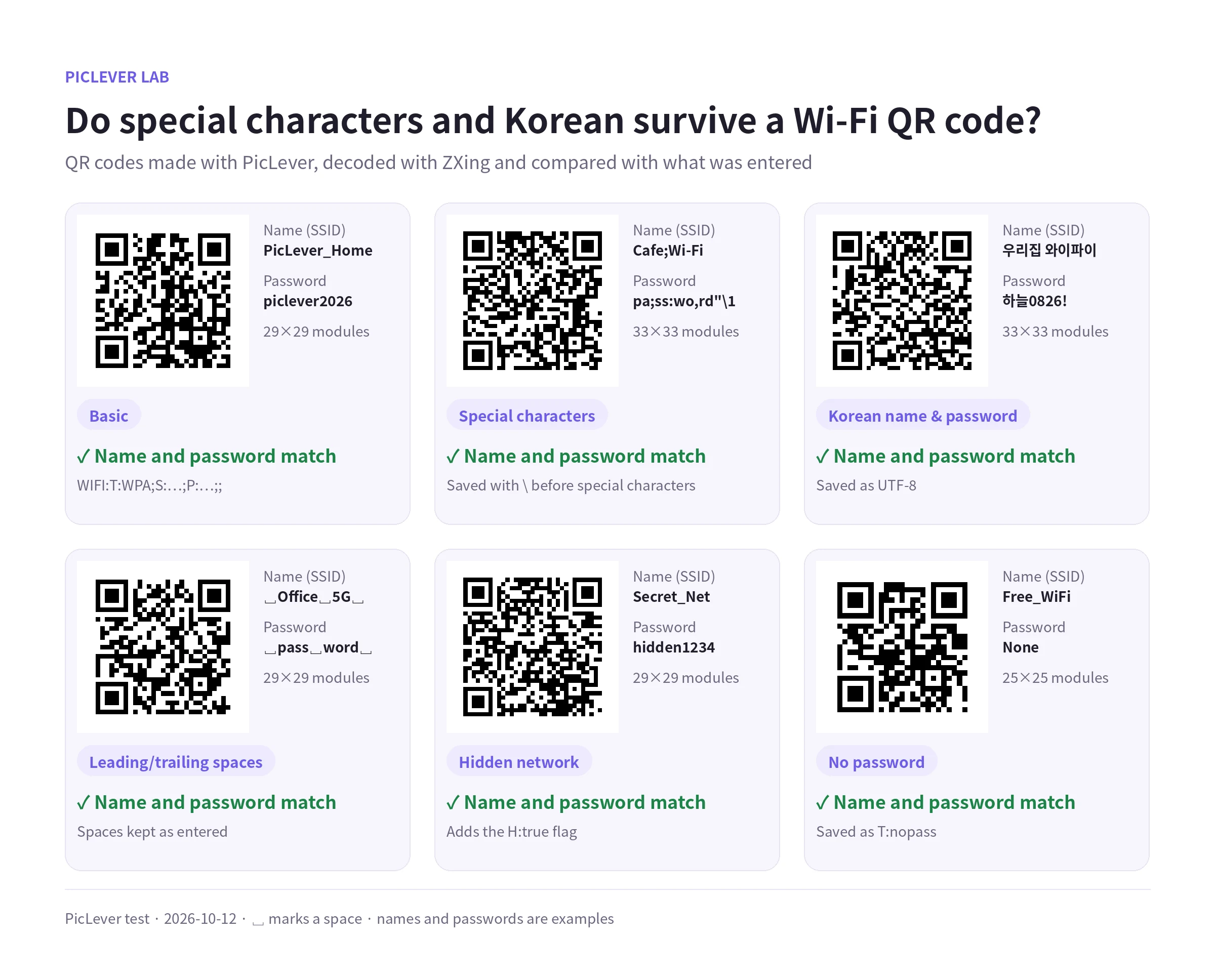
| Case | Network name (SSID) | Password | Decoded |
|---|---|---|---|
| Basic | PicLever_Home | piclever2026 | Exact match |
| Special characters | Cafe;Wi-Fi | pa;ss:wo,rd"\1 | Exact match (saved with ) |
| Korean | 우리집 와이파이 | 하늘0826! | Exact match |
| Leading/trailing spaces | (space)Office 5G(space) | (space)pass word(space) | Spaces kept |
| Hidden network | Secret_Net | hidden1234 | Exact match (adds H:true) |
| No password | Free_WiFi | — | Exact match (T:nopass) |
| WEP | Old_Router | abcde | Exact match |
| 16 hex-like characters | ABCD1234 | 0123456789ABCDEF | Exact match |
| Long password | PicLever_Guest_Network_5GHz | 46 characters | Exact match |
-
A Wi-Fi QR code holds text in the form
WIFI:T:WPA;S:name;P:password;;. ; : , " \ are separators in this format, so the standard says to put a \ before them. PicLever does this automatically: a name like Cafe;Wi-Fi was stored as Cafe\;Wi-Fi and decoded back to the original. -
Leading and trailing spaces were kept as entered. Router names rarely end in a space, but a stray space typed by mistake will stop the connection, so copy the name from your router's settings.
-
One caveat: QR readers differ. The decoder used here (ZXing) read all 9 codes, but OpenCV's decoder, tested alongside it, failed on the special-character and Korean codes. Before printing, test the code on a few phones your guests are likely to use.
Longer passwords make denser QR codes
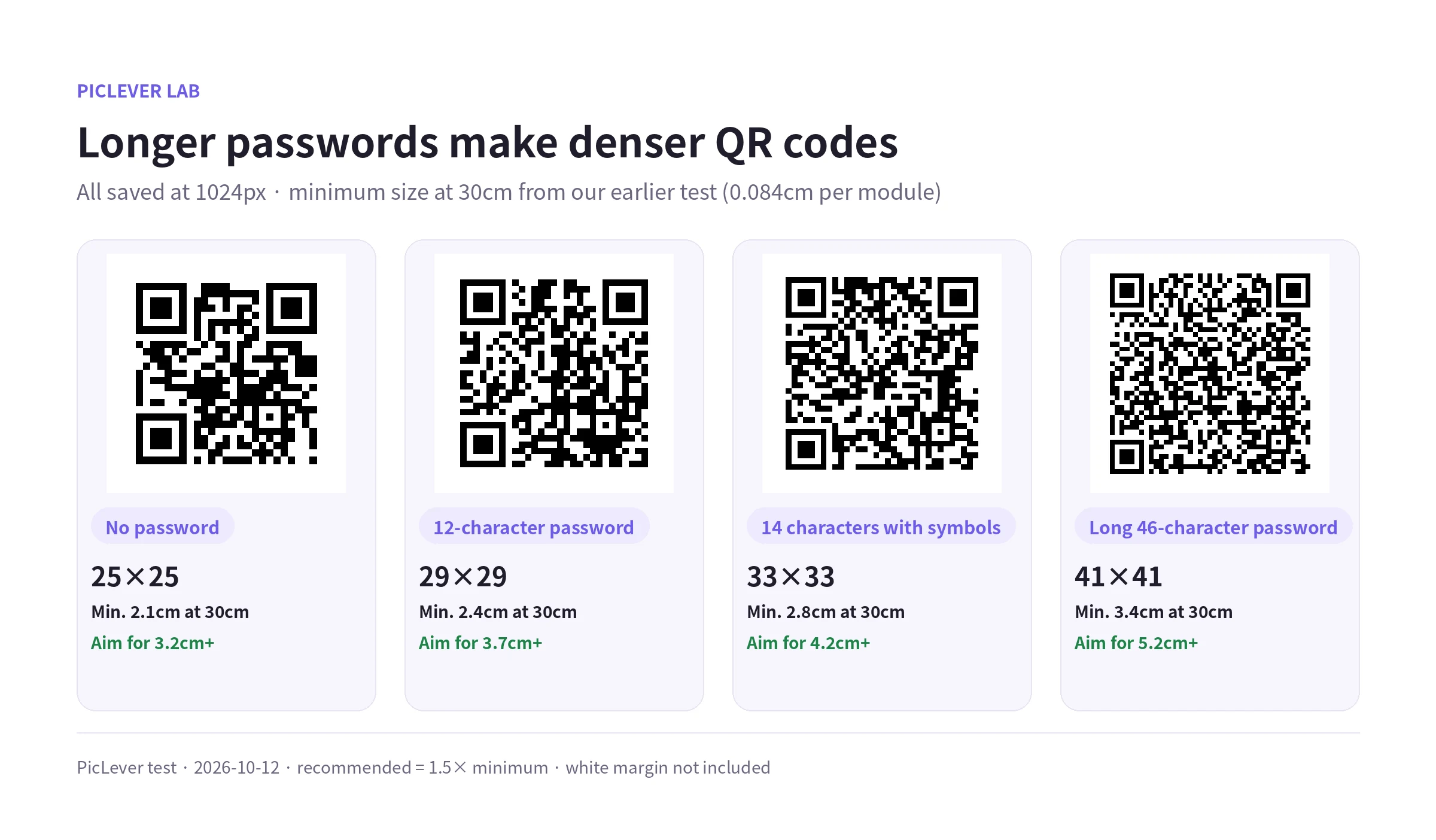
| Password | Modules | Minimum at 30cm | Recommended (1.5×) |
|---|---|---|---|
| None | 25 × 25 | 2.1cm | 3.2cm |
| 12 characters | 29 × 29 | 2.4cm | 3.7cm |
| 14 characters with symbols | 33 × 33 | 2.8cm | 4.2cm |
| 46 characters | 41 × 41 | 3.4cm | 5.2cm |
-
Even at the same 1024px, more text means more modules, so each module gets smaller. Special characters add a \ each, and Korean characters take 3 bytes, so they needed more modules than the same number of Latin characters.
-
Minimum sizes come from our QR code print size test (about 0.084cm per module at 30cm). For a sign people scan up close, like one on a table, about 5cm covers most passwords.
-
Don't crop the white margin (about 4 modules) around the code. Without it, phones struggle to read it.
The password is visible
-
A Wi-Fi QR code doesn't encrypt the password—it stores it as plain text. Many phone cameras and QR apps show the password on screen after scanning.
-
So for a code you post for guests, use your router's guest network. If you change the password, make a new QR code.
-
For the same reason, hide the code before posting a photo of it. See How to Pixelate Part of a Photo.
-
PicLever creates the QR code in your browser. In this test, no network request contained the name or password while entering and saving them.
Test setup
-
Samples: 9 sets of Wi-Fi details—basic, special characters (; : , " ), Korean, leading/trailing spaces, hidden network, no password, WEP, 16 hex-like characters and a 46-character password (all example values)
-
Saved as 1024×1024px PNG in the Wi-Fi mode of PicLever QR code generator, decoded with ZXing and OpenCV, compared the stored text, name and password with the input, and counted modules · Tested 2026-10-12
Making a Wi-Fi QR code with PicLever
-
In the QR code generator, click Wi-Fi.
-
Enter the Network name (SSID). Copying it from your router's settings avoids typos.
-
Choose the Security type. Most networks use WPA / WPA2; choose No password for open networks.
-
Enter the Wi-Fi password, and turn on Hidden network if your router doesn't broadcast its name.
-
Scan the preview with your phone to check it connects, then click Download PNG or Download PDF.
FAQ
Q. Does it work on both iPhone and Android?
Recent iPhones and Android phones read Wi-Fi QR codes with the built-in camera and offer to connect. Behavior can vary by model, so test before posting.
Q. My 5GHz and 2.4GHz networks have different names.
One QR code holds one network. If the names differ, make a code for each.
Q. Can I print it in color?
A dark code on a white background is fine. See QR Code Print Size for results by color and background.
Related posts
-
QR Code Print Size: How Many Centimeters? (Minimum Size by URL Length and Scanning Distance)
-
Barcode Print Size: How Many Millimeters? (EAN-13 at 80–200%, Measured)
-
How to Pixelate Part of a Photo (Hide Phone Numbers and Faces—How Big Should the Mosaic Be?)
-
CODE128 vs CODE39 (Inventory and Asset Labels: How Long Is the Same Barcode?)