

QR Code Print Size: How Many Centimeters? (Minimum Size by URL Length and Scanning Distance)
How large should you print a QR code on a flyer or business card? I made QR codes for three URLs of different lengths, ran a scan test, and summarized minimum sizes by distance plus how colors and transparent backgrounds affect scanning.
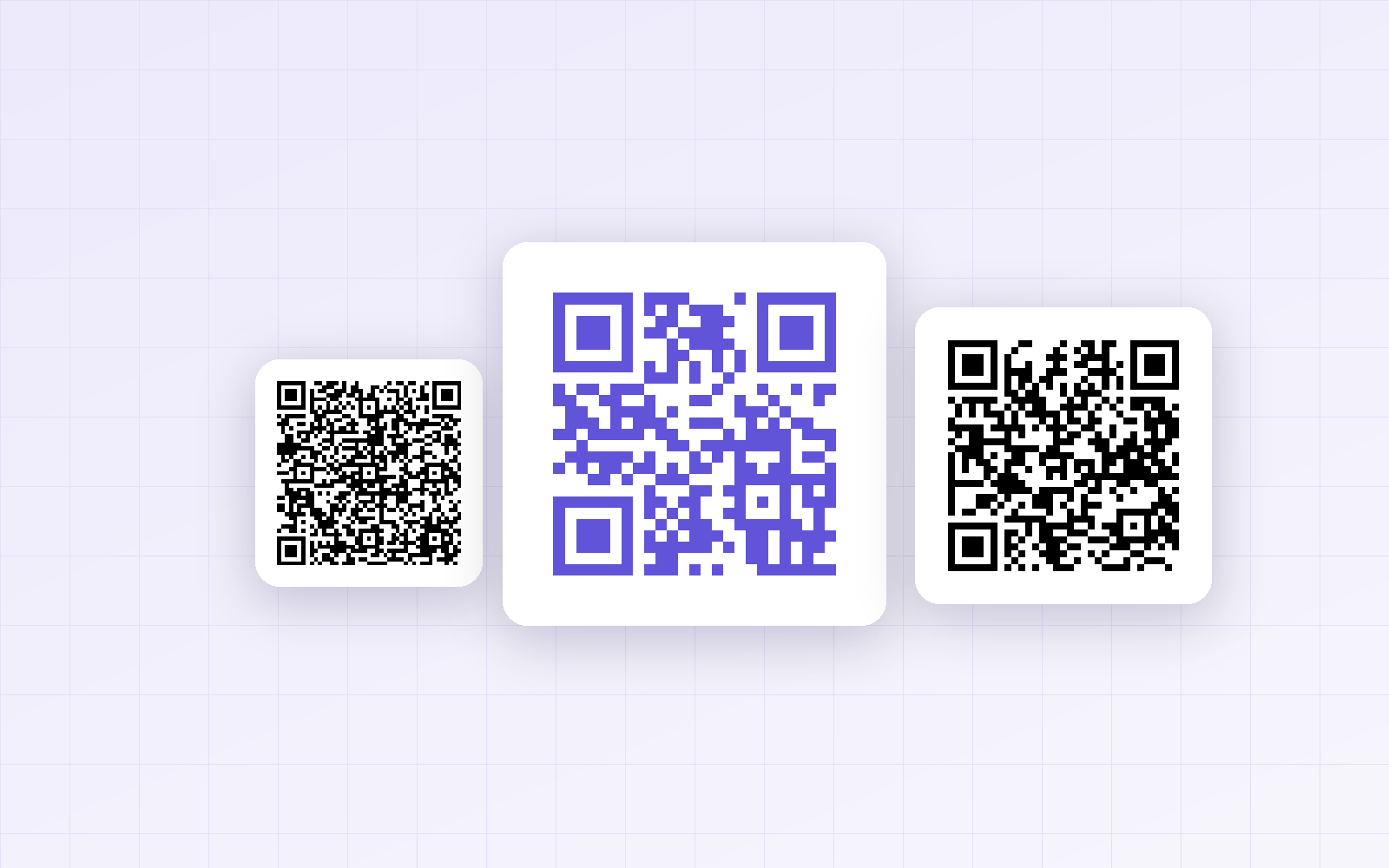
When you put a QR code on a flyer, business card or store sign, the tricky part is how many centimeters it needs to be for phones to scan it reliably. Too small and it looks clean but won't scan; too large and it eats up space. I made QR codes for three URLs of different lengths with PicLever's QR code generator, counted their modules, and ran a scan test that simulates a phone camera to find the minimum print size. I also tested colors and transparent backgrounds.
Bottom line: QR code size depends on URL length and scanning distance. At 30cm, a short URL (20 characters) needed at least 2.1cm, and a long URL (115 characters) needed at least 3.8cm. For a safety margin, print it at 1/10 of the scanning distance or larger (3cm at 30cm, 10cm at 1m), and keep the URL short. A transparent-background QR code placed on a photo failed all 10 scans.
Longer URLs make denser QR codes
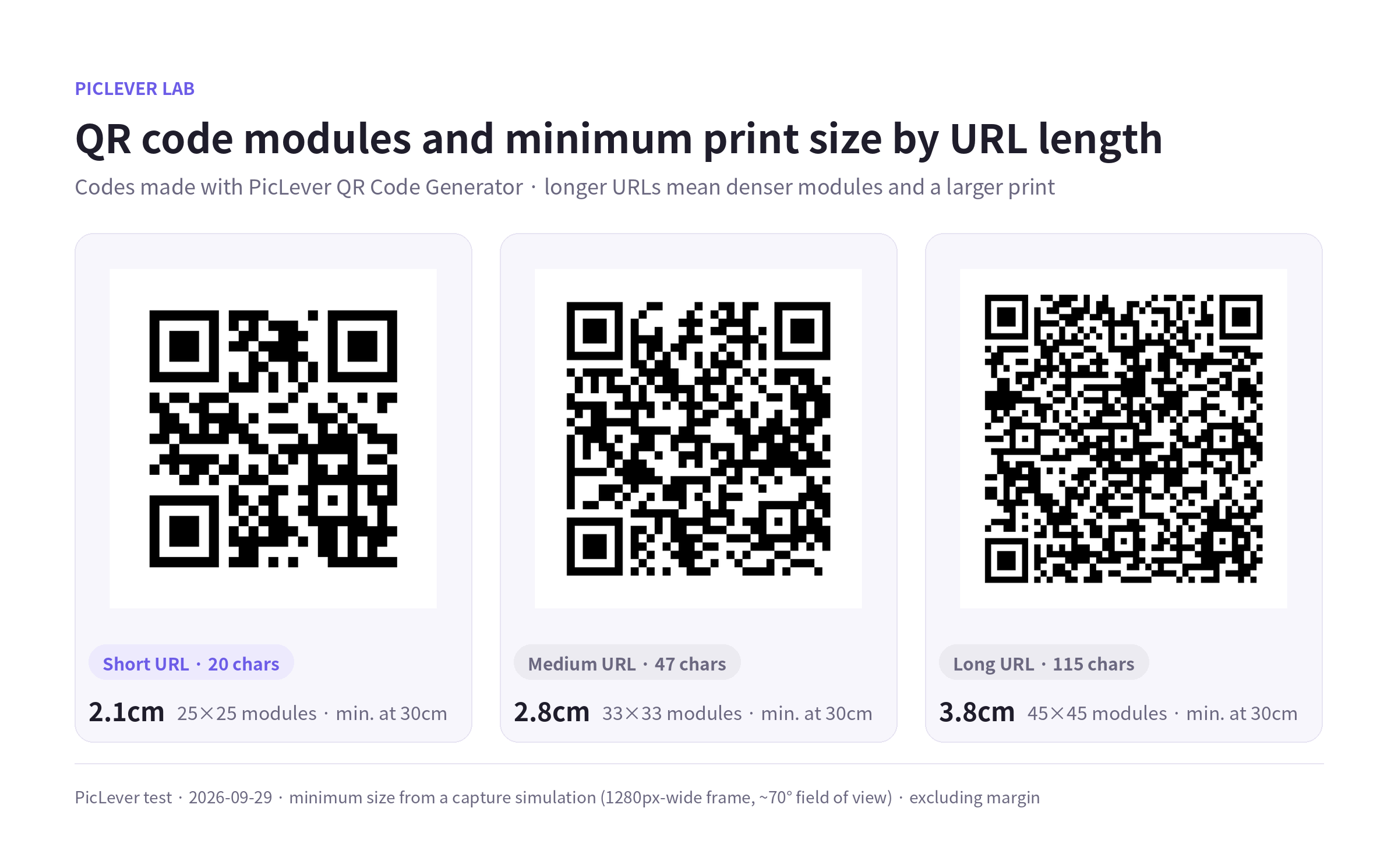
Even at the same saved size, a longer URL holds more data, so the code has more modules (squares). More modules means smaller squares, so the code has to be printed larger to scan from the same distance.
| URL | Characters | Modules | Min. size at 30cm | Min. size at 1m |
|---|---|---|---|---|
| Home page | 20 | 25 × 25 | 2.1cm | 7.0cm |
| Tool page | 47 | 33 × 33 | 2.8cm | 9.3cm |
| URL with tracking (utm) parameters | 115 | 45 × 45 | 3.8cm | 12.7cm |
-
In the scan test, every code read 10 out of 10 times once each module was about 2.6px or larger on screen, regardless of URL length. So the long URL, with 1.8× as many modules per side, needs to be printed 1.8× larger.
-
These are minimum sizes with no margin for error. Allow about 1.5× for lighting, shaky hands and ink spread. At 30cm, around 3cm for a short URL and 6cm for a long one is safe.
-
Sizes refer to the black code area. Keep a white margin of about 4 modules around it—cropping the margin makes codes much harder to scan.
Recommended print sizes by use
| Use | Scanning distance | Recommended size (short URL) |
|---|---|---|
| Business cards · product labels | 15–20cm | 2–3cm |
| Flyers · menus · notices | About 30cm | 3–4cm |
| Store entrance posters | 1m | 10cm or more |
| Banners · signs read from afar | 2m or more | 20cm or more |
For long URLs, go 1.5–2× larger than these sizes. Removing long tracking parameters or using a shorter URL makes the same size scan much more easily.
Colors and backgrounds: what gets in the way?
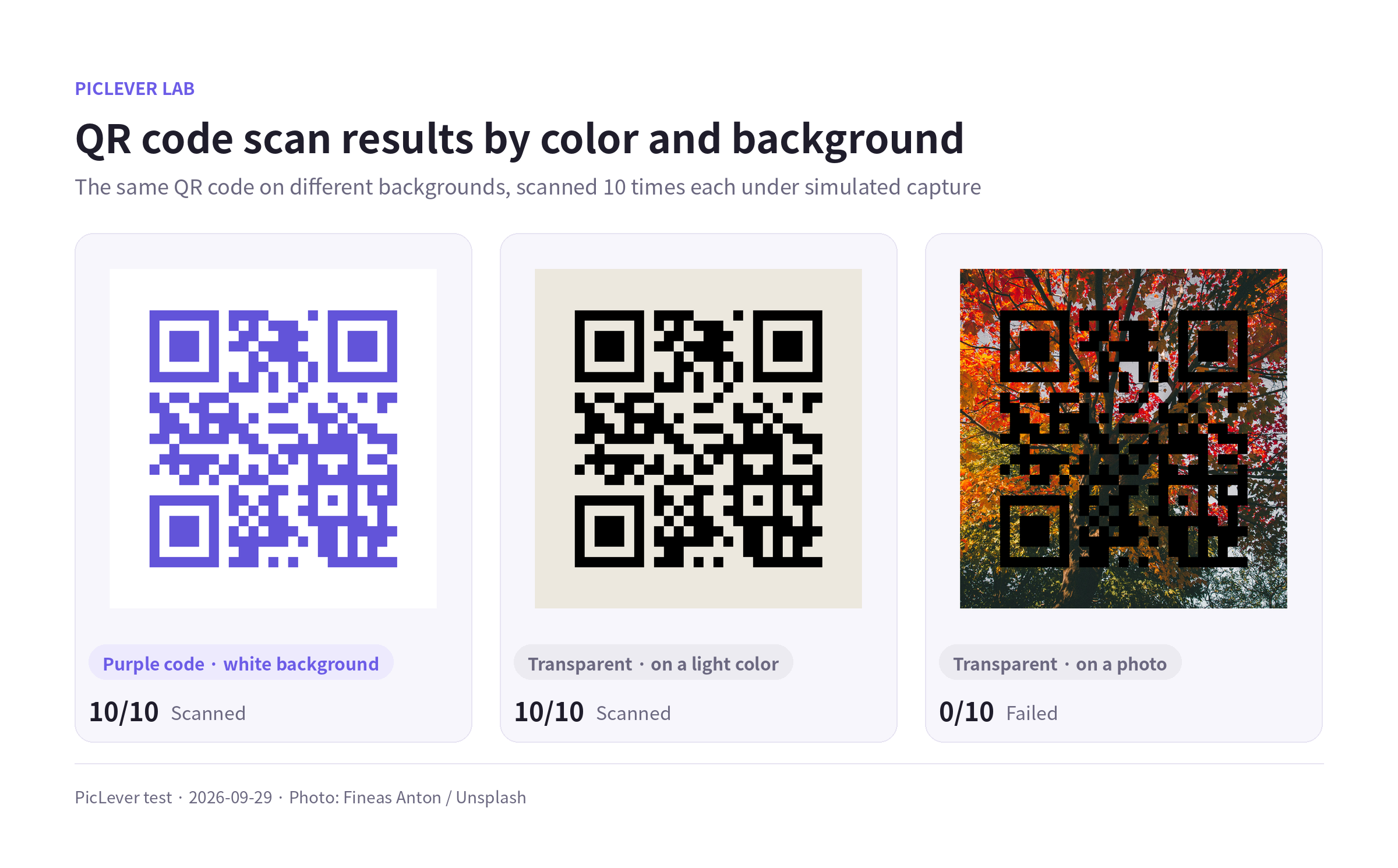
I scanned the same QR code 10 times each, changing only the color and background.
| Combination | Scans |
|---|---|
| Purple code · white background | 10/10 |
| Transparent background · on a light solid color | 10/10 |
| Transparent background · on a fall foliage photo | 0/10 |
-
Dark code colors are fine. A color with strong contrast against white, like PicLever's purple, scanned just as well as black.
-
Transparent backgrounds depend on where you place them. On a light solid color there was no problem, but on a patterned image like a photo, the photo showed through the white modules and the code never scanned. When placing a code over a photo or dark background, download it with a white background.
-
Light code colors (yellow, pale gray) or inverted codes (light code on a dark background) can't be read by some apps, so it's safer to avoid them.
Test setup
-
Samples: three 1024×1024px PNGs made with the PicLever QR code generator (20-, 47- and 115-character URLs). The error correction level was M (recovers from about 15% damage).
-
Scan test: each code was scaled down to several sizes, then blur, noise and JPG compression were added to mimic a phone photo, and each was read 10 times with an open-source decoder (ZXing).
-
Centimeter conversion assumes a phone camera field of view of about 70° and a 1280px-wide frame for scanning. Actual results vary with the phone, lighting and print quality, so print one at the real size and scan it before a full print run. · Tested 2026-09-29
-
Photo: Fineas Anton / Unsplash
Making a print-ready QR code with PicLever
-
In the QR code generator, choose URL · Text and enter the address starting with https://. Keep the URL as short as possible.
-
Choose Black or Purple for the code color and White for the background. Use Transparent only when placing the code on a light solid color.
-
For print shops or large enlargements, choose Download SVG or Download PDF—edges stay crisp at any size. For documents or chat apps, Download PNG is enough.
-
Print one at the size you plan to use and scan it with a phone from the real viewing distance.
For step-by-step instructions, see the QR code guide.
FAQ
Q. What size should a QR code on a business card be?
For a short URL, 2cm or more per side—about 2.5cm including the margin. For a long URL, go 3cm or larger, or shorten the URL.
Q. Can I put a logo in the middle of a QR code?
QR codes can recover from partial damage, but covering part of the code makes scanning less reliable. If you add a logo, test it with several phones before printing.
Q. Can I change the URL of a QR code I've already printed?
QR codes made with PicLever store the URL directly in the code, so it can't be changed. If the URL changes, make a new code and reprint.
Related posts
-
How to Resize an ID Photo (Korean Passport 3.5×4.5cm, 413×531px, Head Size) 2026
-
JPG vs PNG vs WebP: I Saved the Same Images in All Three Formats
-
Barcode Print Size: How Many Millimeters? (EAN-13 at 80–200%, Measured)
-
How to Make a Wi-Fi QR Code (Do Special Characters Work? Plus Print Size)
-
CODE128 vs CODE39 (Inventory and Asset Labels: How Long Is the Same Barcode?)