

Can You Change a QR Code's Color? (Light Colors and Transparent Backgrounds Tested in Blurry, Dim Photos)
I made QR codes in 9 colors and with transparent backgrounds, decoded 100 simulated phone captures of each, and compared recognition in normal, blurry and dim conditions.
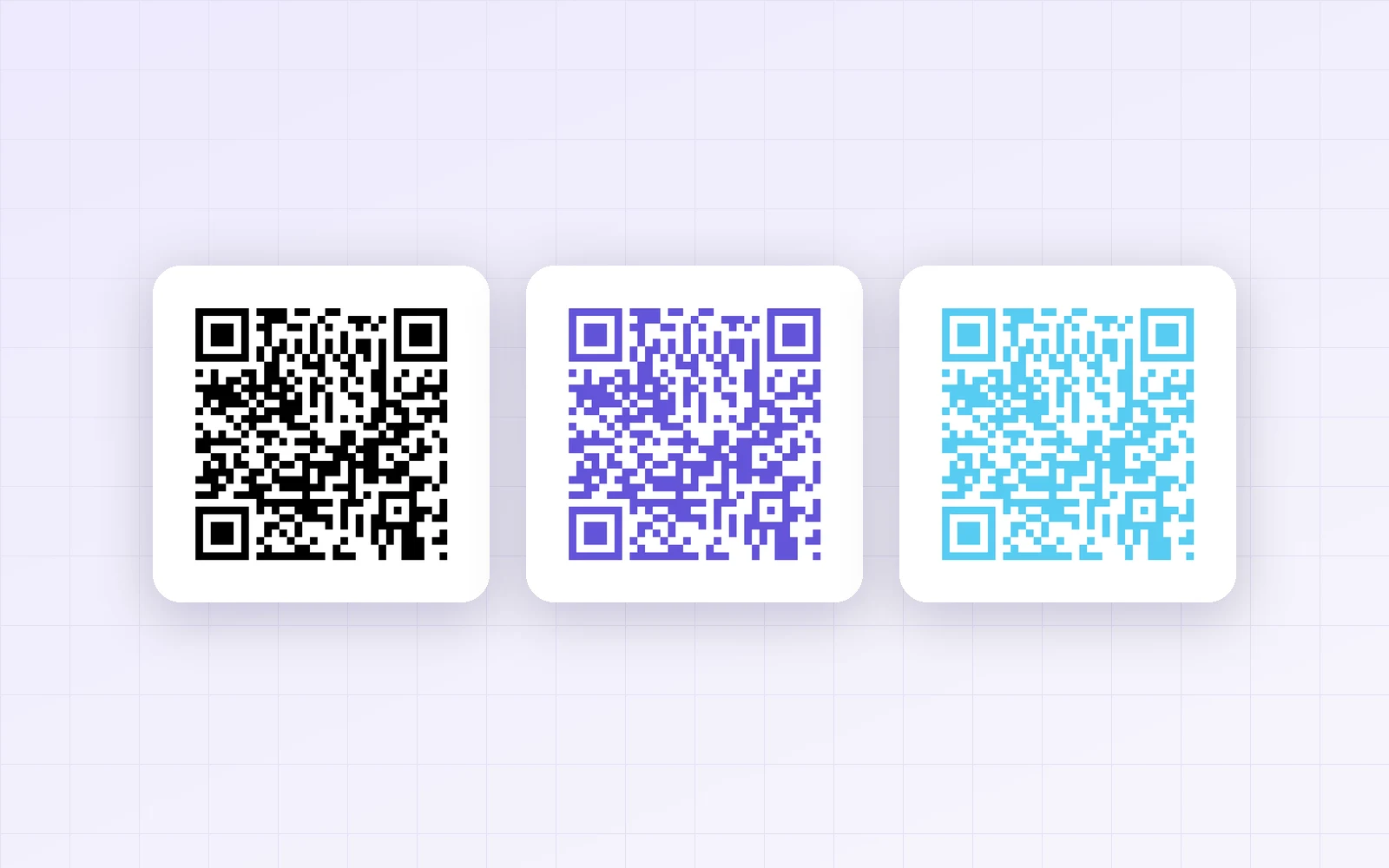
You may want the QR code on a menu or poster to match your brand color. But will phones still read it? Using PicLever's QR code generator, I made the same URL in 9 colors and with a transparent background, then decoded 100 simulated phone captures of each to compare recognition rates.
Bottom line: black, dark gray, dark green and dark red were recognized 91–100% of the time in normal and blurry photos. Lighter custom colors (pink, sky blue, light gray) dropped to 0–59% in blurry photos and 0% in a dim room. Even the palette's purple fell to 24% in dim light. A transparent background was fine on light paper, but on a navy background or over a photo it dropped to 0%.
Recognition rate by color
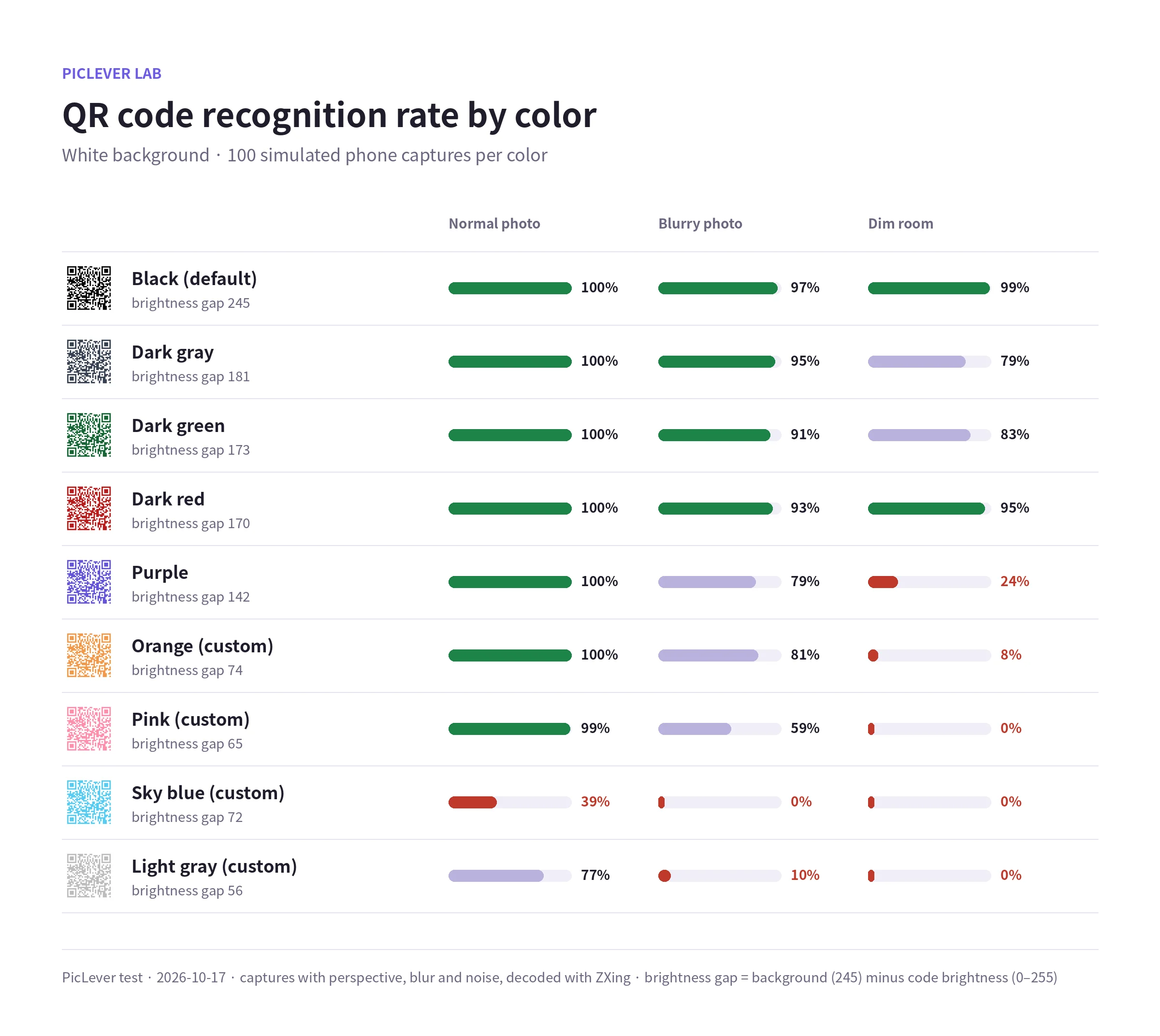
| Code color | Brightness gap | Normal photo | Blurry photo | Dim room |
|---|---|---|---|---|
| Black (default) | 245 | 100% | 97% | 99% |
| Dark gray | 181 | 100% | 95% | 79% |
| Dark green | 173 | 100% | 91% | 83% |
| Dark red | 170 | 100% | 93% | 95% |
| Purple | 142 | 100% | 79% | 24% |
| Orange (custom) | 74 | 100% | 81% | 8% |
| Pink (custom) | 65 | 99% | 59% | 0% |
| Sky blue (custom) | 72 | 39% | 0% | 0% |
| Light gray (custom) | 56 | 77% | 10% | 0% |
-
What mattered was not the hue but the brightness gap from the background. Colors that look dark when converted to grayscale read best.
-
In a sharp capture even light orange and pink worked, but with a little shake or low light, recognition fell sharply. Real customers often scan in blurry, dim conditions.
-
Sky blue looks vivid but is bright, so it managed only 39% even in normal photos.
-
Since the 2026-10-18 update, the generator shows a contrast warning. Sky blue and light gray triggered it at 1.9:1, and purple at 5.5:1. If you see it, pick a darker color.
Transparent backgrounds depend on what's behind them
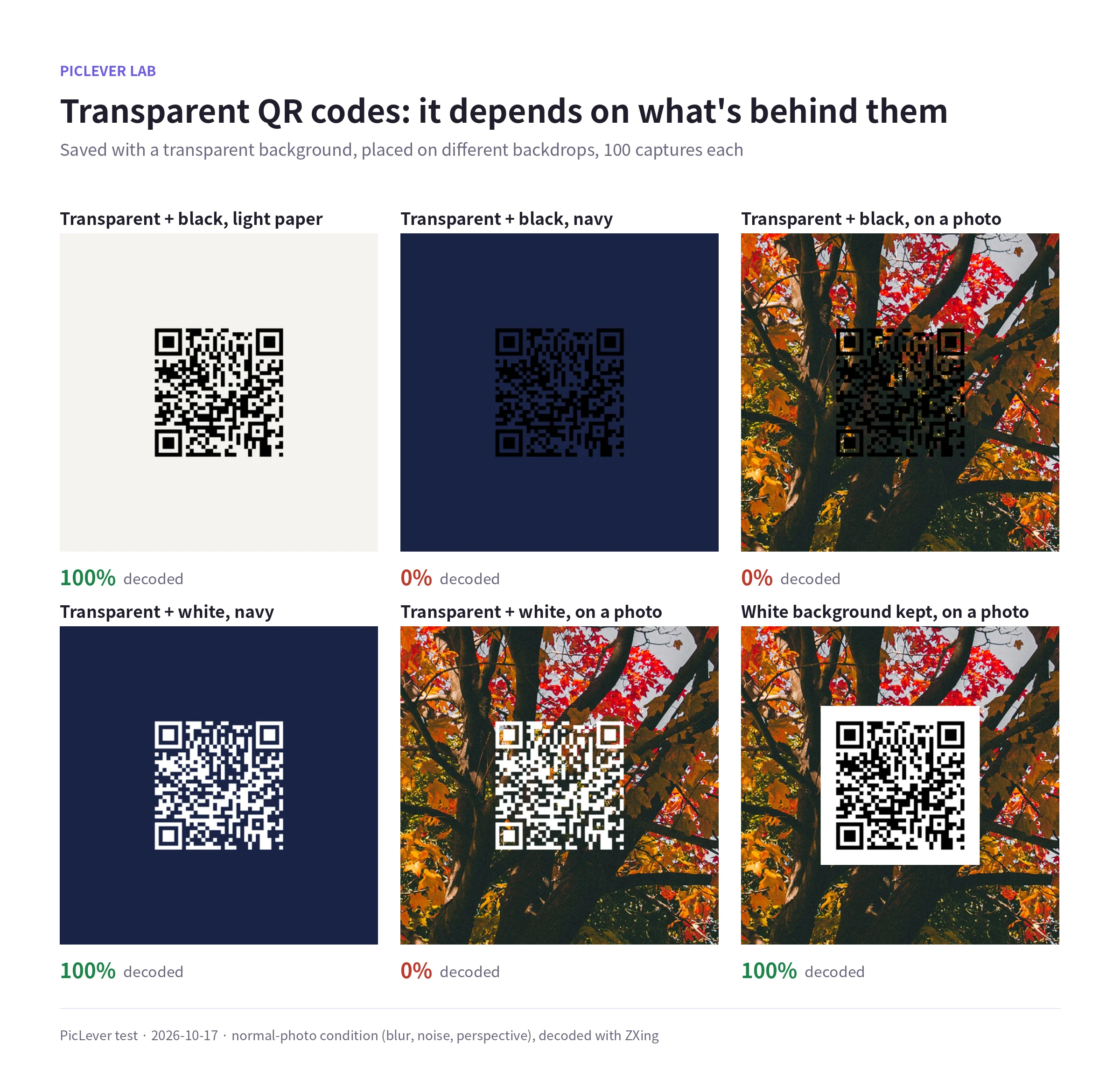
| Code · backdrop | Recognition |
|---|---|
| Transparent + black, light paper | 100% |
| Transparent + black, navy | 0% |
| Transparent + black, on a photo | 0% |
| Transparent + white, navy | 100% |
| Transparent + white, on a photo | 0% |
| White background kept, on a photo | 100% |
-
With a transparent background, the margin around the code is transparent too, so on a dark or busy backdrop the code blends in.
-
A white code on a dark backdrop was read by this decoder, but such inverted codes (light and dark swapped) may not work in every phone camera app.
-
On photos or patterns, keeping the white background was the reliable choice.
If you want to change the color
-
Code color: pick a dark palette color (black, dark gray, green, red). For a custom color, make sure it still looks at least dark gray in grayscale.
-
Background: keep it white, and leave a white margin around the code in your design.
-
Size: the lighter the color, the larger you need to print. See QR Code Print Size for sizes by distance.
-
Final check: before printing, scan the actual printout with 2–3 phones, including in dim light.
Test setup
-
Samples: the same URL (https://piclever.com/blog/qr-code-print-size/) generated at 1024×1024px in PicLever QR code generator, in five palette colors (black, dark gray, dark green, dark red, purple) and four light custom colors (orange #f2994a, pink #ff8fab, sky blue #56ccf2, light gray #bdbdbd), with white and transparent backgrounds
-
Each code was scaled to 240px on a backdrop, and 100 images per condition were made with random perspective, blur and noise, then decoded with ZXing (a widely used open-source barcode reader) · normal = 2px blur, blurry = 2.6px blur, dim = 50% brightness with more noise · brightness gap = backdrop (245) minus code brightness (0–255) · Tested 2026-10-17; contrast warning checked 2026-10-18
-
Phone camera apps decode differently, so treat the numbers as a relative comparison.
Making a colored QR code with PicLever
-
In the QR code generator, choose URL · Text and enter your link.
-
Under Code color, choose Black or a dark color under Custom.
-
Keep Background on White; use Transparent only on light backdrops.
-
Choose the Download image size and click Download PNG or Download SVG.
FAQ
Q. My brand color is light, but I need to use it.
Keep the code dark and use the brand color for a frame or the design around the code instead.
Q. My poster is dark. Can I make the code white?
Inverted codes (light on dark) may not be read by every decoder. Test with several phones before using one.
Q. Can Wi-Fi QR codes use colors too?
Yes. The Wi-Fi tab has the same color settings. For password pitfalls, see How to Make a Wi-Fi QR Code.