

How to Reduce PDF File Size: Resolution and Quality Settings Compared (9.4MB Scan → 0.57MB)
Scanned PDF too large to send? I compared file size and small-text sharpness at 72, 108 and 144 dpi and three image quality levels, plus how scans, Word exports and text-only PDFs respond to compression.
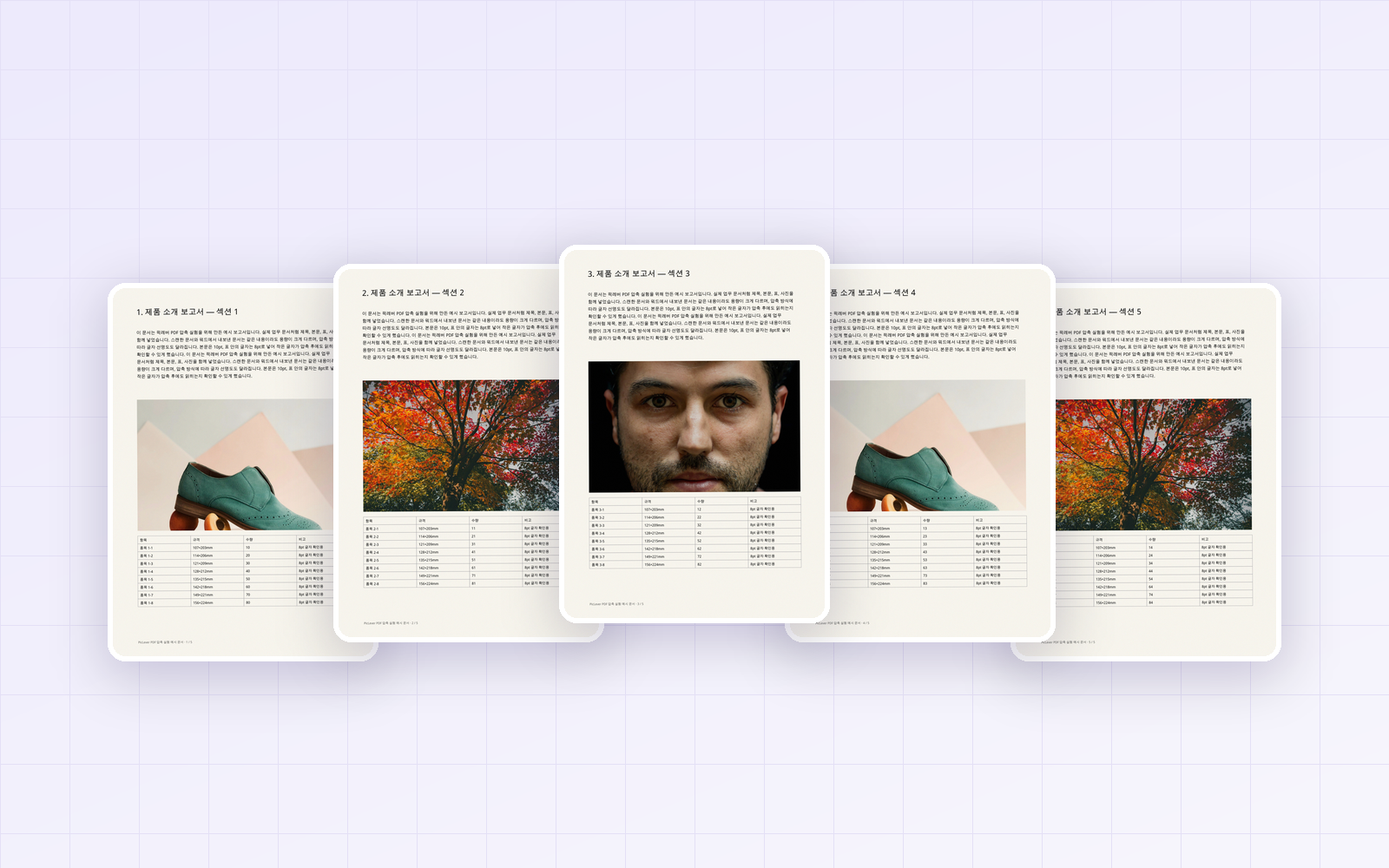
Trying to email a scanned document, only to find the PDF is too large to attach—or getting a "file too large" error on an upload form? Scans store every page as a large image, so just a few pages can easily top 10MB. I made the same document three ways—a scan, a Word-style export and a text-only file—compressed each with PicLever's PDF Compressor, and compared how resolution and quality settings change file size and text sharpness.
Bottom line: compressing a 9.4MB, 5-page scanned PDF at Balanced quality and 108 dpi brought it down to 0.57MB (94% smaller), and 8pt text was still readable. At 72 dpi it shrank to 0.26MB, but small text broke up. Keep in mind that this method turns pages into images, so text selection and search are lost—and a text-only PDF didn't get any smaller.
Results by setting (9.4MB scanned PDF)
| Image quality \ Resolution | 72 dpi | 108 dpi | 144 dpi |
|---|---|---|---|
| Smaller file | 212KB | 452KB | 678KB |
| Balanced | 271KB | 582KB | 874KB |
| Higher quality | 421KB | 940KB | 1.4MB |
-
All nine settings made the file 85–98% smaller than the 9.4MB original. Scans shrink a lot at any setting.
-
Resolution affected file size more than quality did. Going from 72 to 144 dpi roughly tripled the size, while going from Smaller file to Higher quality roughly doubled it.
-
If the upload limit is around 1MB, start with Balanced at 108 dpi. If you need it smaller, try Smaller file at 108 dpi.
How much resolution do you need to read small text?
I compressed the same scanned PDF at Balanced quality and zoomed in on the 8pt text in a table at the same scale.
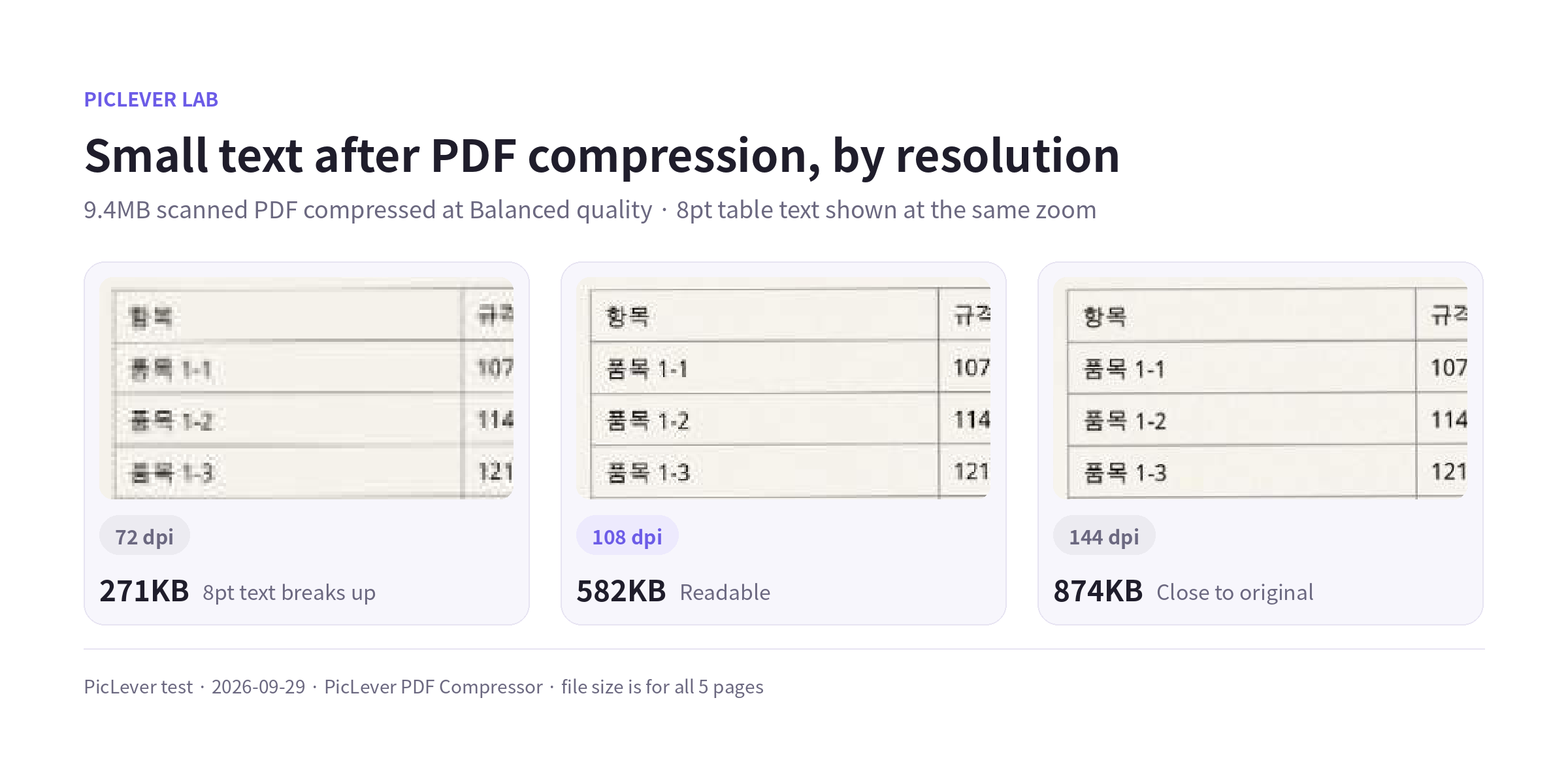
| Resolution | File size | 8pt text |
|---|---|---|
| 72 dpi | 271KB | Strokes blur together and are hard to read |
| 108 dpi | 582KB | Readable |
| 144 dpi | 874KB | Close to the original |
72 dpi is fine for skimming a page on screen, but small text breaks up when you zoom in or print. For contracts, tables or anything with small print, use 108 dpi or higher. If the recipient will print it, use 144 dpi.
How much does image quality change photos?
I kept the same scanned PDF at 108 dpi, changed only the image quality, and zoomed in on a photo.
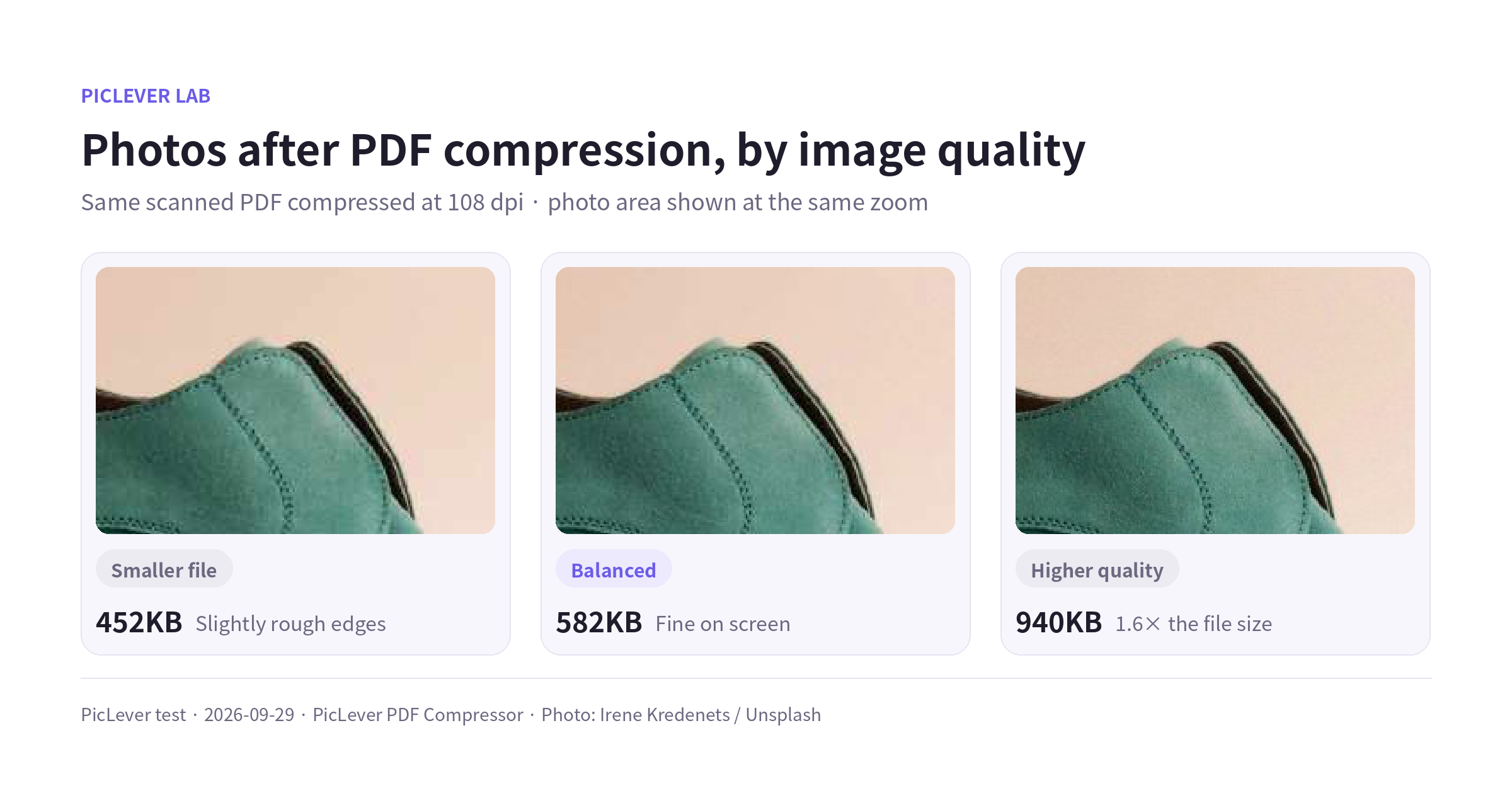
Smaller file made the edges around the shoe slightly rough, but the difference is hard to notice on screen. Higher quality was 1.6× larger than Balanced without a visible improvement. Even for photo-heavy documents, Balanced is usually enough.
Results depend on the type of document
| Document type | Original | Balanced · 108 dpi | Result |
|---|---|---|---|
| Scan (5 pages) | 9.4MB | 0.57MB | 94% smaller |
| Exported from Word (text + photos) | 866KB | 632KB | 27% smaller, text no longer selectable |
| Text only | 41KB | 41KB | No reduction, original kept |
-
Scans and photo PDFs: the biggest savings. They were already images, so you don't lose selectable text.
-
Documents exported from Word or similar apps: photos shrink a little, but the compressed file loses selectable text, search and links. When possible, shrink the photos in the original app and export the PDF again.
-
Text-only documents: they're already small, and turning pages into images makes them bigger. When the result is larger, PicLever keeps the original.
Test setup
-
Sample: a 5-page A4 report (10pt body text, 8pt table text, one photo per page), made three ways: a PDF that simulates a 300 dpi scan (9.4MB), a PDF with text and photos like a Word export (866KB), and the same PDF without photos (41KB)
-
Compressed with the PicLever PDF Compressor at every combination of 3 quality levels × 3 resolutions · Tested 2026-09-29
-
Photos: Irene Kredenets, Fineas Anton, Jaime Lopes / Unsplash. Actual results vary with document content and page count.
Reducing PDF size with PicLever
-
Upload the PDF to the PDF Compressor. It accepts files up to 50MB and compresses up to 30 pages at a time.
-
Set Image quality to Balanced and resolution to 108 dpi, then click Create result.
-
Check the new file size and preview to make sure small text is readable, then save. If it's still too large, switch to Smaller file, and if that's not enough, drop to 72 dpi.
For documents over 30 pages, split them with the PDF Splitter, compress each part, then combine them again with the PDF Merger.
FAQ
Q. Is it a problem that I can't search the text after compressing?
Not for scans you're submitting or archiving. If the recipient needs to copy or search the text, don't compress it this way—shrink the photos in the original app and export again.
Q. What about PDFs made from phone photos?
It's more effective to shrink the photos before combining them. Reduce them with the Image Compressor, then combine them with Image to PDF.
Q. Can I compress a password-protected PDF?
Password-protected PDFs can't be uploaded. Remove the password in the original app first, then compress.