

Image Too Large to Upload? Photo Size Settings to Hit 100KB, 300KB or 1MB
Getting a 'file too large' error? Resize before you lower quality. I saved product, portrait and landscape photos at many sizes and quality levels to build a settings table for targets from 100KB to 2MB.
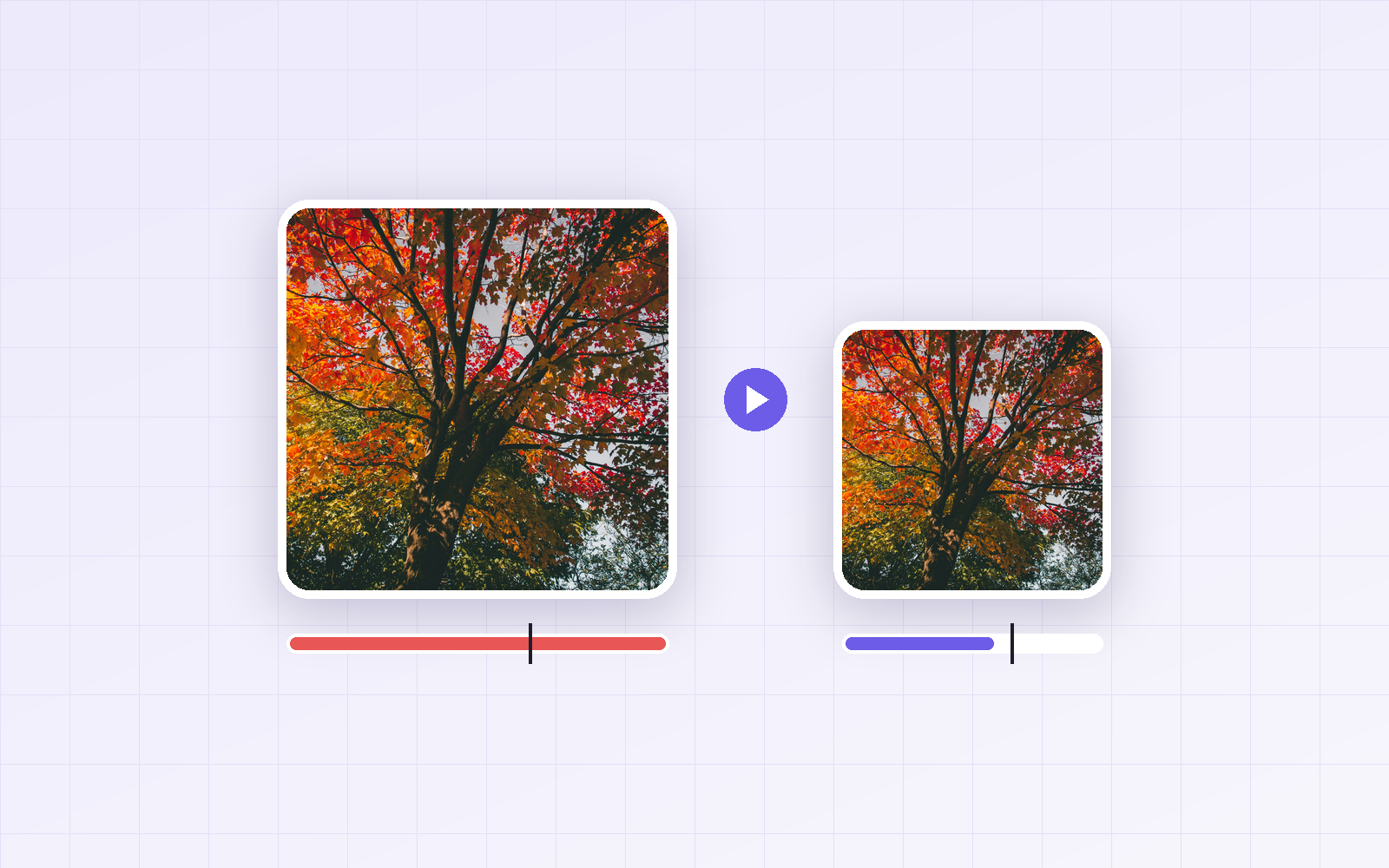
Few things are more frustrating than an upload form saying "file too large" or "100KB maximum." Lowering quality doesn't shrink it enough, and lowering it further wrecks the photo. So I saved three photos of different complexity at many sizes and quality levels, and built a settings table for hitting a target file size.
Bottom line: for large photos like phone originals, lowering quality alone never got down to 100–300KB. Use the table below to set the long side first, then save as JPG quality 80. If it's still too big, drop quality to 70, then 60. If that's still not enough, go one size step smaller.
Settings by target file size
The largest long-side size that stays 10% under the target at JPG quality 80.
| Target | Simple photo (product, plain background) | Medium photo (portrait) | Complex photo (landscape, foliage) |
|---|---|---|---|
| 100KB | 1300px | 1000px | 500px |
| 200KB | 2000px | 1500px | 700px |
| 300KB | 2500px | 1900px | 900px |
| 500KB | 3400px | 2700px | 1200px |
| 1MB | Original size (4000px) | Original size (4000px) | 1900px |
| 2MB | Original size (4000px) | Original size (4000px) | 2900px |
Not sure which column your photo fits? Start with medium. If the result is over the target, move to the complex column; if it's well under, move to the simple column.
Why photos differ so much
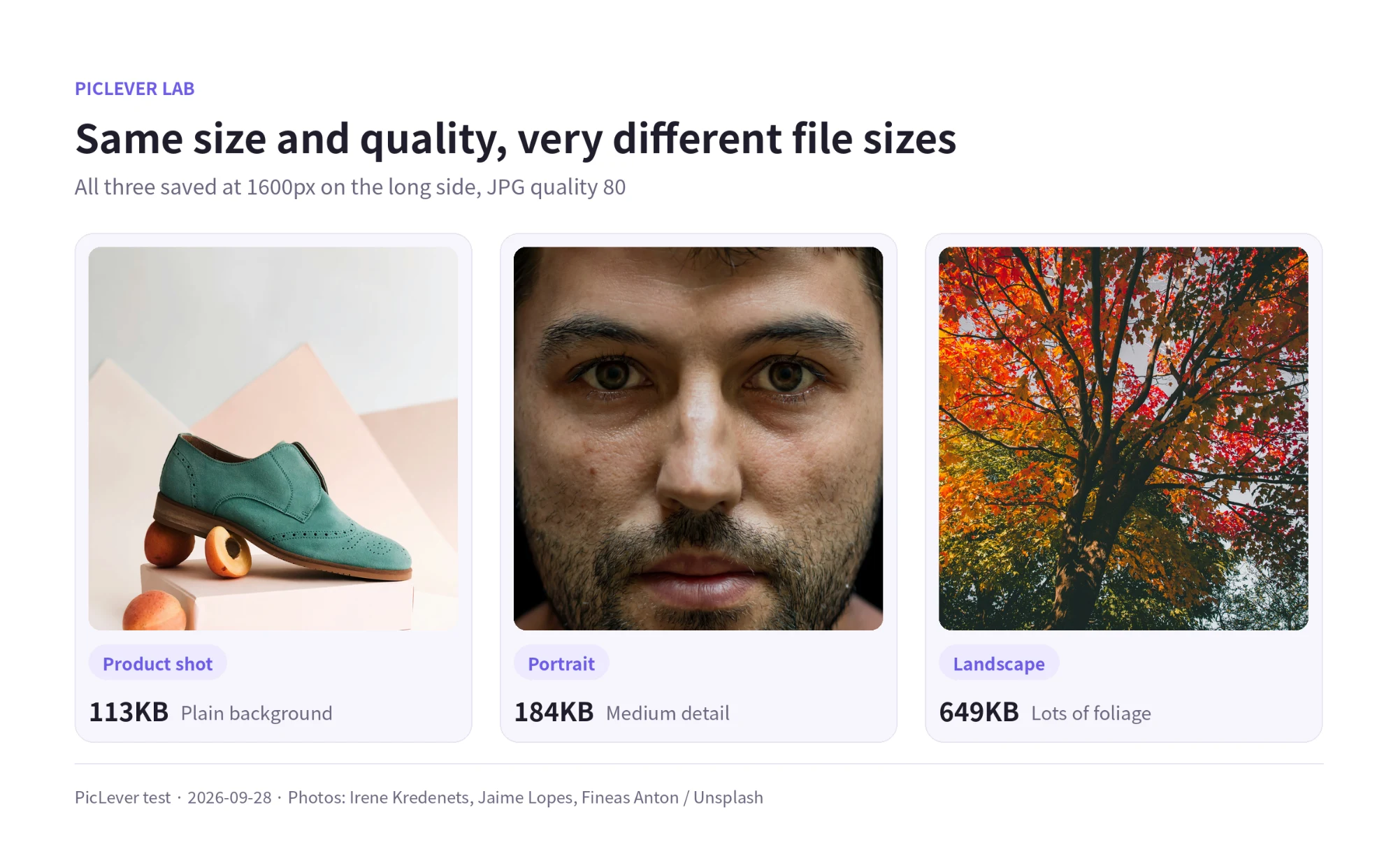
All three photos were saved at 1600px on the long side and JPG quality 80, yet they came out at 113KB, 184KB and 649KB—nearly a 6× spread. JPG stores smooth areas of color with little data, and fine, busy detail like leaves, hair or crowds with a lot. That's why the table is split by photo type.
Can't I just lower the quality?
I kept a portrait at 4000px wide (typical phone-original size) and lowered only the quality.
| Quality | 90 | 80 | 70 | 60 | 50 |
|---|---|---|---|---|---|
| File size | 1.4MB | 793KB | 633KB | 518KB | 457KB |
Even at quality 50 it was still 457KB. A 100KB or 200KB limit simply can't be reached with quality alone, and the image falls apart long before that. Resizing the long side to 1000px got it under 100KB at quality 80. For a zoomed comparison of resizing versus lowering quality, see 3 Ways to Reduce Image File Size.
Test setup
-
Samples: product shot 3200×4000px, portrait 4000×2857px, landscape 4000×2667px — Photos: Irene Kredenets, Jaime Lopes, Fineas Anton / Unsplash
-
Saved at long sides from 400 to 4000px in 100px steps, JPG quality 50–90, and measured file sizes · Tested 2026-09-28
-
The table shows the largest size that stays at or below 90% of the target (1KB = 1,000 bytes)
How to hit the target with PicLever
-
In the Image Resizer, enter the long-side value from the table and keep aspect ratio on. Saving as PNG means no quality loss at this step. For several photos, use batch editing.
-
Upload the resized image to the Image Compressor and save as JPG at quality 80.
-
Check the result. If it's over the target, lower quality to 70, then 60. If 60 is still too big, go back to step 1 and resize one step smaller.
Resizing one more step looks better than pushing quality below 60. See the JPG quality 90 vs 80 vs 60 vs 40 test for how quality levels compare.
Common file size mix-ups
-
Some systems count 1KB as 1,000 bytes, others as 1,024. Windows File Explorer uses 1,024, while the Mac Finder uses 1,000, so the same file can show slightly different numbers.
-
That's why you should leave about 10% headroom. For a 100KB limit, aim for under 90KB and it will pass either way.
-
Some forms limit the total size of all files. In that case, set your per-image target to "total limit ÷ number of images" and use the table.
FAQ
Q. My PNG file is over the limit.
If it's a photo, converting to JPG alone shrinks it dramatically. Keep transparent-background or text images as PNG, though. The JPG vs PNG vs WebP test explains the differences.
Q. Wouldn't WebP be even smaller?
It would, but upload forms with size limits often don't accept WebP. Check first. WebP File Won't Open? covers where WebP works.
Q. After resizing, it says the resolution is too low.
Some forms set a minimum size (for example, at least a certain number of pixels wide) along with the file size limit. Resize to the minimum, then lower quality to 70 or 60 to meet the file size.