

WebP File Won't Open? How to Convert WebP to JPG or PNG (and What to Watch For)
Saved a WebP image that won't open or got rejected by an upload form? I converted a WebP product photo to JPG and PNG to compare file size and quality, and tested why renaming the extension doesn't work and what repeated conversions do to quality.

Saved an image from the web, only to get a .webp file your photo app won't open—or an upload form that says "unsupported format"? I converted a WebP product photo to JPG and PNG to see how file size and quality change.
Bottom line: for photos, JPG at quality 90 was the safest choice. It looked virtually identical to the original WebP and grew to about 2.5× the size. PNG gave no quality benefit and ballooned to 12×. Use PNG only for transparent backgrounds or text-heavy images. And renaming the file extension is not converting it.
What to convert to
| Image | Convert to | Why |
|---|---|---|
| Photos and product shots | JPG quality 90 | Near-identical quality, modest size increase |
| Photos for size-limited uploads | JPG quality 80 | Smallest option, about 1.8× the WebP |
| Transparent logos and icons | PNG | JPG fills transparent areas with white |
| Text, tables and screenshots | PNG | Keeps letter edges clean |
Upload the WebP to the PicLever Image Converter and pick the output format. You can convert several files at once.
Why WebP files won't open
WebP is an image format created by Google for the web. It's smaller than JPG at the same quality, so online stores and blogs use it widely—which is why images saved from the web often arrive as WebP. The catch: some apps and websites still can't read it.
| Where | Opens WebP? | Notes |
|---|---|---|
| Current Chrome, Edge, Firefox, Safari | Usually yes | Drag the file into a browser window to view it |
| Windows Photos | Depends on setup | May need the free "WebP Image Extensions" from the Microsoft Store |
| Mac and iPhone | Recent versions usually yes | Safari supports it from macOS Big Sur and iOS 14 |
| Photoshop | Yes from 23.2 (2022) | Older versions need a plug-in |
| Word and PowerPoint | Depends on version | Microsoft 365 supports it; older perpetual Office versions often don't |
| Store, government and print-shop uploads | Often no | Many accept only JPG and PNG |
As of September 2026; results vary by version and settings. If it won't open for you, converting to JPG or PNG is the most reliable fix.
Can't I just rename it?
Changing .webp to .jpg in the file name only changes the label. The data inside is still WebP.
| File | First bytes of the file | Actual format |
|---|---|---|
| shoe.webp | RIFF … WEBP | WebP |
| shoe.jpg (renamed only) | RIFF … WEBP | WebP |
| Properly converted JPG | FF D8 FF | JPG |
Apps that can't read WebP still won't open it, and upload forms that check file contents may reject it. Always re-save it with a converter.
Test setup
-
Sample: product photo 1000×1250px, WebP quality 80 (36KB) — Photo: Irene Kredenets / Unsplash
-
Converted this WebP to PNG and JPG 95, 90 and 80, then zoomed about 230% into the toe of the shoe
-
Similarity to the original WebP measured with SSIM (closer to 1 = identical) · Tested 2026-09-28
Test 1: converting WebP to JPG and PNG
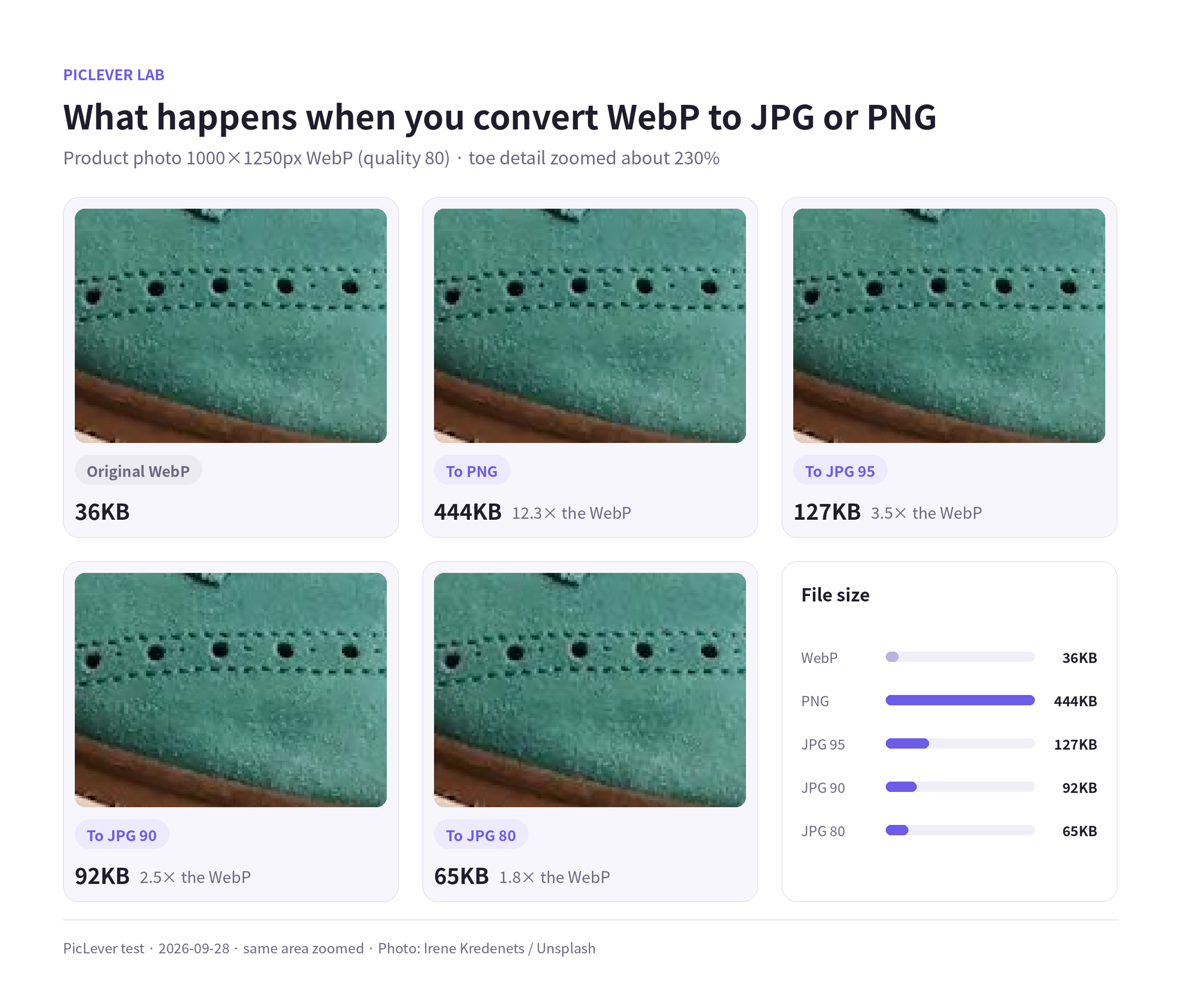
| Result | File size | vs WebP | Similarity (SSIM) |
|---|---|---|---|
| Original WebP | 36KB | — | — |
| PNG | 444KB | 12.3× | 1.000 |
| JPG 95 | 127KB | 3.5× | 0.995 |
| JPG 90 | 92KB | 2.5× | 0.992 |
| JPG 80 | 65KB | 1.8× | 0.987 |
-
PNG: identical to the original but 12× larger. Detail lost when the WebP was compressed doesn't come back in PNG, so for photos you only gain file size.
-
JPG 90: even zoomed in, the holes and stitching were indistinguishable from the original. This is the setting I'd recommend for photos.
-
JPG 80: the lightest option, with slight differences when zoomed in. Use it when upload limits are tight.
No format makes the image better than the original WebP. Converting makes a file open—it doesn't improve quality.
Test 2: converting back and forth
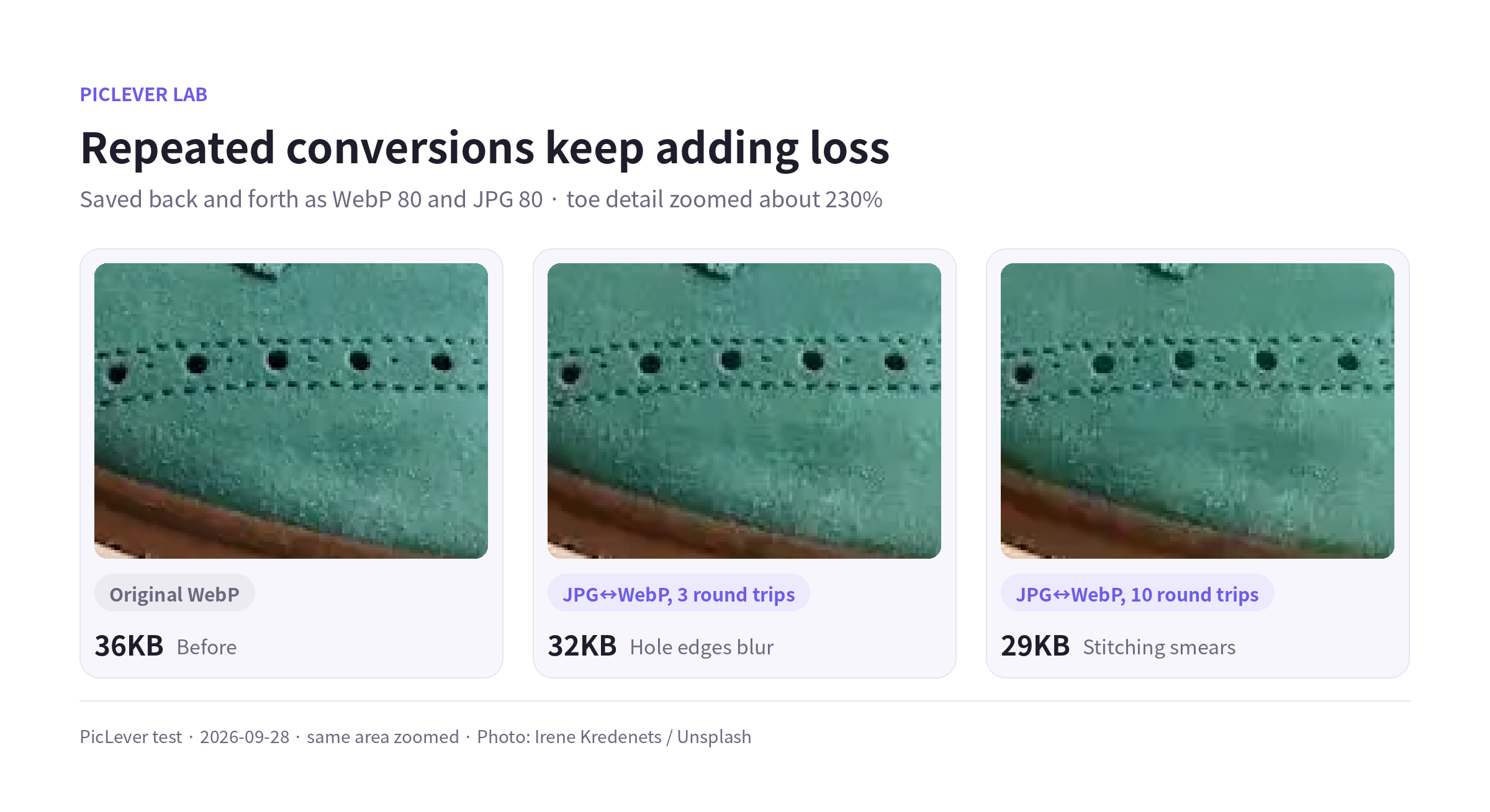
What if a WebP gets converted to JPG, edited, uploaded as WebP again, then downloaded as JPG again? I saved the image alternately as WebP 80 and JPG 80.
-
3 round trips: the edges of the holes start to bleed and the suede texture softens.
-
10 round trips: stitching lines smear and the edge of the sole gets blotchy.
Going back and forth between lossy formats adds loss with every save. Convert once, from the original. If you need to edit, convert to PNG, do your edits, then save to JPG or WebP once at the end.
How to convert with PicLever
-
Upload the WebP files to the Image Converter. You can add up to 20 at once.
-
Choose JPG (photos) or PNG (transparent backgrounds, text) as the output format.
-
Download the converted files.
To set JPG quality yourself (90 or 80), use the Image Compressor, choose JPG as the output format and set the quality. If you also need a smaller file, follow the order in 3 Ways to Reduce Image File Size.
FAQ
Q. Why do images saved from the web come down as WebP?
Many sites send images as WebP so pages load faster. Even if the original file was a JPG, your browser often receives a WebP.
Q. What happens to a transparent WebP converted to JPG?
JPG doesn't support transparency, so transparent areas get filled with white (or black). Convert to PNG to keep the transparent background. See the JPG vs PNG vs WebP test for how the formats differ.
Q. Is there any benefit to converting JPG to WebP instead?
For images going on a website, yes—smaller files make pages faster. But if the recipient can't open WebP, sending a JPG is safer.