

Instagram Image Size 2026 (Feed 1080×1350 · 1080×1440, 3:4 Profile Grid, Stories 1080×1920)
What size avoids cropping now that the Instagram profile grid is 3:4? I calculated how much of 1:1, 4:5 and 1.91:1 photos shows in the grid, plus feed, Stories and profile specs and the upload order for a three-part panorama.
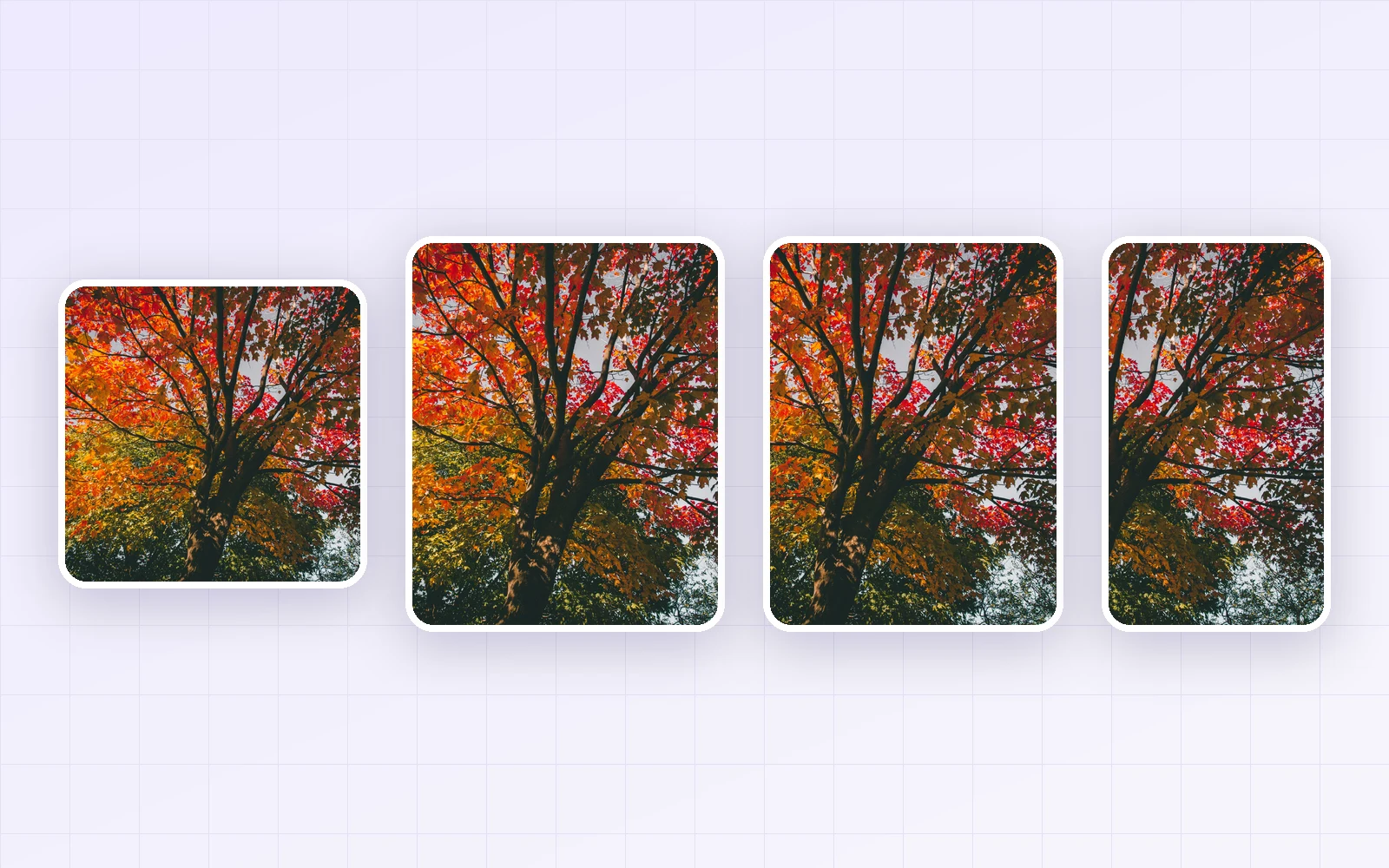
Ever posted a photo on Instagram and found the sides cut off on your profile? Since 2025, the Instagram profile grid has switched from squares to 3:4 portrait tiles, so photos made at the old 1080×1080 lose their sides in the grid. I made the same photo in several aspect ratios, calculated how much of each shows in the grid, and worked out the upload order for splitting a panorama into three posts.
Bottom line: make feed photos 1080×1350 (4:5) or 1080×1440 (3:4). A 3:4 photo isn't cropped in the grid at all, and a 4:5 photo shows 93.8% of its width—almost the whole thing. A square (1:1) photo showed only 75% of its width, and a landscape (1.91:1) photo just 39.3%. Stories and Reels are 1080×1920 (9:16).
Instagram sizes at a glance (2026)
| Use | Recommended size | Aspect ratio |
|---|---|---|
| Portrait feed post (fits the profile grid) | 1080 × 1440px | 3:4 |
| Portrait feed post | 1080 × 1350px | 4:5 |
| Square feed post | 1080 × 1080px | 1:1 |
| Landscape feed post | 1080 × 566px | 1.91:1 |
| Stories · Reels | 1080 × 1920px | 9:16 |
| Profile picture | 320 × 320px or larger | 1:1 (shown as a circle) |
-
Feed photos are based on a 1080px width. Larger uploads get scaled down to 1080px wide, so sizing to 1080px yourself makes the final quality more predictable.
-
In Stories and Reels, your username and buttons overlay the top and bottom, so keep text and faces inside the central 1080×1610px (Hootsuite's safe zone).
-
Instagram doesn't publish its specs in a single document. The figures above follow major guides such as Buffer and Hootsuite plus the Instagram Help Center, as of September 2026. App updates can change them, so check the preview before posting.
How much gets cropped in the profile grid?
I made the same portrait in 1:1, 4:5 and 1.91:1 and marked the part that shows in the 3:4 profile grid, centered.
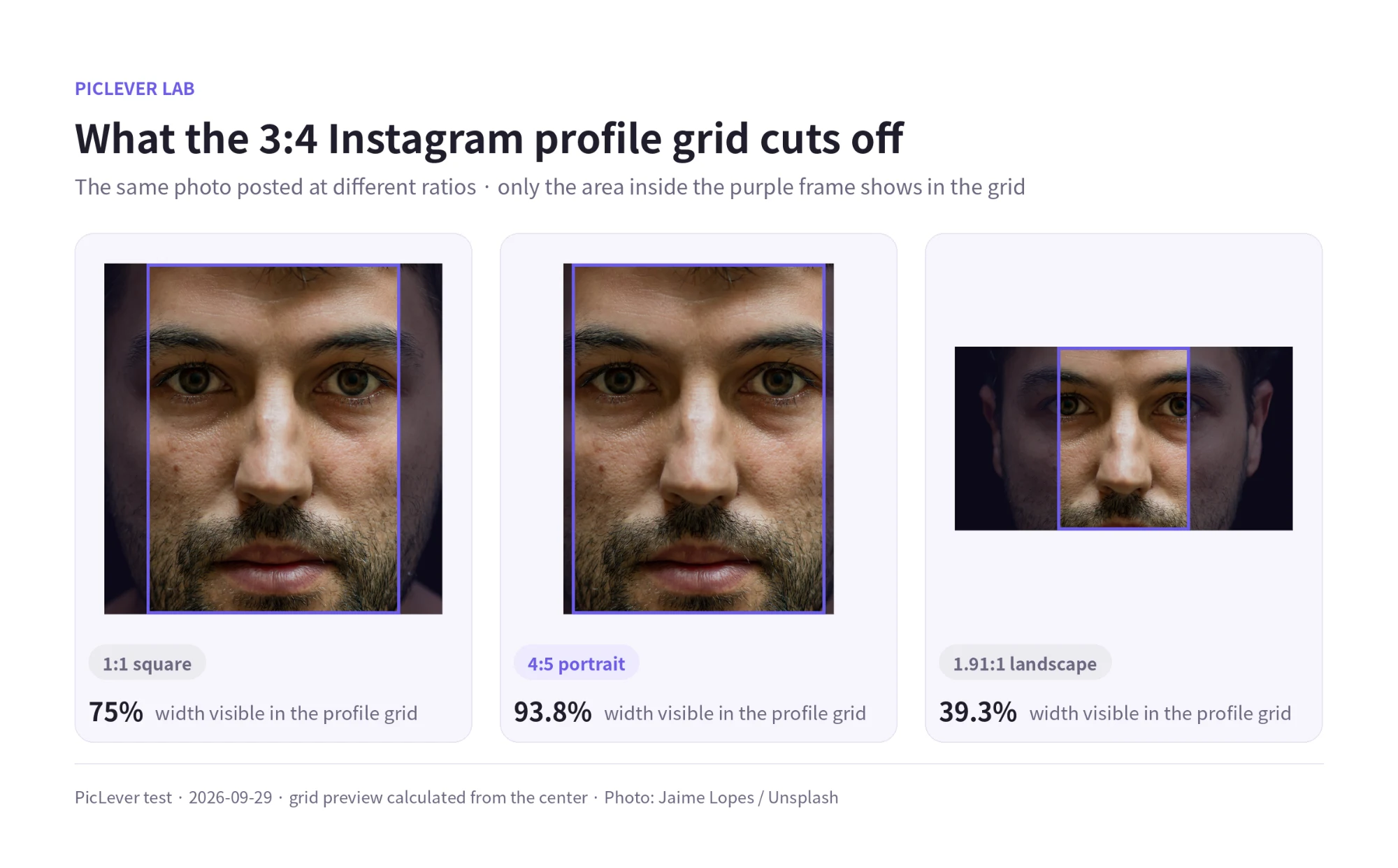
| Posted ratio | Width visible in the grid | Cropped |
|---|---|---|
| 3:4 (1080×1440) | 100% | Nothing |
| 4:5 (1080×1350) | About 93.8% | About 3% on each side |
| 1:1 (1080×1080) | 75% | 12.5% on each side |
| 1.91:1 (1080×566) | About 39.3% | About 30% on each side |
Square photos look complete in the feed, but in the profile grid about a quarter of the width is cut off. Landscape photos keep only the middle 40%—in a portrait, just part of the face. You can shift the visible area after posting with the grid preview adjustment, but starting at 3:4 or 4:5 saves you the trouble.
File size by aspect ratio
I cropped a fall foliage photo to each size and saved it as JPG quality 90.
| Size | JPG 90 file size |
|---|---|
| 1080 × 1080 | 650KB |
| 1080 × 1350 | 759KB |
| 1080 × 1440 | 789KB |
| 1080 × 1920 | 927KB |
Taller images are slightly larger, but all stayed under 1MB. At 1080px wide, there's rarely any need to lower quality to save space.
Grid panoramas: splitting into three and the upload order
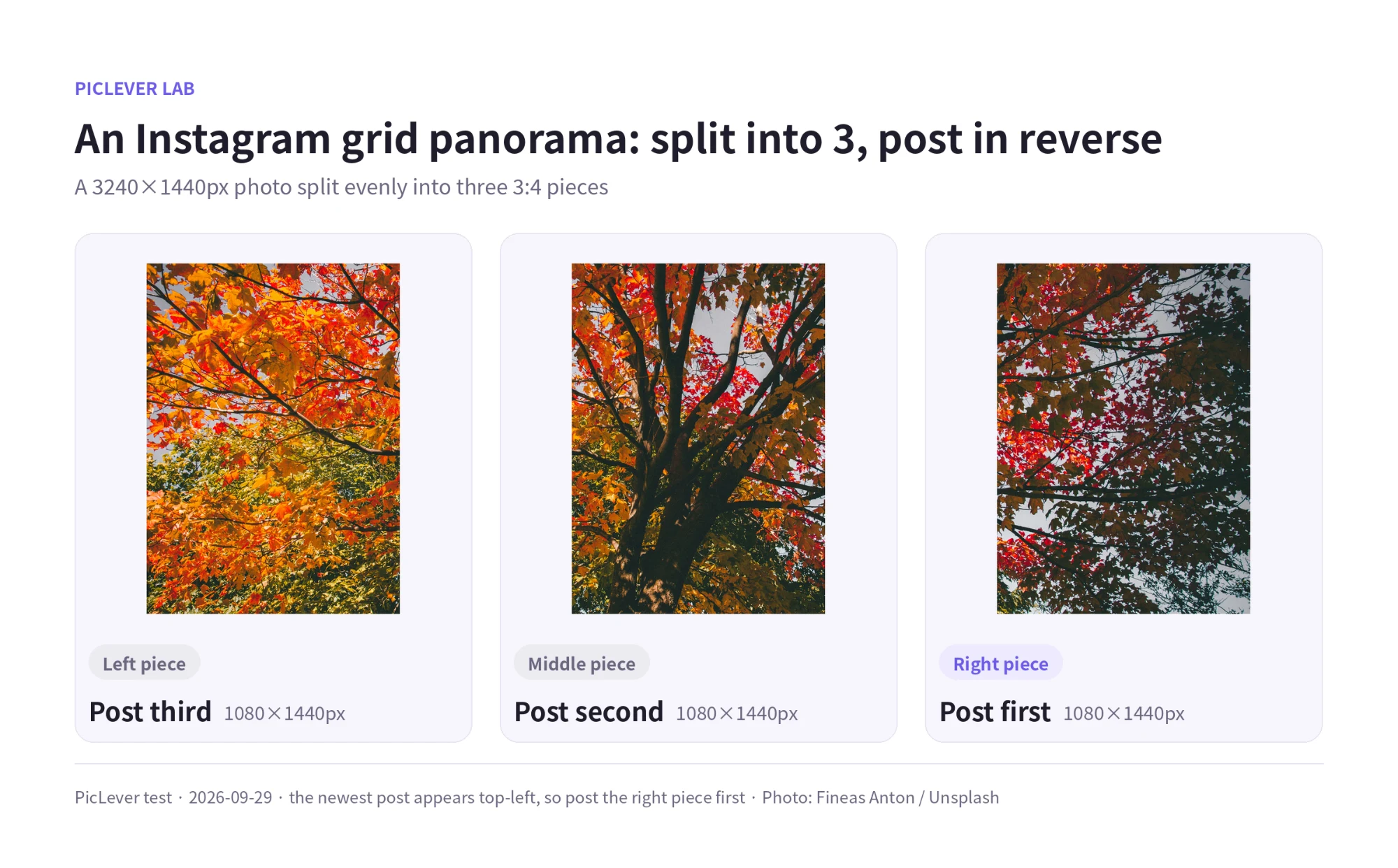
To make one image run across a full row of your profile grid, split a wide photo into three 3:4 pieces. To fill the row exactly, make the original 3240×1440px (9:4) and divide it into three equal columns.
-
Order matters. The newest post appears at the top left of the grid, so post the right piece first, then the middle, then the left to make them line up as one image.
-
A carousel only shows its first image in the grid, so post the pieces as three separate posts.
-
If your grid is out of step (your post count isn't a multiple of three), the panorama will be shifted. Make sure the top row is full before you start.
Test setup
-
Samples: a portrait (Jaime Lopes / Unsplash) and a 4000×2667px fall foliage photo (Fineas Anton / Unsplash)
-
Visible width was calculated by filling a 3:4 tile with each photo, centered · Tested 2026-09-29
-
File sizes were measured by cropping the foliage photo to each size and saving as JPG quality 90. Results vary with image content.
Making Instagram photos with PicLever
-
Crop to the ratio: in the Image Cropper, enter 1080×1440 (3:4) or 1080×1350 (4:5), click Apply size, turn on Keep ratio and pick the area you want.
-
Resize to 1080px wide: for large photos, resize to 1080px wide in the Image Resizer and save as JPG.
-
Split a panorama: upload a 3240×1440px crop to the Image Splitter and choose even split, 1 row × 3 columns to get three 1080×1440px pieces.
FAQ
Q. What about square photos I've already posted?
No need to repost them. For posts that look cropped in the grid, use the preview adjustment in the post menu (the name may vary by app version) to move the visible area.
Q. Are photos sharper if I upload larger than 1080px?
Feed photos are displayed at 1080px wide, so uploading larger makes little difference. Instagram's own downscaling is harder to predict, so it's better to upload at 1080px.
Q. Can I mix aspect ratios in a carousel?
A carousel uses the first image's ratio for every slide. Photos with other ratios get cropped or padded, so prepare them all at the same ratio.