

Video to GIF: File Size by Width and FPS (Screen Recording 75KB vs. Photo Video 5.4MB)
How large does a GIF get when you convert a video? I converted a screen recording and a photo video at 3 sizes × 3 frame rates, compared the file sizes, and checked how they stack up against the same clip saved as MP4.
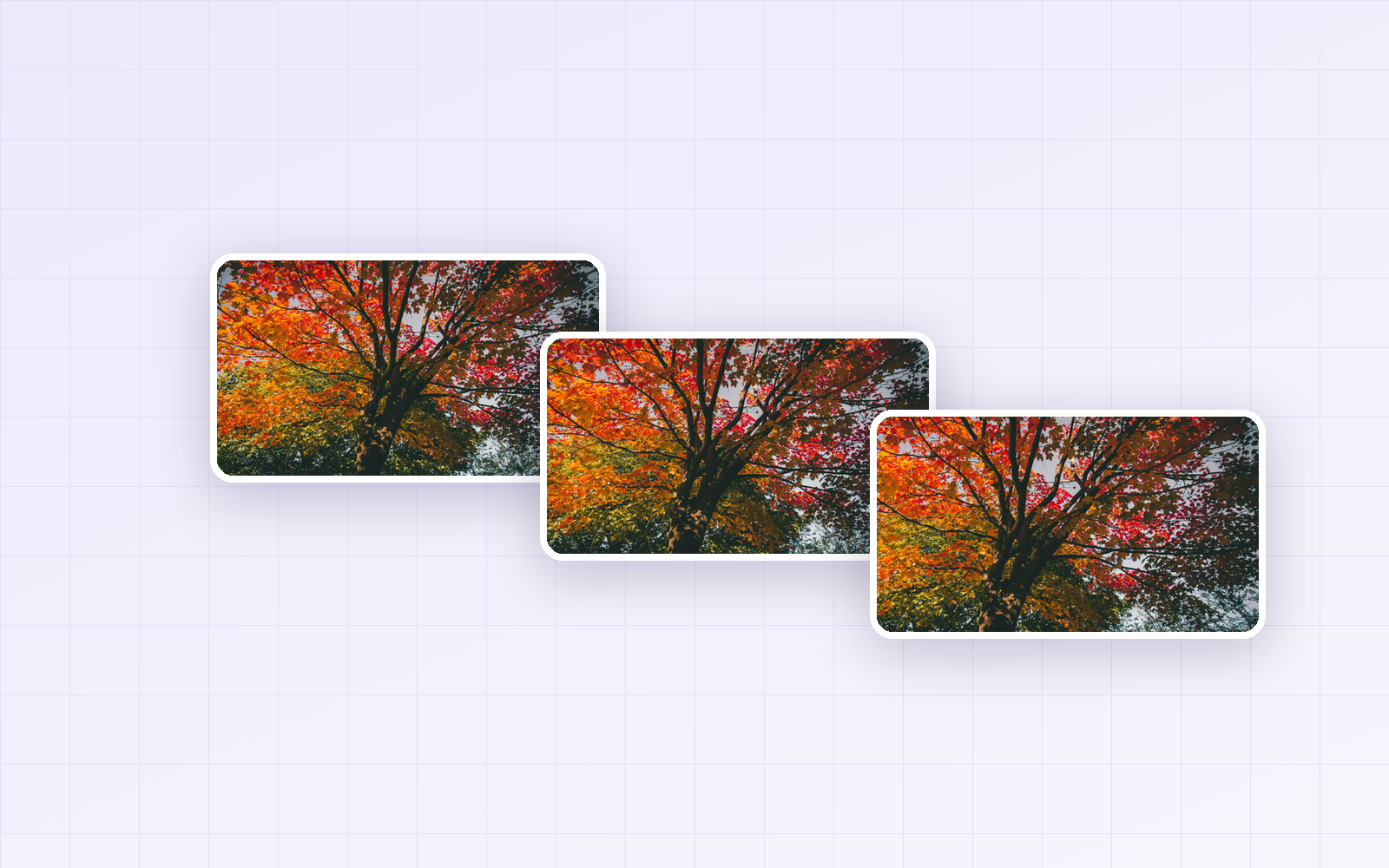
Want to turn a screen recording or a short video clip into a GIF for a blog, chat or product page, only to find it's several megabytes? GIFs are handy because they loop silently on their own, but file size varies a lot with the content and settings. I prepared the same 5-second clip as a screen recording and a photo/scenery video, then converted both with PicLever's Video → GIF at every combination of 3 sizes × 3 frame rates.
Bottom line: what mattered most was how much of the frame changes. At the same 480px and 10 FPS, the screen recording, where little changes, was 75KB, while the photo video, where the whole frame moves, was 5.4MB—about 70× larger. Start at 640px and 10 FPS for screen recordings and 320px and 10 FPS (2.5MB) for photo videos. Saving the same clip as MP4 made it 3–8× smaller than GIF.
GIF file size by size and FPS (5 seconds)
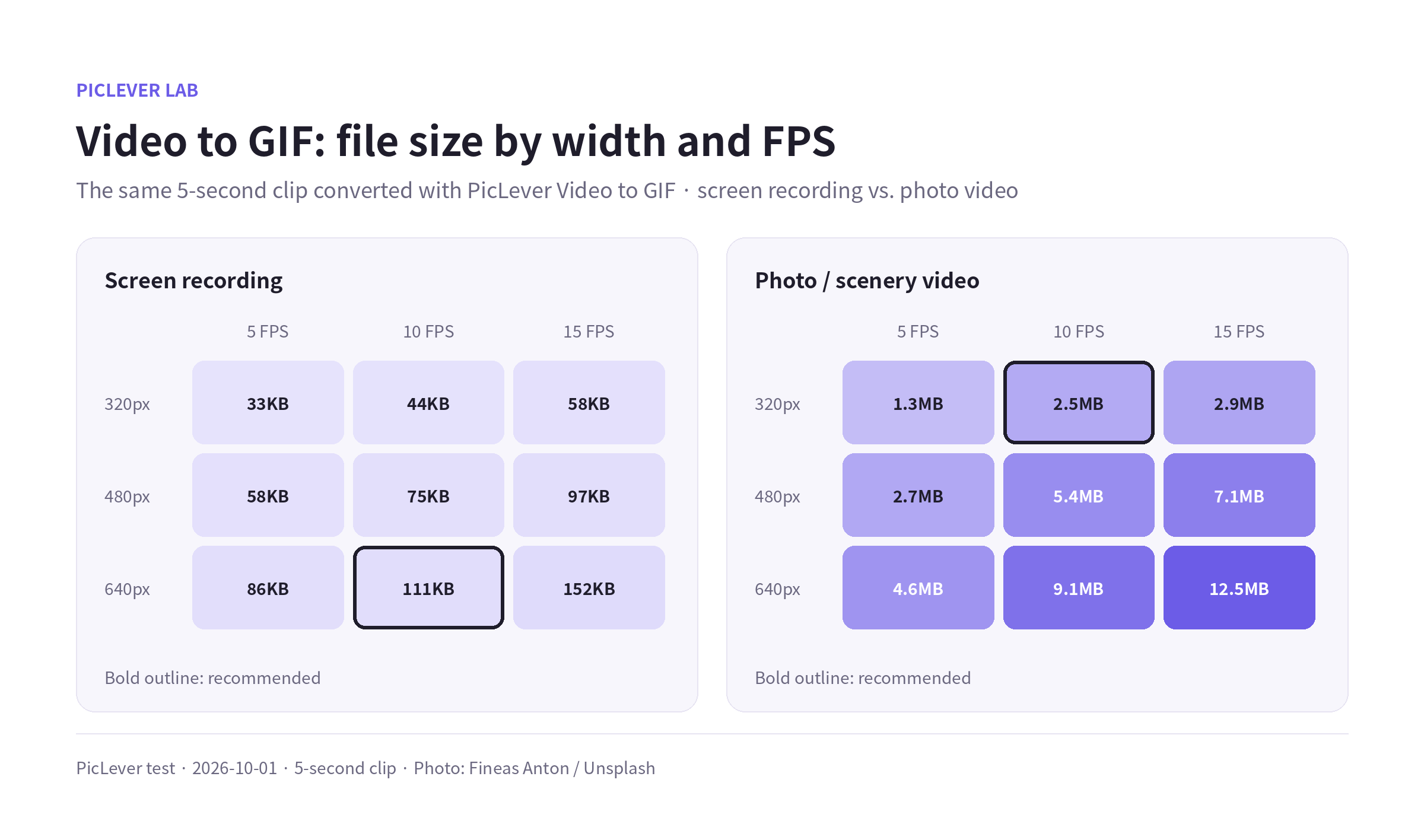
| Size (long edge) | FPS | Screen recording | Photo / scenery video |
|---|---|---|---|
| 320px | 5 | 33KB | 1.3MB |
| 320px | 10 | 44KB | 2.5MB |
| 320px | 15 | 58KB | 2.9MB |
| 480px | 5 | 58KB | 2.7MB |
| 480px | 10 | 75KB | 5.4MB |
| 480px | 15 | 97KB | 7.1MB |
| 640px | 5 | 86KB | 4.6MB |
| 640px | 10 | 111KB | 9.1MB |
| 640px | 15 | 152KB | 12.5MB |
-
Screen recordings stay light because only changes are stored. PicLever saves just the parts that differ from the previous frame, so in a screen recording where only the cursor and typed text change, tripling the FPS increased the size by only about 1.7×.
-
When the whole frame moves, nearly every frame is stored in full. In the photo video, where the camera moves and every part of the frame changes, going from 5 to 10 FPS doubled the size.
-
Doubling the size (long edge) made the screen recording about 2.5× larger and the photo video about 3.6× larger, since the area quadruples.
What FPS should you use?
-
5 FPS: looks choppy. Use it only for slow, slideshow-like changes or when you need the smallest file.
-
10 FPS: smooth enough for how-to GIFs where the screen changes gradually, like typing or clicking. This works for most cases.
-
15 FPS: the smoothest motion. For screen recordings the size difference is small, so choose it when smoothness matters.
If you can use MP4 instead of GIF
I saved the same 5 seconds at 480px wide as a GIF (10 FPS) and an MP4 (30 FPS).
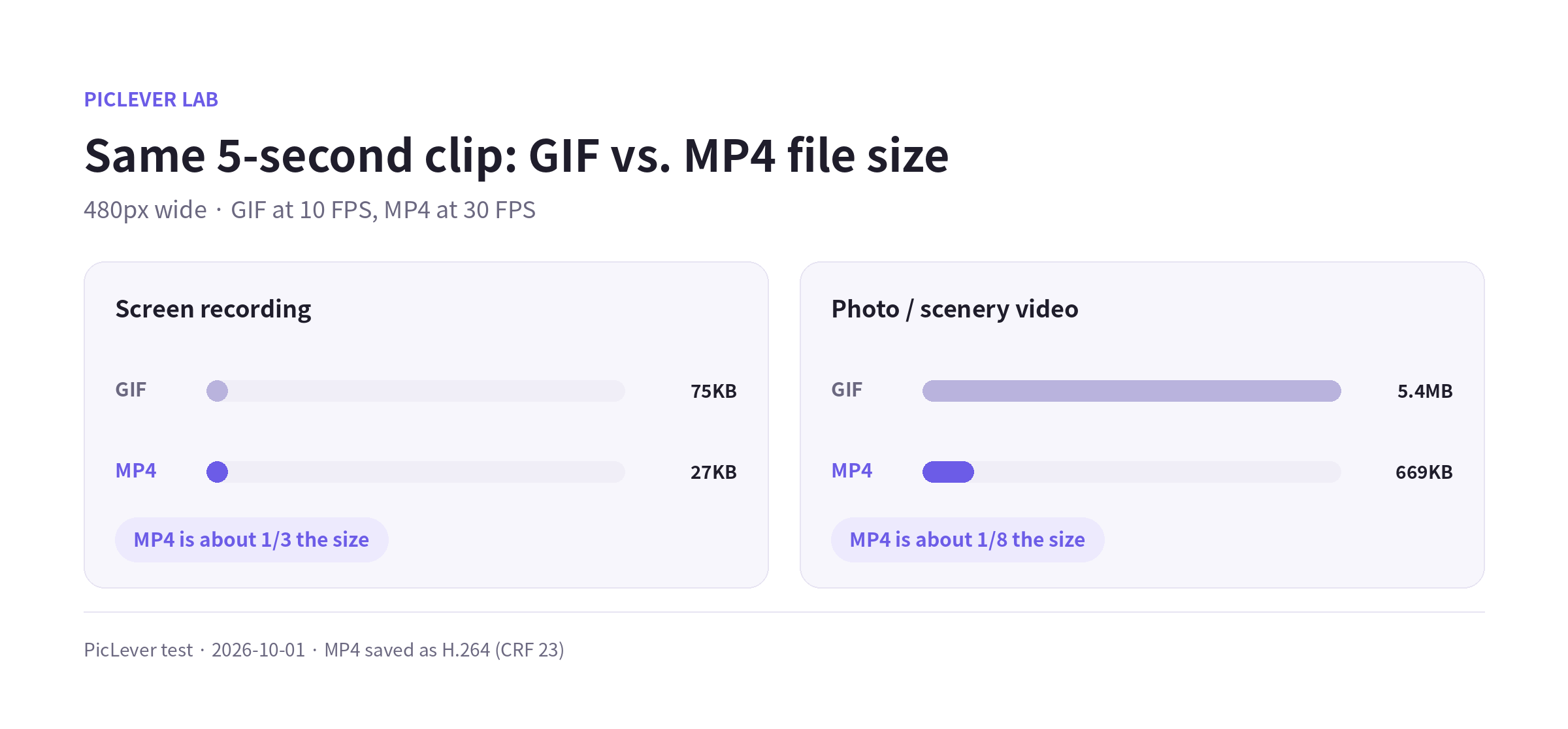
| Clip | GIF (10 FPS) | MP4 (30 FPS) |
|---|---|---|
| Screen recording | 75KB | 27KB |
| Photo / scenery video | 5.4MB | 669KB |
Even with 3× the frame rate, the MP4 was about 1/3 the size for the screen recording and about 1/8 for the photo video. Screen recordings are light enough as GIFs, but the gap is large for live-action video. If your destination supports video, upload live-action clips as MP4, and use GIF where a looping image is required—email, boards that only accept GIFs, or image fields.
Test setup
-
Samples: a 1280×720 recording of the PicLever QR code generator, and a 1920×1080 video slowly zooming across a fall foliage photo (Fineas Anton / Unsplash) · 5-second clips
-
Converted with PicLever Video → GIF at every combination of 320, 480 and 640px (long edge) × 5, 10 and 15 FPS · Tested 2026-10-01
-
For the MP4 comparison, the same clips were saved separately as H.264 (CRF 23). File sizes vary with content and length.
Making a GIF from a video with PicLever
-
Upload an MP4 or WebM video to Video → GIF (up to 100MB).
-
Enter Start (s) and End (s), or play the video and click Set start here / Set end here to pick a section. You can make up to 10 seconds at a time, and shorter clips are smaller.
-
For Size, start at 640px for screen recordings and 320px for photo or live-action videos.
-
Leave FPS at 10 and click Create GIF. If the file is too large, shorten the clip or drop the size one step.
For more details, see the Video to GIF guide.
FAQ
Q. What should I change first to make a GIF smaller?
Shorten the clip first—cutting 10 seconds to 5 roughly halves the file. For photo videos, dropping the size one step or going from 10 to 5 FPS each cut the file roughly in half. Screen recordings are often small enough already.
Q. Can a GIF have sound?
No. GIF is an image format and can't hold audio. If you need sound, upload a video such as MP4.
Q. Does it work with videos shot on an iPhone?
If the video is MP4, yes. Formats your browser can't play (such as some HEVC videos) should be converted to MP4 first.